
Your Galaxy Buds 3 microphone stopped working somewhere along the way. People on calls say you sound muffled, distant, or cut out entirely. Voice recordings come back silent, and your smart assistant doesn't respond. The good news is this is almost always a software or dirt issue, not a dead mic. I'd start with the quickest test.
It is worth running a mic test before working through the steps below. The live waveform makes it obvious whether the microphone is picking up sound at all.
The easiest first check takes about ten seconds. Open the Samsung Members app, tap Diagnostics, then Audio, and run the microphone test. If that shows both buds working, the mic hardware is fine and the issue is with whichever app you're using. If one or both fail, move through the fixes below.
Check Galaxy Wearable Microphone Settings
Open Galaxy Wearable on your phone and tap Earbuds settings. Look for Call audio or Mic test under the Labs or experimental section. Some Samsung phones also have a setting in Settings > Sounds and vibration > Separate app sound that can route microphone input weirdly if you've set it up for a specific app. Turn Separate app sound off temporarily to test.
If you're using a non-Samsung Android phone, the Galaxy Buds 3 get full features through the Galaxy Wearable app plus the Galaxy Buds3 Manager plugin. Make sure both are updated from the Play Store.
Clean the Stem Mesh
Each Galaxy Buds 3 has a microphone opening on the bottom of the stem. That small mesh collects earwax, pocket lint, and skin oils over time. Even a thin layer of debris muffles your voice badly. The mic still records, just barely audible.
Grab a dry, soft toothbrush and gently sweep across the mesh. Don't poke anything into the opening. If the buildup looks stubborn, press a piece of sticky tape against the mesh and lift it off. That pulls residue out without pushing it deeper. The open-fit design means more airflow around the stem, but also more exposure to dust in your pocket.
Disable Read Notifications Aloud
The Galaxy Buds 3 have a feature called Read notifications aloud in Galaxy Wearable. It's meant to announce incoming messages, but it can confuse the microphone routing during calls by grabbing audio priority for the assistant. Open Galaxy Wearable > Earbuds settings > Read notifications aloud and turn it off. Test a quick call afterward.
This is a common culprit on Samsung devices running One UI 7 or later, where the feature works more aggressively across apps.
Reset the Buds Through Galaxy Wearable
If nothing above has worked, do a full reset. Open Galaxy Wearable, go to About earbuds, and tap Reset. This clears any internal microphone routing mismatch between the two buds and the case. It also wipes your paired device list, so you'll need to re-pair afterward.
Resetting doesn't delete anything saved on your phone, just the connection profile on the buds themselves.
Test in Multiple Apps
A failing mic that only happens in WhatsApp but works in Phone calls points to an app permission issue. Open Settings > Privacy > Permission manager > Microphone and make sure the apps you use for calls have the toggle on. Samsung phones occasionally reset these permissions during One UI updates.
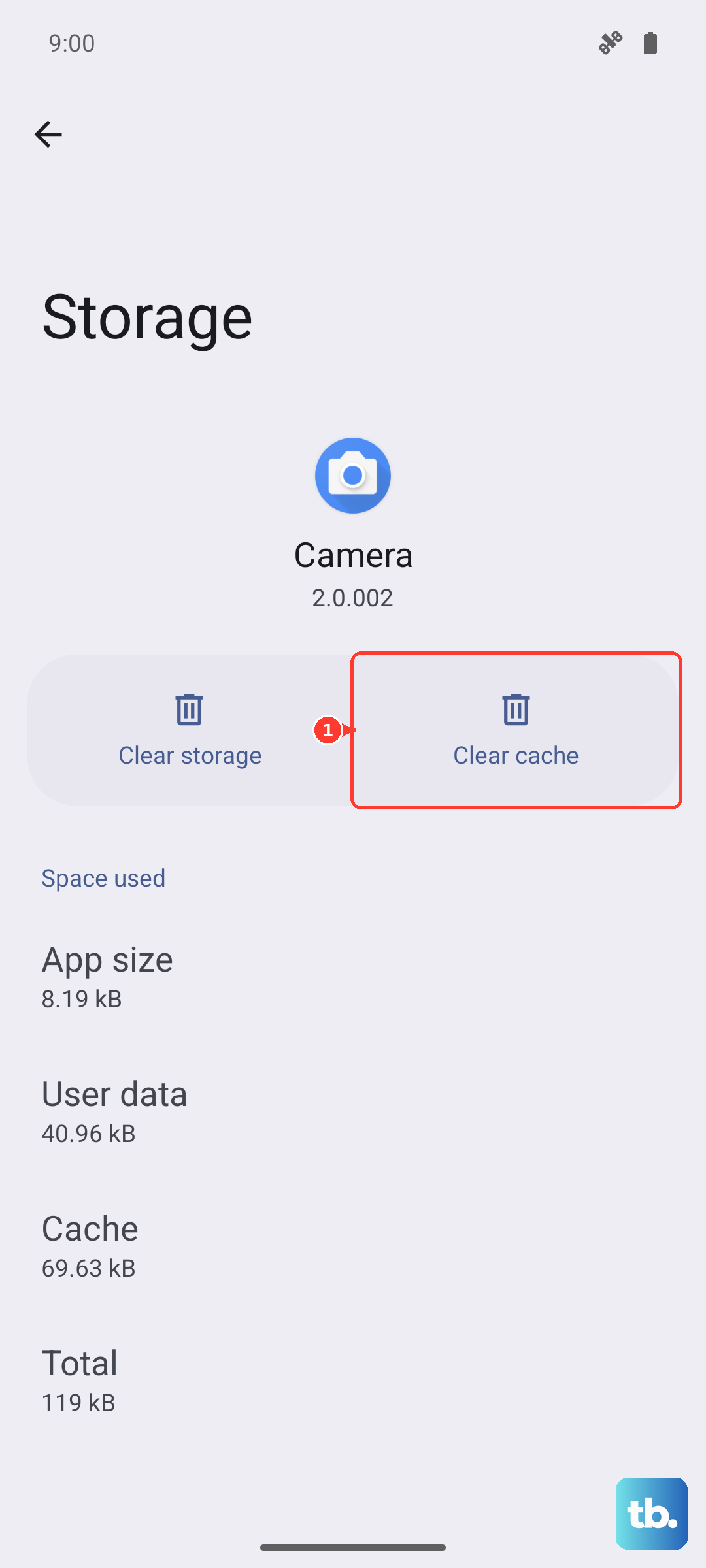
For a quick hardware test, use the built-in Voice Recorder app (or Google Recorder on Pixel phones). Record a few seconds and play it back. If it sounds clear, your Galaxy Buds 3 mics are working fine and the app you were using is the problem. Try clearing that app's cache in Settings > Apps > select the app > Storage > Clear cache.
Update Firmware Through Galaxy Wearable
Samsung pushes firmware updates through the Galaxy Wearable app. Open it, tap Earbuds settings, scroll down to Earbuds software update, and check for updates. If one is available, make sure the earbuds are in the case with the lid closed and keep your phone nearby until it finishes.
Early Galaxy Buds 3 firmware releases had a known issue where the mic would drop out during calls on the right bud. That's been fixed by later updates, but you have to manually check because Samsung doesn't push them the way Apple does. Give the update about 15 minutes over a stable Wi-Fi connection.
Check Bluetooth Codec Behavior on Calls
When the Galaxy Buds 3 switch to a phone call, they drop from the high-quality Samsung Seamless Codec or AAC down to a voice-optimized call link. On a compatible Galaxy phone (One UI 6.1.1 or later) the Buds 3 use Super Wideband calling, which roughly doubles the voice bandwidth of a conventional Bluetooth call; on unsupported phones they fall back to the older, lower-bandwidth Hands-Free Profile. Some quality drop on calls is normal for every Bluetooth earbud, not a defect. Your voice sounds tinny and quiet because the mic bandwidth is squeezed to fit over the call channel.
If you want to confirm the codec is the only issue, try recording in Voice Recorder first. If that's clear but phone calls sound bad, the codec switch is hitting you. Some Samsung phones let you force a different Bluetooth codec in Settings > Developer options > Bluetooth Audio Codec, but that only affects music, not calls. On the call side, there's no workaround beyond the HFP profile every earbud uses.
Position the Stem Correctly
The Galaxy Buds 3 are open-fit with stems, and the mic placement assumes the stem points slightly forward, toward the corner of your mouth. If you wear them with the stem pointing straight down or backward, the mic picks up more wind noise and less of your voice. Twist the earbud gently until the stem aligns with the line from your ear canal to the corner of your mouth.
This is specific to the Galaxy Buds 3 design. The Pro model has a sealed fit that handles misalignment better, but the open-fit Buds 3 depend heavily on that forward angle.
If one side still fails after all these checks and the other records perfectly, the failing bud likely has a hardware mic issue. That happens with early units sometimes, and Samsung's standard warranty covers it.