When your iPhone volume buttons stop responding, it is hard to know whether you are dealing with a quick software glitch or real hardware damage. You press up or down and nothing happens, no on-screen volume bar, no clicking, no change at all.
The good news is that most volume button problems are caused by software or a setting, not a broken part. The fixes below run easiest to hardest and cover every current model, including iPhone 15, iPhone 16, and iPhone 17, plus older devices still on supported iOS versions.
Is It Software or Hardware
Before you start, do a quick test to point yourself in the right direction. Open the Music app, play a song, and press the volume buttons while watching the on-screen volume bar.
If the bar moves at all, even intermittently, the buttons are physically working and your issue is almost certainly software or a setting. If the bar never moves and you feel no click, lean toward a physical or hardware cause such as dust, a drop, or liquid exposure.
Use the table to match your symptom to the most likely cause and the right fix, then work through the steps in order.
| Symptom | Likely cause | Recommended fix | Difficulty |
|---|---|---|---|
| No volume bar, button feels mushy or stuck | Case pressure or trapped debris | Remove case, clean buttons | Easy |
| Ringer volume will not change but media does | Change with Buttons is off | Sounds & Haptics setting | Easy |
| Buttons dead after an iOS update | Software bug or glitch | Force restart, update, reset | Easy to medium |
| Buttons work in some apps only | App-level volume limit | Test apps, check settings | Easy |
| No click and no response anywhere | Physical or hardware fault | AssistiveTouch, then repair | Medium to hard |
| Buttons failed after a drop or water | Internal damage | Apple repair or service center | Hard |
Remove Your iPhone Case
Start with the simplest possible cause. A case that is worn, thick, or slightly misaligned can press against the buttons or block their travel.
Take the case off completely and test the buttons against bare metal. If they suddenly work, the case was the problem and you need a better-fitting one.
Force Restart Your iPhone
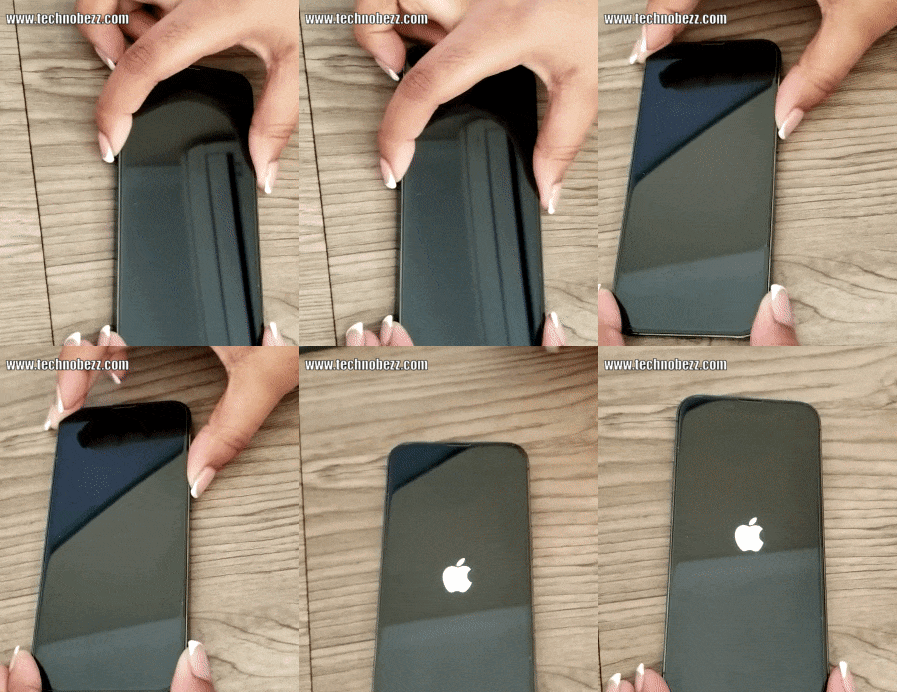
A force restart clears temporary software glitches that can freeze the buttons, and it does not erase any data. The steps depend on your model.
iPhone 8 and later, including all Face ID models and the iPhone 15, 16, and 17 series with the Action button:
- Press and quickly release the volume up button
- Press and quickly release the volume down button
- Press and hold the side button
- Release when the Apple logo appears
iPhone 7 and 7 Plus: press and hold the volume down and side buttons together, then release both when the Apple logo appears.
iPhone 6s, SE first generation, and earlier: press and hold the Home button and the top or side button together, then release both when the Apple logo appears.
Check the Change with Buttons Setting
If your buttons change media volume but not the ringer, this setting is the likely reason. When Change with Buttons is off, the side buttons only adjust media like music and video, not ringer and alert volume.
Go to Settings > Sounds & Haptics, then turn on Change with Buttons. On older models the menu may be labeled Sounds instead of Sounds & Haptics.
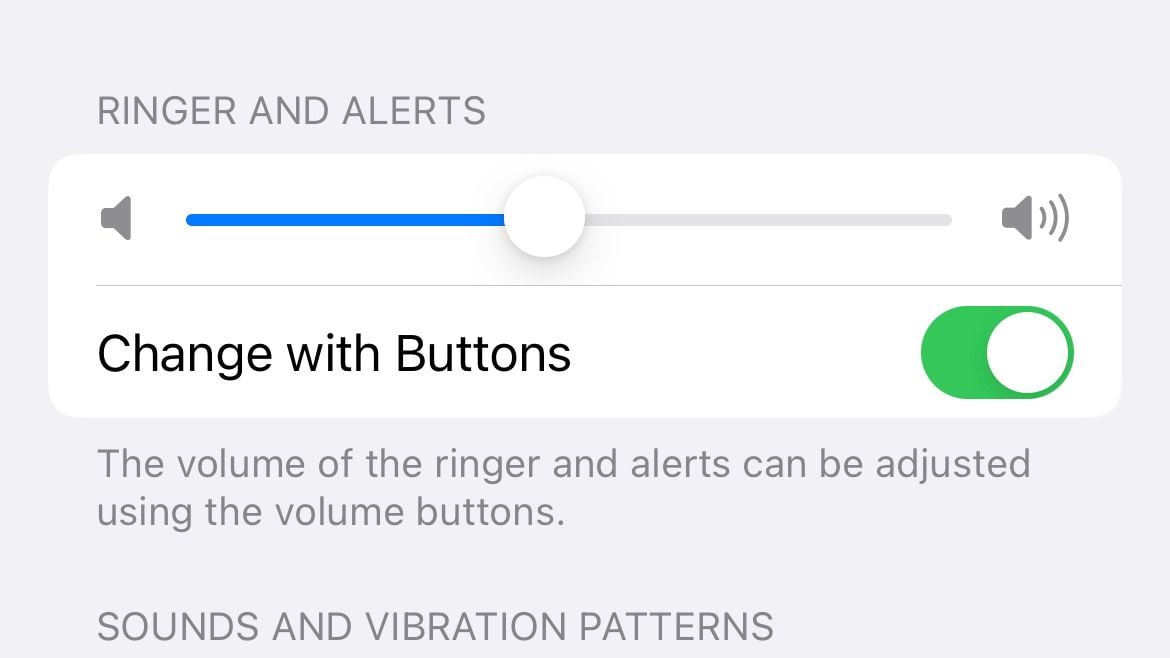
After turning it on, lock your phone and press a volume button. You should now see the ringer volume change on screen.
Turn Off Silent or Mute Mode
Mute mode can make it seem like the buttons do nothing, since ringer and alert sounds stay off no matter how you adjust them. Check the mute control for your model.
On the iPhone 15, iPhone 15 Plus, and earlier models with a switch, flip the physical Ring/Silent switch above the volume buttons so the orange stripe is hidden. On iPhone 15 Pro and Pro Max and the entire iPhone 16 and 17 lineup, the switch is replaced by the Action button, which mutes and unmutes with a long press by default.
Toggling mute on and off a few times also nudges some software glitches loose, so it is worth doing even if you were not muted.
Clean the Volume Buttons
Dust, lint, and grime build up around the buttons over time and can stop them from clicking. This is one of the most common physical causes and is easy to address at home.
- Use a short burst of compressed air around each button
- For sticky residue, lightly dampen a cotton swab with isopropyl alcohol and clean around the edges
- Work gently so you do not push debris deeper into the device
Press the buttons several times after cleaning. A returning click usually means trapped debris was the issue.
Use the Control Center Volume Slider
While you work through the other fixes, you can still control volume on screen. This also confirms whether your sound output itself is fine.
Swipe down from the top-right corner to open Control Center, then drag the volume slider up or down. You can also adjust ringer and alert volume from Settings > Sounds & Haptics using the Ringtone and Alerts slider.
Test the Buttons in Different Apps
Open several apps such as Music, a video app, and Podcasts, then try the volume buttons in each. If the buttons work in some apps but not others, the problem is app-specific rather than a hardware fault.
Some apps cap or manage their own volume, and a few games override the buttons entirely. Closing and reopening the problem app, or checking its in-app sound settings, often restores normal behavior.
Enable AssistiveTouch for On-Screen Controls
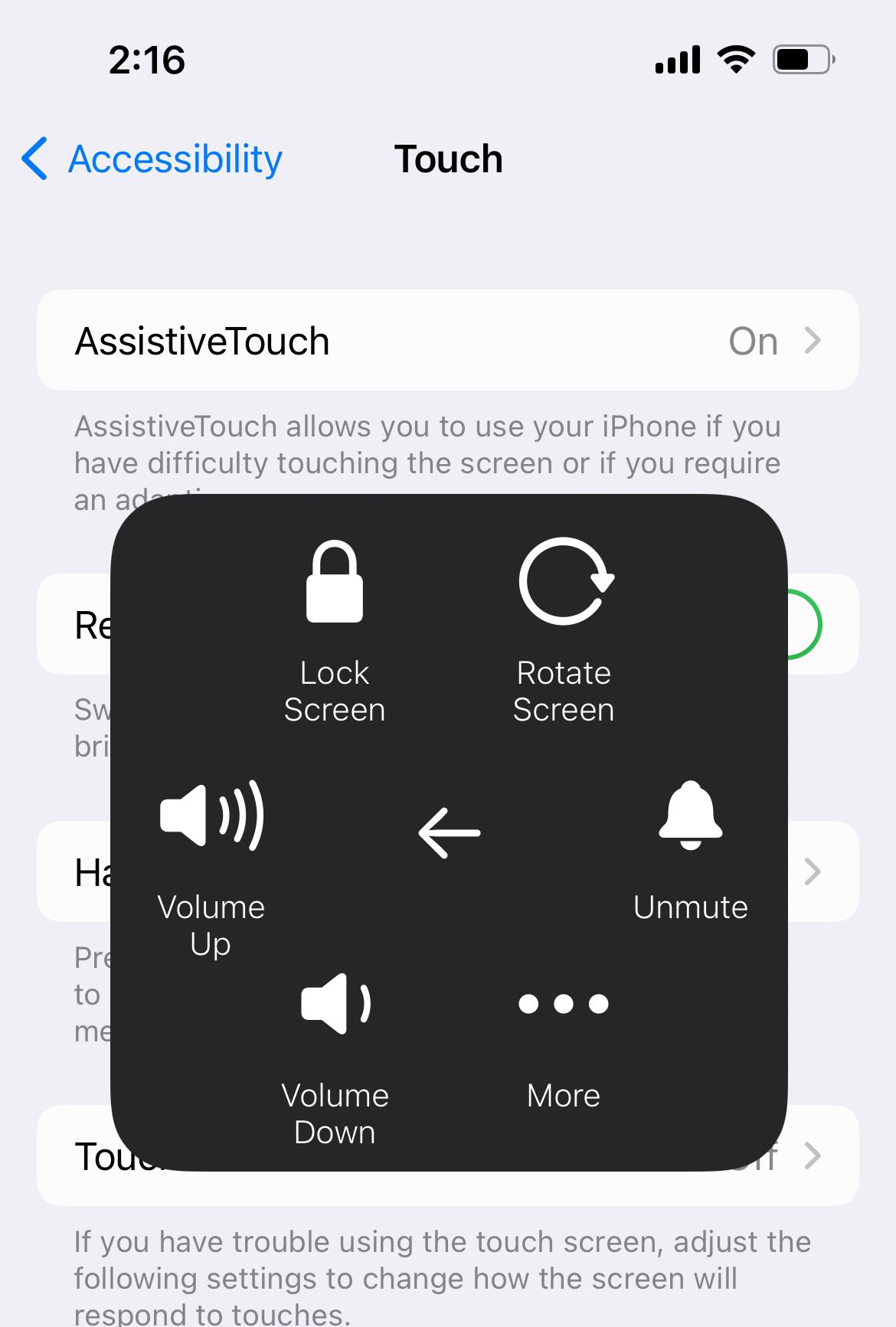
AssistiveTouch puts a floating button on your screen with full volume controls, so you can manage sound even if the physical buttons are dead. It is also a good long-term workaround while you wait on a repair.
Go to Settings > Accessibility > Touch > AssistiveTouch and turn it on.
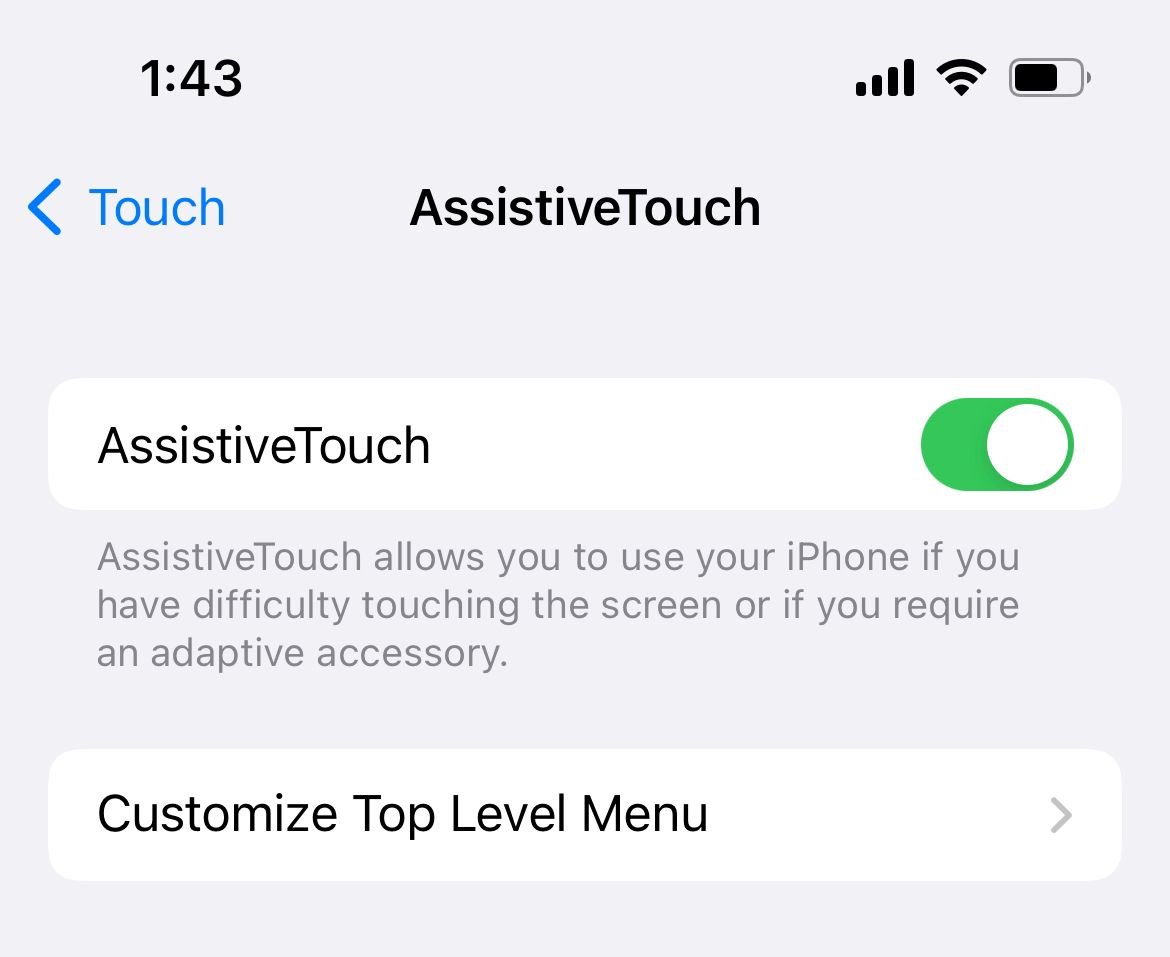
Tap the floating button, then choose Device followed by Volume Up or Volume Down. You can also tap Customize Top Level Menu to add dedicated volume icons for faster access.
Set Up a Back Tap Shortcut
Back Tap lets you change volume by tapping the back of your iPhone, which is handy when a button is unreliable. It works on iPhone 8 and later running a current iOS version.
Go to Settings > Accessibility > Touch > Back Tap, then choose Double Tap or Triple Tap and assign Volume Up or Volume Down.
Once set, a firm double or triple tap on the back of the phone adjusts the volume without touching the side buttons at all.
Update to the Latest iOS
Volume button bugs sometimes appear after a software update and get patched in the next release. Keeping iOS current removes a common software cause.
Connect to Wi-Fi and power, then go to Settings > General > Software Update and install anything available.

After updating, restart the phone and test the buttons again before moving on.
Reset All Settings
If a setting or a corrupted configuration is to blame, Reset All Settings restores defaults without deleting your photos, apps, or messages. It is a safe step to try before any erase or restore.
Go to Settings > General > Transfer or Reset iPhone > Reset > Reset All Settings and confirm with your passcode.
This clears network settings, the keyboard dictionary, and other preferences, so you will need to reconnect Wi-Fi afterward, but no personal data is lost.
Restore Your iPhone with a Computer
A deeper restore can clear stubborn software issues that survive a normal reset. Back up your iPhone first, because a full restore erases everything.
- Connect the iPhone to a Mac and open Finder, or to a PC and open the Apple Devices app or iTunes
- Select your iPhone, then choose to back it up
- Choose Restore iPhone and follow the on-screen steps
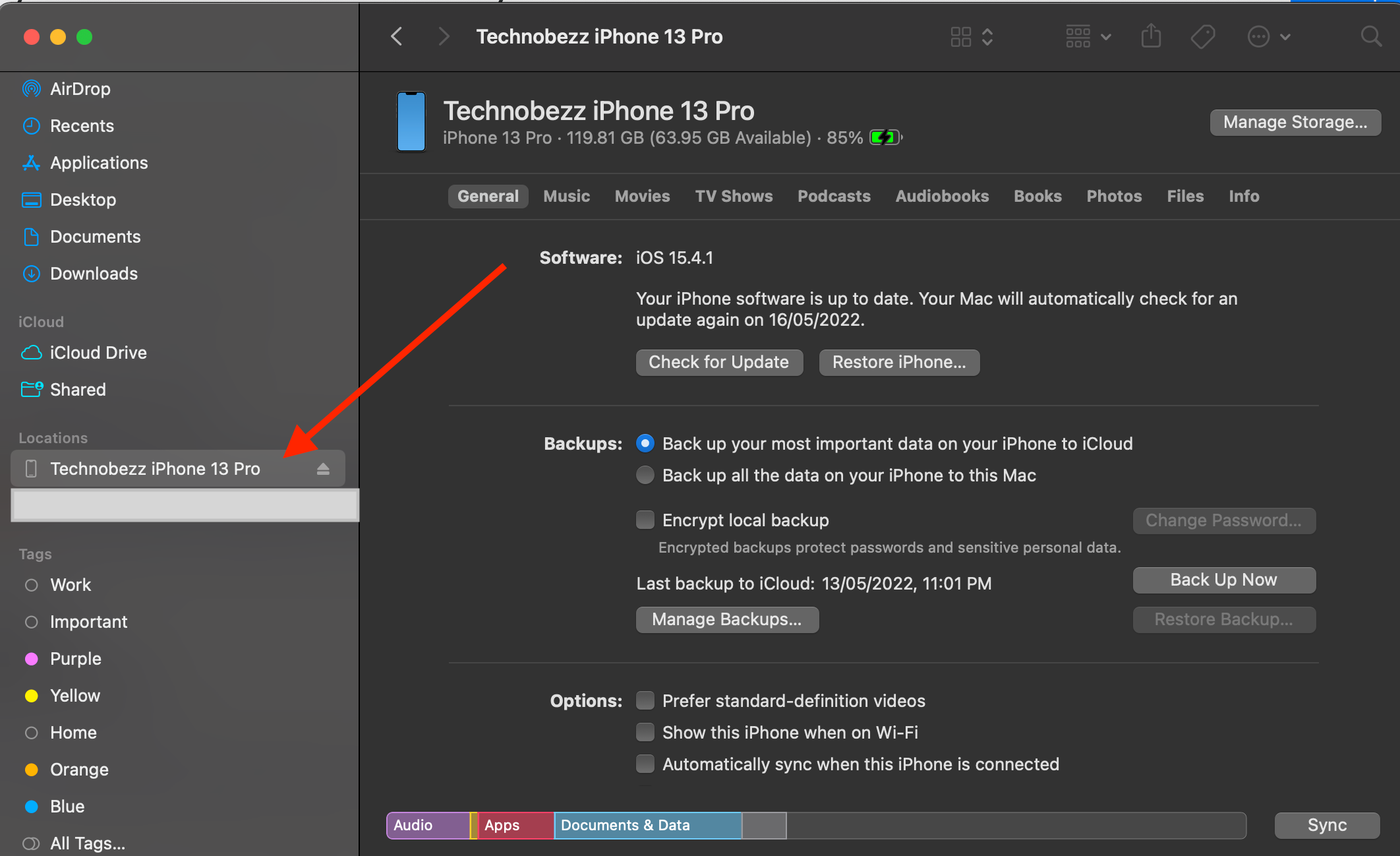
If your iPhone is unresponsive, you can put it in recovery mode and choose Update first, which reinstalls iOS without erasing data, before resorting to a full Restore.
Run Apple Diagnostics or Visit a Service Center
If software fixes fail, the buttons are likely a hardware fault, especially after a drop or liquid exposure. Apple Support can run remote diagnostics that check whether the buttons register input.
Start a session in the Apple Support app or at support.apple.com to book a repair or get a diagnostic check. An in-store visit lets a technician test the hardware directly.
Replace the Button Mechanism
When a button is physically broken, the long-term fix is a hardware repair. The volume button flex cable can be replaced, restoring full function.
Use Apple, an Apple Authorized Service Provider, or a reputable independent shop for this work. Until it is repaired, leave AssistiveTouch or a Back Tap shortcut enabled so you still have full volume control on screen.
Frequently Asked Questions
Why did my iPhone volume buttons stop working after an update
Volume bugs sometimes ship with an iOS update and are usually fixed in the next release. Try a force restart first, then install any pending update under Settings > General > Software Update, and if it persists use Reset All Settings.
Do the volume buttons control the ringer or media volume
It depends on the Change with Buttons setting. When it is on, the buttons adjust both ringer and media volume in most contexts; when it is off, they only change media volume like music and video, and the ringer stays fixed.
How do I change the volume if my buttons are broken
Use the volume slider in Control Center, enable AssistiveTouch for an on-screen volume control, or set up a Back Tap shortcut under Settings > Accessibility > Touch. Each of these works without touching the physical buttons.
Where is the mute switch on the iPhone 15 Pro and iPhone 16
Those models replaced the Ring/Silent switch with the Action button. By default a long press mutes and unmutes the phone, and you can change what it does under Settings > Action Button.
How much does it cost to repair iPhone volume buttons
Repair pricing varies by model, location, and whether your device is covered by AppleCare or a warranty. Get an exact quote through the Apple Support app or an Apple Authorized Service Provider before you commit to a repair.
First published October 15, 2025. Last updated June 4, 2026.