Few things are as frustrating as discovering a screen full of missed calls when you were sure your iPhone was on and ready. The phone never rang, never buzzed, and the caller went straight to voicemail. In almost every case the cause is a single setting that has quietly silenced your calls, not a hardware fault.
This guide walks through the real reasons an iPhone stops ringing and gives you 14 fixes that work on current models and iOS 26. Start at the top and work down, since the first few steps solve the vast majority of cases in under a minute.
Why Your iPhone Stops Ringing
The most common reasons are Silent mode being switched on, a Focus or Do Not Disturb schedule running in the background, or the ringer volume being turned all the way down. These are easy to trigger by accident and just as easy to miss because the phone still logs the call.
Other causes include call screening for unknown numbers, call forwarding sending calls elsewhere, a Bluetooth device stealing the audio, or a temporary software glitch. The fixes below cover each of these so you can rule them out one at a time.
1. Check Silent Mode or the Action Button
On iPhone 15 Pro and every iPhone 16 and iPhone 17 model, the physical Ring/Silent switch is gone and the Action button handles it. Press and hold the Action button to toggle Silent mode on or off, and watch the Dynamic Island for the confirmation. A single haptic pulse signals Ring mode, while several quick pulses signal Silent.
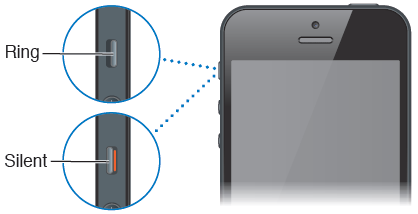
On older iPhones with the physical switch on the upper left side, look for an orange line. Orange means the phone is muted, so flip the switch toward the screen to enable ringing.
You can also check this in Settings on any model. Go to Settings > Sounds & Haptics and make sure Silent mode is turned off.
2. Turn Off Do Not Disturb and Focus
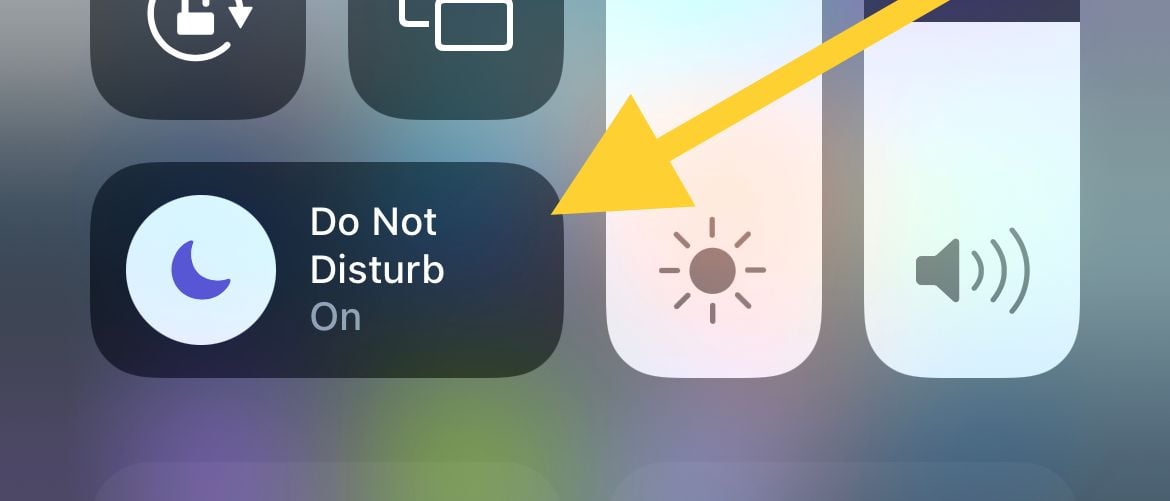
Do Not Disturb and other Focus modes silence incoming calls while still logging them, which is exactly why you see missed calls but never heard a ring. A Focus can switch on automatically by schedule, location, or on-device intelligence, so it is worth checking even if you never turned one on.
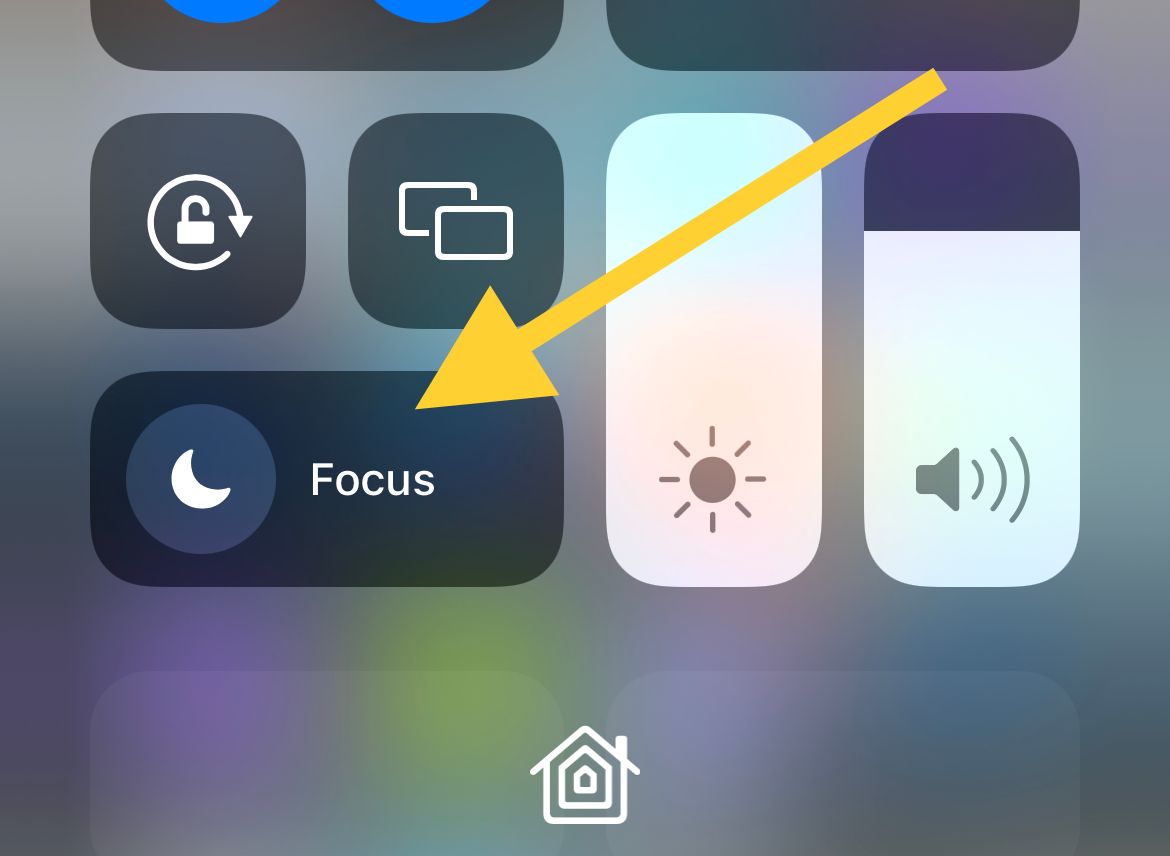
Swipe down from the top-right corner of the screen to open Control Center, then look at the Focus control. If a moon icon or a named Focus is highlighted, tap it to turn it off.
 1 / 2
1 / 2
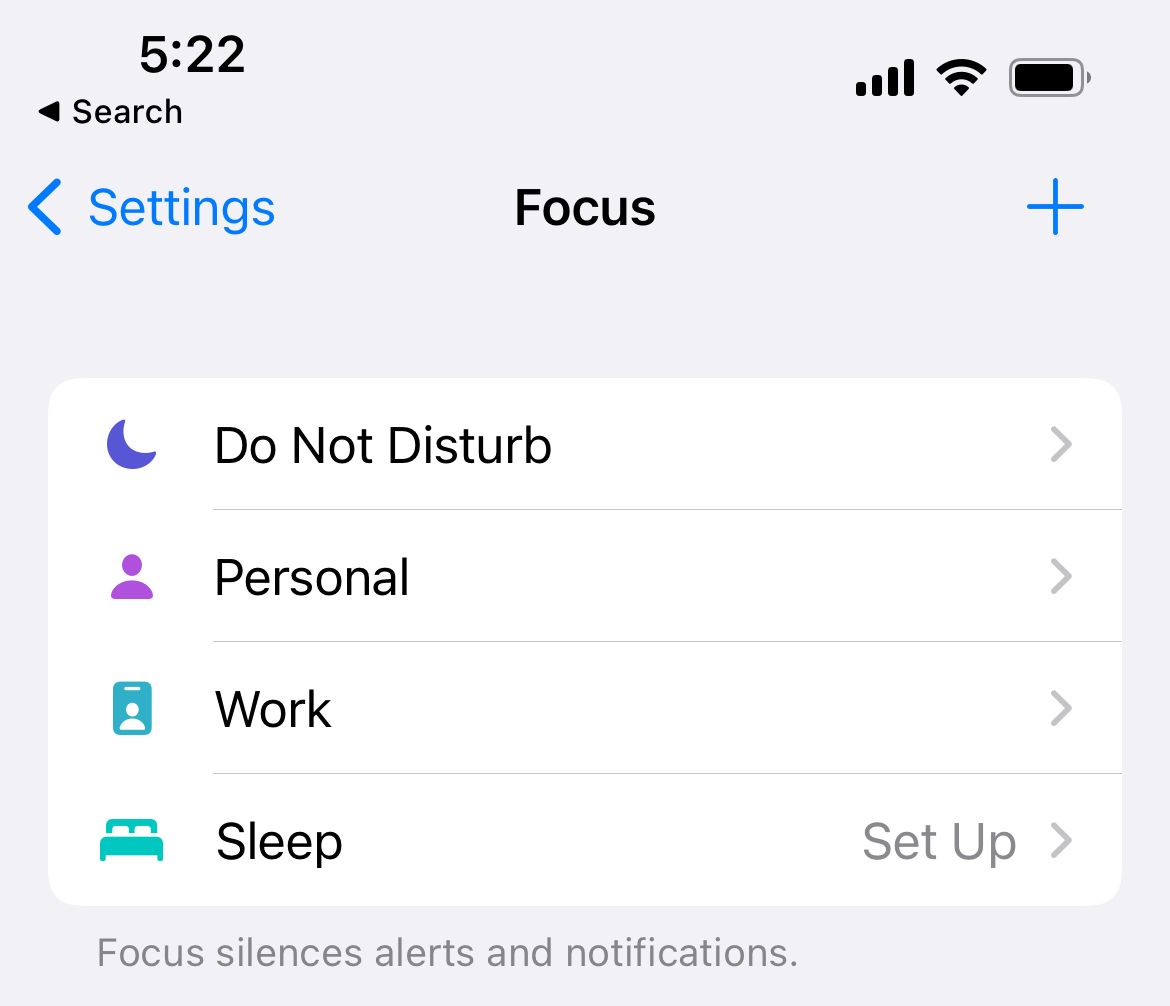
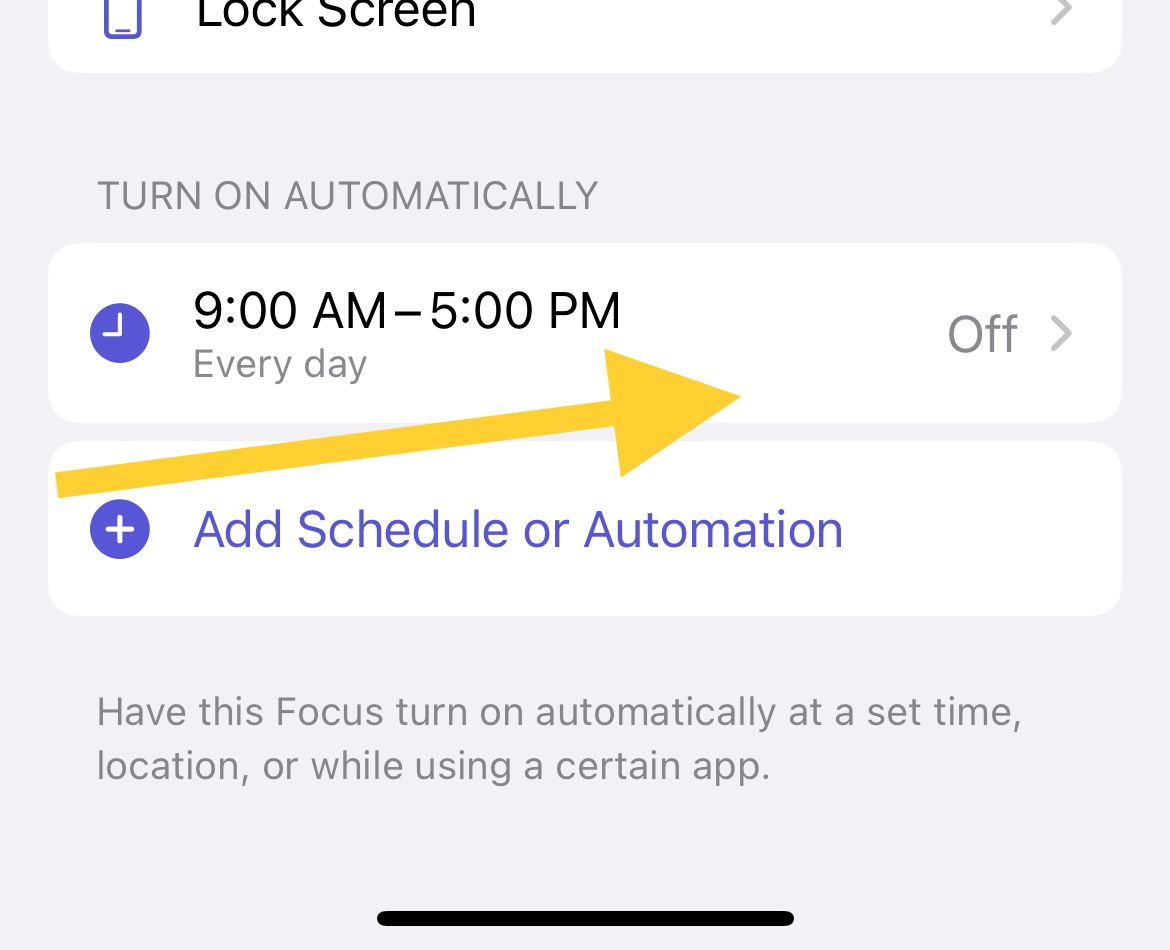
To rule out a hidden schedule, go to Settings > Focus and open each profile such as Do Not Disturb, Personal, Work, and Sleep. Turn off any that are active and check the schedule and Smart Activation options so nothing switches itself back on.
 1 / 2
1 / 2
3. Let Calls Through Your Focus
If you rely on a Focus during the day, you do not have to turn it off completely. You can tell it which calls are allowed to ring through while everything else stays quiet.
Go to Settings > Focus and open the Focus you use. Under People, tap Allow Calls From and choose Everyone, Contacts, Favorites, or Allowed People Only depending on how open you want to be.
While you are there, turn on Allow Repeated Calls so a second call from the same person within three minutes always rings. Also confirm that any per-Focus option to silence all calls is switched off.
4. Raise the Ringer Volume
A low ringer volume can make calls feel like they are not ringing at all. The ringer and the media volume are separate, so turning up the volume during a video does not raise your ringtone.
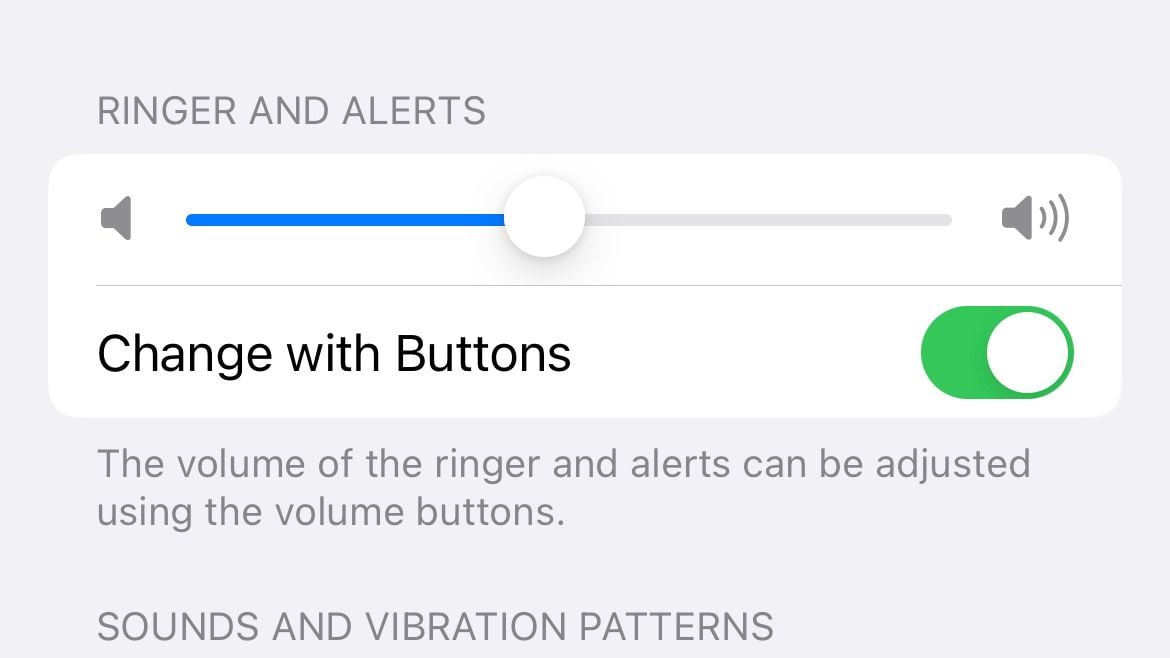
Go to Settings > Sounds & Haptics and drag the Ringtone and Alerts slider up toward the top. Turning on Change with Buttons on this screen lets the side volume buttons adjust the ringer too.
5. Pick a Different Ringtone
If your ringtone is set to None or to a very short custom tone, calls can seem silent even when everything else is correct. Switching to a standard tone is a quick way to confirm the ringtone itself is the problem.
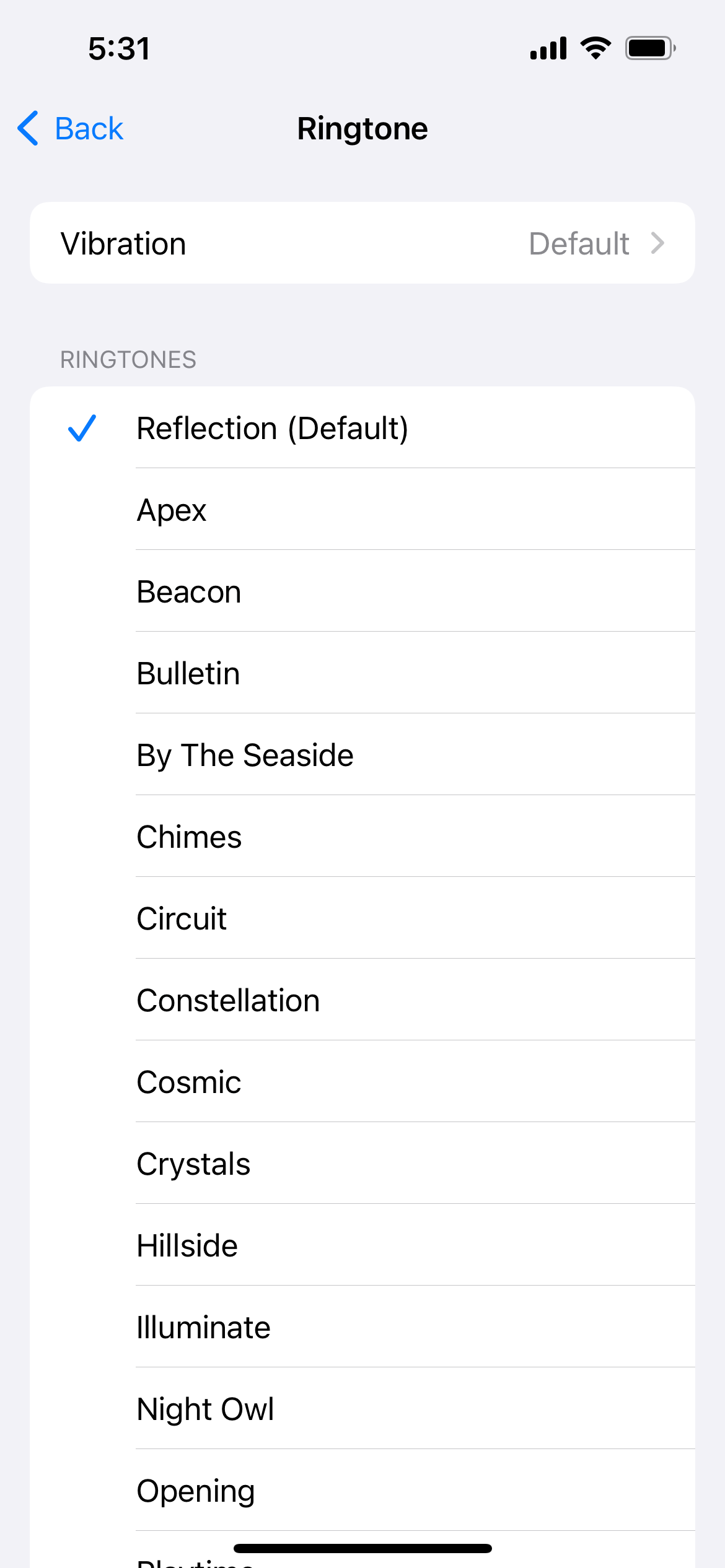
Go to Settings > Sounds & Haptics > Ringtone and select one of the built-in ringtones. Tap it once to hear a preview, then ask someone to call you as a test.
6. Disconnect Bluetooth Audio
When your iPhone is paired to headphones, a speaker, a car, or a watch, the ringtone can play through that device instead of the phone. If the accessory is in another room or your pocket, it sounds like the phone never rang.
Open Control Center and tap the Bluetooth icon to disconnect for a quick test, or go to Settings > Bluetooth and toggle it off. Try a test call and listen for the ring coming from the phone itself.
7. Check Your Blocked Contacts
A call from a blocked number never rings and goes straight to voicemail. It is easy to block a contact by accident from the call log, so it is worth checking who is on the list.
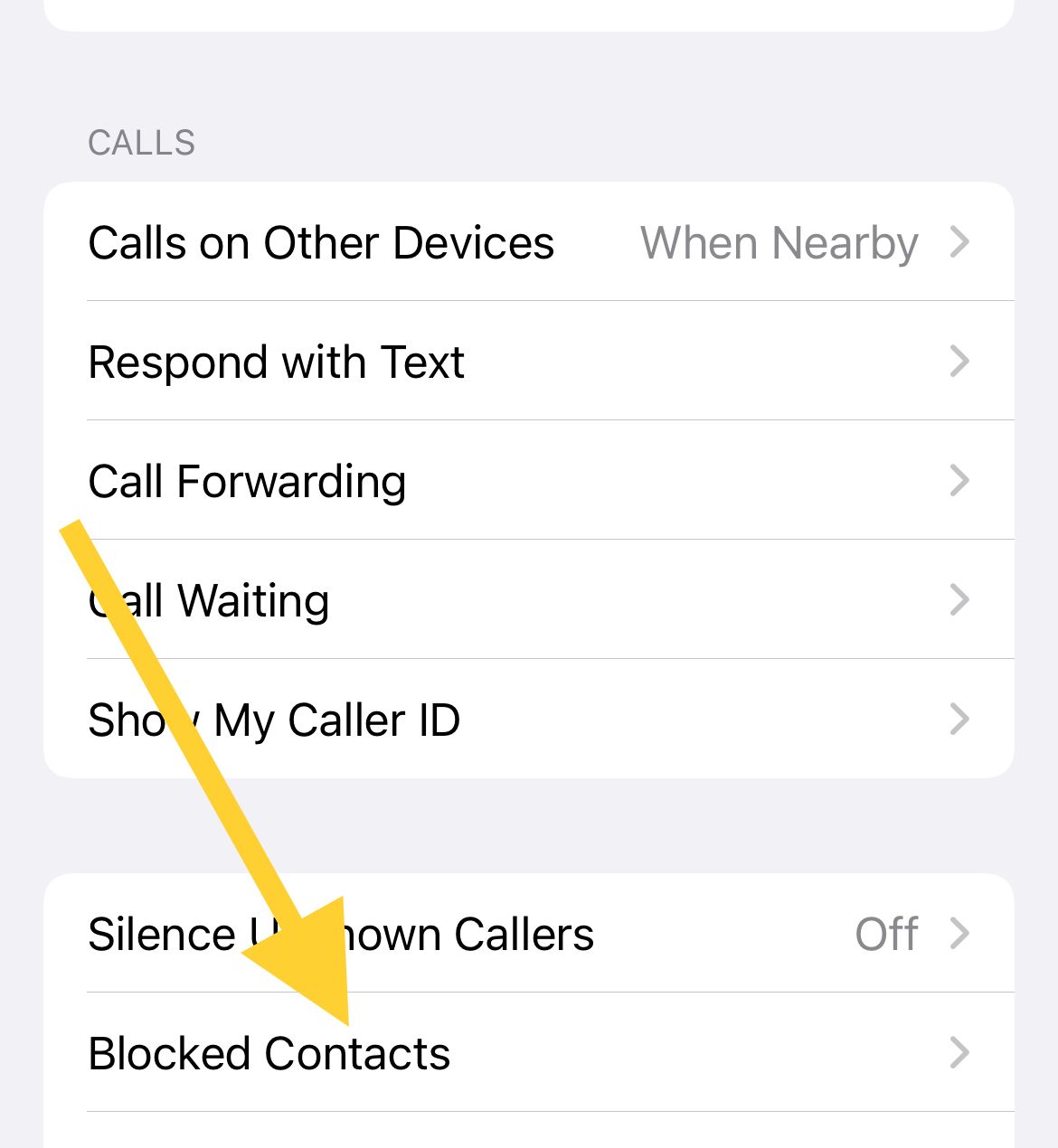
Go to Settings > Apps > Phone > Blocked Contacts and review the list. To unblock someone, swipe left on their name and tap Unblock, or tap Edit and remove them.
8. Turn Off Call Forwarding
Call forwarding sends incoming calls to another number, so your iPhone stays silent while the calls land somewhere else. This can be left on by accident or by a previous setup.
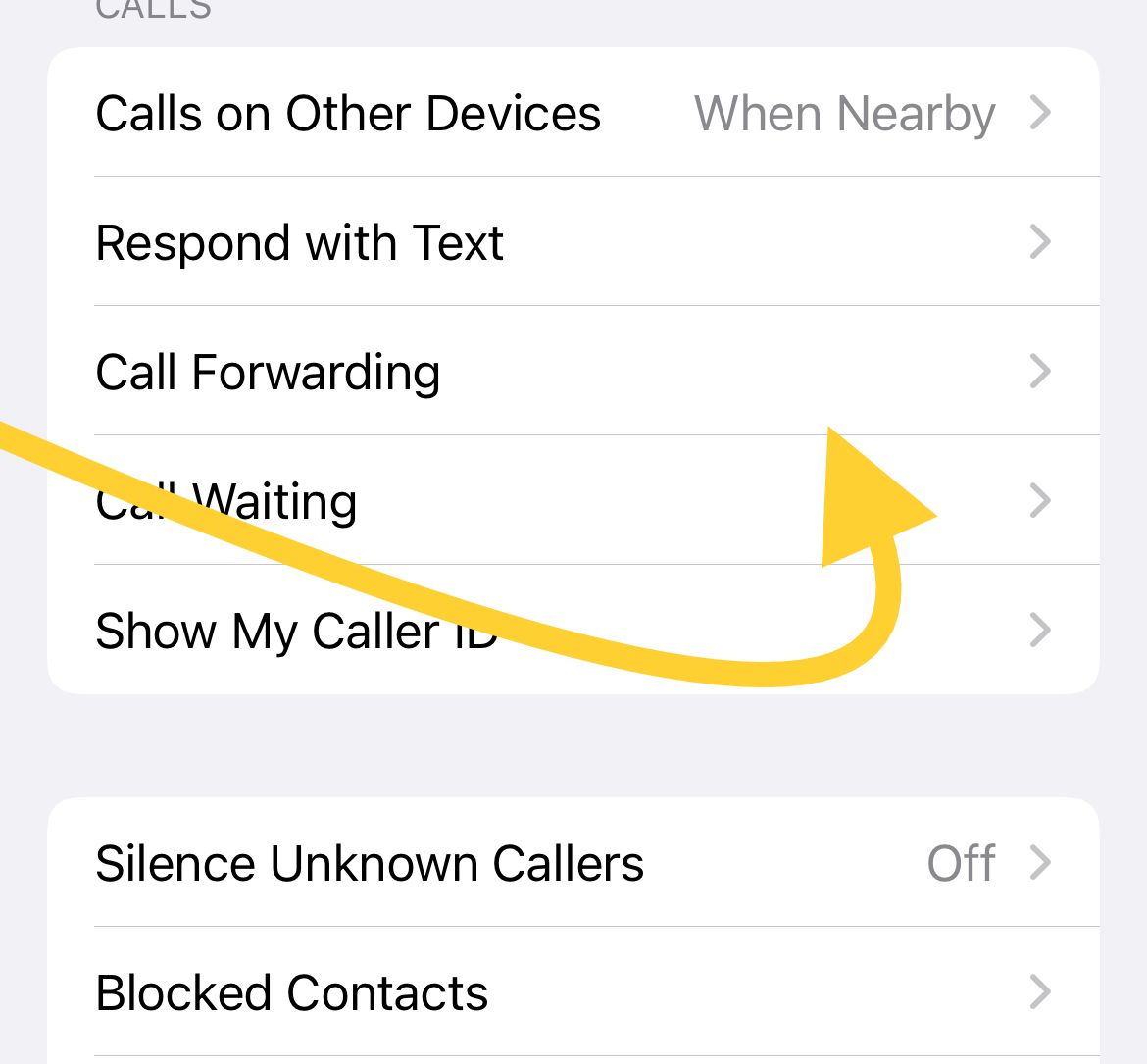
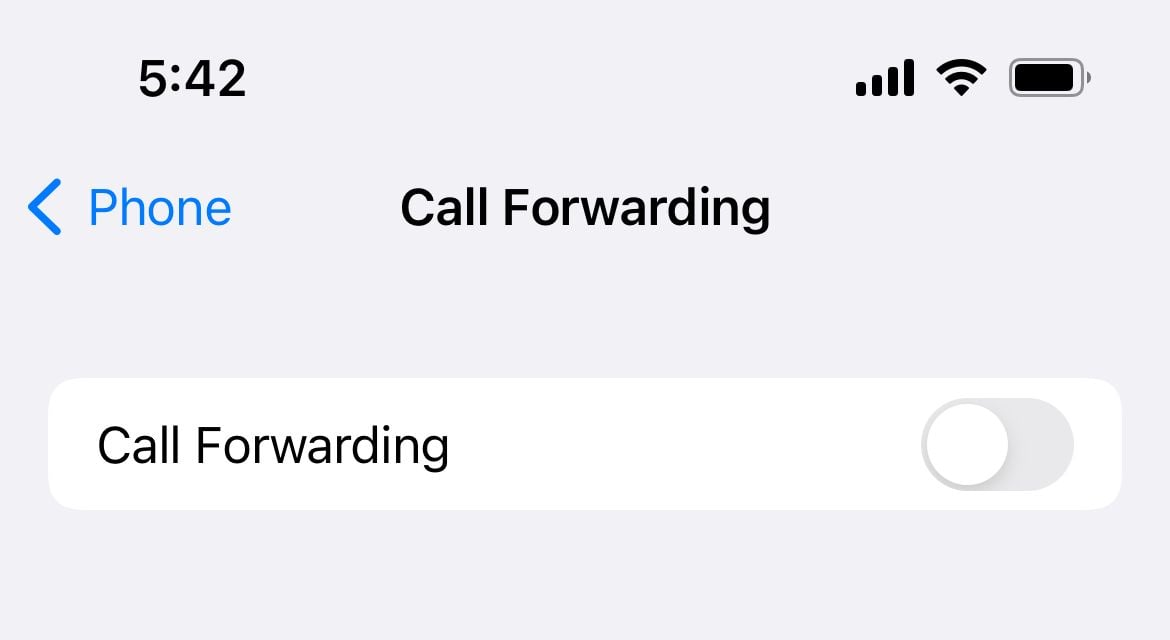
Go to Settings > Apps > Phone > Call Forwarding and make sure the switch is off. If you do not see this option, your carrier may control forwarding on the network, so contact them or dial your carrier deactivation code to clear it.
 1 / 2
1 / 2
9. Adjust Call Screening for Unknown Numbers
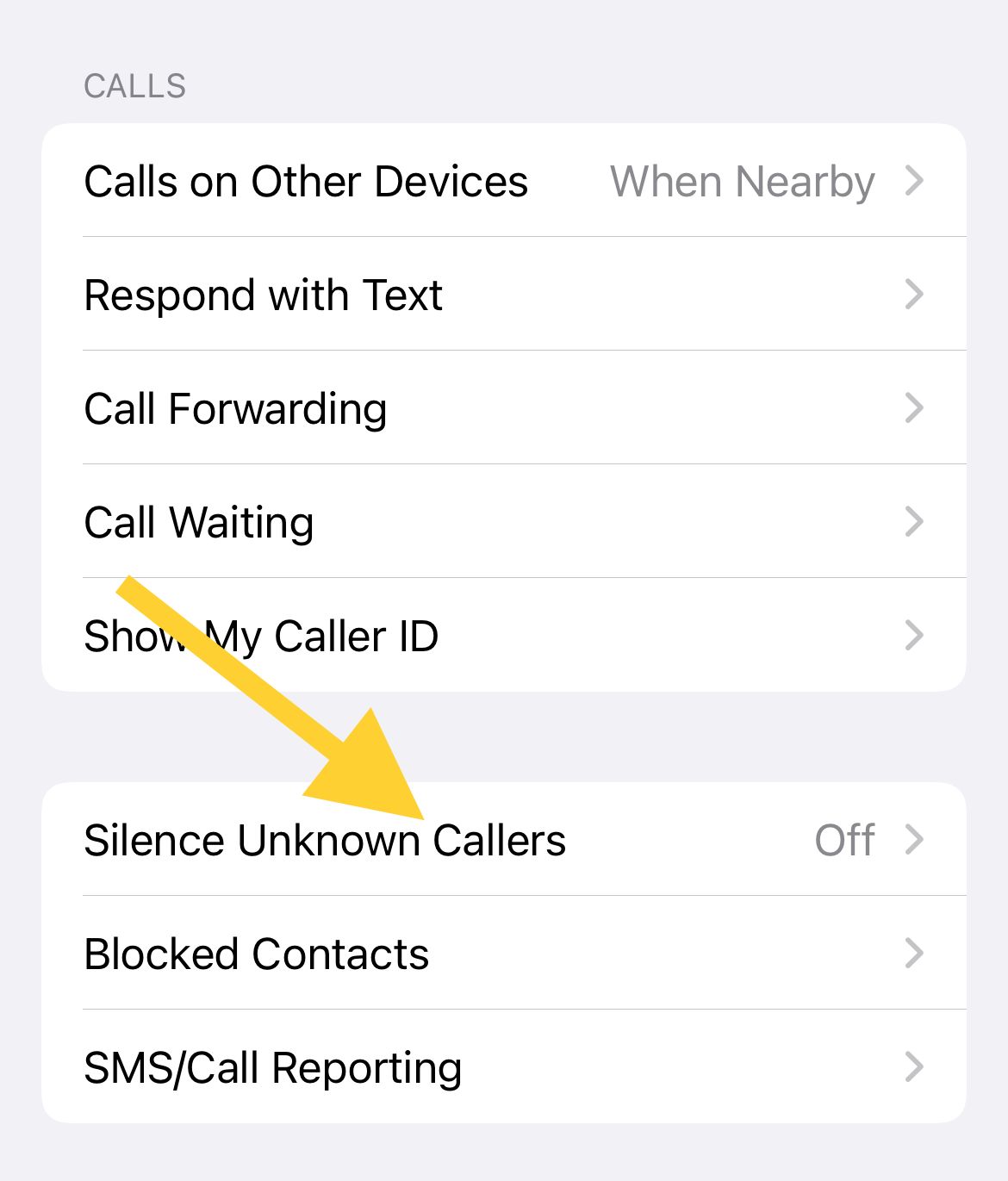
iOS 26 can screen or silence calls from numbers that are not in your contacts. If this is set to Silence, unknown callers never ring and go straight to voicemail, which is great for spam but bad if you are waiting on a delivery driver or a new contact.
Go to Settings > Apps > Phone and find Screen Unknown Callers. To make every number ring normally, choose Never. To screen callers without silencing everyone, choose Ask Reason for Calling instead of Silence.
10. Restart Your iPhone
A restart clears the temporary glitches that can stop the ringer or the Phone app from behaving normally. It is one of the most reliable fixes and takes less than a minute.
Hold the side button and either volume button until the power-off slider appears, drag it to turn the phone off, then hold the side button again to turn it back on. If the screen is frozen, force restart by pressing volume up, then volume down, then holding the side button until the Apple logo appears.
11. Update iOS
Software bugs that affect calls and audio are often fixed in iOS updates, so running the latest version is worth checking. Keeping iOS current also closes security gaps.
Connect to Wi-Fi with the phone charged, then go to Settings > General > Software Update and install anything available. Let the phone finish and restart before testing a call.

12. Reset All Settings
If a setting somewhere is still silencing your calls and you cannot find it, resetting all settings returns every option to its default without deleting your photos, messages, or apps. You will need to re-enter Wi-Fi passwords and a few preferences afterward.
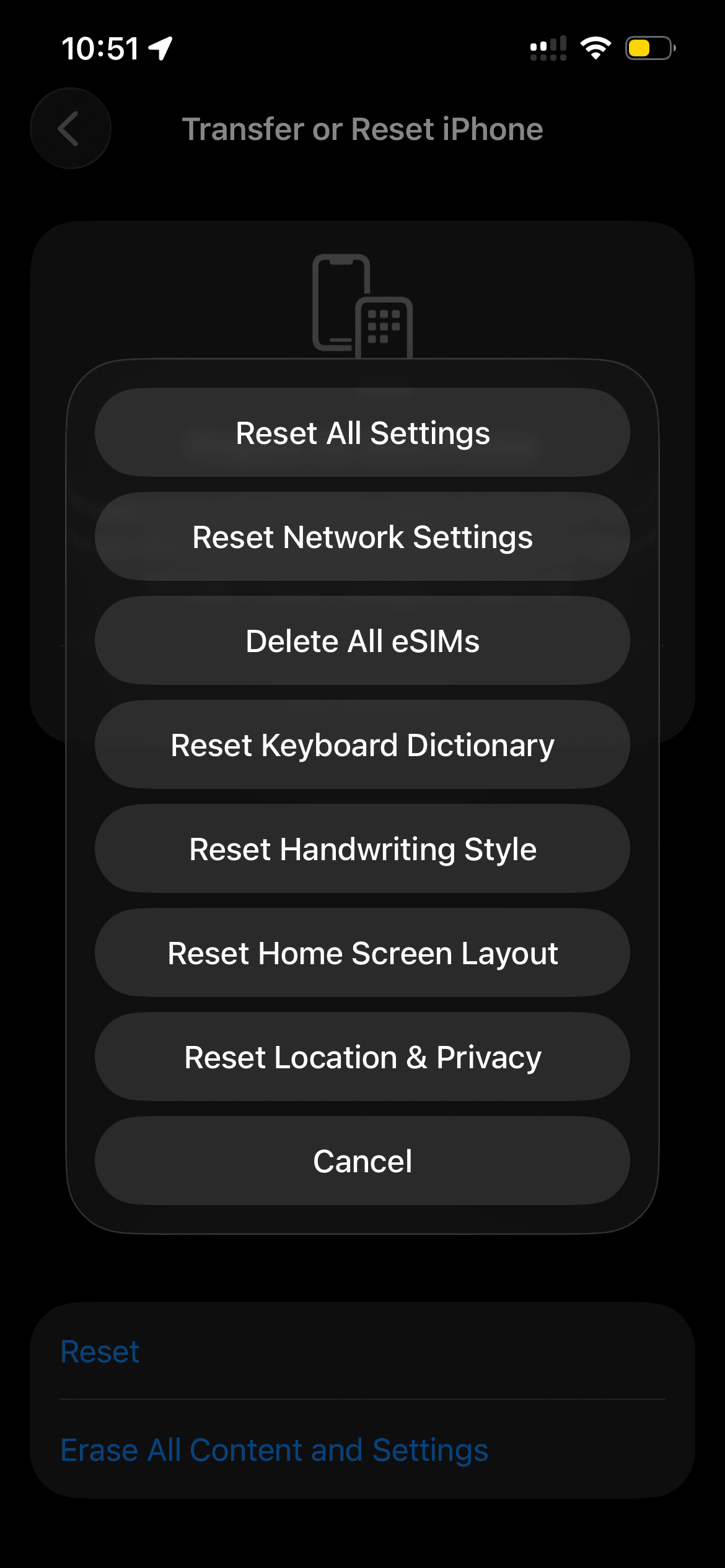
Go to Settings > General > Transfer or Reset iPhone > Reset and tap Reset All Settings, then enter your passcode to confirm.
13. Reset Network Settings for App Calls
If calls from apps like WhatsApp, FaceTime, or Messenger are the ones not ringing, the problem is often network related rather than your ringer. Resetting network settings clears stale Wi-Fi and cellular configurations that can block call notifications.
Go to Settings > General > Transfer or Reset iPhone > Reset and tap Reset Network Settings. This removes saved Wi-Fi passwords, so have them handy before you confirm.
14. Erase or Restore Your iPhone
If nothing above works, a deeper reset rules out a stubborn software problem. Back up your iPhone first so you do not lose anything.
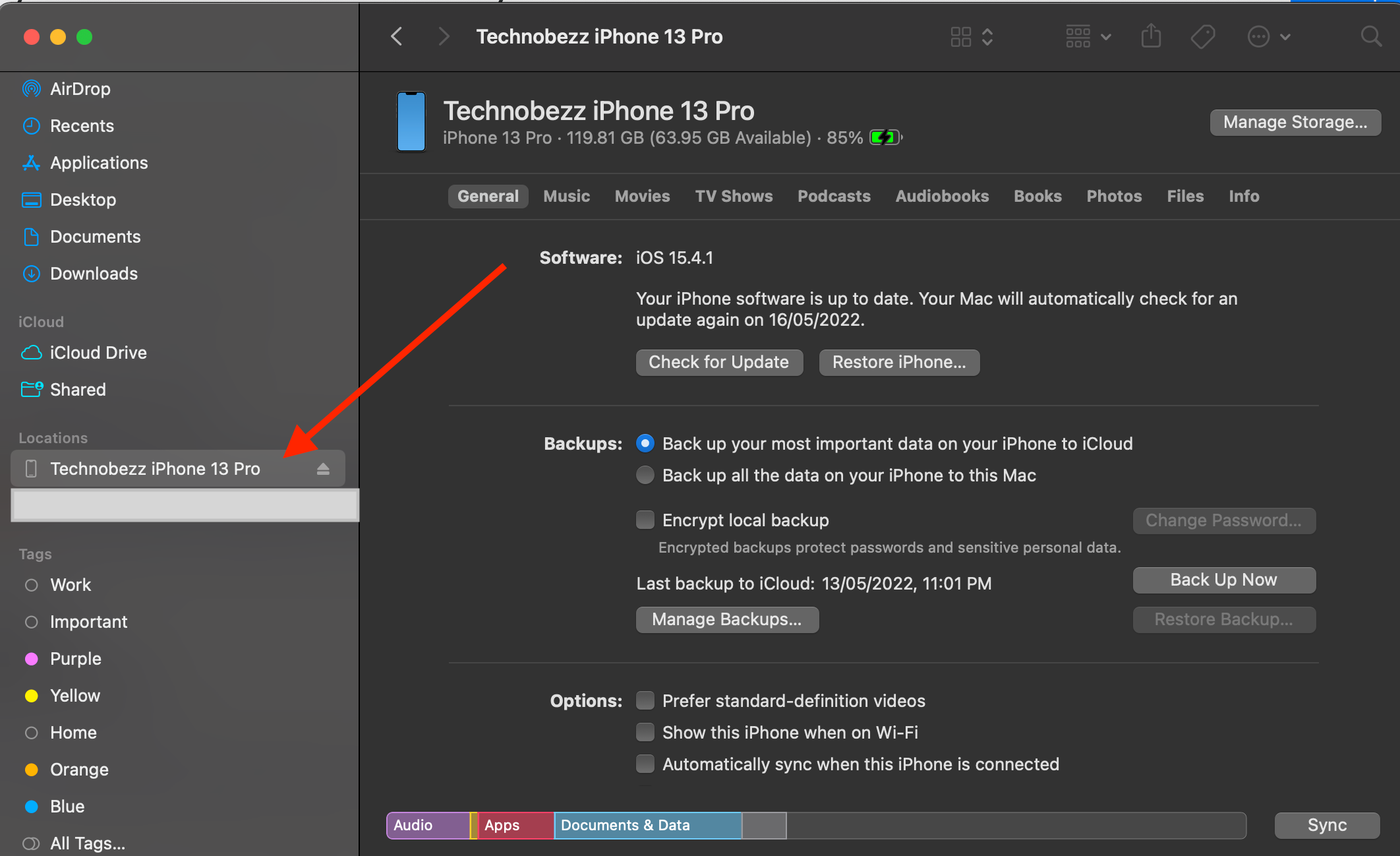
To start fresh on the device, go to Settings > General > Transfer or Reset iPhone > Erase All Content and Settings. If the issue continues, connect the iPhone to a computer, open Finder on a Mac or the Apple Devices app on Windows, select your iPhone, and choose Restore iPhone.
If the phone still will not ring after a restore, the cause is likely hardware or a carrier-side issue, so contact Apple Support or your carrier for further help.
Extra Checks for App and FaceTime Calls
App calls depend on notifications and a steady connection, so a missing ring there usually points to permissions or signal rather than your ringer. A few quick checks clear most of these cases.
- Confirm the app can alert you in Settings > Apps, then open the app and enable its notifications and sounds
- Switch between Wi-Fi and cellular to see if one connection works better than the other
- Update the app from the App Store so you have the latest fixes
Frequently Asked Questions
Why does my iPhone show missed calls but never rings?
This almost always means a Focus or Do Not Disturb was active, or the phone was in Silent mode, since both silence the ring while still logging the call. Check Control Center for an active Focus and confirm Silent mode is off.
Where did my iPhone Phone settings go in iOS 26?
In iOS 26 the per-app settings moved under Settings > Apps. To reach call options like Blocked Contacts, Call Forwarding, and call screening, go to Settings > Apps > Phone.
Why do unknown numbers go straight to voicemail without ringing?
Your iPhone is likely set to silence or screen unknown callers. Go to Settings > Apps > Phone, find Screen Unknown Callers, and choose Never if you want every number to ring.
My iPhone rings through my headphones but not the phone, how do I stop that?
The iPhone is routing call audio to a connected Bluetooth device. Disconnect it from Control Center or turn off Bluetooth in Settings > Bluetooth, then make a test call.
How do I make important calls ring while a Focus is on?
Open Settings > Focus, select the Focus you use, and set Allow Calls From to Everyone, Contacts, or Favorites. Turning on Allow Repeated Calls also lets a second call within three minutes ring through.
Will resetting all settings delete my photos and messages?
No. Reset All Settings only returns your settings to their defaults and does not touch your photos, messages, or apps, though you will need to re-enter Wi-Fi passwords afterward.
First published October 17, 2025. Last updated June 4, 2026.