
Your Epson WorkForce Pro WF-7820 flashes a paper jam error but nothing obvious is stuck. You've opened the front cover, checked the output tray, and the message won't clear. This is a common headache with the WF-7820 because it has a long paper path that includes a duplex unit, an ADF with auto two-sided scanning, and a rear feed slot for wide-format media up to 13x19. A torn scrap in any of those zones triggers the same error.
The fastest place to check first is the rear access door. Walk around to the back of the printer, squeeze the two release tabs, and pull the door straight off. Use a flashlight and look deep inside the duplex unit. Most jams that don't appear from the front are hiding back here. Pull any paper you find in the direction it was traveling, not backward. Close the door until both tabs click, then power the printer off and back on to clear the error.
If that didn't do it, work through the rest below.
Power Down Before You Dig Around
Hit the power button on the WF-7820 and wait for the screen to go dark, then unplug the power cord. Reaching into a live printer risks the rollers suddenly engaging and pulling your fingers in. It also avoids damaging the small plastic sensor flags inside the paper path. Epson's official jam-clearance procedure starts with a full power-down, so get into that habit.
The Duplex Unit Is the Usual Suspect
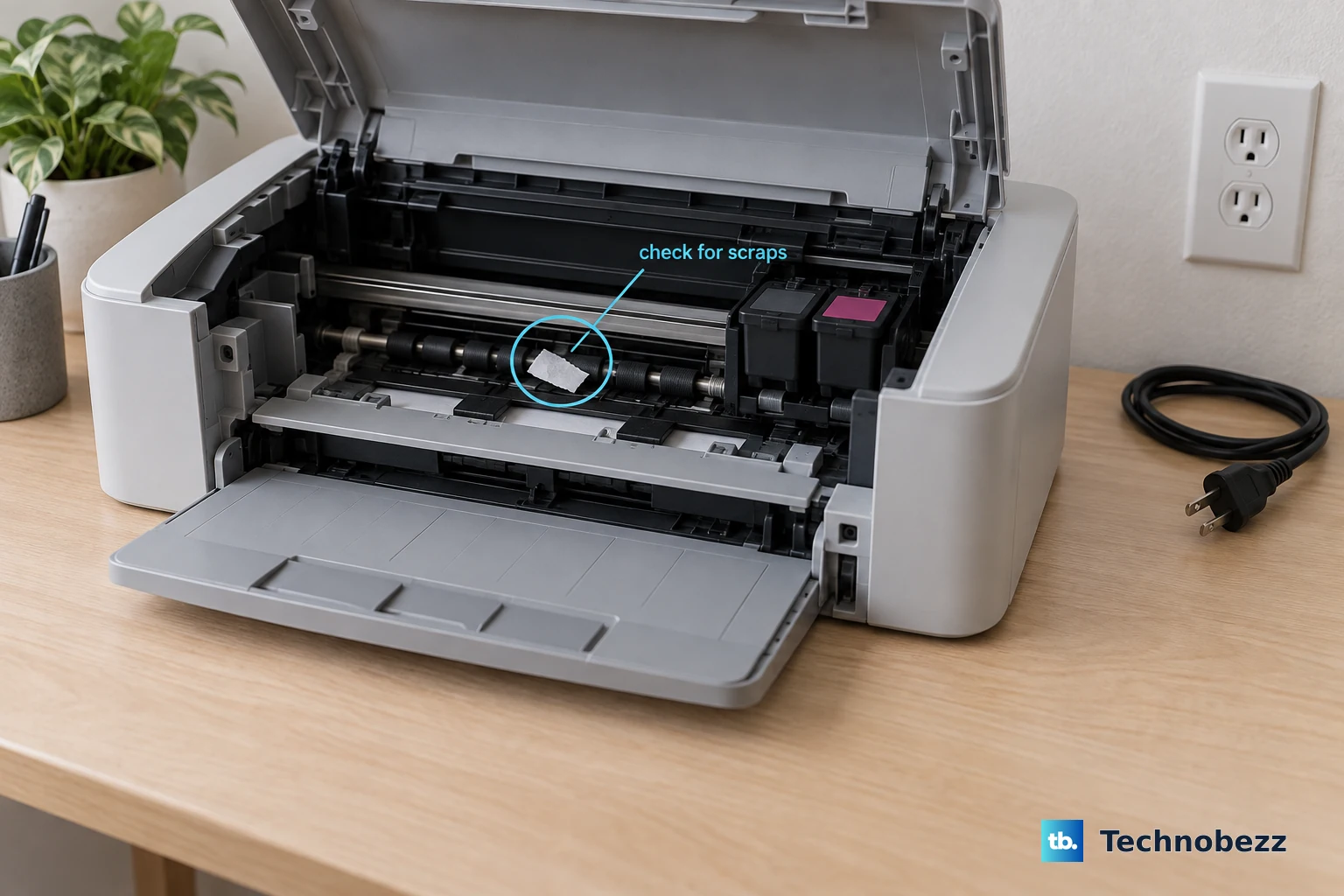
The rear access door on the WF-7820 covers the duplex path used for automatic two-sided printing. Paper can tear here and leave a sliver behind that triggers the jam sensor. Pull the rear door off (the two tabs on either side), grab a flashlight, and look past the rollers into the deep part of the unit. Even a fingernail-sized strip will cause the printer to show the error.
Pull paper slowly in the direction the sheet was moving. Yanking against the feed path can snap one of the plastic sensor flags, and that's a much harder fix. Once you've cleared everything, reattach the door, plug the printer in, and power it on. Listen for the rollers to cycle.
Check Both Paper Trays and the Rear Feed Slot
The WF-7820 has a 250-sheet front tray and a rear specialty tray for thick media or tabloid-size paper up to 13x19. A jam in either tray can appear as a general paper-jam error. Pull the front tray out completely, lift the stack, and run your hand along the tray bottom for any stuck sheets. For the rear feed, open the slot cover and look inside for crumpled paper.
While the tray is out, fan the paper stack and tap the edges flat on your desk before reloading. Also slide the paper width guides in so they barely touch the stack. Loose guides let sheets skew and jam partway through a job.
Clean the Pickup Rollers
If the WF-7820 feeds multiple pages at once or grabs paper crooked, the pickup rollers have lost grip. Open the front cover so the cartridge carriage slides to the center. Look down at the bottom of the paper path and you'll see a black rubber roller. Dampen a lint-free cloth with distilled water and wipe the roller, rotating it by hand to cover the full surface. Let it air-dry for five minutes before closing the cover.
Clean rollers grab one sheet at a time. If the printer has been in a dusty office or used heavily for a year or more, this alone often stops recurring jams.
The ADF Is Picky With Creased Paper
One of the WF-7820's known weak points is the auto document feeder during scan and copy jobs. The ADF supports two-sided scanning, which means it pulls the sheet, flips it, and feeds it back through. Creased or curled pages catch on the flip mechanism and jam. Open the ADF cover on top of the printer and wipe the small white rollers inside with a damp cloth. Also look for a scrap stuck under the feeder tray.
For documents that are wrinkled or stapled, use the flatbed scanner instead. The ADF works fine on flat, undamaged originals but struggles with paper that's been folded or crumpled.
Use Paper the WF-7820 Likes
The WF-7820 handles 16-32 lb paper in the front tray and up to 73 lb cover stock through the rear feed. But it prints jams. Thinner than 16 lb (the kind of cheap flyer paper) tends to buckle in the duplex unit. Heavier gloss stock can cause the pickup roller to slip if the rear feed tray isn't loaded correctly. If you've been printing on mixed paper types, switch to standard 20 lb copy paper for a test run and see if jams stop.
For tabloid-size jobs (11x17 or 13x19), always load paper in the rear feed slot and select the correct paper size on the touchscreen. The front tray can't handle wide-format.
Run the Self-Test to Isolate the Problem
Epson includes a built-in nozzle check that runs paper through the full path. On the WF-7820 touchscreen, tap Settings > Maintenance > Nozzle Check. If the test prints cleanly without a jam, the paper path is physically clear and your issue might be queue-related or a stuck error flag. If it jams during the test, there's still debris or a sensor problem inside.
Restore Default Settings If the Error Won't Clear
Sometimes the jam error persists after every piece of paper is gone. The sensor flag inside the path might have gotten bent or the printer's sensor logic is stuck. Go to Settings > General Settings > System Administration > Restore Default Settings. This resets all printer settings back to factory defaults and re-calibrates the sensor thresholds. Run the nozzle check again afterward.
If the restore didn't clear the error, the paper sensor flag itself is likely bent or broken. Open the front cover, look down into the paper path near the front, and find the small plastic flag. Tap it gently and watch for it to spring back. If it stays flat or feels brittle, it needs replacement.
Update the Firmware Via Pro Update
Epson pushes firmware fixes through the Pro Update service for the WF-7820. Create an Epson account and register your printer, then check for available firmware updates. Epson has released firmware patches that improve jam-sensor timing and fix phantom-jam errors on several WorkForce models. An outdated firmware can misinterpret normal paper movement as a jam.
Keep the printer connected via Ethernet for the most reliable update downloads. Wi-Fi works fine for daily use, but a wired connection prevents interruptions during a firmware flash.