You set a document on the EcoTank ET-2850 glass, hit scan, and nothing happens. Maybe your computer says the scanner can't be found, the control-panel scan-to-PC option does nothing, or the scan stalls partway through with a communication error. The good news is that the ET-2850 is a genuine all-in-one with a built-in flatbed scanner and copier, so the scanning hardware is there and working; the problem is almost always a connection, software, or settings hiccup. Work through these nine fixes in order, starting with the quickest and safest, and save the network reset and Epson support for last.
Power-Cycle the Printer and Your Device First
Most transient scan errors clear with a simple restart, so start here before changing any settings. Turn the ET-2850 off, wait a moment, then turn it back on. If you are scanning from a computer, restart the computer too, especially right after installing the scanning software.
A fresh restart on both ends often re-establishes the link between the printer and the Epson scanning software on its own, which is why it is worth doing before you touch any deeper setting. If control-panel scanning (the scan-to-PC option you trigger from the printer itself) still does nothing afterward, a security tool may be blocking it, which we cover later.
Put the Printer and Your Device on the Same 2.4 GHz Network
The ET-2850's wireless radio operates on the 2.4 GHz band, so a scanner that simply won't appear over the network is usually a band or SSID mismatch. If your phone or PC is connected to a 5 GHz Wi-Fi network, the printer cannot join it, and the two devices never see each other.
If you are using a 5 GHz wireless router, set the router to operate in dual-band (2.4 GHz and 5 GHz) mode. If your router uses a single network name (SSID) for both the 2.4 GHz and 5 GHz band, give each band its own network name (SSID) instead, such as Home Network 2.4 GHz and Home Network 5 GHz. Then connect your phone or computer to the 2.4 GHz SSID, the same one the printer uses.
Placement matters too. Make sure to place your product within contact range of your 2.4 GHz router or access point, and avoid placing your product near a microwave oven, 2.4 GHz cordless phone, or large metal object, such as a filing cabinet. Those all interfere with the 2.4 GHz signal the scanner depends on.
Reset the Scanning Software and Its Network Connection
If the printer is on the right network but the scan still fails from your computer, the scanning software itself may be stuck. First, exit and restart the Epson scanning software completely, turn the product off and back on once more, then launch the scan again. A fresh start on both the software and the printer often clears a hung session that a single restart missed.
If it still fails, the ET-2850 includes a built-in utility for rebuilding the link between the scanning software and the scanner. Open Epson Scan 2 Utility using the path for your system:
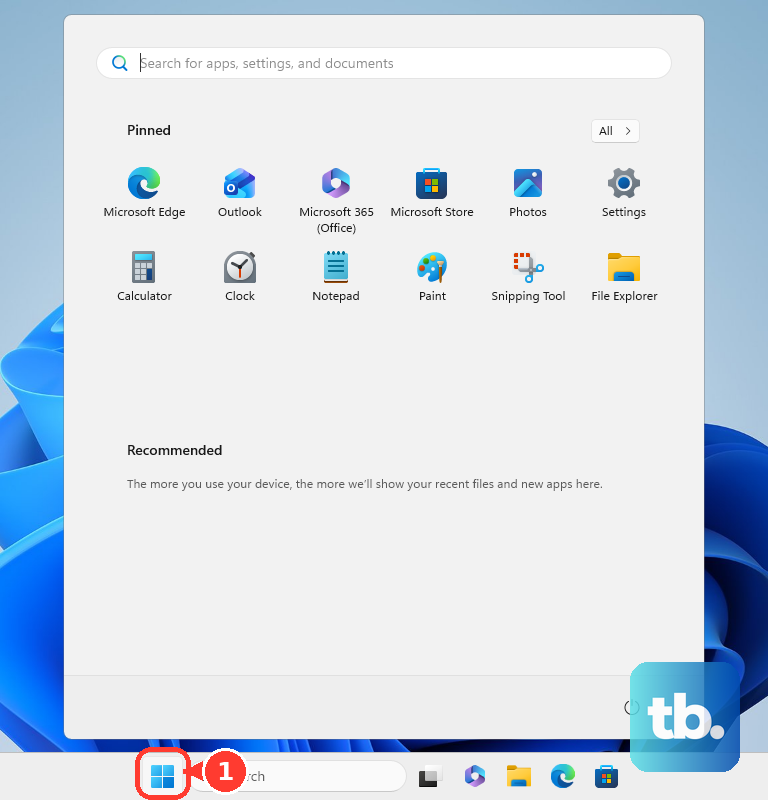
- 1.On Windows 10: click Start and select EPSON > Epson Scan 2 Utility.
- 2.On other Windows versions: go to Start > All Programs or Programs > EPSON > Epson Scan 2 > Epson Scan 2 Utility.
- 3.On Mac: open the Applications folder, click Epson Software, and click Epson Scan 2 Utility.
Once it opens, make sure your product is selected. If necessary, select the Other tab and click Reset. This clears and re-establishes the network scanner link, which fixes the common case where the software remembers a stale or invalid connection.
Clear the Offline State and Stuck Jobs on Windows
On a Windows PC, an offline or queued print state can block scan-to-PC as well, even though it looks like a printing problem. First, delete any pending print jobs from the Epson print queue and try printing again to clear the backlog.
Then handle the offline flag directly. In the Epson print queue, select Printer and deselect the Use Printer Offline checkbox. Clearing that offline state restores the control panel's ability to send scans back to the computer.
Lower the Resolution for Large Originals
If your scans of small items work but a large original triggers a network communication error partway through, the issue is the amount of data crossing the connection. Large, high-resolution scans push more data than a marginal Wi-Fi link can carry reliably.
When a network communication error occurs while scanning a large original, try scanning again at a lower resolution. Dropping the dpi reduces the data load and often lets the scan complete cleanly over the same connection.
Check Whether Security Software Is Blocking the Scan
Firewall and antivirus tools can quietly intercept the scanner's traffic, so this is worth ruling out when nothing else explains the failure. Try disabling the firewall and any anti-virus software on your wireless router or access point, then attempt the scan again.
On the computer side, confirm that your security software is not blocking the Epson scanning software, since control-panel scanning relies on it. If a scan succeeds with protection temporarily off, you know the security software was the culprit, and you can add an exception rather than leaving protection disabled.
Scan From Your Phone With Epson Smart Panel
If the trouble is specific to computer scanning, you can bypass the PC entirely and scan directly from the printer using your phone. The official Epson Smart Panel app for iOS and Android, by Seiko Epson Corporation, lets you print, copy, scan, and check ink and status from a smartphone or tablet. The App Store listing currently requires iOS 16.0 or later.
Install the app, then make sure your phone is on the same 2.4 GHz network as the printer. The ET-2850 is also Mopria Scan compatible on Android, so Android users have a second built-in scanning route if needed.
Update the Scanner Driver and Printer Firmware
An outdated driver or firmware can cause scanning to fail in ways no setting will fix, so bring both current with the official updater. Open Epson Software Updater on Windows or Mac, select the Firmware Updater checkbox and click Install, and let it install the latest scanner driver and printer firmware.
For this to work, the printer must be on and connected to an internet-connected computer. Do not turn off the printer while firmware is updating, as interrupting a firmware update can leave the printer in a bad state.
Reset the Network or Scan Settings From the Control Panel
As a last on-device step before contacting support, you can reset the printer's settings from its own control panel. Press the home button, if necessary, then go to Settings > Restore Default Settings. From there you can choose Network Settings (resets all network settings), Scan Settings (resets all scan settings), or Clear All Data and Settings (resets all control panel settings and any stored information). Make your selection, then press the OK button to reset.
Be deliberate about which option you pick. Choosing Clear All Data and Settings wipes everything stored on the printer, including all stored information, so for a scanner problem, Network Settings or Scan Settings is usually the targeted choice. After resetting the network, re-run Wi-Fi setup from the control panel so the printer rejoins your 2.4 GHz network.
When to Reach Out to Epson Support
If scanning still fails after every step above, the issue may need official diagnosis or a hardware check. Use the official Epson ET-2850 support page for drivers, the full User's Guide, and contact options.
The support page is also where you will find the correct downloads for your exact model, the ET-2850 (C11CJ63202). For an ordinary scanner-not-working problem, the standard updater and the fixes above are the right path before you escalate to a repair.
Frequently Asked Questions
Why does my computer say the ET-2850 scanner cannot be found over the network?
The most common cause is a Wi-Fi band mismatch. The ET-2850's radio is 2.4 GHz, so if your phone or PC is on a 5 GHz network the two devices cannot see each other. Set a 5 GHz router to dual-band mode, give each band its own SSID, and connect your device to the 2.4 GHz SSID.
Can I scan from the ET-2850 without using a computer?
Yes. The Epson Smart Panel app for iOS and Android lets you scan directly from the printer using your phone or tablet, and the ET-2850 is also Mopria Scan compatible on Android. Keep your phone on the same 2.4 GHz network as the printer.
What does the Reset button in Epson Scan 2 Utility actually do?
It clears and re-establishes the network scanner link between the scanning software and the printer. Open Epson Scan 2 Utility, make sure your product is selected, then select the Other tab and click Reset to rebuild that connection when the software has a stale link.
Will resetting the printer's settings delete anything important?
It depends on which option you choose under Settings > Restore Default Settings. Network Settings and Scan Settings reset only those areas, while Clear All Data and Settings resets all control panel settings and any stored information. For a scanner issue, the more targeted Network or Scan reset is usually enough, and you re-run Wi-Fi setup afterward.
How do I make sure my scanner driver and firmware are up to date?
Open Epson Software Updater on Windows or Mac, select the Firmware Updater checkbox, and click Install to get the latest scanner driver and printer firmware. The printer must be powered on and connected to an internet-connected computer, and you should never turn the printer off while a firmware update is in progress.