You hit print, walk over to the printer, and nothing comes out. Back at your PC, the document is still sitting in the queue with a status like "Deleting" or "Printing" that never finishes, and clicking Cancel does absolutely nothing. A stuck print job can block every document behind it, so until you clear it, nothing else will print either. The good news is that this is one of the most fixable problems in Windows, and you almost never need to reinstall anything to solve it.
The fixes below are ordered from easiest and safest to slightly more hands-on. Start at the top and stop as soon as your queue clears. These steps apply to both Windows 11 and Windows 10, and where the menus differ between the two, both paths are spelled out.
Let Windows Diagnose It First With the Built-In Troubleshooter
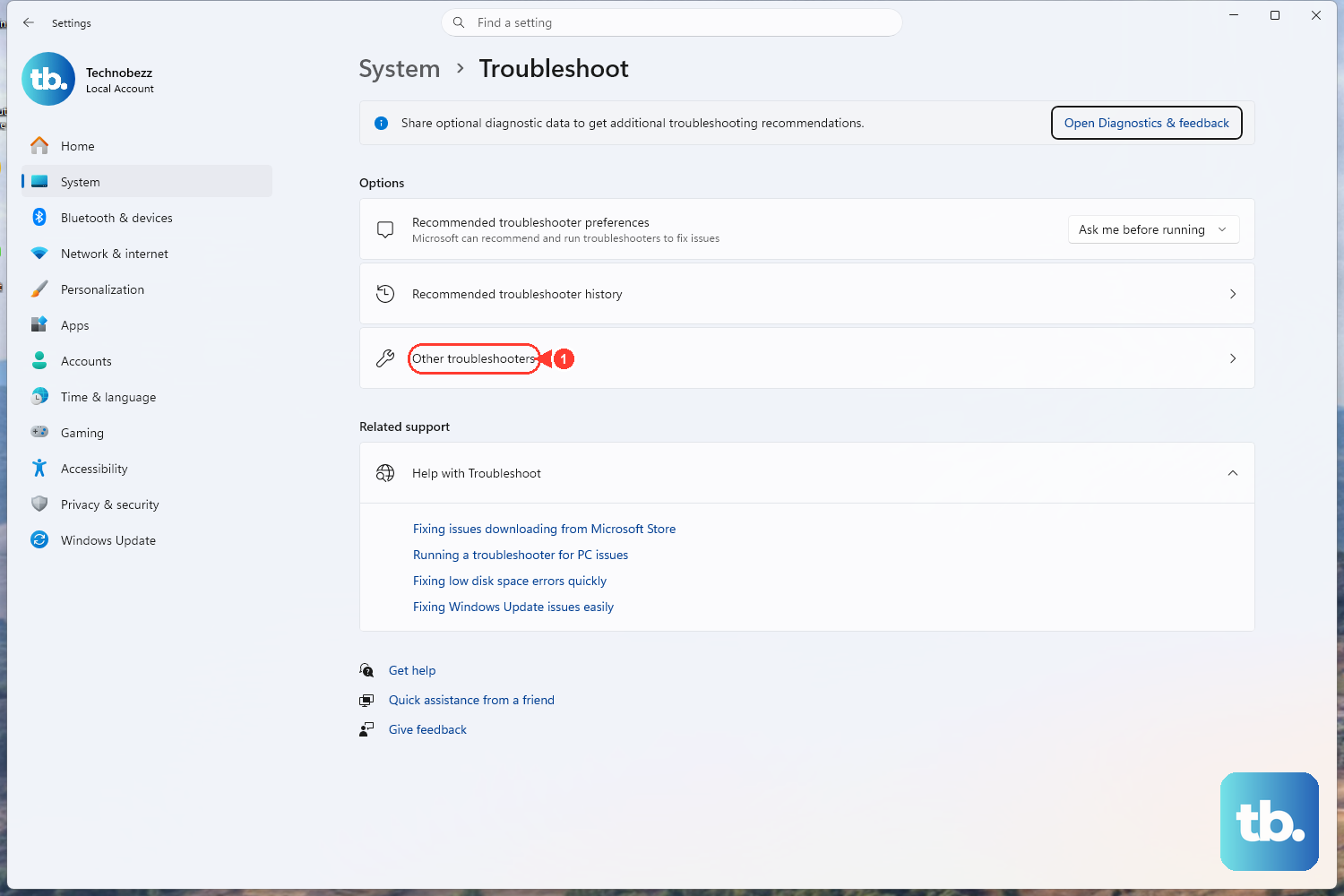
Before you touch any services or delete any files, let Windows try to fix the queue for you. Start with the automated printer troubleshooter, which runs inside the built-in Get Help app on both Windows 11 and Windows 10.
You can launch it directly from Microsoft's official link at aka.ms/PrinterConnection, which opens "Run the troubleshooter in Get Help." This is the safest option because it runs diagnostics and applies fixes automatically, with no manual file deletion on your part. If it clears the stuck job, you are done; if not, move on to the steps below.
Open the Print Queue and Cancel the Job Manually
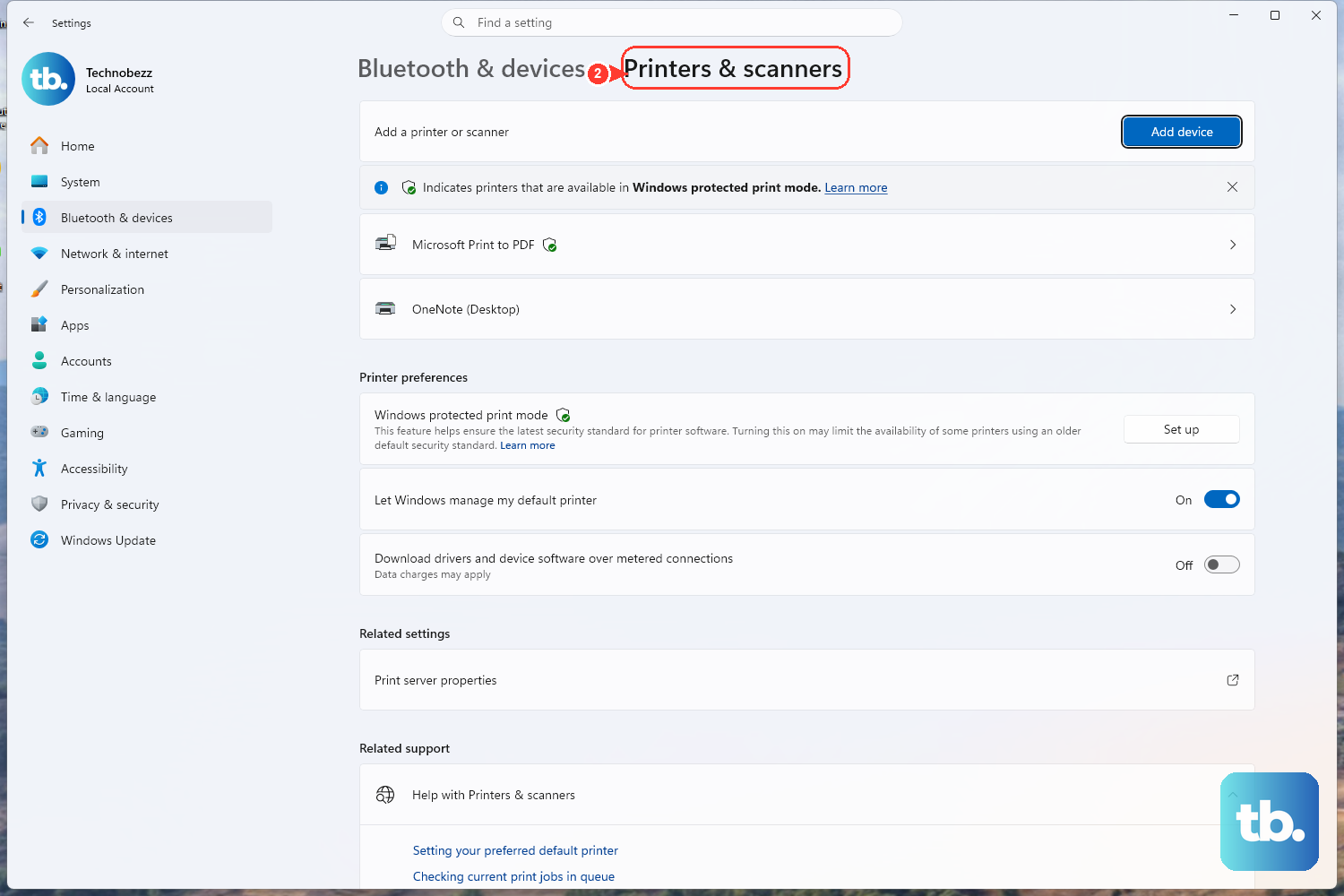
If the troubleshooter did not resolve it, open the queue yourself and try to remove the stuck document directly. The path to your printer list depends on your Windows version.
- 1.On Windows 11, select Start > Settings > Bluetooth & devices > Printers & scanners. On Windows 10, select Start > Settings > Devices > Printers & scanners.
- 2.Select your printer from the list.
- 3.Select Open print queue. On Windows 10, this button reads Open queue.
- 4.Right-click each print job and select Cancel to remove it.
Sometimes a job marked "Deleting" will finally disappear once you give it a moment after canceling. If the document refuses to leave the queue no matter how many times you click Cancel, the problem is usually deeper in the spooler, which the next steps address.
Clear an Offline or Paused Printer Status
A queue will not drain if the printer is set to work offline or if printing has been paused. On Windows 10, both of these are toggled inside the Printer menu of the open queue window, not in the main Settings list.
On Windows 10, with the print queue open, click the Printer menu at the top of the window.
Make sure Use Printer Offline and Pause Printing are not checked, and clear them if they are.
On Windows 11, select Start > Settings > Bluetooth & devices > Printers & scanners, select your printer, and select Open print queue. Click ... (ellipsis) and select Cancel all if there are any pending jobs.
If the printer still appears offline, check its connection and restart the Print Spooler service, which is covered next.
Restart the Print Spooler Service
The Print Spooler is the background service that manages everything in your print queue, and when it gets into a bad state, jobs freeze in place. Restarting it clears the spooler's working state and very often releases the stuck job.
Press Windows key + R, type services.msc, and press Enter to open the Services console.
Next, scroll down and locate Print Spooler in the list.
Right-click Print Spooler and select Restart.
Give the queue a few seconds to refresh after the restart. In many cases the phantom document vanishes on its own once the spooler comes back up. If the job is still hanging on, the spooler likely has a corrupt spool file that needs to be removed manually.
Stop the Spooler and Delete the Stuck Spool Files
This is the fix for a truly wedged job that survives a simple restart. Every queued document is stored as a file on your drive, and deleting those files wipes the queue at its source. You must stop the Print Spooler first so the files are not locked while you delete them, and be aware that this step clears every pending job, so anything you still want printed will need to be sent again.
In services.msc, right-click Print Spooler and select Stop.
Then open File Explorer and go to C:\Windows\System32\spool\PRINTERS.

Delete all files in that folder. These are your queued print jobs, including the stuck one.
Return to services.msc, right-click Print Spooler, and select Start to turn the spooler back on.
Do not delete the PRINTERS folder itself, only the files inside it, and make sure the spooler is stopped before you start so the files release cleanly. Once the spooler is running again, your queue should be empty and you can resend whatever you still need to print.
Power Cycle the Printer Itself
Sometimes the stuck job is not in Windows at all; it is sitting in the printer's own internal memory. A full power cycle flushes that memory and is safe to do at any point in this process.
Turn off your printer and unplug it.
Wait 30 seconds.
Plug your printer back in, and then turn the printer back on.
The 30-second wait matters because it gives the printer's onboard storage time to fully clear rather than reloading the same frozen job. If the document was lodged in the hardware, it will be gone when the printer comes back on. Pair this with clearing the Windows queue above for the cleanest result.
Make Sure the Right Printer Is Set as Default
A stuck job will sometimes sit on a printer you are not actually using, especially if Windows quietly switched your default to whatever you printed to last. Setting the correct printer as your default keeps new jobs from piling onto the wrong device.
Open Printers & scanners. On Windows 11, that is Start > Settings > Bluetooth & devices > Printers & scanners; on Windows 10, it is Start > Settings > Devices > Printers & scanners.
Make sure Let Windows manage my default printer is turned Off on Windows 11, or not selected on Windows 10. You cannot manually choose a default while this option is on.
On Windows 11, select your printer, then select the Set as default button. On Windows 10, open the printer's queue, select Printer, then select Set As Default Printer.
The status will change to Default once it is applied. From here, send a fresh test document to confirm everything flows from the queue to the page.
A Quick Word on Windows 10
All of these steps work on Windows 10 as well, and the only real differences are the menu paths and a couple of button labels noted above. Keep in mind that support for Windows 10 ended on October 14, 2025. If you are still on Windows 10, the fixes here remain valid, but an upgrade is worth considering for ongoing updates and security.
Frequently Asked Questions
Why won't my stuck document delete even when I click Cancel?
This usually means the Print Spooler service is hung or the spool file for that job is corrupt, so the queue cannot process your Cancel command. Restarting the Print Spooler in services.msc clears the spooler's working state, and if that fails, stopping the spooler and deleting the files in C:\Windows\System32\spool\PRINTERS removes the job at its source.
Is it safe to delete the files in the PRINTERS spool folder?
Yes, those files are simply your queued print jobs, and deleting them is the documented way to clear a stuck queue. Just stop the Print Spooler service first so the files are not locked, and know that deleting them removes every pending job, so anything you still want printed must be sent again.
Do I have to restart my computer to clear a stuck print job?
No, a full reboot is rarely necessary. Restarting only the Print Spooler service usually does the job, and if that is not enough, stopping the spooler to delete the spool files clears it without a system restart.
Why does my printer keep showing as offline?
The printer may have lost its connection; on Windows 10, it may also have Use Printer Offline checked. On Windows 10, open the print queue, click the Printer menu, and make sure Use Printer Offline and Pause Printing are not checked. On Windows 11, check the printer's connection and queue; restarting the Print Spooler and power cycling the printer can also bring it back online.
Should I run the troubleshooter before trying the manual fixes?
Yes, start with the automated printer troubleshooter in the Get Help app because it runs diagnostics and applies fixes automatically with no manual file deletion. You can open it directly from aka.ms/PrinterConnection, and if it clears the queue, you can skip the rest of the steps.