
Screen flickering on a Dell XPS 16 is incredibly distracting, turning a premium laptop into a frustrating experience. The display might flash, show horizontal lines, or have intermittent blackouts. Let's get it fixed.
I'd start with the simplest software checks first. They resolve the majority of flickering issues without needing to open up the machine.
Run Dell SupportAssist Diagnostics
Dell includes a powerful tool for this exact scenario. Open the Dell SupportAssist app and run the full hardware scan. It can automatically detect and flag display driver conflicts or hardware faults specific to your XPS 16, giving you a clear starting point.
For a deeper pre-boot check, restart your laptop and press the F12 key repeatedly as it starts. Select Diagnostics from the boot menu. This tests the display hardware independently of Windows.
Update Your Graphics Drivers
Outdated or corrupted display drivers are a prime suspect. Don't just rely on Windows Update. Visit the Dell support site, enter your XPS 16 service tag, and download the latest Intel and NVIDIA graphics drivers directly.
Install the Intel driver first, then the NVIDIA one. After installing, restart your laptop. This ensures both the integrated and discrete graphics have fresh, compatible software.
Adjust the Display Refresh Rate
Go to Settings > System > Display > Advanced display. Look at the refresh rate setting. If your XPS 16 has a high-refresh-rate panel, try switching between options, like 60Hz and 120Hz.
Sometimes a mismatch between the panel's native rate and the driver setting can cause flicker. Selecting a different rate and then switching back can reset the communication.
Check for Overheating and Fan Noise
Listen to your laptop. If the fans are running loudly under moderate load, heat could be affecting the display components. Excessive heat can cause graphical instability.
You can manage this by pressing F2 during startup to enter BIOS Setup. Navigate to the Thermal Management section. Experiment with different cooling profile settings to see if it stabilizes the display during heavy use.
Disable Hardware Acceleration in Apps
If flickering happens mainly in a specific app like Chrome or Slack, turn off its hardware acceleration. In Chrome, go to Settings > System and toggle off Use hardware acceleration when available.
This hands graphics processing back to Windows, which can resolve conflicts between the app and your XPS 16's GPU drivers. Restart the app after making the change.
Boot Into Safe Mode
If the flickering is constant, restart your XPS 16 and hold the Shift key while clicking Restart. Go to Troubleshoot > Advanced options > Startup Settings and click Restart. Choose Safe Mode with Networking.
If the screen is perfectly stable in Safe Mode, you've confirmed a software driver or startup program is the culprit. You can then use Device Manager to roll back recent driver updates.
Roll Back a Problematic Display Driver
Open Device Manager and expand Display adapters. Right-click on your Intel or NVIDIA graphics device and select Properties. Go to the Driver tab and click Roll Back Driver.
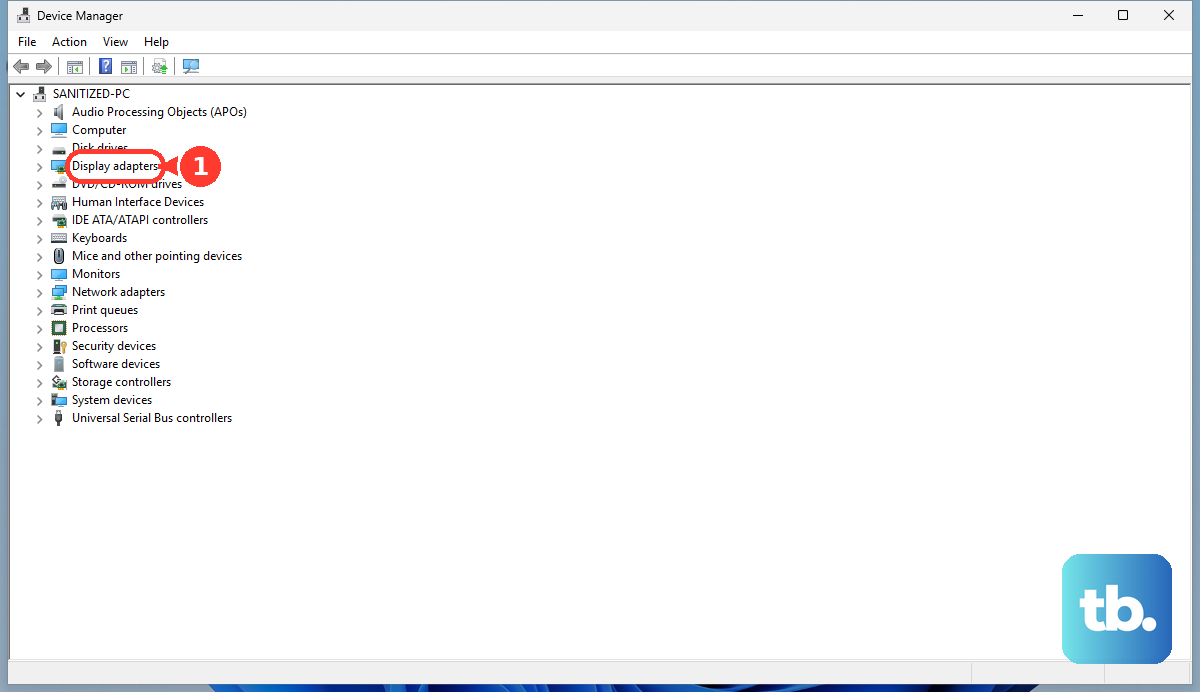
This is the fastest fix if the flickering started right after a driver update. Windows will revert to the previous, stable driver version. A restart will be required.
Manage Touch Display Driver Issues
Some XPS 16 models with touchscreens have had driver conflicts. In Device Manager, look under Human Interface Devices for HID-compliant touch screen.
Right-click it and select Update driver. Choose Browse my computer for drivers and then Let me pick from a list. Try selecting a different driver version from the list to see if it resolves the flicker.
Check for Loose Internal Connections
If the flickering is worse when you adjust the screen angle or open the lid, the internal display cable might be loose. This is a known issue with laptop hinges over time.
This is generally a hardware repair. Since the XPS 16 is a complex, compact device, I wouldn't recommend opening it yourself unless you're very experienced. This is when contacting Dell support becomes the best next step.
Before you do, ensure all critical Thunderbolt firmware updates from the Dell support site are installed. These updates can improve overall system stability, including display performance.











