
When your Dell XPS 16 says it's plugged in but the battery percentage stays stuck, it's a frustrating roadblock. The issue usually comes down to the power adapter, a software glitch, or the laptop's internal power management needing a reset.
Run a Hardware Diagnostic
Before you try anything else, use Dell's built-in tool. Restart your XPS 16 and press the F12 key repeatedly as it boots up. Select Diagnostics from the menu that appears. This will run a comprehensive check on your battery, AC adapter, and charging circuit, giving you a clear error code if it finds a hardware fault.
Check the Power Adapter and Port
Inspect the Dell power adapter brick and the cable for any physical damage. Make sure the USB-C or barrel plug is fully seated in the laptop's port. I'd also try a different wall outlet to rule out a problem with the power source. The LED on the adapter brick should be solid white when it's receiving power.
Perform a Forced Restart
Shut down your XPS completely. Unplug the charger, then press and hold the power button for a full 15-20 seconds. This drains any residual power and resets the hardware power controller. After that, plug the charger back in and turn the laptop on normally. This simple step resolves a lot of temporary power detection issues.
Update Your BIOS and Drivers
Outdated system firmware is a common culprit for power problems on the XPS 16. Open the Dell SupportAssist app, which is pre-installed on your machine. It can automatically scan for and install the latest BIOS, chipset drivers, and Thunderbolt firmware updates. These updates often include critical fixes for power delivery and thermal management.
Reinstall the Battery Driver in Windows
Press the Windows key + X and choose Device Manager. Expand the Batteries section. Right-click on Microsoft ACPI-Compliant Control Method Battery and select Uninstall device. Do not restart yet. Also uninstall the ACPI Compliant Control Method Battery listing if you see it. Now, restart your laptop. Windows will automatically reinstall fresh drivers upon reboot, which often clears up charging errors.
Check Dell Power Manager Settings
Dell includes power management software that can limit charging to prolong battery life. Open the Dell Power Manager app (you can search for it in the Start menu). Look for a setting called Primary Battery Use or a charging mode like Standard, ExpressCharge, or Primarily AC Use. If it's set to "Primarily AC Use," the laptop may intentionally stop charging at 80% to reduce wear. Switching it back to "Standard" should allow a full charge.
Generate a Battery Health Report
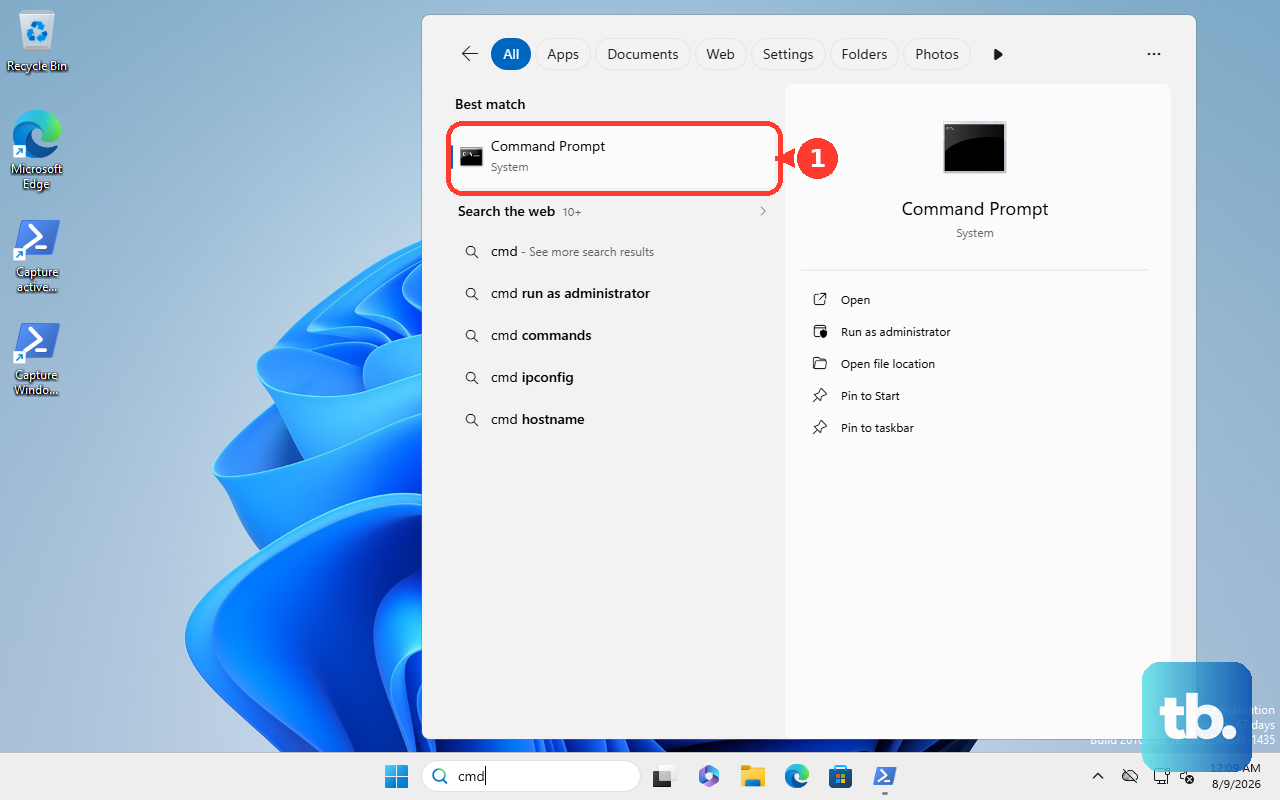
To see the raw data on your battery's condition, open Command Prompt as an administrator. Type powercfg /batteryreport and press Enter. This creates a detailed HTML file. Navigate to the file location it shows and open it. Look for the Design Capacity versus Full Charge Capacity. If the full charge capacity is significantly lower than design, your battery may be worn out and holding very little charge, which can cause confusing status readings.
Test with a Different, High-Wattage Charger
The XPS 16 requires a high-wattage adapter to run and charge simultaneously, especially under load. If you have access to another Dell USB-C charger, try it. Make sure it's rated for at least 130W. A lower-wattage charger, or a degraded one, might provide enough power to run the laptop but not enough to actually increase the battery level.
Reset the BIOS to Defaults
Incorrect BIOS settings can interfere with power delivery. Restart your laptop and tap the F2 key repeatedly to enter the BIOS setup. Once inside, look for an option labeled Restore Settings or Load Defaults. Confirm the reset, save changes, and exit. The laptop will reboot. Also, while you're in the BIOS under the Thermal Management section, ensure it's not set to an ultra-conservative fan profile that could be linked to power limits.
If you've tried all these steps and the battery still won't charge, the problem is likely with the physical battery, the internal charging circuitry, or the motherboard. The error codes from the F12 diagnostics you ran earlier are your best guide for what to do next.