
When you plug your Dell XPS 16 into a monitor or TV and get no signal, it's usually a quick settings or driver fix. Let's get that second screen working.
Press Windows + P First
This is the fastest thing to try. Press the Windows + P keys together. A menu will pop up on the right side of your screen. Select Extend or Duplicate. If it was set to "PC screen only," your HDMI port was essentially turned off. I'd cycle through the options once to see if any of them trigger a connection.
Check Your Cable and Connections
Unplug the HDMI cable from both your XPS 16 and the monitor. Look at the ports for any bent pins or debris. Plug everything back in firmly. If you have a spare HDMI cable, try it. Cables can fail internally without any visible damage. Also, double-check that your monitor is powered on and set to the correct HDMI input source.
Run a Quick Hardware Check
Your XPS 16 has a built-in diagnostic tool. Restart the laptop and immediately start tapping the F12 key to enter the one-time boot menu. From there, select Diagnostics. This will run a test on your system hardware, including the video outputs, and can tell you if there's a detected failure with the HDMI port itself.
Update Your Graphics Drivers
Outdated or corrupted display drivers are a common culprit. For the XPS 16, you'll want to get the driver directly from the manufacturer's website, whether that's NVIDIA or Intel. Go to the Dell Support site, enter your service tag, and download the latest graphics driver. Alternatively, you can use the Dell SupportAssist app, which often auto-detects and installs the correct drivers for you.
Configure Display Settings in Windows
Go to Settings > System > Display. Click the Detect button. If your monitor appears, click on its representation and scroll down. Make sure the resolution and refresh rate are set to values your monitor supports. Sometimes the XPS 16 might default to a 4K or high refresh rate that an older monitor can't handle. Try setting it to 1920x1080 at 60Hz as a test.
Try a Different Video Port
The XPS 16 likely has Thunderbolt 4 ports alongside the HDMI. If your monitor has a DisplayPort input, try connecting via a USB-C to DisplayPort cable or adapter. If the video works through the USB-C port but not the dedicated HDMI port, it points to an issue with the HDMI hardware or its controller.
Disable and Re-enable the Display Adapter
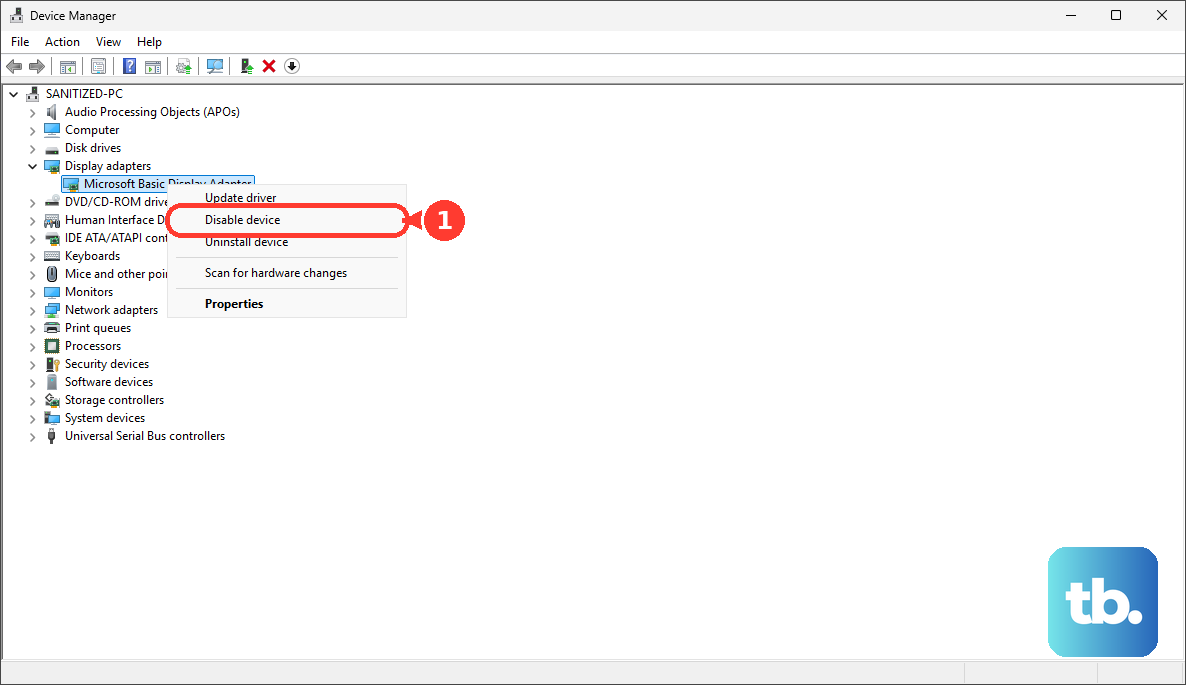
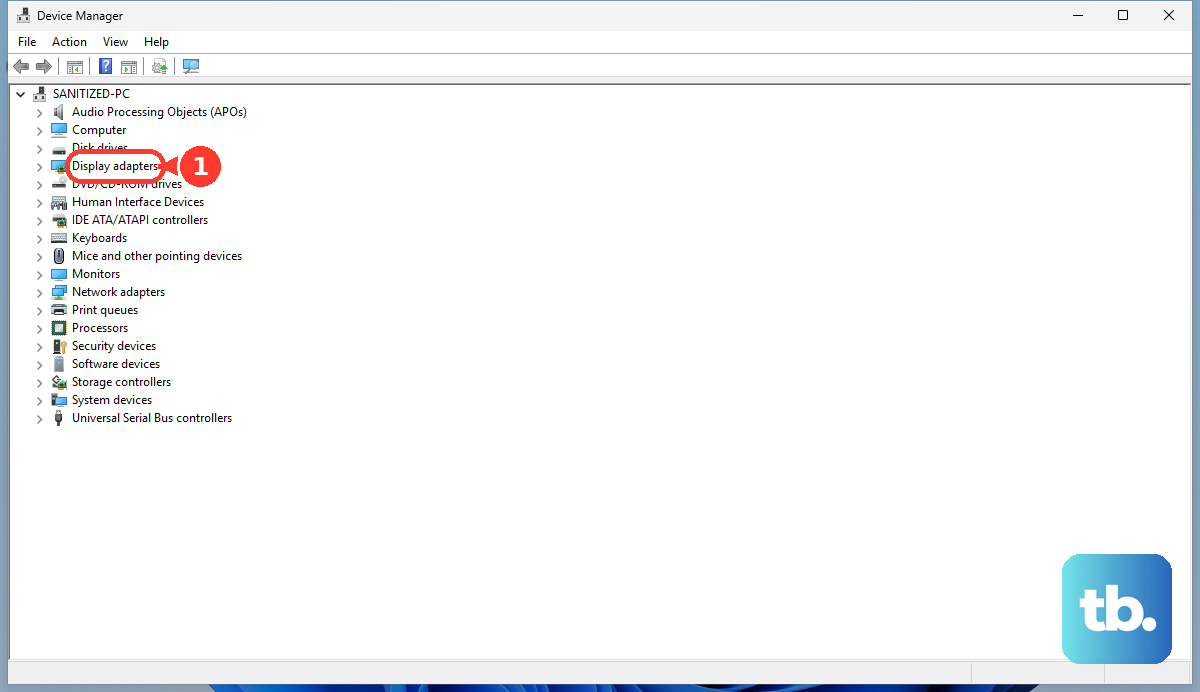
Press Windows + X and select Device Manager. Expand the Display adapters section. Right-click on your graphics card (e.g., NVIDIA GeForce RTX) and select Disable device. Click "Yes" to confirm. Wait about ten seconds, then right-click it again and choose Enable device. This forces a fresh initialization of all video outputs.
Check for Firmware and BIOS Updates
Dell periodically releases system updates that can resolve hardware communication issues. Open the Dell Update application or check the Support site for any pending BIOS or Thunderbolt firmware updates. After a BIOS update, it's worth checking the settings. Restart and tap F2 to enter BIOS Setup. While you're there, you can also look under Thermal Management if you've noticed fan noise, as thermal throttling can sometimes affect performance.
Test with Another Monitor or TV
Connect your XPS 16 to a different display, like a living room TV. If it works on the second screen, the problem is with your original monitor's settings or its HDMI input port. This simple test saves a lot of time troubleshooting the laptop for no reason.