
When your Dell XPS 15 won't connect to WiFi, it can feel like you're working with a very expensive paperweight. Whether you're seeing the dreaded "Can't connect to this network" message, the WiFi icon is missing entirely, or you're connected but have no internet, these steps will get you back online.
Run the Windows Network Troubleshooter
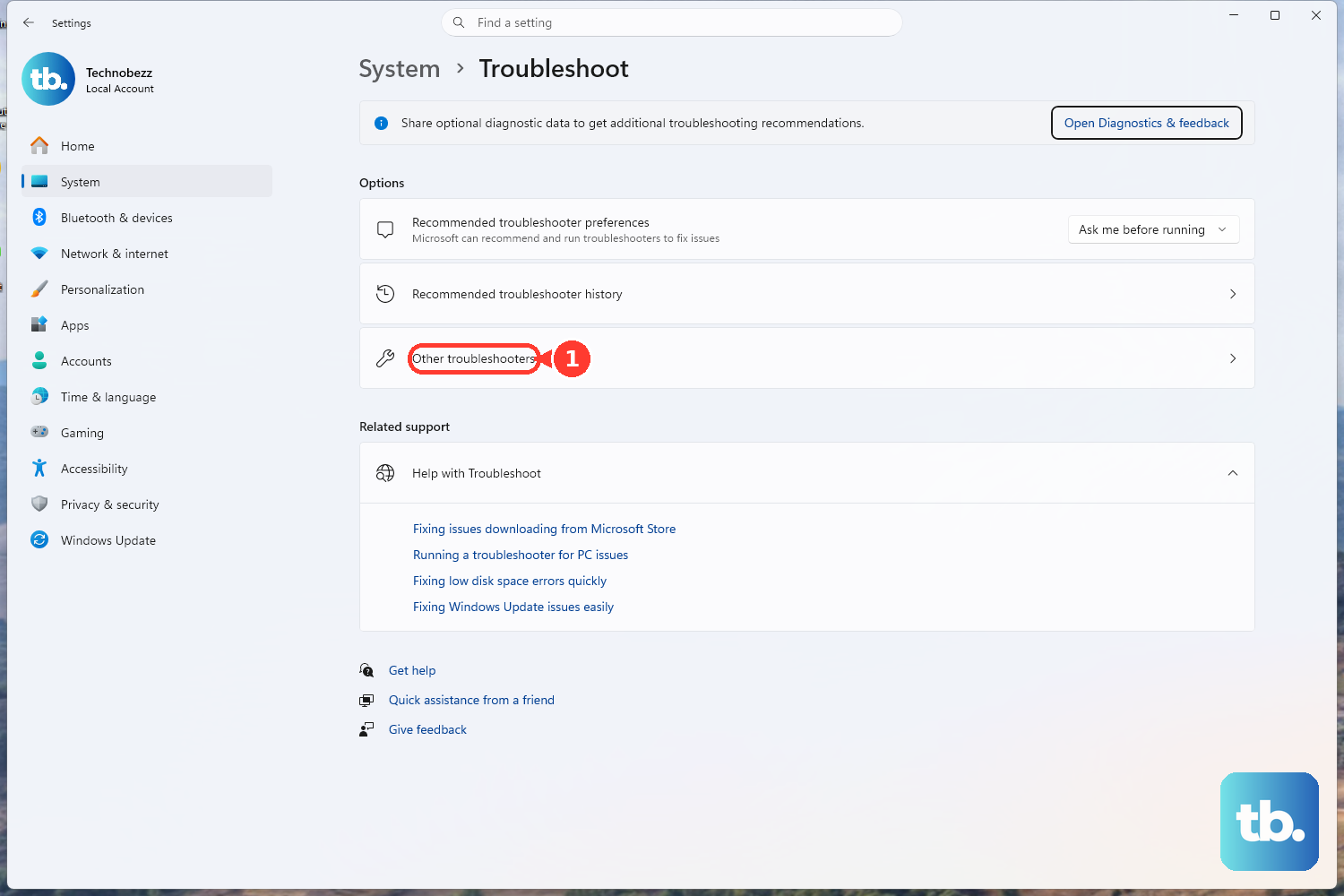
This is the quickest place to start. Right-click the WiFi icon in your taskbar and select Troubleshoot network problems. Windows will automatically scan for common glitches and try to fix them. On Windows 11, you can also navigate to Settings > System > Troubleshoot > Other troubleshooters and run the Network and Internet troubleshooter from there.
Toggle WiFi Off and On
Click the network icon in your system tray and turn the WiFi toggle off. Wait about ten seconds, then flip it back on. This simple action refreshes your wireless adapter and can clear out a temporary stuck state. Toggling Airplane mode on and off does the same thing but resets all radios at once.
Forget and Reconnect to Your Network
Corrupted network profiles are a frequent culprit. Go to Settings > Network & Internet > WiFi > Manage known networks. Find your home or office network in the list and click the Forget button. Then, scan for available networks again, select yours, and re-enter the password to create a fresh connection.
Update Your WiFi Driver
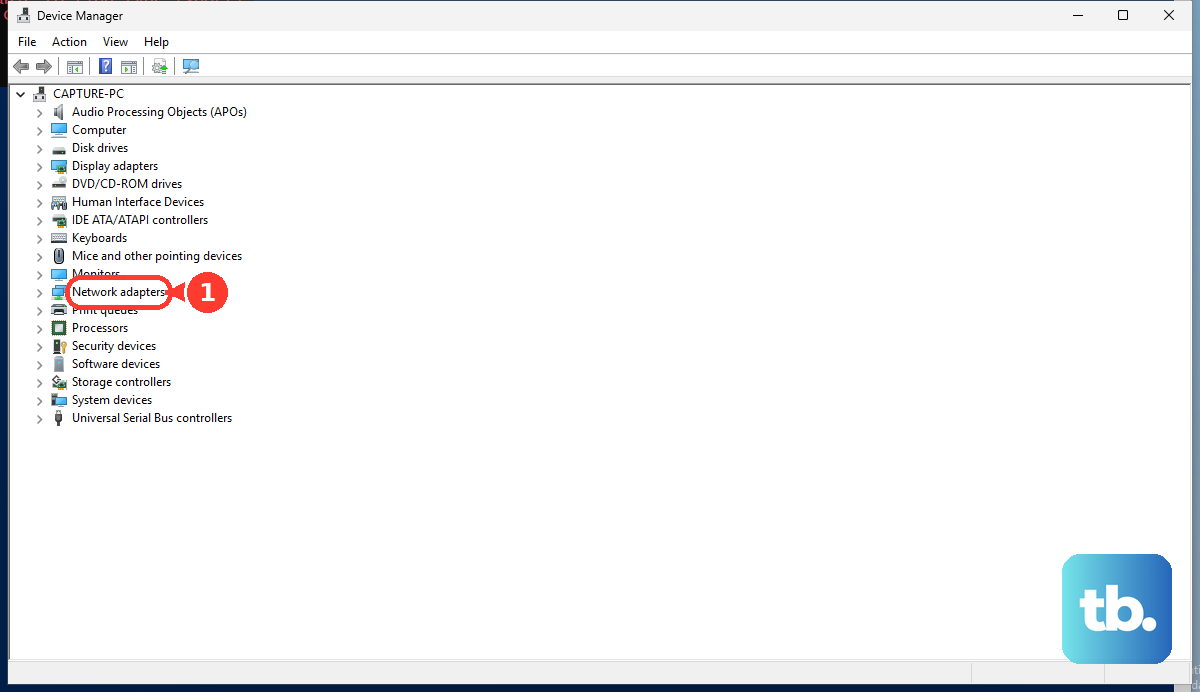
Outdated or corrupted drivers are a leading cause of connectivity problems on the XPS 15. Press the Windows key + X and choose Device Manager. Expand the Network adapters section, right-click your Intel or Killer WiFi adapter, and select Update driver > Search automatically for drivers.
If that doesn't find anything, I'd visit the Dell support website directly. Enter your XPS 15 service tag, find the latest wireless driver, and install it manually. This is often more reliable than Windows Update for Dell-specific hardware.
Restart Your XPS 15
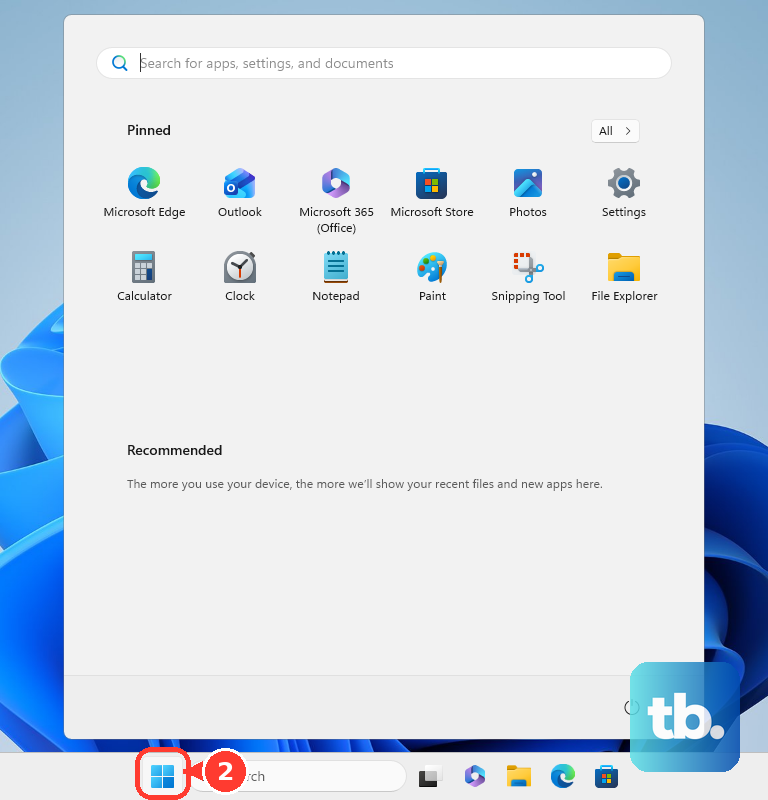
Give your laptop a full restart, not just putting it to sleep. Click Start > Power > Restart. This clears the network stack from memory and reloads all drivers from scratch. It's a basic step, but it resolves a surprising number of intermittent WiFi issues.
Disable and Re-Enable the WiFi Adapter
If a restart seems like overkill, you can force a refresh of just the network hardware. Go back into Device Manager under Network adapters. Right-click your wireless adapter and select Disable device. Wait a moment, then right-click it again and choose Enable device. This reinitializes the adapter without a full system reboot.
Reset Your Network Settings
This is a more comprehensive fix that will wipe all your network configurations. Go to Settings > Network & Internet > Advanced network settings > Network reset. Click Reset now and confirm. Your laptop will restart, and all network adapters will be reinstalled to their default state.
Remember, you'll need to re-enter all your WiFi passwords after this, so make sure you have them handy.
Flush DNS and Reset TCP/IP via Command Prompt
Sometimes the issue is with your computer's network cache or protocol stack. Open the Start menu, type "cmd", right-click on Command Prompt, and select Run as administrator. Type the following commands one at a time, pressing Enter after each:
netsh winsock reset
netsh int ip reset
ipconfig /flushdns
ipconfig /release
ipconfig /renew
After running these, restart your XPS 15 for the changes to take full effect.
Update Your BIOS via Dell SupportAssist
This is a specific tip for Dell laptops. BIOS updates can include important fixes for hardware communication, including with the WiFi card. Open the Dell SupportAssist app that came pre-installed on your XPS 15. Check for updates in the app; it will scan for and guide you through installing the latest BIOS and drivers.
Updating the BIOS is very safe if your laptop is plugged into AC power. Don't interrupt the process once it starts.
Check Your Router and Environment
If other devices in your home are also struggling to connect, the problem is likely your router or internet service. Try restarting your router and modem by unplugging them for 30 seconds. Also, consider that the XPS 15's all-metal chassis can sometimes impact WiFi signal.
Try moving closer to the router or connecting to a different network, like your phone's mobile hotspot, to confirm your laptop's WiFi hardware is functioning. If it works on other networks, the issue is isolated to your primary one.