
A flashing or flickering screen on your Dell XPS 15 is incredibly distracting and can make the laptop unusable. The issue might appear as rapid flashes, intermittent black screens, or persistent horizontal lines. Let's get it fixed.
Start by pressing Ctrl + Shift + Esc to open Task Manager. Watch it closely. If Task Manager itself flickers along with everything else, the problem is likely a system-wide driver or hardware issue. If Task Manager remains perfectly stable while your desktop and apps flicker, a specific application is probably the culprit. This simple check points you in the right direction.
Update Your Graphics Drivers
Outdated or corrupted graphics drivers are a very common cause of screen flickering on the XPS 15. For the most reliable fix, don't just use Windows Update. Visit the Dell Support website, enter your service tag, and download the latest Intel and NVIDIA graphics drivers directly. I'd start with the Intel driver first, as it handles the display for most tasks.
You can also use Dell's SupportAssist application, which often has a "Check for Updates" feature that includes BIOS and driver updates. A BIOS update can resolve underlying compatibility issues that cause display problems, especially on newer models.
Adjust the Display Refresh Rate
Go to Settings > System > Display > Advanced display. Look at your current refresh rate. If your XPS 15 has a high-refresh-rate panel (like 90Hz or 120Hz), try switching it to 60Hz to see if the flickering stops. Sometimes, switching between rates can reset the communication with the panel and resolve the issue.
For OLED models, there's a specific setting to try. In the same Advanced display settings, click on Display adapter properties for Display 1, go to the Monitor tab, and check if there's an option to reduce flicker or enable panel self-refresh. Toggling these can help.
Uninstall Problematic Software
If Task Manager was stable, a third-party application is likely interfering. Common offenders include certain antivirus suites, cloud storage apps (like older versions of Dropbox or Google Drive), and screen recording or overlay software. Uninstall any recently installed programs one at a time, restarting after each, to see if the flickering resolves.
You can also perform a clean boot to disable all non-Microsoft startup items and services at once. Type msconfig into the Windows search bar, go to the Services tab, check Hide all Microsoft services, then click Disable all. This helps isolate a software conflict without permanent removal.
Disable Hardware Acceleration in Apps
Many applications, especially web browsers like Chrome and Edge, use your GPU to render content. A conflict here can cause flickering. In Chrome, go to Settings > System and turn off Use hardware acceleration when available. Restart the browser. Do the same in Discord, Slack, or any other app where you notice the problem.
Use Dell Power Manager to Adjust Thermal Settings
The XPS 15 is powerful but can run hot. Thermal throttling under sustained load can sometimes manifest as display instability. Open the Dell Power Manager app (pre-installed on your system). Try changing the thermal management setting from "Optimized" to "Cool" or "Quiet." This reduces performance slightly but can increase system stability and may stop flickering related to power delivery to the display.
Roll Back a Recent Display Driver
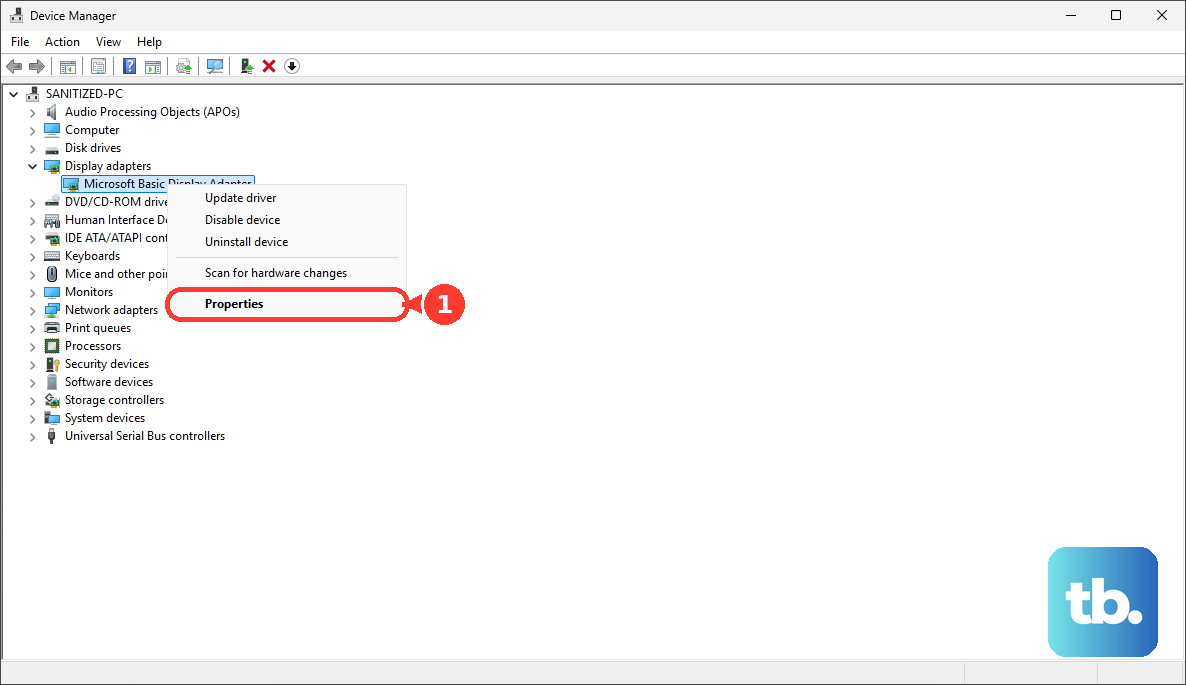
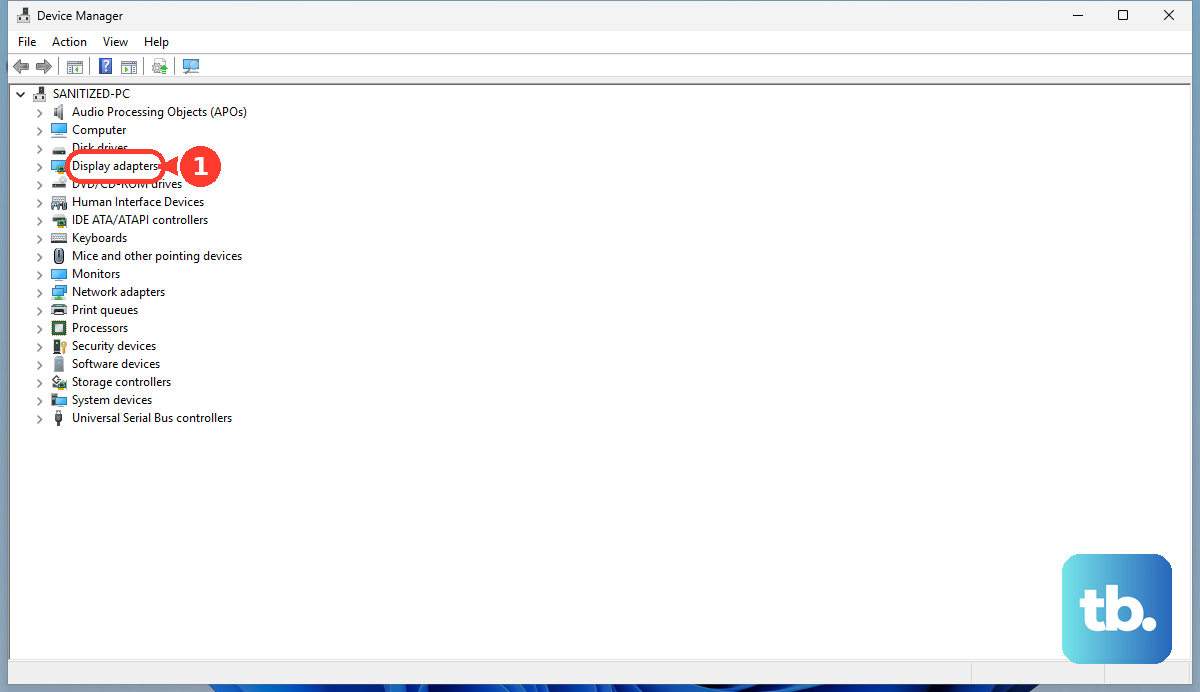
If the flickering started right after a Windows or driver update, rolling back can be a quick fix. Press the Windows key + X and select Device Manager. Expand Display adapters, right-click on your Intel Iris Xe or NVIDIA GPU, select Properties, go to the Driver tab, and click Roll Back Driver. Follow the prompts and restart.
Check for Physical Connection Issues
If the flickering is worse when you move the laptop lid or seems tied to a specific angle, the internal display cable might be loose. The XPS 15 uses a thin eDP cable that connects the motherboard to the display panel, and it can become slightly disconnected over time. This is a hardware issue that typically requires opening the chassis to reseat the cable, which is best left to a professional if you're not comfortable.
For OLED models, screen flickering can sometimes be related to early signs of image retention or burn-in, though this is less common with newer panels. Running a pixel refresh cycle through the display settings might help if the flickering is uniform.
Run the Built-in Hardware Diagnostics
Dell includes a robust pre-boot diagnostic suite. Restart your XPS 15 and immediately start tapping the F12 key repeatedly until you see the boot menu. Use the arrow keys to select Diagnostics and press Enter. The test will run automatically and check your display, memory, and other hardware components for failures. It will report any error codes you can reference for support.
Finally, ensure Windows itself is completely up to date. Go to Settings > Windows Update and install all available updates. Microsoft frequently releases patches for display subsystem issues that can affect high-resolution panels like the one in your XPS 15.