
When you plug in your Dell XPS 15 and nothing happens, it's a frustrating roadblock. The issue could be with the power adapter, the USB-C port, the battery itself, or a software setting that's interfering. Let's walk through the most effective fixes to get you back to a full charge.
Check the Dell Power Adapter and Cable
Start with the basics. Look over the entire length of the power cable for any kinks, cuts, or fraying. Make sure the barrel connector or USB-C plug isn't loose or damaged. I'd also try plugging the adapter into a different wall outlet to rule out a problem with the power source itself.
If your adapter has an LED light, check that it's illuminated when plugged in. A light that's off or flickering is a strong sign the adapter itself has failed. For XPS 15 models, using the official Dell charger or a high-wattage third-party USB-C PD charger is crucial, as lower-wattage chargers may only slow the drain, not actually charge the laptop under load.
Perform a Full Restart
Shut down your XPS 15 completely, don't just put it to sleep. Once it's fully off, press the power button to turn it back on while the charger is plugged in. This simple step resets the laptop's power management controller and can often force it to re-recognize the connected charger.
If a standard restart doesn't work, try a force restart by holding down the power button for about 15-20 seconds. This drains any residual power from the system and is a common first step for many Dell-related hardware glitches.
Run the Built-in Dell Diagnostics
Dell includes a robust hardware diagnostic tool you can access at boot. Turn off your laptop, then turn it back on and immediately start tapping the F12 key repeatedly. This will bring up the One-Time Boot Menu.
From there, use the arrow keys to select Diagnostics and press Enter. The tool will automatically test key components, including the AC adapter, battery, and charging circuit, and report any failures it finds.
Update Your BIOS and Drivers
Outdated system firmware is a common culprit for power and charging problems on the XPS 15. The easiest way to update is through the Dell SupportAssist app that came pre-installed on your laptop.
Open SupportAssist and check for updates. It will scan for the latest BIOS, chipset drivers, and power management drivers. Installing a BIOS update can specifically resolve issues where the laptop fails to detect the correct wattage of the connected charger.
Check Dell Power Manager Settings
Dell includes a useful utility called Dell Power Manager. Open it from the Start menu and look at the Battery Settings or Thermal Management tabs. Some thermal profiles, like "Ultra Performance," can increase power draw dramatically.
More importantly, check for a Battery Charge Limit setting. If this is enabled, your laptop will intentionally stop charging at a preset level (like 80%) to prolong battery lifespan, which can be mistaken for a charging failure.
Inspect and Clean the USB-C Ports
The XPS 15 typically uses USB-C ports for charging. Take a close look inside each port with a flashlight. You're looking for packed lint, dust, or any debris that could prevent the charger from seating fully.
Use a can of compressed air to blow out any loose particles. For stubborn debris, a wooden or plastic toothpick is safe to use gently around the edges. Avoid metal objects that could short the delicate pins inside the port.
Reinstall the Battery Driver in Windows
Sometimes the software that talks to the battery gets corrupted. Press the Windows key + X and select Device Manager. Expand the Batteries section.
Right-click on Microsoft ACPI-Compliant Control Method Battery and select Uninstall device. Don't restart yet. Also right-click and uninstall the ACPI Compliant Control Method Battery listing if you see it. Then, restart your laptop. Windows will automatically reinstall fresh drivers upon reboot.
Check Battery Health with a Report
Windows can generate a detailed battery health report. Open Command Prompt as an administrator and type the command: powercfg /batteryreport. Press Enter.
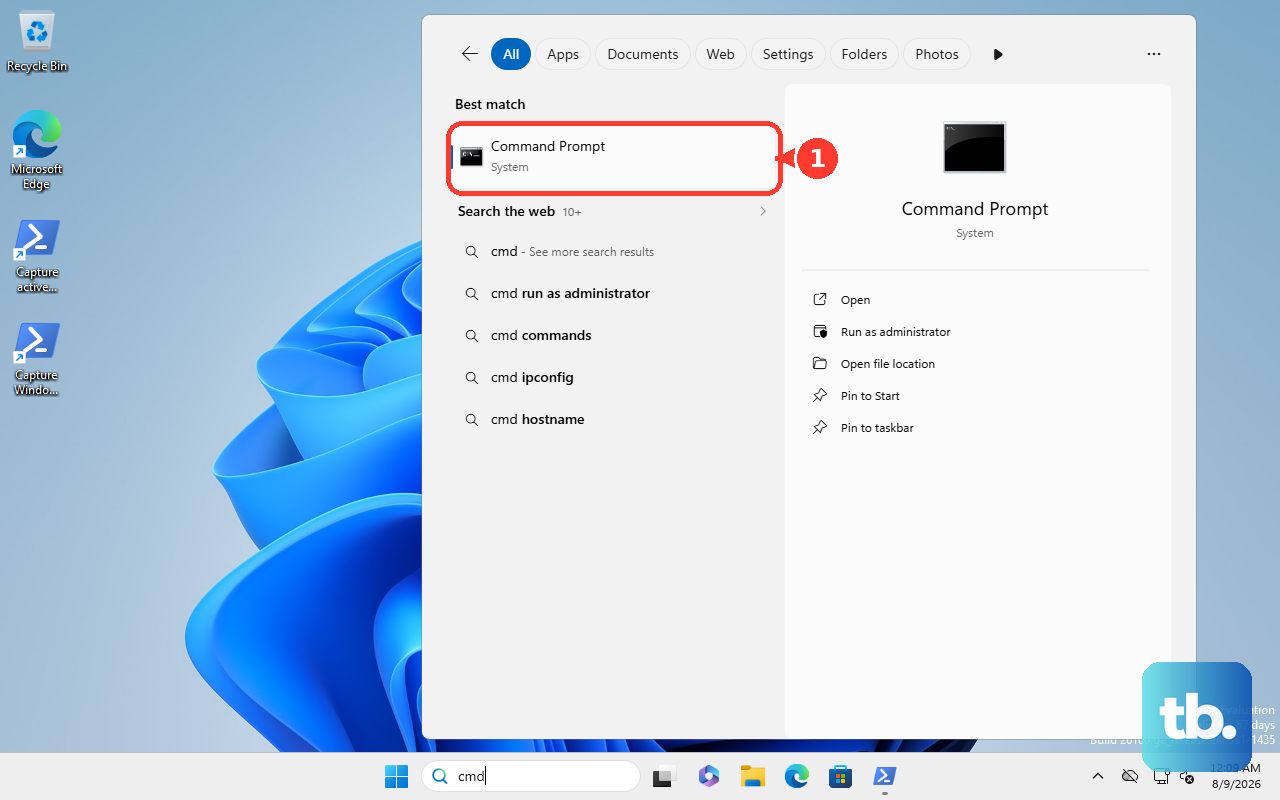
The command will save an HTML file to a folder, usually your user directory. Open that file in a web browser. Look for the Design Capacity versus Full Charge Capacity. If the full charge capacity is significantly lower than design capacity, the battery itself may be worn out and struggling to accept a charge.
Try a Different, High-Wattage Charger
If you have access to another charger, test it. The XPS 15 requires a high-wattage power delivery, often 130W. A lower-wattage USB-C charger, like one meant for a phone or tablet, might not provide enough power, especially if the laptop is under load.
This is also a good way to isolate the problem. If a known-good, high-wattage charger works perfectly, then your original Dell adapter is likely the issue. For USB-C models, also try plugging into the other USB-C port, as sometimes a single port can fail.