
When you plug your Dell XPS 15 into an external monitor and get nothing but a blank screen, it's a frustrating roadblock. The issue can stem from a loose cable, a Windows setting, or a driver conflict specific to your XPS's hardware.
To narrow down whether the screen or the signal is at fault, open a screen test and step through its patterns. A clean result shifts suspicion to the cable or source device.
Start With the Physical Connection
Unplug the cable from both your laptop and the monitor, then firmly reconnect it. I'd try a different cable next, as a faulty HDMI or USB-C cable is one of the most common culprits. Also, double-check that your monitor is powered on and set to the correct input source, like HDMI 1 or DisplayPort.
Use the Windows Projection Shortcut
Press the Windows key + P on your keyboard. This brings up a quick menu on the right side of your screen. Make sure it's not set to PC screen only, as that disables external outputs. Try selecting Duplicate or Extend to see if your monitor springs to life.
Force a Fresh Display Detection
Go to Settings > System > Display. Click the Detect button. If Windows finds your monitor, you can adjust its arrangement and resolution here. Sometimes setting the external display's resolution to a common standard like 1920x1080 can resolve compatibility issues.
Update Your Graphics Drivers
Outdated or corrupted display drivers are a frequent cause. For the best results, don't rely solely on Windows Update. Visit the NVIDIA, Intel, or AMD website directly, use your XPS 15's model number to find the correct driver, and download the latest version. Installing it can often fix HDMI or DisplayPort output problems that appeared out of nowhere.
Restart Your XPS With the Monitor Connected
Shut down your laptop completely, ensure the external monitor is connected and powered on, then turn the XPS back on. Some systems only fully initialize the external video ports during the boot process, and a restart with the cable attached can force a proper handshake.
Try a Different Port or Adapter
The Dell XPS 15 typically uses USB-C ports that support DisplayPort Alt Mode. If you're using the HDMI port and it's not working, try connecting your monitor via a USB-C to HDMI or DisplayPort adapter instead. If the adapter works but the built-in HDMI port doesn't, the physical port on your laptop might be damaged.
Reset the Display Adapter in Device Manager
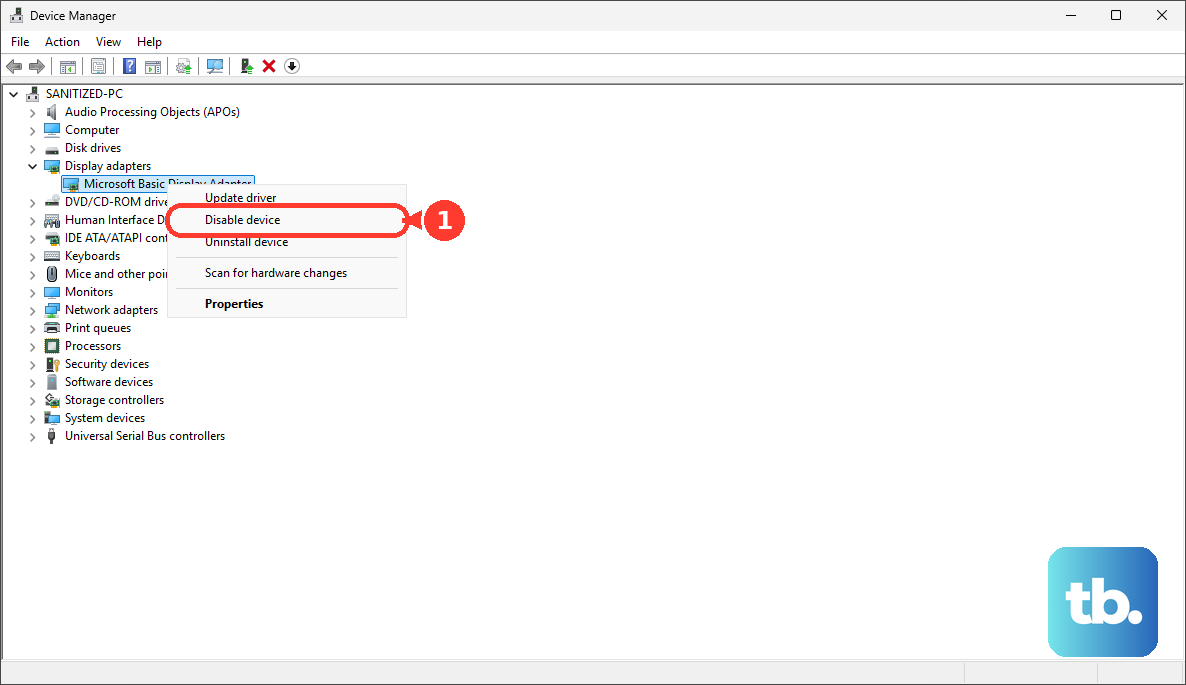
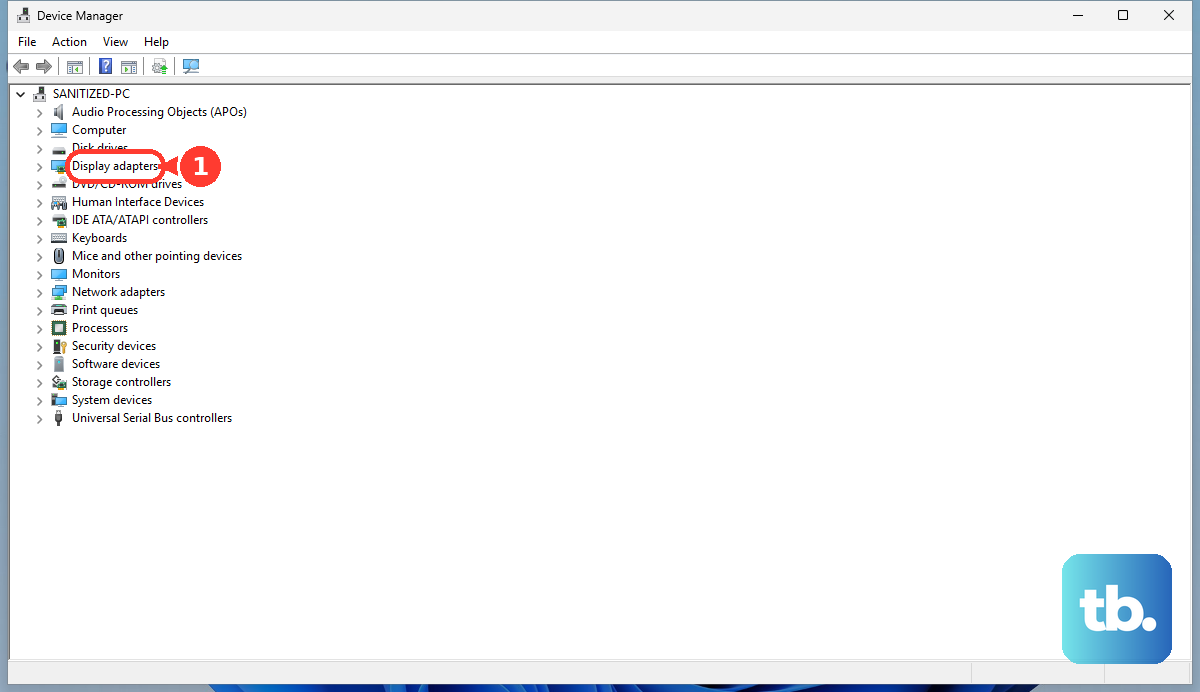
Open Device Manager, expand the Display adapters section, and right-click on your Intel or NVIDIA graphics device. Select Disable device, wait about ten seconds, and then choose Enable device. This performs a quick refresh of the graphics driver and can clear up detection glitches.
Run the Dell SupportAssist Diagnostics
Restart your XPS 15 and press F12 repeatedly as it boots to enter the one-time boot menu. From there, select Diagnostics and let the system run its hardware tests. This can help rule out a failure with the laptop's own display hardware or ports.
Update Your System BIOS
A BIOS update can resolve hardware compatibility and detection issues. Open the Dell SupportAssist application on your laptop, check for updates, and install any available BIOS updates. Make sure your laptop is plugged into AC power during this process, as an interrupted BIOS update can cause serious problems.