
Seeing a blue screen on your Dell XPS 15 right after a Windows update is a jarring experience. It usually means a driver installed with the update is clashing with your system's hardware, or a core system file got corrupted during the process. The good news is, this is often fixable without losing your data.
Write Down the Stop Code
When the blue screen appears, look for the all-caps error code near the bottom. Common ones after updates include DRIVER_IRQL_NOT_LESS_OR_EQUAL, SYSTEM_SERVICE_EXCEPTION, or KMODE_EXCEPTION_NOT_HANDLED. This code is your biggest clue. Jot it down or take a picture with your phone before the system restarts.
Perform a Full Shutdown and Restart
First, give your XPS 15 a complete power cycle. Hold the power button down for about 15 seconds until it fully powers off. Wait a moment, then press the power button again to turn it on normally. A single post-update BSOD can sometimes just be a hiccup during the final configuration stage.
If the blue screen happens again immediately or you can't get past the login screen, you'll need to interrupt the normal boot process. As soon as you see the Dell logo, hold the power button again to force it off. Do this twice, and on the third startup attempt, Windows should launch the Automatic Repair environment.
Uninstall the Problematic Update
Since the issue started after an update, removing that update is the most direct fix. If you can get into Windows, go to Settings > Windows Update > Update history > Uninstall updates. Look for the most recent Quality Update or Feature Update, click Uninstall next to it, and restart.
If you can't get into Windows, boot into the Advanced Startup options. From the Automatic Repair screen, click Advanced options, then go to Troubleshoot > Advanced options > Uninstall Updates. You can choose to uninstall the latest quality update or, if it was a major version jump, the latest feature update.
Boot Into Safe Mode to Isolate the Cause
Safe Mode is your best friend for troubleshooting. It loads Windows with only the essential drivers, which can bypass a faulty graphics or chipset driver causing the crash. From the Windows login screen, hold the Shift key while you click the power icon and select Restart.
After the restart, you'll see a blue menu. Navigate to Troubleshoot > Advanced options > Startup Settings > Restart. When your XPS restarts again, press the 4 key to enable Safe Mode. If the laptop runs stable in Safe Mode, a driver or startup program is almost certainly the culprit.
Update or Roll Back Device Drivers
In Safe Mode, press Windows Key + X and select Device Manager. Pay close attention to the display adapters, network adapters, and any devices with a yellow exclamation mark. Right-click on a device and choose Update driver.
For critical components like your NVIDIA or Intel graphics, I'd recommend getting the drivers directly from Dell's support site for your specific XPS 15 model. They are tested for stability. If the problem started right after you updated a driver, you can right-click it in Device Manager and select Properties > Driver > Roll Back Driver instead.
Use Dell's Built-in SupportAssist
Your XPS 15 comes with Dell SupportAssist, which can handle a lot of this diagnostic work for you. If you can boot into Windows, open the SupportAssist app and run the Hardware Scan. It will check your memory, storage, and other components for failures.
More importantly, use it to update your system BIOS. A BIOS update can resolve deep-seated hardware compatibility issues that Windows updates might trigger. Go to the Get drivers & downloads section in SupportAssist; it will scan for and install the latest BIOS and chipset drivers recommended for your exact system.
Run System File and Memory Checks
Corrupted Windows system files are another common post-update culprit. In Safe Mode, open Command Prompt as Administrator. Type sfc /scannow and press Enter. This System File Checker will scan and repair protected system files.
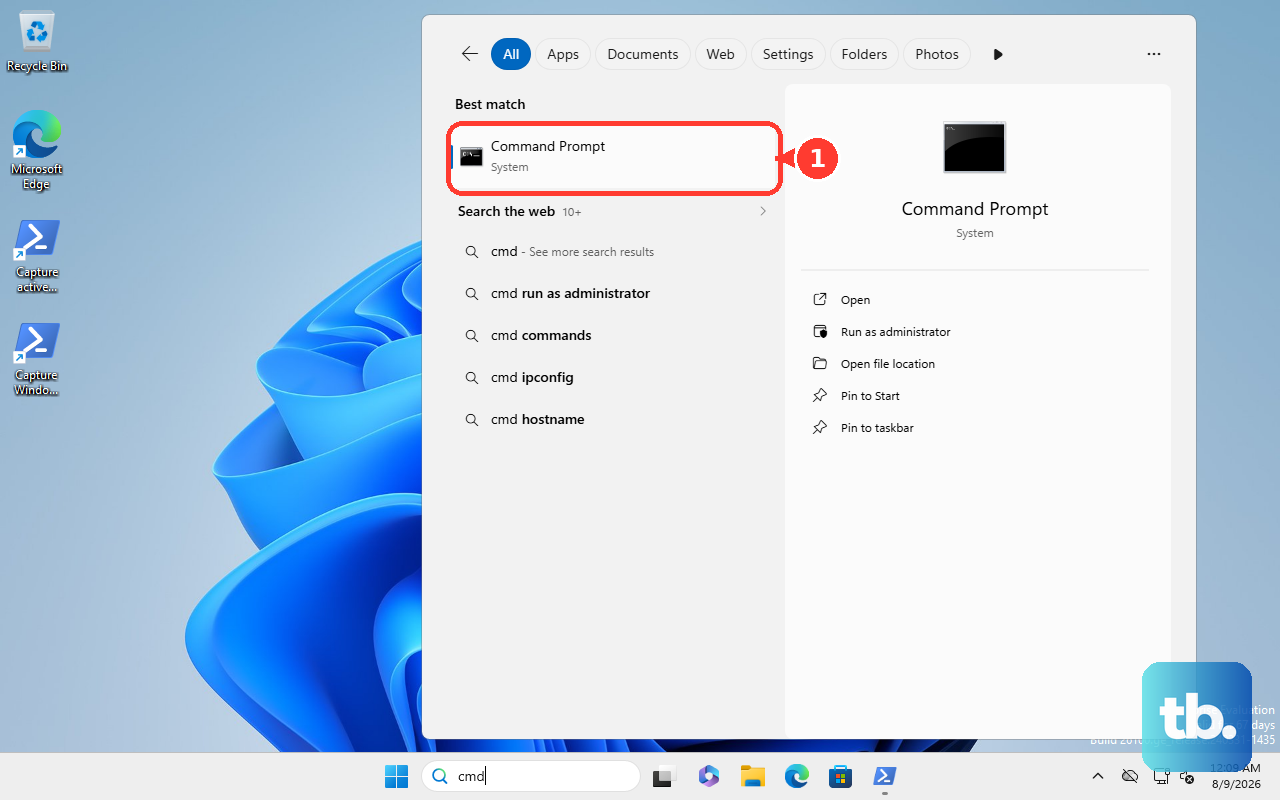
If SFC finds problems it can't fix, run this command first: DISM /Online /Cleanup-Image /RestoreHealth. After it completes, run sfc /scannow again. It's also wise to check your RAM. Search for Windows Memory Diagnostic in the Start menu and run it, choosing to restart immediately and check for problems.
Manage Thermals with Dell Power Manager
The XPS 15 can run hot under load, and overheating can sometimes manifest as instability or blue screens. If crashes happen during demanding tasks, open the Dell Power Manager application. You can switch the thermal management setting from "Optimized" to Cool or Quiet to reduce heat and power draw, which might resolve stability issues.
Also, ensure the laptop's vents on the bottom and sides are not blocked. Using it on a hard, flat surface or a laptop cooling pad helps a lot with airflow. I've seen thermal throttling cause all sorts of weird behavior on performance laptops like the XPS.
Check Your SSD Health
Run a check on your primary drive. In an Administrator Command Prompt, type chkdsk C: /f and press Enter. It will schedule a disk check for the next restart. Type Y, restart your laptop, and let the scan run. While modern SSDs are reliable, a failing drive can cause critical system errors.
For a more detailed SSD health report, you can use the manufacturer's tool. If you have a Samsung SSD, use Samsung Magician. For a Western Digital drive, use WD Dashboard. These tools can give you a clear picture of your drive's condition.
Perform a System Restore or Reset
If you had System Protection enabled, a System Restore can roll your PC back to a point before the update. From the Advanced Startup options, go to Troubleshoot > Advanced options > System Restore. Choose a restore point from a date before the blue screens began.
As a last resort, you can reset Windows. In the Troubleshoot menu, select Reset this PC. Choose Keep my files to remove apps and settings but preserve your personal documents. This will clean-install Windows while keeping your data, which should eliminate any deep software corruption causing the crashes.