
When your Dell XPS 13 keeps dropping its WiFi connection, it's incredibly disruptive. Whether you're in the middle of a video call or just trying to browse, a flaky connection brings productivity to a standstill. The good news is, this is a common issue with several straightforward fixes.
Run the Windows Network Troubleshooter
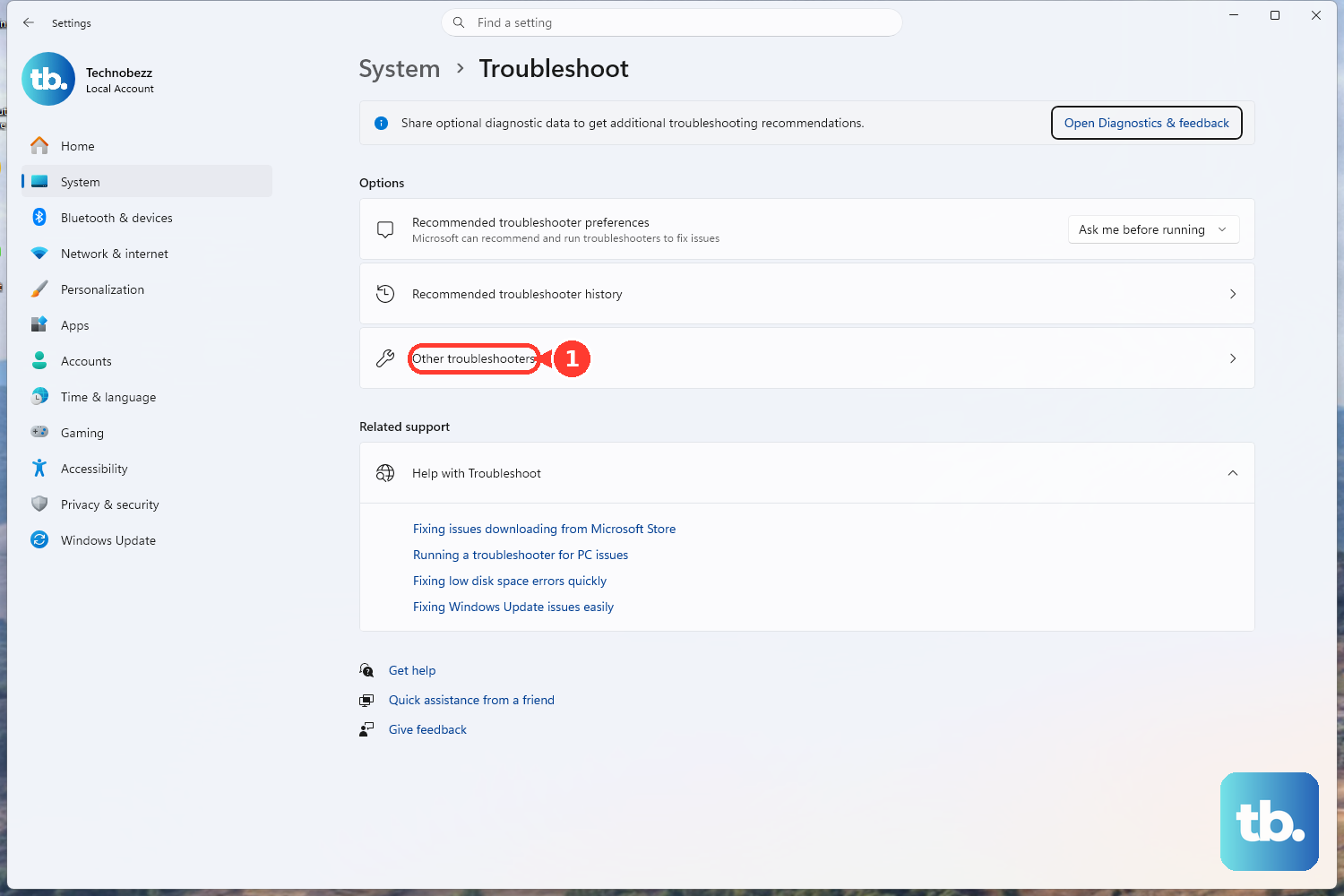
This is the quickest place to start. Right-click the WiFi icon in your taskbar and select Troubleshoot network problems. Windows will automatically scan for and attempt to fix common connectivity glitches. On Windows 11, you can also navigate to Settings > System > Troubleshoot > Other troubleshooters and run the Network and Internet troubleshooter from there.
Toggle WiFi Off and On
Click the network icon in your system tray and toggle the WiFi switch off. Wait about ten seconds, then turn it back on. This simple action refreshes your XPS 13's wireless adapter and can clear out a temporary bad state. Toggling Airplane mode on and off accomplishes the same thing and is just as fast.
Forget and Reconnect to Your Network
Sometimes the saved profile for your WiFi network gets corrupted. Go to Settings > Network & Internet > WiFi > Manage known networks. Click on your network name and select Forget. Then, scan for available networks, select yours again, and re-enter the password. This establishes a fresh, clean connection.
Update Your WiFi Driver
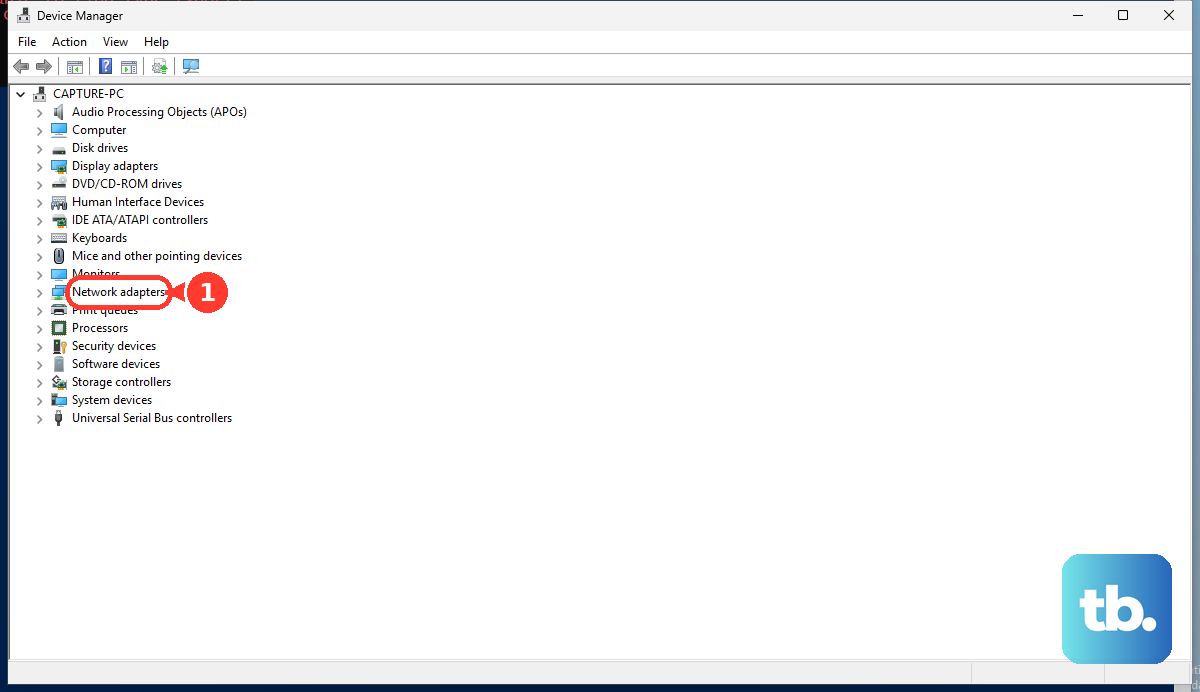
Outdated or buggy drivers are a frequent culprit, especially after a Windows update. Press the Windows key + X and choose Device Manager. Expand the Network adapters section, right-click your Intel or Killer WiFi adapter, and select Update driver > Search automatically for drivers. For the most reliable results, I'd also recommend using Dell SupportAssist. It automatically finds and installs the correct, manufacturer-approved drivers for your specific XPS 13 model.
Disable and Re-Enable the WiFi Adapter
If a driver update doesn't help, try forcing the adapter to reinitialize. Back in Device Manager under Network adapters, right-click your wireless adapter and choose Disable device. Wait a moment, then right-click it again and select Enable device. This is like a quick, targeted restart just for your WiFi hardware without needing to reboot the whole system.
Restart Your XPS 13
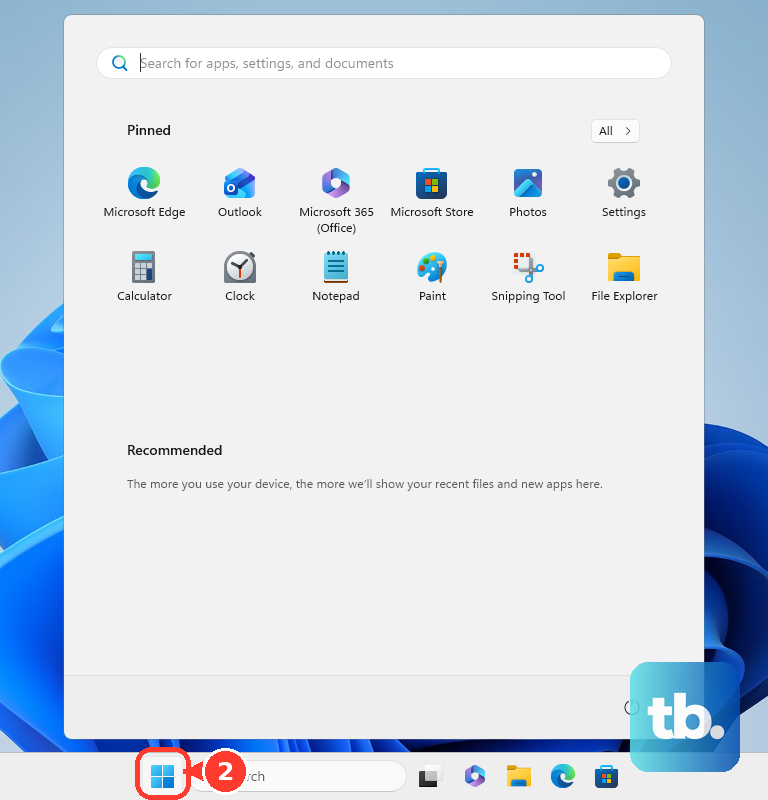
Don't underestimate a full restart. Click Start > Power > Restart. This clears the network stack, reloads all drivers from scratch, and can resolve transient software conflicts that simpler toggles might miss. It's a foundational step that fixes more issues than you might think.
Reset Your Network Settings
This is a more comprehensive step. Go to Settings > Network & Internet > Advanced network settings > Network reset. Click Reset now and confirm. This will remove and reinstall all network adapters, set all networking components back to defaults, and clear your WiFi passwords. You'll need to reconnect to your networks afterward, but it can solve deep-seated configuration problems.
Flush DNS and Reset TCP/IP
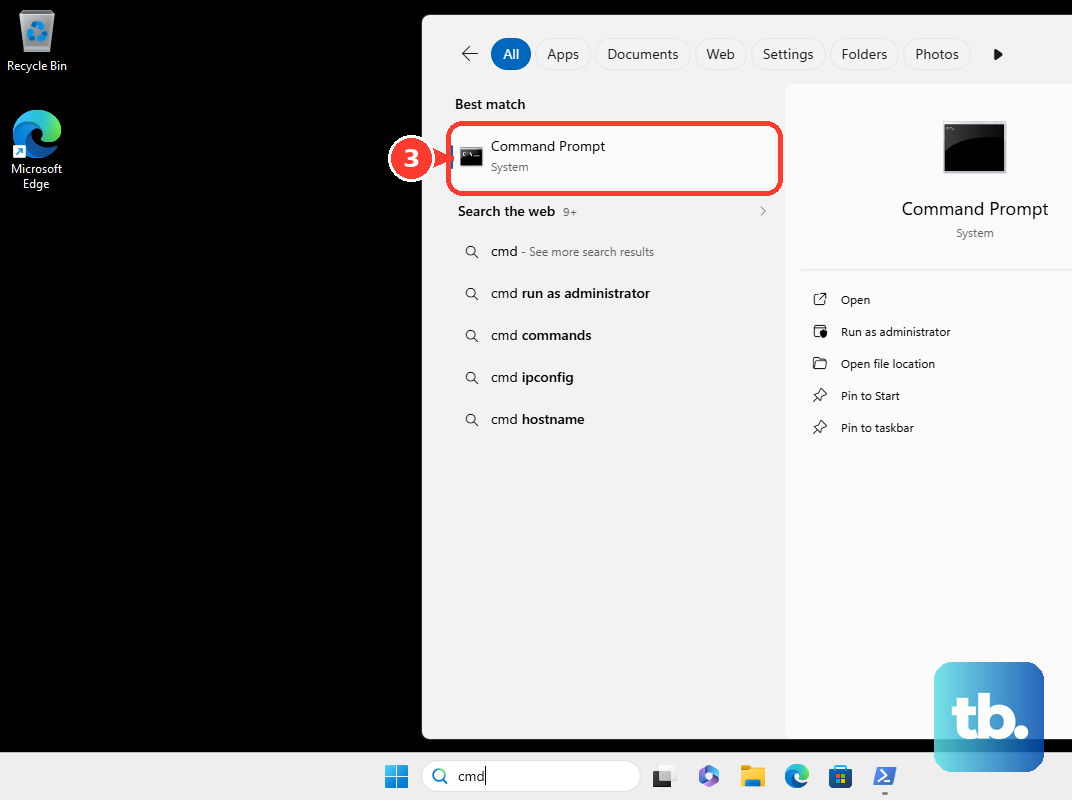
Open Command Prompt as an administrator by searching for "cmd", right-clicking it, and selecting "Run as administrator". Type the following commands one at a time, pressing Enter after each: netsh winsock reset, netsh int ip reset, ipconfig /flushdns, ipconfig /release, and finally ipconfig /renew. Once done, restart your laptop for the changes to take full effect.
Check for Windows Updates
Microsoft regularly releases patches that fix compatibility and performance issues, including WiFi problems. Go to Settings > Windows Update and click Check for updates. Install any available feature or quality updates. There have been specific Windows updates known to cause WPA3 WiFi issues, which are later resolved in newer builds.
Check Your Router and Environment
If other devices in your home are also struggling, the issue is likely with your router or internet service. Try restarting your router by unplugging it for 30 seconds. Also, consider interference; the XPS 13's compact design can sometimes make the WiFi antenna placement sensitive. Try moving closer to the router or removing potential sources of interference like cordless phones or microwaves. Connecting to a different network, like a phone's mobile hotspot, will definitively tell you if the problem is with your laptop or your home network.