
When your Dell XPS 13 goes silent, it's usually a quick software setting or a driver that needs a nudge. Let's get your sound back.
It is worth confirming the basics with a quick online speaker test. If neither channel plays a tone, you are looking at a hardware or connection problem rather than a settings issue.
Run the Windows Audio Troubleshooter
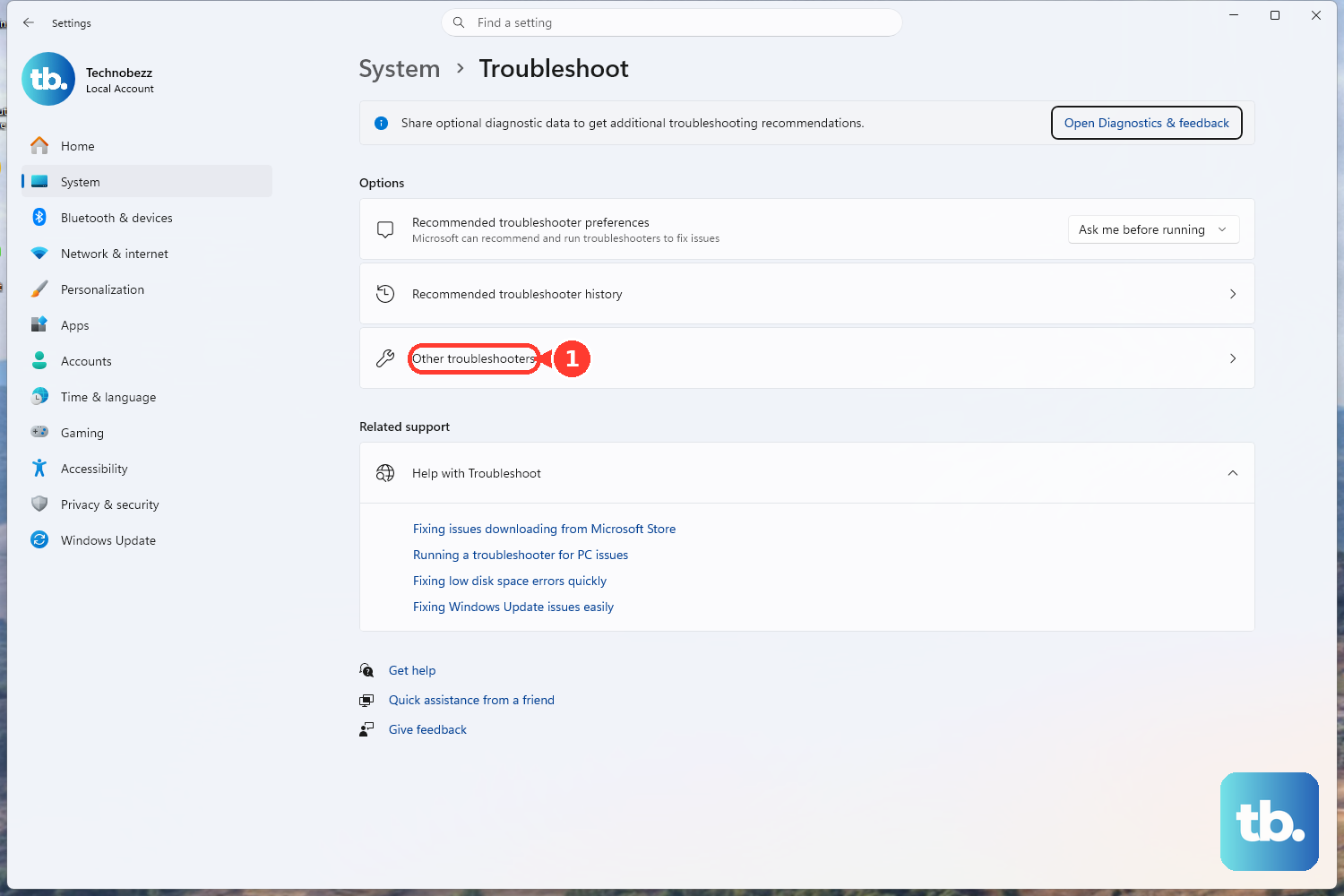
This is the fastest way to fix common glitches. Go to Settings > System > Troubleshoot > Other troubleshooters. Find Playing Audio and click Run. It will automatically check for disabled services or incorrect default devices and often fixes the issue in seconds.
Check Your Output Device and Volume
Click the speaker icon in your taskbar. Make sure the master slider is up and not muted. Then, click the little arrow next to the slider to see all available output devices. If you recently unplugged headphones, Windows might still be trying to send audio to them. Select Speakers (Realtek Audio) or your laptop's internal speakers.
Restart Your XPS 13
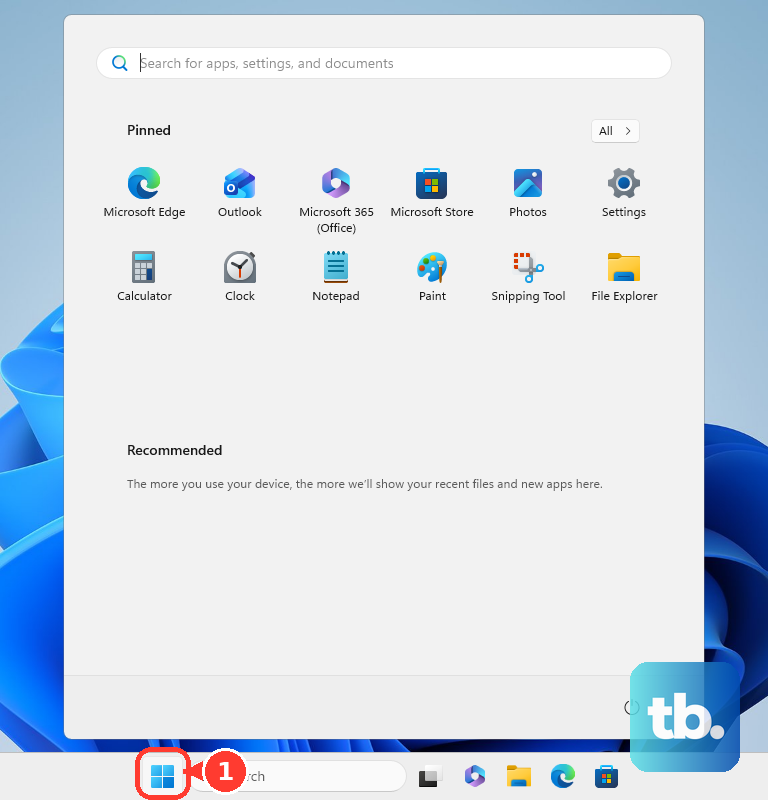
A simple restart clears out stuck audio processes and reloads all the drivers. Click Start > Power > Restart. I've found this especially effective if the sound cut out after the laptop woke from sleep or right after a Windows update.
Update or Reinstall Audio Drivers
Press Windows Key + X and choose Device Manager. Expand the Sound, video and game controllers section. Right-click on your audio device (it's often Realtek Audio or an Intel Smart Sound Technology device) and select Update driver.
Choose Search automatically for drivers. If that doesn't work, right-click the device again and choose Uninstall device. Restart your laptop, and Windows will automatically reinstall a fresh, generic driver. For the best results, use Dell's own tool afterward.
Use Dell SupportAssist for Drivers
This is a key step for Dell laptops. Open the Dell SupportAssist app (it should be pre-installed). Run a scan for driver updates. It will find and install the audio drivers specifically certified for your exact XPS 13 model, which is more reliable than Windows Update for critical components like audio and WiFi.
Disable Audio Enhancements
Sometimes the software effects meant to improve sound can break it. Go to Settings > System > Sound. Click on your output device (like the speakers), then scroll down to Audio enhancements. Set the dropdown to Off and test your sound immediately.
Check the App Volume Mixer
Your system volume might be fine, but the specific app you're using could be muted. Right-click the speaker icon in the taskbar and select Open Volume mixer. You'll see a volume slider for each open application. Make sure the app you're trying to hear (like Chrome or Spotify) isn't set to zero.
Restart the Windows Audio Services
Press Windows Key + R, type services.msc, and hit Enter. In the list, find Windows Audio. Right-click it and select Restart. Do the same for the Windows Audio Endpoint Builder service right below it. This forces the core audio system to reset.
Test with Different Audio Ports
If you're using headphones or external speakers, try a different pair. Plug your headphones into the 3.5mm jack to see if you get sound there. Also, try connecting a pair of Bluetooth headphones. If audio works on Bluetooth but not the internal speakers, it points to a driver or hardware issue with the built-in speakers.
Roll Back a Problem Driver Update
If the audio stopped working right after a Windows Update, you might need to revert the driver. Go back to Device Manager > Sound, video and game controllers. Right-click your audio device and select Properties. Go to the Driver tab and click Roll Back Driver if the button is available. This reverts to the previous version that was working.