
Seeing a Blue Screen of Death on your Dell XPS 13 is a jarring experience, but it's Windows' way of stopping a serious error before it causes data corruption. The problem is usually a driver conflict, a hardware hiccup, or a corrupted system file. While the specific error code on the screen gives you a clue, these general fixes will resolve the vast majority of BSODs on the XPS 13.
Restart and See if It Happens Again
The first thing to do is simply restart your laptop. A single BSOD can be a one-time fluke caused by a temporary driver issue or a memory glitch. If your XPS 13 boots back up normally and runs fine for a while, you can probably chalk it up to bad luck. If the blue screen reappears immediately or within a few minutes of using Windows, you have a persistent issue that needs addressing.
Write Down the Stop Code
When the blue screen flashes, try to note the all-caps stop code near the bottom, like DRIVER_IRQL_NOT_LESS_OR_EQUAL or SYSTEM_SERVICE_EXCEPTION. This code points to the category of the crash. You can search for this exact code later, but the solutions here are designed to fix the root causes behind most common codes.
Boot Into Safe Mode
If the crashes prevent you from reaching the desktop, you'll need to boot into Safe Mode. On your XPS 13, you can do this by holding the Shift key while you click the Restart option in the Windows login or power menu. After it restarts, navigate to Troubleshoot > Advanced options > Startup Settings > Restart. Once it reboots again, press the 4 key to enable Safe Mode. This loads Windows with a minimal set of drivers, which can help you isolate a problematic software or driver.
Uninstall Recent Updates or Software
Think about when the crashes started. If they began right after a Windows Update, you can try removing it. Go to Settings > Windows Update > Update history > Uninstall updates and remove the most recent quality update or feature update. I've seen this resolve BSODs that appeared out of the blue after a patch Tuesday. Similarly, uninstall any new software or drivers you installed just before the problems began.
Update Your Drivers with SupportAssist
Outdated or buggy drivers are the single most common cause of BSODs on the XPS 13. Dell's own software can handle this for you. Open the Dell SupportAssist app and run a full scan. It will automatically find and install the latest, Dell-validated drivers for your specific model, which is crucial for components like the chipset, WiFi, and Thunderbolt controllers. This is especially important as XPS 13 models are known to have WiFi driver conflicts after major Windows updates.
Run the System File Checker
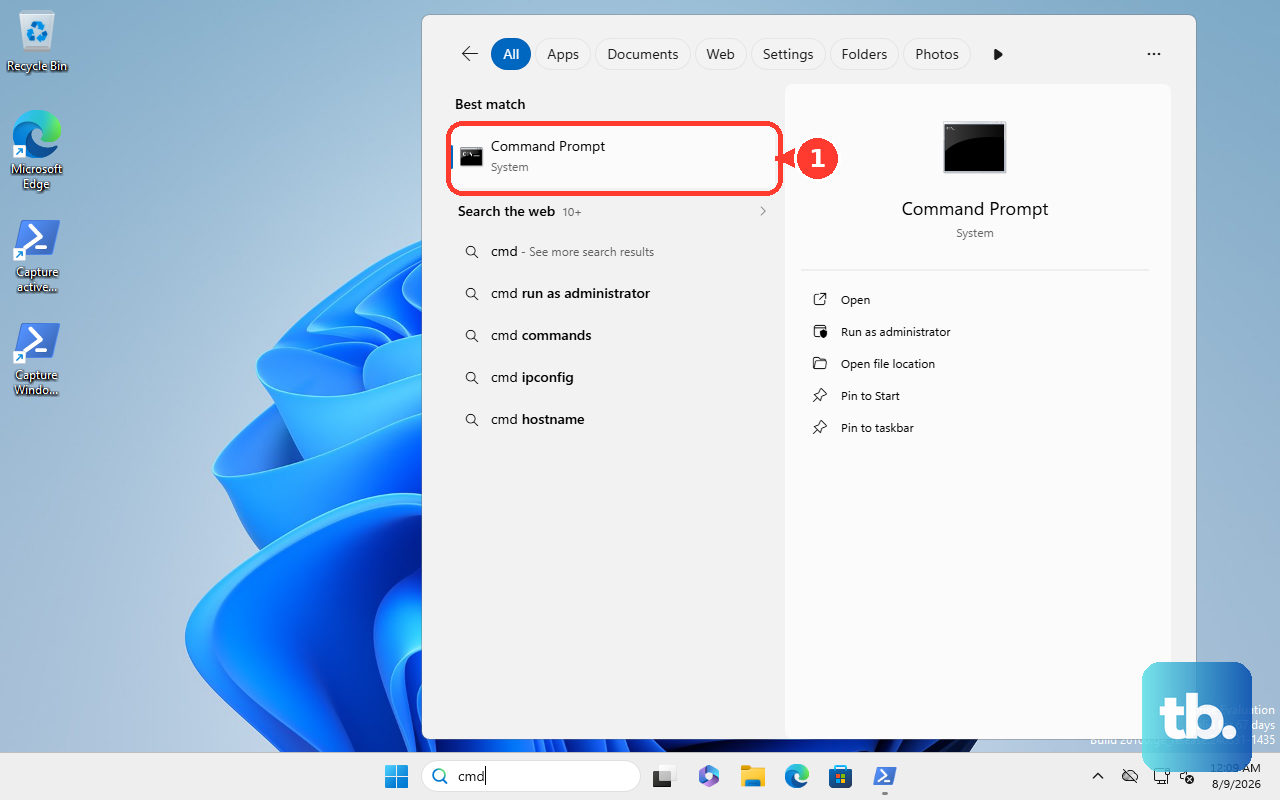
Corrupted Windows system files can lead to all sorts of instability. To check for this, right-click the Start button and select Windows Terminal (Admin) or Command Prompt (Admin). In the window, type sfc /scannow and press Enter. This command will scan all protected system files and replace any that are corrupted. If it finds problems it can't fix, run DISM /Online /Cleanup-Image /RestoreHealth first, then try the sfc command again.
Check for Memory Problems
Faulty RAM is a classic hardware cause of random crashes. Windows has a built-in tool for this. Search for Windows Memory Diagnostic in the Start menu and run it. Choose Restart now and check for problems. Your XPS 13 will reboot and run a comprehensive memory test before Windows loads. If it reports any errors, it likely means one of the RAM modules needs to be reseated or replaced.
Scan Your SSD for Errors
While less common with modern SSDs, storage issues can still cause BSODs related to data reading. Open an Administrator Command Prompt as before and type chkdsk C: /f /r. It will schedule a check for the next restart. Type Y to confirm, then restart your laptop. The tool will scan the drive for file system errors and bad sectors, repairing what it can. If it finds a large number of bad sectors, it could indicate a failing drive.
Address Potential Overheating
If the BSODs tend to happen during demanding tasks like gaming or video editing, overheating could be the culprit. The XPS 13 has a compact design, and dust buildup in the fans and vents can impede cooling. Make sure the laptop is on a hard, flat surface and consider using a laptop cooling pad. Listen for the fans; if they're constantly at max speed or you notice significant performance throttling, it's a sign the system is running too hot.
Reset or Refresh Your PC
If you've tried everything and the blue screens persist, a Windows reset is a powerful next step. Go to Settings > System > Recovery and click Reset this PC. Choose Keep my files to reinstall Windows while preserving your personal documents, photos, and other data. This process will remove all your apps and drivers, giving you a fresh start and eliminating deep-seated software conflicts that other tools can't fix. For a more Dell-specific recovery, you can also press F8 during boot to access the Advanced Startup Options.