
When your Dell Latitude 14 won't connect to WiFi, it can feel like you're stranded. Whether you see no networks at all, get stuck on "Connecting...", or have a connection with no internet, the problem is usually solvable right from your desk.
Run the Windows Network Troubleshooter
This is the quickest place to start. Right-click the WiFi icon in your taskbar and select Troubleshoot network problems. Windows will automatically scan for common issues like IP address conflicts or adapter problems and try to fix them.
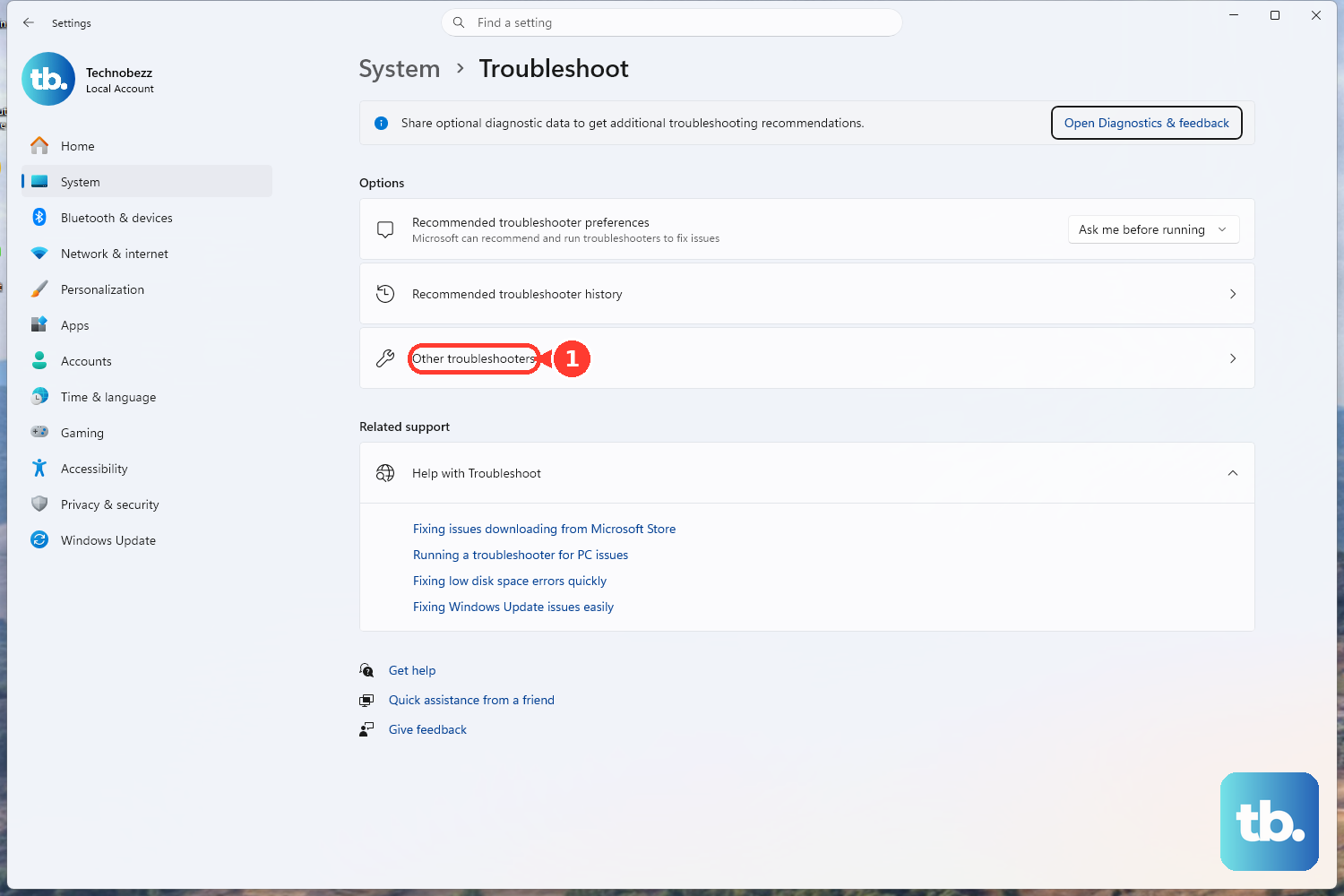
If that doesn't work, you can also access it through Settings. Go to Settings > System > Troubleshoot > Other troubleshooters and run the Network and Internet troubleshooter. It often catches simple glitches that cause the Latitude 14 to fail to connect.
Toggle the WiFi Adapter Off and On
Click the network icon in your taskbar and click the WiFi toggle to turn it off. Wait about 10 seconds, then turn it back on. This forces the wireless adapter to restart and can clear a temporary stuck state.
You can also toggle Airplane mode on and off from the same menu for a more comprehensive reset. I've seen this resolve intermittent connection drops on Latitudes that otherwise seem fine.
Forget and Re-add Your Network
Sometimes the saved network profile gets corrupted. Go to Settings > Network & internet > Wi-Fi > Manage known networks. Find your network's name, click the three dots, and select Forget.
Afterward, click the WiFi icon again, select your network from the list, and re-enter the password. This establishes a fresh connection from scratch, which bypasses profile-related errors.
Update Your WiFi Driver with Dell Command Update
Outdated or corrupted drivers are a top cause of WiFi problems on business laptops. For a Dell Latitude, the best tool for this is Dell Command Update. Open it, let it scan, and install any available driver updates, especially for the network adapter.
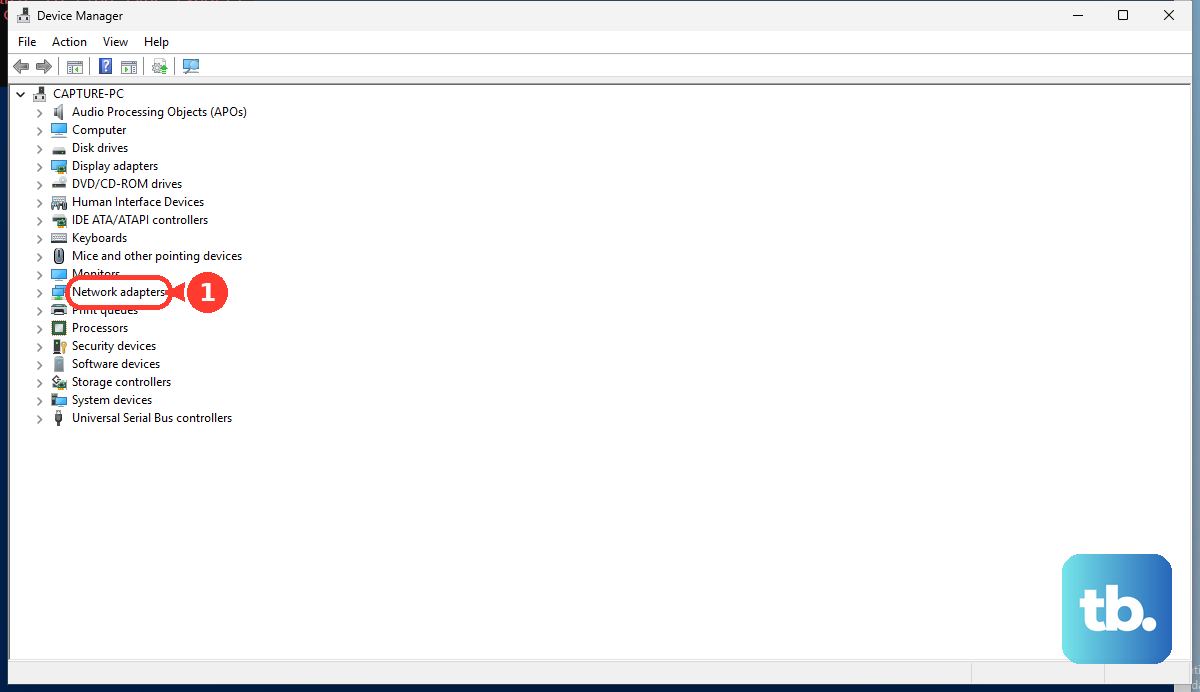
If you don't have it, you can update manually. Press the Windows key + X and select Device Manager. Expand Network adapters, right-click your Intel or Killer WiFi adapter, and select Update driver > Search automatically for drivers.
Disable and Re-enable the Network Adapter
This is a more direct refresh than just toggling WiFi. In Device Manager under Network adapters, right-click your wireless adapter and select Disable device. Confirm if prompted, wait a moment, then right-click it again and select Enable device.
Your WiFi will disconnect and reconnect. This reloads the driver without requiring a full system restart and can fix adapter freezes.
Check for Enterprise Software Conflicts
The Latitude 14 is often deployed in corporate environments. Security software like Cisco AnyConnect VPN, endpoint protection suites, or advanced firewall clients can interfere with WiFi.
Try temporarily disabling any such enterprise security software to see if the connection works. If it does, you may need to adjust its settings or contact your IT department for a configuration update specific to your network.
Reset the Network Stack via Command Prompt
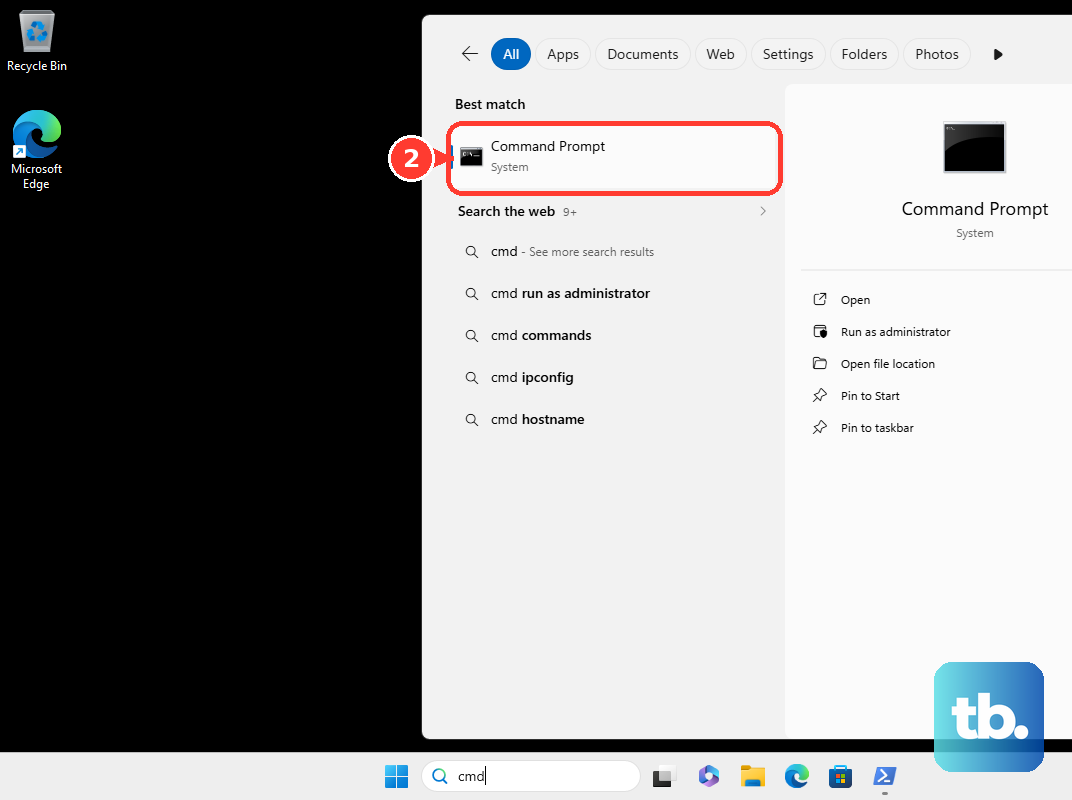
Open Command Prompt as an administrator. Type the following commands one at a time, pressing Enter after each:
netsh winsock reset
netsh int ip reset
ipconfig /flushdns
ipconfig /release
ipconfig /renew
After running them all, restart your laptop. This clears corrupted network caches and resets the TCP/IP stack, which can resolve "No Internet, Secured" errors.
Perform a Network Reset
This is a more comprehensive step. Go to Settings > Network & internet > Advanced network settings > Network reset. Click Reset now.
Be aware this will remove all network adapters and reinstall them, and you will lose all saved WiFi passwords and Ethernet settings. It's a very effective last-resort software fix before looking at hardware.
Run Dell SupportAssist or BIOS Diagnostics
Your Latitude has built-in hardware diagnostics. Restart the laptop and press F12 repeatedly at the Dell logo to enter the boot menu. Select Diagnostics and run the system check.
This can identify if there's a hardware failure with the WiFi card. Also, enter the BIOS by pressing F2 at startup and ensure the wireless radio is not disabled in the security or system configuration menus.
Check Your Router and Network Environment
If other devices can't connect either, the issue is with your network. Restart your router and modem by unplugging them for 30 seconds. Try connecting your Latitude to a different network, like a mobile hotspot, to confirm the laptop's WiFi hardware is functional.
For enterprise setups, the problem could be with the specific access point or network policy. Try connecting to a different WiFi SSID within your organization to help isolate the cause.