
Screen flickering on your Dell Latitude 14 is incredibly distracting, making it hard to focus on anything. The display might flash, show horizontal lines, or go black for a split second. Let's get it fixed.
Start by pressing Ctrl + Shift + Esc to open Task Manager. Watch it closely. If Task Manager itself flickers, the problem is likely with your display drivers or Windows itself. If Task Manager stays perfectly stable while your desktop and apps flicker, a third-party application is probably the culprit. This simple check points you in the right direction.
Update Your Display Drivers
For a Latitude, the best tool for this is Dell Command Update. Open it and let it scan for all available driver updates, especially for your Intel or AMD integrated graphics. I've seen this resolve flickering more often than not. If you prefer manual updates, go to the Dell support site, enter your service tag, and download the latest display driver directly.
You can also use Device Manager. Right-click the Start button, select Device Manager, and expand Display adapters. Right-click your graphics adapter and choose Update driver. Let Windows search automatically, but know that the Dell-specific driver is often more reliable for enterprise machines.
Check for App Conflicts
If Task Manager was stable, an app is likely causing the trouble. Common offenders on business laptops include enterprise security software, VPN clients, virtual desktop apps like Citrix or VMware, and even some smart card reader utilities. Try uninstalling any recently added software or temporarily disabling security suites to see if the flickering stops.
You can also perform a clean boot to isolate the issue. Type msconfig into the Windows search bar, go to the Services tab, check Hide all Microsoft services, and click Disable all. Then, go to the Startup tab and open Task Manager to disable all startup items. Reboot. If the flickering is gone, re-enable services and startups in groups until you find the problematic one.
Adjust Your Display Refresh Rate
Right-click your desktop and select Display settings. Scroll down and click Advanced display. Look for the Refresh rate dropdown. Try switching to a different rate. If you're at 60Hz, see if 59.94Hz is available, or vice versa. Sometimes a slight mismatch between the panel and driver can cause persistent flicker.
Disable Hardware Acceleration in Apps
This is a frequent fix for flickering that only happens in specific programs like web browsers. In Chrome or Edge, go to Settings > System and turn off Use hardware acceleration when available. Other apps like Discord or Slack have similar settings in their options menus. This tells the app to stop using your GPU directly, which can resolve conflicts.
Roll Back a Problematic Driver
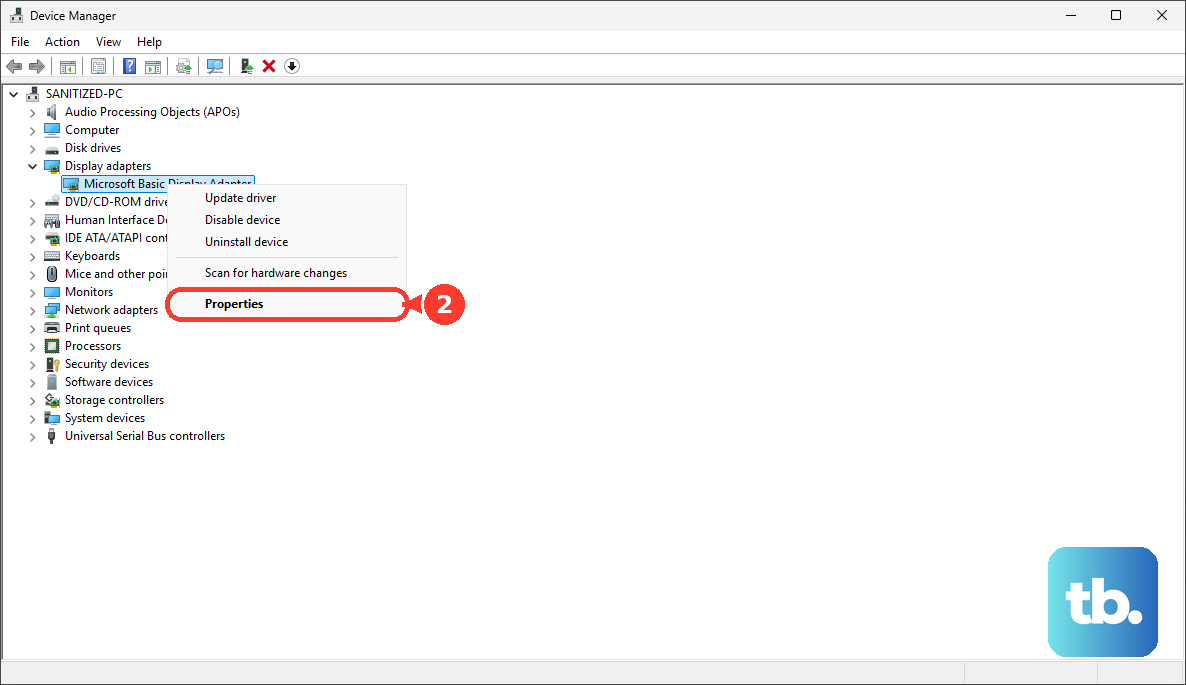
If the flickering started right after a driver update, rolling it back is a quick fix. Go back into Device Manager under Display adapters, right-click your graphics driver, and select Properties. Go to the Driver tab and click Roll Back Driver. Follow the prompts. This will revert you to the previous driver version that was working correctly.
Run the Dell SupportAssist Diagnostics
Your Latitude has built-in hardware diagnostics. Restart the laptop and press F12 repeatedly as it boots to enter the one-time boot menu. Use the arrow keys to select Diagnostics and press Enter. Let the test run, especially the video memory and LCD tests. This will tell you if there's a failing hardware component causing the flicker.
Inspect Your Docking Station Connection
If the flickering only happens when you're docked, the issue is likely with the dock or its drivers. First, try a different video cable between the dock and your monitor. Update your dock's firmware and drivers using Dell Command Update. Also, try connecting your monitor directly to the laptop's HDMI or USB-C port to rule out the dock entirely.
Check the Internal Display Cable
This is a hardware possibility if the flickering gets worse when you move the laptop screen or open and close the lid. Over time, the hinge movement can loosen the internal eDP cable that connects the screen to the motherboard. This isn't a simple fix and usually requires opening the chassis, so it's best left to a professional technician if you've ruled out all software causes.