
When your Dell Latitude 14 is plugged in but the battery percentage won't budge, it's a frustrating roadblock. The problem usually comes down to the power source, the laptop's power management, or the battery itself. Let's walk through the fixes, starting with the simplest.
Check Your AC Adapter and Outlet
First, make sure your power source is actually working. Check the LED light on the AC adapter brick; if it's off, the issue is likely with the outlet or the adapter itself. Try plugging the adapter into a different wall outlet without any power strips or surge protectors in between.
Inspect the adapter's cable for any kinks, cuts, or fraying, especially near the ends. I'd also check the connection where the round power jack plugs into the laptop. Make sure it's seated firmly and that there's no debris inside the port.
Run a Hardware Diagnostic
Dell builds a great diagnostic tool right into the system. Restart your Latitude 14 and immediately start tapping the F12 key at the Dell logo. This brings up the one-time boot menu.
From there, use the arrow keys to select Diagnostics and press Enter. The tool will run a series of tests, including one on the AC adapter and battery. It will tell you if it detects a problem with either component, which can save you a lot of guesswork.
Update Your Drivers and BIOS
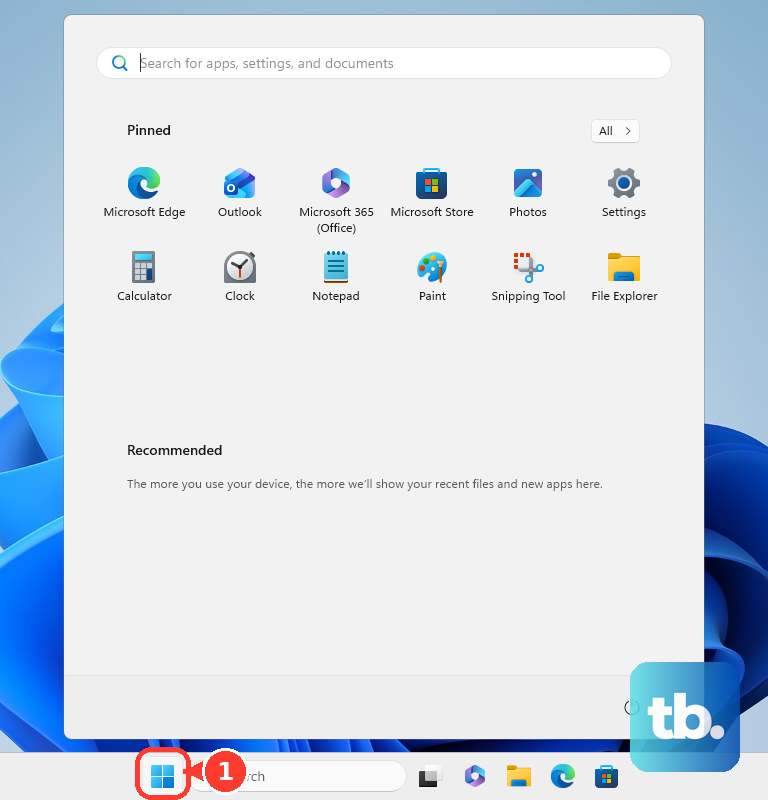
Outdated or corrupted drivers can confuse the system's power management. The easiest way to handle this on a Dell is with Dell Command Update. Open the Start menu, search for it, and run a scan. It will find the latest BIOS, chipset, and power management drivers specifically for your model.
If you don't have that tool, you can update drivers manually. Press the Windows key + X and select Device Manager. Expand the Batteries section, right-click on Microsoft ACPI-Compliant Control Method Battery, and choose Uninstall device. Restart your laptop, and Windows will reinstall a fresh driver.
Reset the Power Management
Sometimes the system just needs a hard reset to clear out a power state error. Shut down your laptop completely. Unplug the AC adapter and disconnect any peripherals, including docking stations.
Next, press and hold the power button down for a full 30 seconds. This drains any residual power from the motherboard. After that, plug just the AC adapter back in (leave the battery connected internally) and turn the laptop on normally. This often resolves the "plugged in, not charging" status.
Check for Enterprise Software Conflicts
This is a common one for Latitude models used in business environments. Security or management software installed by your IT department can sometimes interfere with power settings. If you're on a corporate network, it's worth checking with your IT support.
They might have policies that affect charging, or they may need to push updated drivers for components like the smart card reader, which has been known to cause power issues on some Latitudes when its drivers are out of date.
Inspect Your Battery Health
Over time, batteries simply wear out. To check yours, open the Start menu, type cmd, right-click on Command Prompt, and select Run as administrator. In the window that opens, type powercfg /batteryreport and hit Enter.
This command generates a detailed HTML report. It will tell you the battery's original design capacity versus its current full charge capacity. If the current capacity is significantly degraded, the battery may be unable to accept a charge properly and will need replacing.
Review BIOS Power Settings
A misconfigured setting in the BIOS can prevent charging. Restart your laptop and tap the F2 key repeatedly at startup to enter the BIOS setup. Navigate through the menus (often under Power Management or Advanced).
Look for any settings related to battery charging or AC adapter behavior and ensure they are enabled. Be cautious in here; if you're unsure about a setting, it's best to leave it alone or note the original value before changing it.
Try a Known-Good Charger
If you have access to another Dell 65W or 90W adapter with the same style of round power jack, try using it. Adapters can fail without any visible signs. Using an underpowered or third-party charger might provide enough juice to run the laptop but not enough to simultaneously charge the battery.
Ensure any replacement charger is from Dell or is officially certified for your Latitude model. A mismatch can lead to this exact problem.