
When your Dell Latitude 14 keyboard stops working, it can feel like you've hit a brick wall. The keys might not register at all, certain rows could be dead, or you might get the wrong characters when you type. Here are the most effective ways to get it working again.
It takes a minute to confirm the board itself with a keyboard tester. Press every key once and you will have a clear picture of what actually fails.
Perform a Hard Reset
This is often the quickest fix. Shut down your laptop completely. Then, unplug the AC adapter and any docking station or USB devices. Hold down the power button for a full 15-20 seconds to drain any residual power. After that, plug the charger back in and power it on normally. This clears temporary glitches in the system's power management that can affect the keyboard.
Check for Physical Debris
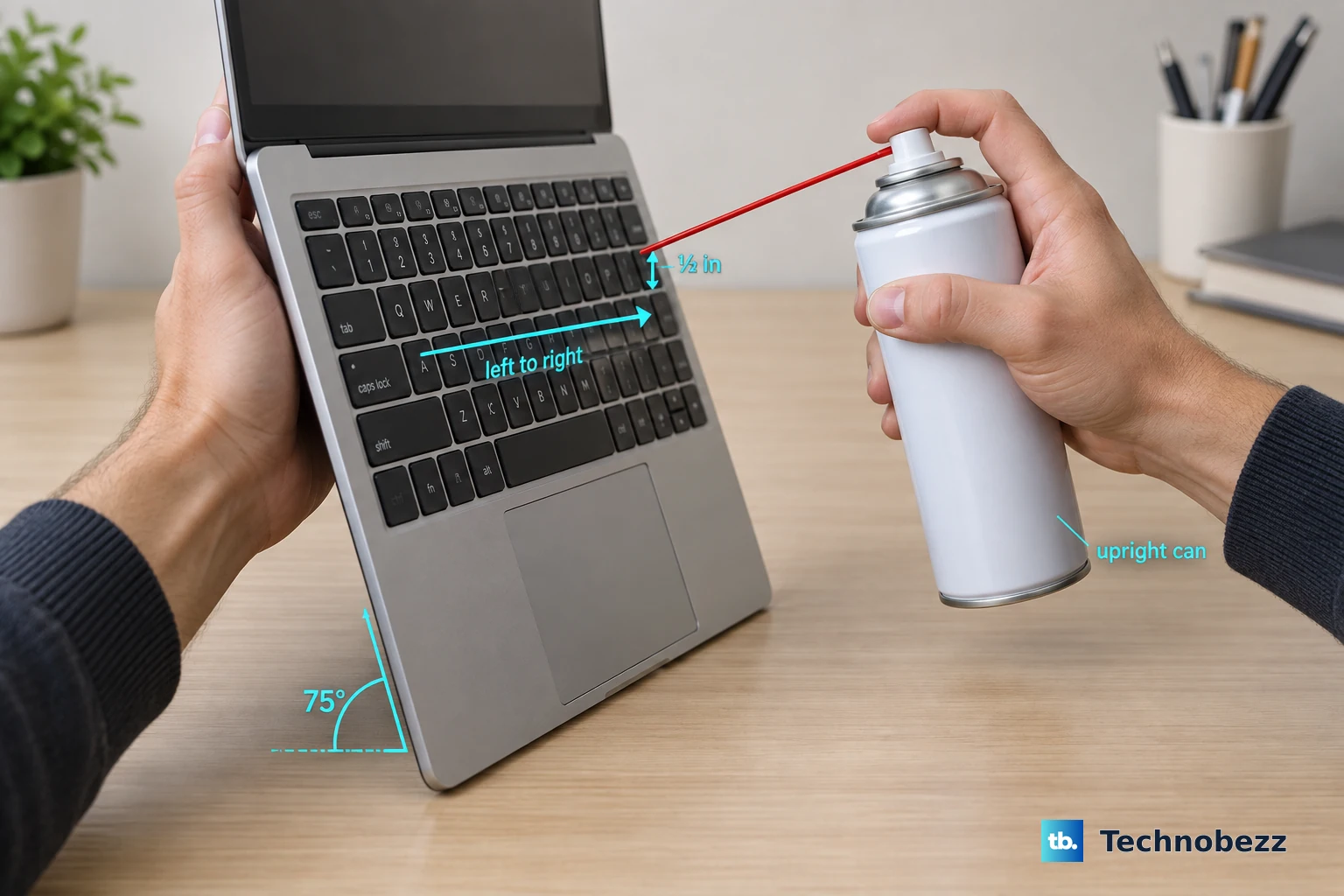
Turn the Latitude 14 upside down and give it a gentle shake. Crumbs, dust, or a small piece of debris can easily get lodged under a key and prevent it from making contact. For a more thorough clean, use a can of compressed air to blow between the keys, holding the laptop at an angle so the debris falls out.
Disable Filter Keys in Windows
An accessibility feature called Filter Keys can sometimes get enabled by accident, usually by holding the Shift key for too long. When it's on, it ignores brief or repeated keystrokes, making the keyboard seem completely broken. Go to Settings > Accessibility > Keyboard and turn off the toggle for Filter Keys. While you're there, check that Sticky Keys is also disabled.
Update or Reinstall the Keyboard Driver
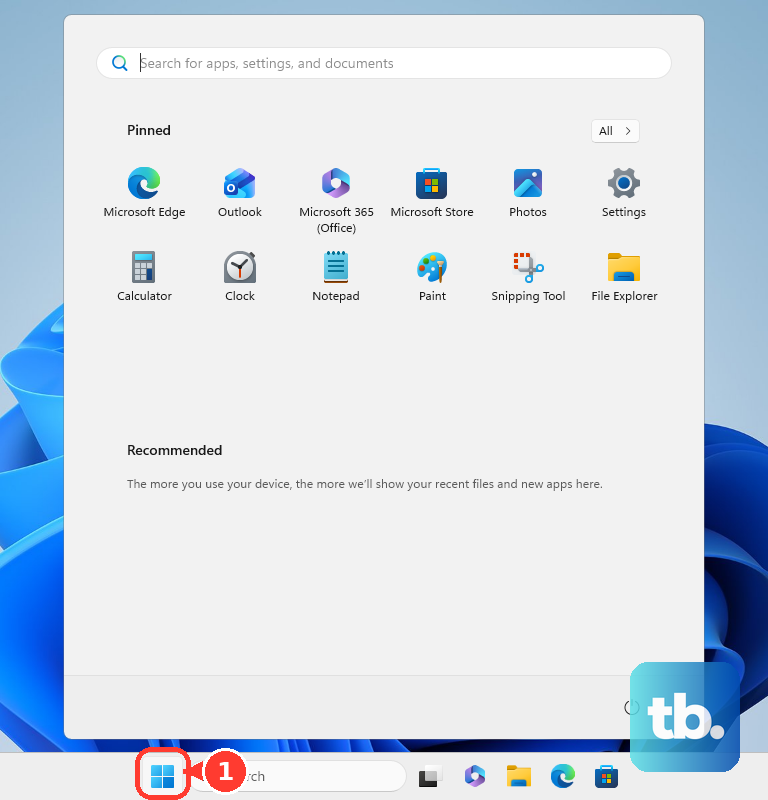
Open the Start menu and type "Device Manager." Click to open it, then expand the "Keyboards" section. Right-click on "Standard PS/2 Keyboard" or a similar entry and select "Update driver." Choose "Search automatically for drivers." If that doesn't work, right-click again and choose "Uninstall device." Don't worry, just restart your laptop and Windows will automatically reinstall a fresh, default driver.
For a more comprehensive approach, use Dell Command Update. This tool scans for all Dell-specific drivers, BIOS updates, and firmware specifically for your Latitude 14 model, which is crucial for enterprise-managed machines. I'd start with this one, as it often resolves conflicts that generic Windows updates miss.
Verify Your Keyboard Language and Layout
If your keyboard is typing the wrong characters, like getting a " when you press @, your input language has likely been switched. Click the language abbreviation (e.g., ENG) in your taskbar's system tray to see which layout is active. You can also go to Settings > Time & language > Language & region and ensure your correct language is at the top of the list. Remove any unnecessary keyboard layouts to prevent accidental switching.
Boot into Safe Mode to Isolate Software
If the keyboard works in Safe Mode, you know a third-party application is causing the conflict. To get into Safe Mode, go to Settings > System > Recovery and click "Restart now" under Advanced startup. After the reboot, choose Troubleshoot > Advanced options > Startup Settings > Restart. Press the 4 or F4 key to enable Safe Mode. Once in, you can uninstall any recently added software, especially security or encryption tools common in enterprise environments.
Run the Dell Pre-boot Diagnostics
Dell builds a robust hardware test suite right into the BIOS. Restart your Latitude 14 and immediately start tapping the F12 key repeatedly as it boots. This brings up the one-time boot menu. Use the arrow keys to select "Diagnostics" and press Enter. The system will run an automated check, including a keyboard test where you'll be prompted to press keys. This tells you definitively if there's a hardware failure.
Inspect BIOS and Security Settings
Some enterprise security settings in the BIOS can interfere with hardware. Restart and tap F2 to enter the BIOS Setup. Navigate carefully using the arrow keys. Look for sections related to "Security" or "IO Port Access." Ensure that nothing related to the keyboard or internal devices is disabled. If you're unsure, look for an option to "Load Defaults" or "Restore Settings," save, and exit.
Test with an External Keyboard
Plug a standard USB keyboard into one of your laptop's ports. If the external keyboard works flawlessly, it strongly points to a hardware issue with the Latitude's internal keyboard. The problem could be a loose ribbon cable connection, which sometimes happens if the laptop was recently serviced, or physical damage from liquid exposure.