
When you plug your Dell Latitude 14 into an external monitor and the screen stays blank, it's usually a quick settings or driver fix. Let's get that second screen working.
Before adjusting cables and settings, run a quick screen test in your browser. Its fullscreen patterns make problems like flicker, banding, and uniformity issues much easier to spot and describe.
Press Windows + P First
This is the fastest thing to try. Press the Windows + P keys together on your Latitude's keyboard. A menu will pop up on the right side of your screen. Make sure it's not set to PC screen only. Choose Duplicate or Extend instead. Sometimes the setting just gets flipped, especially after docking or undocking.
Check Your Cables and Ports
Unplug the video cable from both your laptop and the monitor, then plug it back in firmly. If you're using a docking station, try connecting the monitor directly to your Latitude's HDMI or USB-C port instead. I've seen loose connections or a finicky dock cause this more often than a dead port.
Also, verify the monitor itself is powered on and set to the correct input source. It sounds obvious, but cycling through the input options (like HDMI 1, HDMI 2, DisplayPort) on the monitor's own menu can solve it instantly.
Run a Hardware Check with Dell Diagnostics
Your Latitude has a built-in tool to test its own hardware. Restart the laptop and press F12 repeatedly as it boots to enter the one-time boot menu. From there, select Diagnostics and let it run. It will check the display ports and graphics system for any failures.
If the diagnostics pass, you know the hardware is likely fine and it's a software or settings issue. This is a great first step to rule out a physical problem.
Update Your Display Drivers
Outdated or corrupted graphics drivers are a prime suspect. The best way to handle this on a Dell is to use Dell Command Update. Open that app and let it scan for all available driver updates, especially for your Intel, AMD, or NVIDIA graphics.
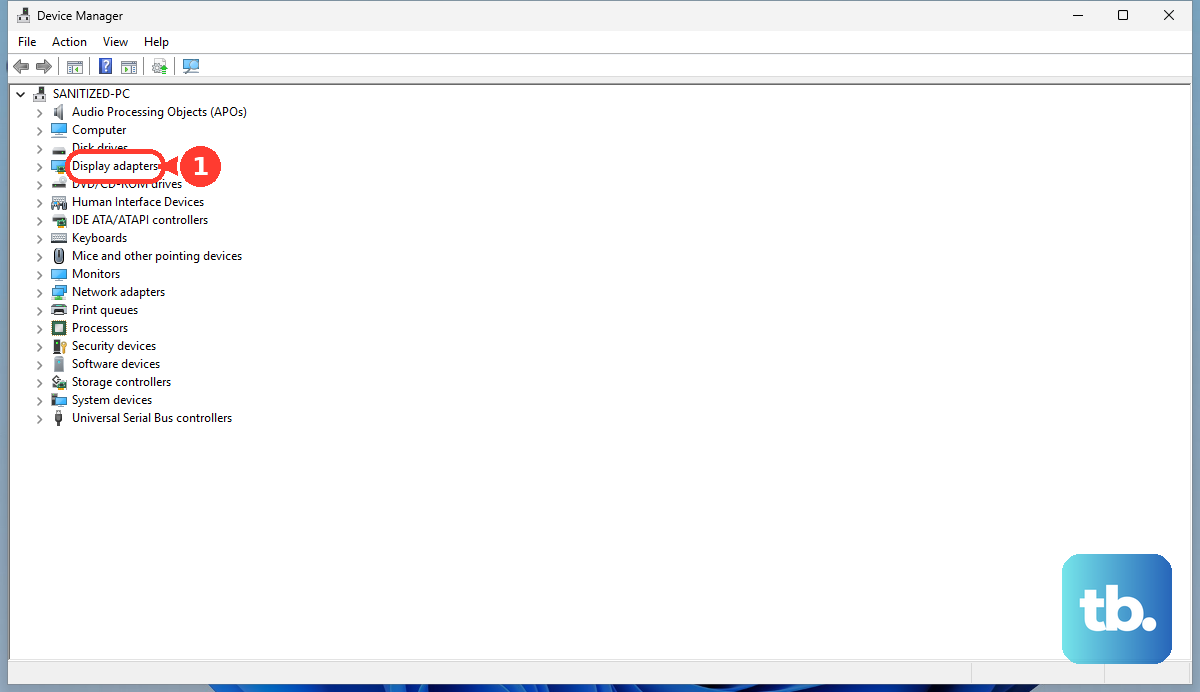
If you prefer to do it manually, go to Device Manager, expand Display adapters, right-click your graphics driver, and select Update driver. Choose to search automatically. For the absolute latest driver, you can visit the Intel or AMD website directly, but Dell's version is often the most stable for your specific model.
Detect the Display in Windows Settings
Go to Settings > System > Display. Click the Detect button. If Windows sees the monitor, it will appear as a second screen here. You can then arrange it and set the appropriate resolution.
If the monitor shows up but is blank, try lowering the resolution or refresh rate from this menu. Some older monitors don't support the high resolutions your laptop might be trying to push by default.
Check for Enterprise Software Conflicts
This is a common one for business laptops like the Latitude. Security or management software installed by your IT department can sometimes interfere with display detection. If you have admin rights, try temporarily disabling any non-Microsoft security suites or endpoint protection.
Similarly, if you use a smart card for login, ensure the smart card reader drivers are up to date through Dell Command Update. Oddly, I've seen driver conflicts here affect other system functions.
Disable and Re-enable the Display Adapter
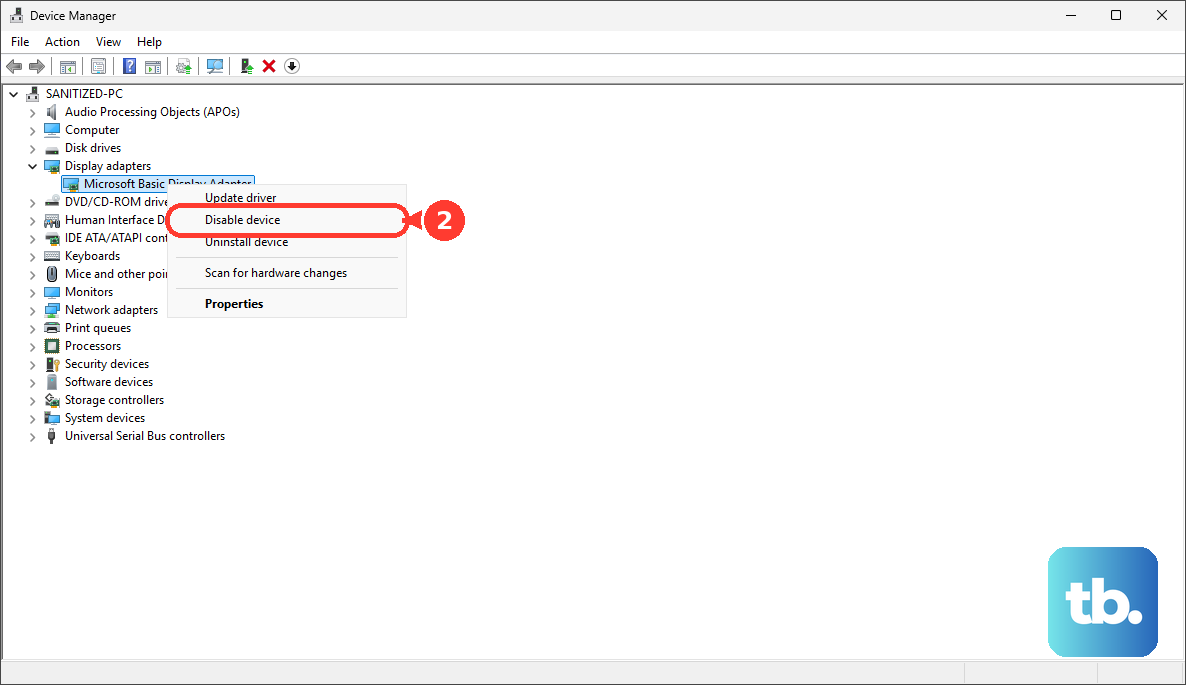
This forces the graphics driver to completely reload. Open Device Manager again, find your display adapter under Display adapters, right-click it, and choose Disable device. Confirm if prompted. Wait about ten seconds, then right-click it again and select Enable device.
Your screen will flicker as the driver resets. After it comes back, try the Windows + P shortcut again or reconnect your external monitor.
Review BIOS Settings
Restart your Latitude and tap the F2 key repeatedly to enter the BIOS setup. Navigate using the arrow keys. Look for display or video settings, which might be under a section like "System Configuration" or "Video."
Ensure any settings related to external display output are enabled. Be cautious in the BIOS, but a reset to default settings (usually an option on the exit screen) can sometimes clear a weird glitch, especially after a firmware update.
Try a Different Monitor or Cable
To completely isolate the problem, test your laptop with a different monitor or TV. If it works, the issue is with your original monitor. If it still doesn't work, try a different video cable.
If you're using an adapter (like USB-C to HDMI), that's another potential point of failure. Try a different adapter if you have one, or connect via a different port on your Latitude altogether.