
When Bluetooth stops working on your Dell Latitude 14, it can leave your wireless mouse, headset, or keyboard useless. The connection might drop, a device won't pair, or the Bluetooth toggle might even disappear from Windows. Let's get it working again.
The first thing I'd check is the physical switch. Some Latitude models have a hardware wireless switch on the side or a function key, like Fn + F2, that disables all radios. Make sure it's turned on.
Toggle Bluetooth and Restart
Open the Action Center by clicking the notification icon in the taskbar and make sure the Bluetooth tile is lit up. If it's off, click it to turn it on. A simple restart of your laptop can also clear up a lot of temporary glitches, especially if the issue started after waking from sleep.
Remove and Re-Pair Your Device
Go to Settings > Bluetooth & devices. Find the problematic device in the list and click the three dots next to it, then select Remove device. Put your Bluetooth device back into pairing mode and click Add device to pair it fresh. Corrupted pairing data is a very common culprit.
Run the Windows Bluetooth Troubleshooter
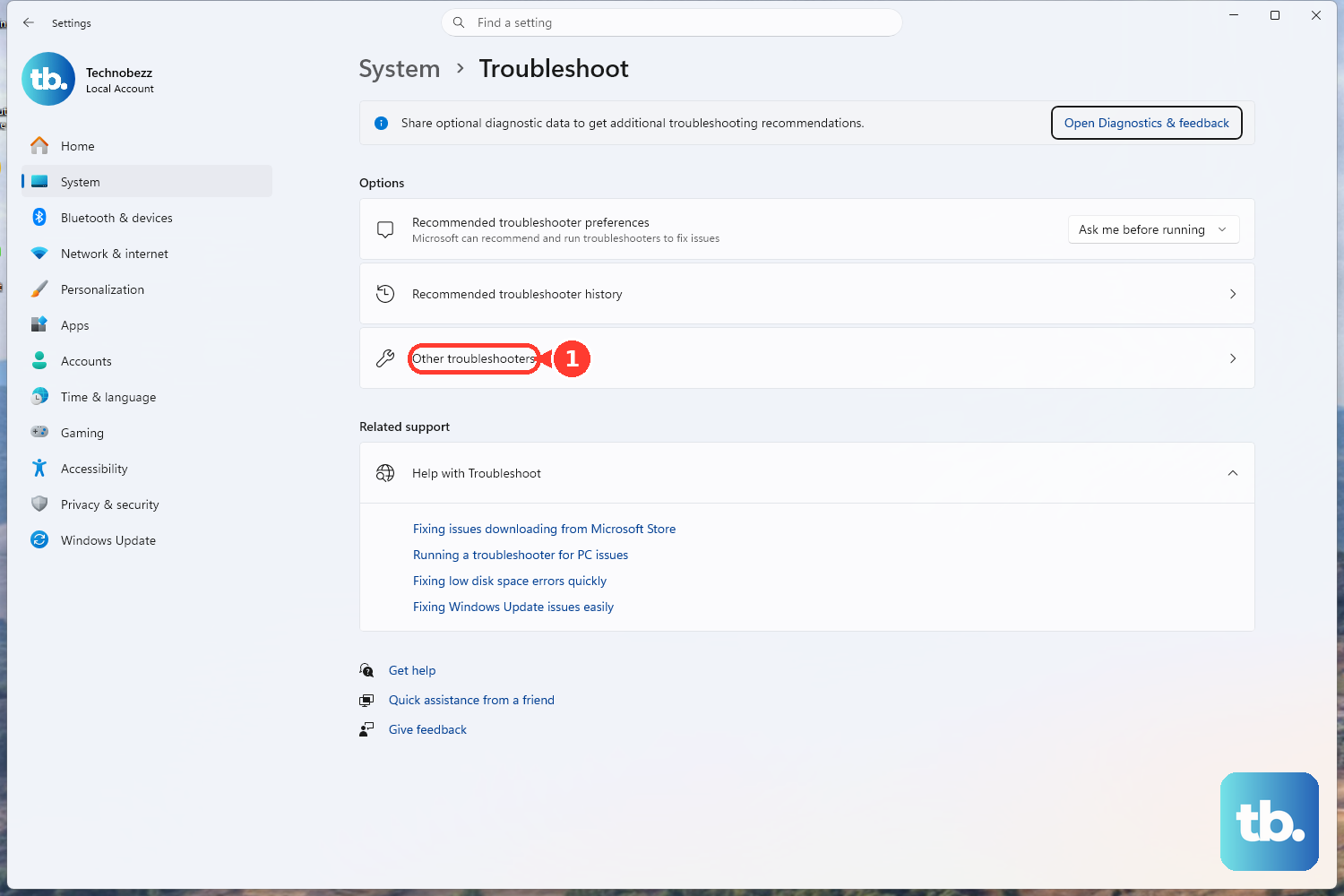
Windows has a built-in tool for this. Go to Settings > System > Troubleshoot > Other troubleshooters. Find the Bluetooth troubleshooter and click Run. It will scan for common configuration problems and try to fix them automatically.
Update Your Bluetooth Drivers with Dell Command Update
For a Latitude, the best tool for the job is often Dell Command Update. This enterprise-focused utility checks for all Dell-specific driver, BIOS, and firmware updates. Run it to see if there's a newer Bluetooth driver available. If you don't have it, you can download it from Dell's support site.
You can also update manually through Device Manager. Press Windows Key + X and select Device Manager. Expand the Bluetooth section, right-click your adapter (it might be listed as Intel or Realtek), and choose Update driver > Search automatically for drivers.
Check for Software Conflicts
Latitude laptops are often used in business environments with specific security software. Some enterprise antivirus or endpoint protection suites can interfere with Bluetooth services. Try temporarily disabling any non-Microsoft security software to see if the Bluetooth icon reappears or your device can connect.
Restart the Bluetooth Support Service
Press Windows Key + R, type services.msc, and hit Enter. In the Services window, scroll down and find Bluetooth Support Service. Right-click it and select Restart. Also, double-click it to open its properties and ensure the Startup type is set to Automatic.
Check the BIOS for Radio Controls
Dell's BIOS has extensive settings, including wireless radio controls. Restart your Latitude and tap the F2 key repeatedly as it boots to enter the BIOS setup. Navigate to the Wireless or Security sections and ensure Wireless Bluetooth or similar is Enabled. Save and exit.
Reinstall the Bluetooth Adapter
If a driver update didn't help, a clean reinstall might. Go back to Device Manager, find your Bluetooth adapter under the Bluetooth section, right-click it, and select Uninstall device. Check the box that says "Attempt to remove the driver for this device" if you see it. Then, restart your laptop. Windows will automatically reinstall the driver on startup.
Run Dell SupportAssist Diagnostics
Your Latitude has built-in hardware diagnostics. Restart the laptop and press F12 repeatedly at the Dell logo to enter the boot menu. Select Diagnostics from the list. Let the test run; it will check the health of your Bluetooth hardware and other components.
Check for Physical and Signal Interference
Bluetooth uses the 2.4GHz band, which is crowded. If you're using a USB 3.0 device, especially an external hard drive, try unplugging it. USB 3.0 can sometimes cause radio frequency interference with Bluetooth and WiFi. Also, try moving your Bluetooth device closer to the laptop to rule out distance or obstruction issues.











