
That sudden blue screen on your Dell Latitude 14 after an update is Windows hitting the emergency stop button. It's usually a driver that didn't install cleanly, a conflict with enterprise security software, or a system file that got scrambled. The fixes below work for most stop codes, from DRIVER_IRQL_NOT_LESS_OR_EQUAL to SYSTEM_SERVICE_EXCEPTION.
Restart and See if It's a One-Time Glitch
First, just restart the laptop. A single blue screen can be a temporary driver hiccup or memory error. If your Latitude boots normally to the desktop and runs fine, it was likely a fluke. If the blue screen comes back during startup or within a few minutes of use, you have a persistent issue to fix.
Write Down the Specific Stop Code
When the blue screen appears, look for the all-caps error code near the bottom. Common ones on Latitudes include DPC_WATCHDOG_VIOLATION (often storage or driver related) or VIDEO_TDR_FAILURE (graphics driver). Write this code down. It points to the category of problem, and you can search for it later if the general fixes don't work.
Boot Into Safe Mode to Isolate the Problem
If the laptop crashes before you can log in, you need to get into Safe Mode. From the sign-in screen, hold the Shift key while you click the power icon and select Restart. After it reboots to a blue menu, go to Troubleshoot > Advanced options > Startup Settings > Restart. When it restarts again, press the 4 key to enable Safe Mode. This loads Windows with minimal drivers, which can bypass the faulty one causing the crash.
Uninstall the Problematic Update
Since this started after an update, that's the prime suspect. In Safe Mode or normal Windows, go to Settings > Windows Update > Update history > Uninstall updates. Look at the "Microsoft Windows" section and uninstall the most recent quality update or feature update. Click Uninstall and restart. I've seen this resolve BSODs on Latitudes when a specific cumulative update clashes with Dell's driver set.
Update Drivers with Dell Command Update
Outdated or corrupted drivers are the most common cause. For a Latitude, the best tool is Dell Command Update. Open it from the Start menu and let it scan. It will find and install the correct, tested drivers for your specific model, this is crucial for enterprise features like the smart card reader or docking station software. Also, update your graphics driver directly from Intel's website if you have integrated graphics.
Check for Enterprise Software Conflicts
Latitudes often run in business environments. Security software like McAfee, Symantec, or Cisco AnyConnect VPN can sometimes cause driver-level conflicts after a Windows update. Try temporarily disabling or uninstalling non-Microsoft security/encryption software via Settings > Apps > Installed apps. Restart and see if the blue screens stop.
Run the Built-In Dell SupportAssist Diagnostics
This is a great hardware check. Restart your Latitude and press F12 repeatedly at the Dell logo to enter the boot menu. Use the arrow keys to select Diagnostics and press Enter. The system will run tests on your memory (RAM), hard drive, and other components. If it flags a hardware failure, you'll know the blue screen isn't just a software issue.
Scan and Repair System Files
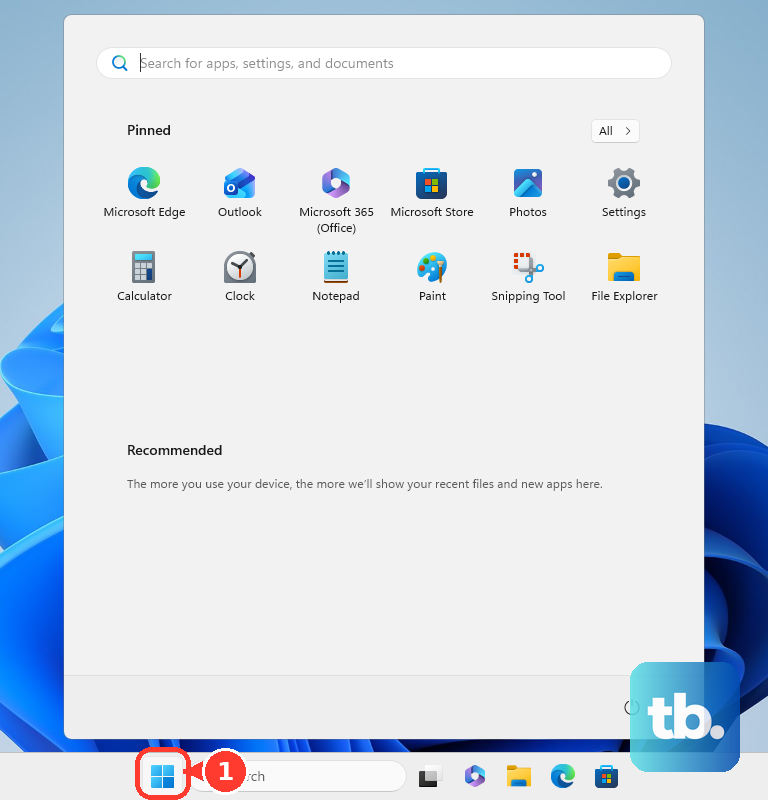
Corrupted Windows system files can trigger crashes. Open the Start menu, type cmd, right-click Command Prompt, and select Run as administrator. In the black window, type sfc /scannow and press Enter. This scans and repairs protected system files. If it finds corruption it can't fix, run DISM /Online /Cleanup-Image /RestoreHealth first, then run sfc /scannow again.
Check Your Drive and Memory
Failing hardware is a possibility. To check your SSD, open an Admin Command Prompt and type chkdsk C: /f /r. Type Y to schedule it for the next restart, then reboot. To test your RAM, search for Windows Memory Diagnostic in the Start menu and run it, choosing to restart immediately. The test runs on reboot and reports any errors.
Review BIOS Settings and Reset
A misconfigured BIOS can cause instability. Restart and tap F2 repeatedly at startup to enter the BIOS. Look for any unusual settings, especially under "Security" or "Performance." A safe bet is to find the option to Restore Settings or load BIOS defaults, then save and exit. Be cautious here, as enterprise security settings like TPM or Secure Boot are often managed by IT.
Perform a System Reset
If all else fails, a reset can clear deep driver conflicts. Go to Settings > System > Recovery and click Reset this PC. Choose Keep my files to reinstall Windows while preserving your personal data. This is a last resort, but it often fixes persistent blue screens that other tools can't resolve by giving you a fresh system foundation.