
When your Dell Inspiron 16 won't connect to WiFi, it feels like you're cut off from the world. Whether the network list is empty, you're stuck on "Connecting," or you have a connection with no internet, these steps will get you back online.
Run the Windows Network Troubleshooter
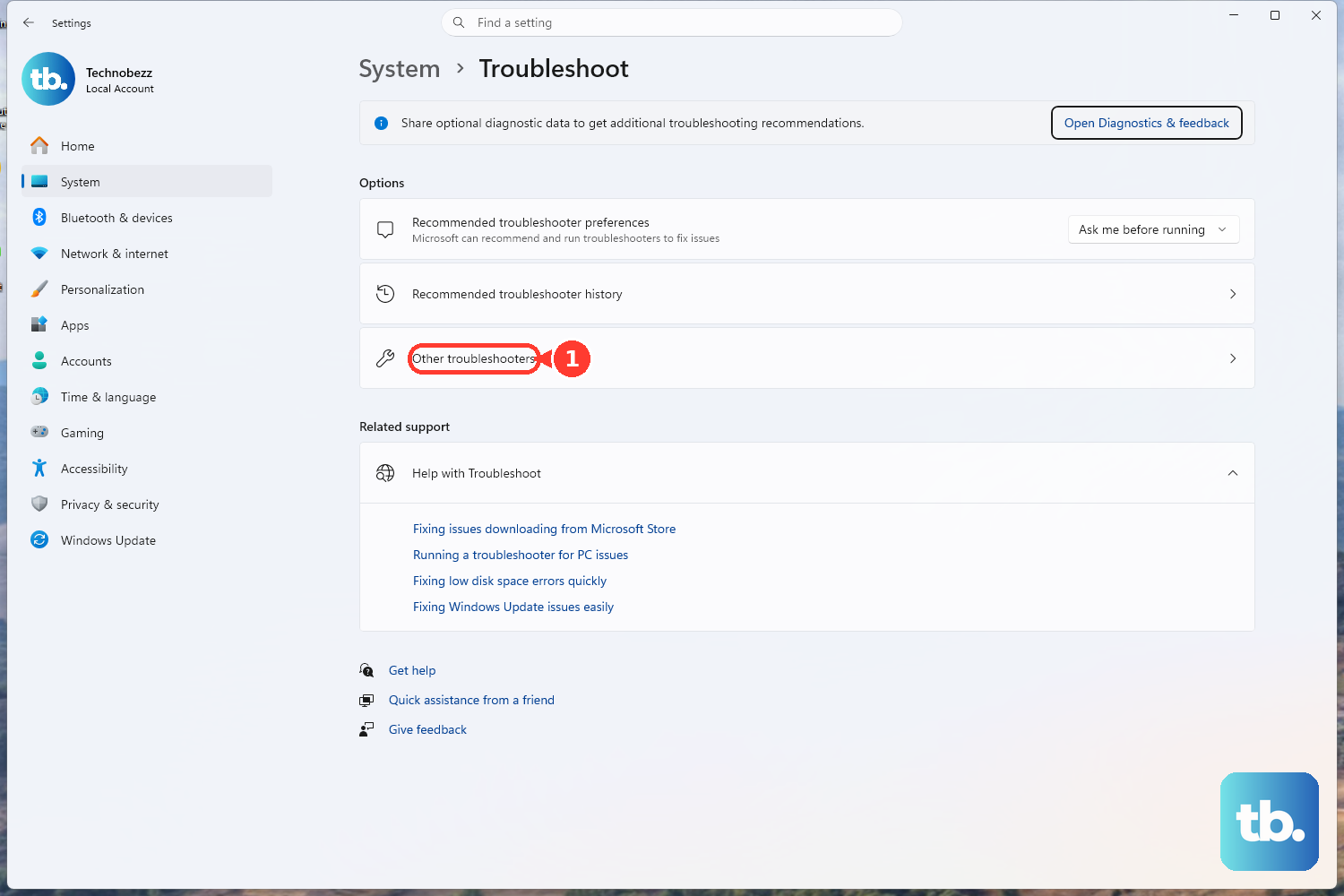
This is the quickest place to start. Right-click the Wi-Fi icon in the system tray and select Diagnose network problems. Windows will automatically scan for and try to fix common issues. You can also find it by going to Settings > System > Troubleshoot > Other troubleshooters and running the Network and Internet troubleshooter.
Use Dell SupportAssist
If SupportAssist is installed, open it and, on the Home tab, select Update software, then Start to check for driver and BIOS updates. If SupportAssist shows Optimize network, run that as a separate network optimization step.
Toggle WiFi and Airplane Mode
Click the network icon in your taskbar and turn the WiFi toggle off. Wait about ten seconds, then turn it back on. If that doesn't work, try turning Airplane mode on, wait a moment, and then turn it off. This forces your wireless adapter to reinitialize.
Forget and Re-add Your Network
Sometimes the saved connection profile gets corrupted. Go to Settings > Network & internet > Wi-Fi > Manage known networks. Click on your home network and select Forget. Then, scan for networks again, select yours, and re-enter the password.
Update Your Wireless Driver
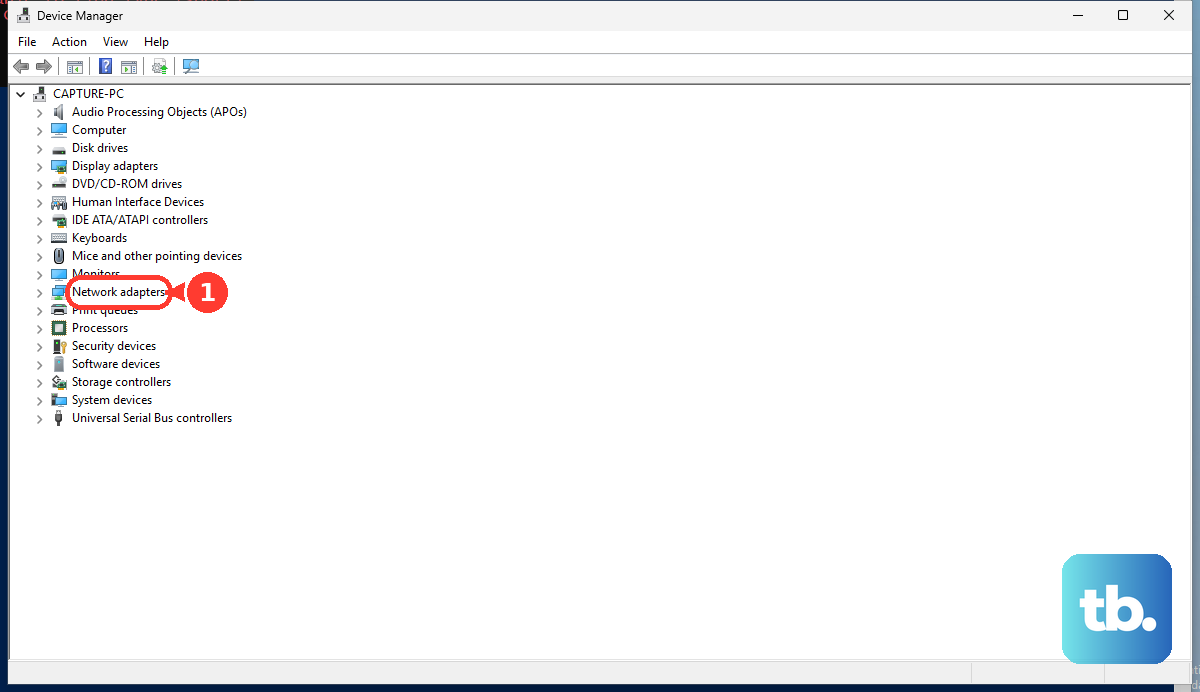
Outdated drivers are a frequent culprit. Press the Windows key + X and choose Device Manager. Expand the Network adapters section, right-click your wireless adapter, and select Update driver > Search automatically for drivers. If that doesn't find anything, get the latest driver directly from Dell's support site using your service tag.
Disable and Re-enable the Adapter
In the same Device Manager window, right-click your WiFi adapter and choose Disable device. Give it a ten-second count, then right-click it again and select Enable device. This is like a quick, targeted restart just for your network hardware.
Run the Dell Pre-boot Diagnostics
This checks your laptop's hardware. Restart your Inspiron 16 and tap the F12 key repeatedly as it boots up. From the menu, select Diagnostics. To test the wireless adapter specifically, choose Advanced Test, clear Select all, select Network and Through mode, then run the test.
Reset Your Network Stack
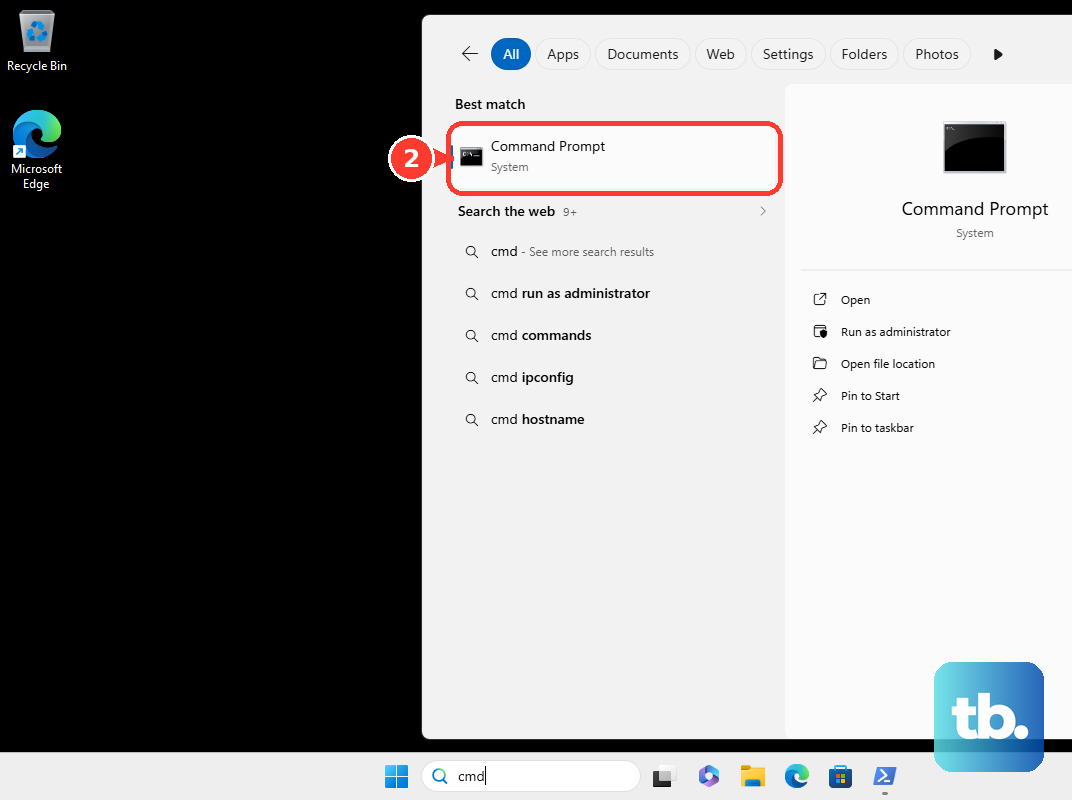
Open Command Prompt as an administrator. Type the following commands one after the other, pressing Enter after each: netsh winsock reset, netsh int ip reset, ipconfig /release, ipconfig /renew, and ipconfig /flushdns. Restart your laptop when you're done to complete the reset.
Check for Router Compatibility
Inspiron 16 Wi-Fi hardware varies by configuration: some adapters support 2.4 GHz/5 GHz only, while others also support 6 GHz Wi-Fi 6E. If your router broadcasts separate band names, try a different band, starting with 2.4 GHz if range is weak. Also, a simple router reboot, unplugging it for 30 seconds, can resolve a surprising number of problems.
Check BIOS and Power Settings
On rare occasions, the wireless radio can be disabled in the BIOS. Restart and tap F2 to enter BIOS setup. In BIOS/UEFI, open Connection settings and make sure WLAN is enabled. Also, in Windows Device Manager, expand Network adapters, open your wireless adapter's Properties, and on the Power Management tab if available, clear Allow the computer to turn off this device to save power.