
That flickering, flashing, or strobing display on your Dell Inspiron 16 is more than just annoying. It makes the laptop unusable. The good news is, it's often a software or setting you can fix yourself without needing a repair shop.
Update Your Graphics Drivers
This is the most common fix for a flickering screen. Outdated or corrupted graphics drivers are usually the culprit. Don't just rely on Windows Update for this one. Head to the Dell support website, enter your service tag, and download the latest Intel or NVIDIA graphics driver directly.
You can also use Dell's SupportAssist app, which often runs automatically. It can scan your system and install the correct driver updates for you, which is a huge time-saver. After installing, a restart is almost always required for the changes to take effect.
Run the Built-in Hardware Diagnostics
Before diving too deep into software, it's smart to rule out a hardware fault. Restart your Inspiron 16 and immediately start tapping the F12 key as it boots up. This will bring up the one-time boot menu.
From there, select Diagnostics. The system will run a comprehensive check on your components, including the display and memory. If it finds an issue with the LCD or graphics hardware, it will give you an error code and failure message, which is valuable info if you need to contact support.
Adjust Your Display Refresh Rate
Sometimes the panel and the driver don't agree on the refresh rate. Right-click your desktop and select Display settings. Scroll down and click Advanced display.
Look at the Refresh rate dropdown. If your Inspiron 16 is set to a high rate like 120Hz, try switching it down to 60Hz to see if the flickering stops. Conversely, if it's at 60Hz, see if a 59.94Hz option is available and try that. This simple switch can resolve compatibility flickers instantly.
Check for a Loose Internal Cable
If the flickering gets worse when you open or close the lid, or if you see it more on one side of the screen, the internal display cable might be loose. This ribbon cable connects the motherboard to the LCD panel and runs through the hinge.
Over time, opening and closing the laptop can cause this connection to weaken. This is a physical hardware issue. While you could open the chassis to reseat the cable, I'd recommend this only if you're very comfortable with laptop disassembly, as it involves removing the bottom case and possibly the keyboard deck.
Boot Into Safe Mode to Isolate the Problem
If the flickering is constant and severe, booting into Safe Mode can tell you a lot. Hold down the Shift key while you click Restart from the Windows power menu. After the restart, choose Troubleshoot > Advanced options > Startup Settings > Restart.
When your laptop reboots, press 4 or F4 to enable Safe Mode. If the flickering completely disappears here, you know for sure the problem is caused by a driver or a startup application. You can then start uninstalling recent software or drivers from within Safe Mode.
Disable Hardware Acceleration in Apps
Specific applications, especially web browsers like Chrome or Edge, can cause flickering when they try to use your GPU directly. Open Chrome and go to Settings > System. Turn off the switch for Use hardware acceleration when available.
You'll need to restart the browser for this to take effect. Do this for any other app where you notice the flickering is particularly bad, like video players or communication software like Zoom. This hands the graphics processing back to Windows, which can smooth things out.
Roll Back a Recent Display Driver Update
Did the flickering start right after a Windows Update or a driver you installed? You can easily revert to the previous driver version. Type "Device Manager" into the Windows search bar and open it. Expand the Display adapters section.
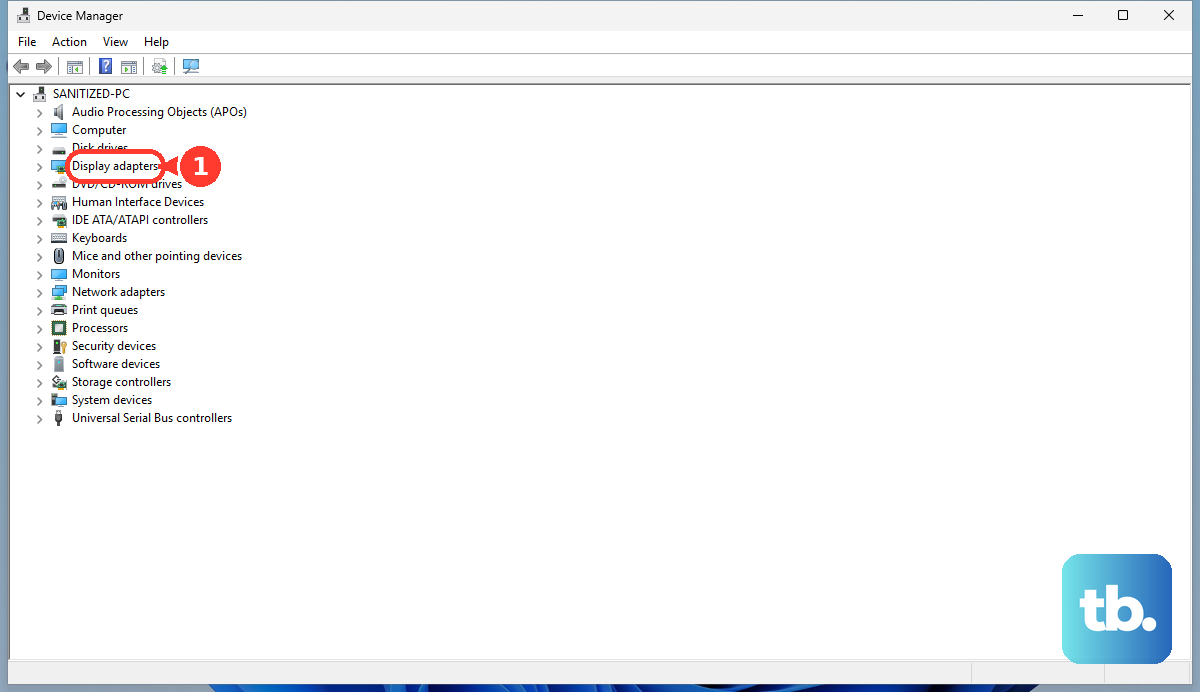
Right-click your Intel Iris Xe or NVIDIA graphics adapter and select Properties. Go to the Driver tab and click Roll Back Driver. If the option is grayed out, it means there's no previous driver stored. If it's available, this can be a quick fix for a problematic update.
Check Your Power and Sleep Settings
Some Inspiron 16 models have had reported sleep/wake issues that can sometimes manifest as display oddities. Go to Settings > System > Power & sleep. Look at your sleep settings and consider adjusting them to see if it has any effect.
More importantly, click on Additional power settings on the right to open the classic Control Panel menu. Here, select Change plan settings next to your active plan, then Change advanced power settings. Expand the PCI Express section and set Link State Power Management to Off. This can prevent the system from aggressively powering down the graphics bus.
Perform a Clean Windows Reinstall
If you've tried everything and the flickering persists without a clear hardware fault, a corrupt Windows installation might be the root cause. Use the built-in reset function by going to Settings > System > Recovery and clicking Reset PC.
Choose Remove everything for the cleanest result. Make sure to back up all your personal files first, as this will wipe the drive. This process will reinstall Windows fresh and often clears out deep-seated driver conflicts or system file errors that cause persistent display problems.