
When your Dell Inspiron 16 goes silent, it's a jarring experience that can stem from a simple setting, a driver conflict, or a deeper hardware check. Let's walk through the steps to get your sound back, from the quick checks to the more involved solutions.
Start With the Volume Mixer
Click the speaker icon in your taskbar and make sure the master volume slider isn't at zero or muted. Right next to it, click the arrow to see all available output devices. If you recently unplugged headphones, Windows might still be sending audio to that phantom device. Select your laptop's speakers from the list.
Run Dell SupportAssist
Dell includes a handy tool for this. Open the SupportAssist app (you can search for it in the Start menu) and run a scan. It will automatically check your audio drivers and system configuration for known issues. I've found this often catches problems specific to Dell's audio hardware that the generic Windows troubleshooter might miss.
Perform a Full Restart
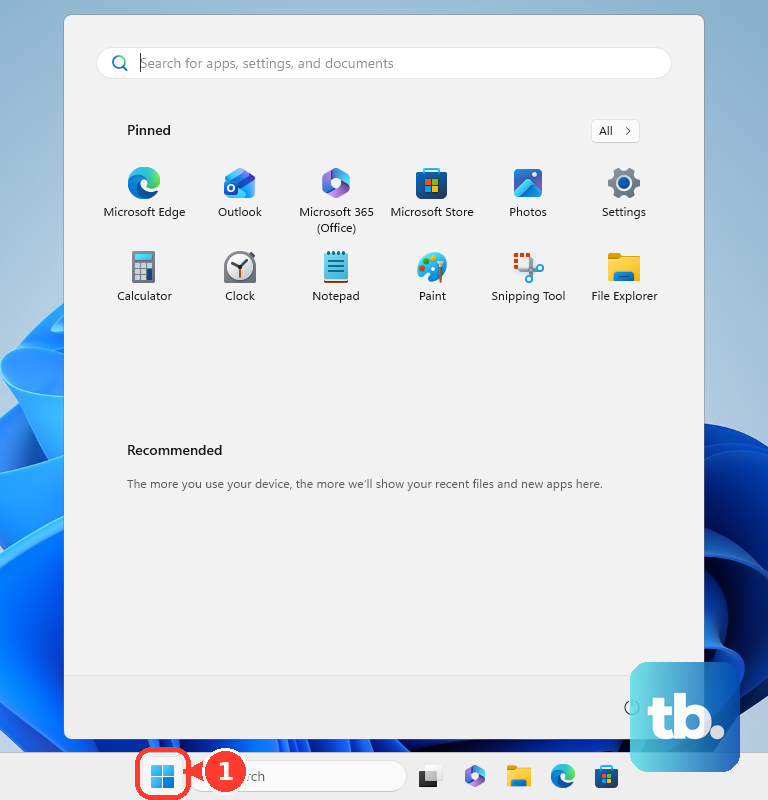
Don't just shut down and turn it back on. Click Start > Power > Restart. This fully reloads the audio drivers and clears any processes that might be stuck, which is a common fix if the sound cut out after the laptop woke from sleep or hibernation.
Verify the Correct Output in Settings
Go to Settings > System > Sound. Under the Output section, ensure "Speakers (Realtek Audio)" or your Inspiron's specific audio device is selected. Click on it, then test the sound with the "Test" button. Make sure the volume here is up and the device isn't muted.
Update or Reinstall Audio Drivers
Press the Windows key + X and choose Device Manager. Expand the "Sound, video and game controllers" section. Right-click on your audio device (it's often a Realtek High Definition Audio) and select "Update driver," then "Search automatically for drivers." If that doesn't work, right-click again and choose "Uninstall device." Restart your laptop, and Windows will attempt to install a fresh driver upon boot.
For the most reliable driver, visit the Dell support website, enter your Inspiron 16's Service Tag, and download the latest audio driver directly from there. This ensures you get the version Dell has certified for your exact model.
Restart the Core Audio Services
Press Windows + R, type services.msc, and hit Enter. In the list, find "Windows Audio." Right-click it and select "Restart." Do the same for the "Windows Audio Endpoint Builder" service. If either service was hung or stopped, this action can restore audio immediately.
Check Individual App Volumes
Sometimes, the system sound works but a specific app is silent. Go to Settings > System > Sound > Volume mixer. You'll see a separate volume slider for each open application. Make sure the app you're using, like your web browser or media player, isn't muted or set to a very low level here.
Turn Off Audio Enhancements
Audio enhancements can sometimes conflict and cause distortion or complete audio loss. In Settings > System > Sound, click on your output device and scroll down to find "Audio enhancements." Set this dropdown to Off and see if your sound returns. This is a good step to try if you're experiencing the speaker distortion some users report at high volumes.
Test With External Audio
Plug in a pair of headphones or external speakers via the 3.5mm jack or Bluetooth. If you get sound through those, the issue is likely with your laptop's internal speakers or their connection. If there's still no sound through any output, the problem is more likely system or driver-related.
Roll Back a Problematic Driver Update
If the sound stopped working right after a Windows Update or a driver update, you can revert. In Device Manager, right-click your audio device and select "Properties." Go to the "Driver" tab and click "Roll Back Driver" if the option is available. This will revert to the previous driver version that was working.
Run the Pre-Boot Hardware Diagnostics
This tests your Inspiron's physical components. Restart your laptop and press the F12 key repeatedly as it boots up. From the menu that appears, select "Diagnostics." The system will run a check on your hardware, including the audio subsystem, and report any failures. This can confirm if you're dealing with a hardware issue.