
When your Dell Inspiron 16's keyboard stops responding, it can feel like you've hit a brick wall. Whether it's a few keys acting up or the entire board going dead, the solutions are usually straightforward.
Before assuming a key is dead, open a keyboard test in your browser and press the keys in question. If they light up there, the hardware works and the problem is software related.
Let's start with the quickest fix that often resolves temporary glitches.
Force a Full Shutdown and Restart
Hold down the physical power button on your Inspiron 16 for a full 10 to 15 seconds until the screen goes black and the power light turns off. This forces a complete shutdown, clearing any temporary software conflicts that might be freezing the keyboard driver.
Wait a few seconds, then press the power button once normally to turn the laptop back on. I'd start with this one, as it's a clean reset for the system's hardware controllers.
Run the Built-in Dell Diagnostics
Dell builds a powerful hardware diagnostic tool right into your laptop. Restart your Inspiron 16 and immediately start tapping the F12 key repeatedly as it boots up.
This will bring you to the boot menu. Use the arrow keys (if they work) or your mouse to select Diagnostics and run the comprehensive test. It will specifically check the keyboard hardware and tell you if there's a physical failure.
Update or Reinstall the Keyboard Driver
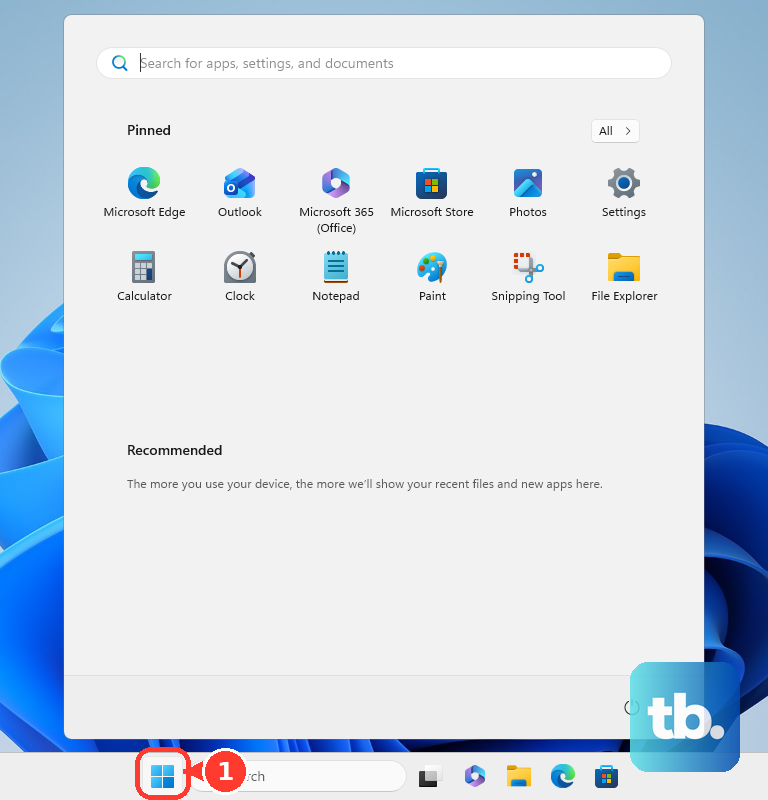
Open the Start menu and type "Device Manager," then select it. In the window that opens, find and expand the Keyboards section.
Right-click on the listed keyboard (often "Standard PS/2 Keyboard" or "HID Keyboard Device") and choose Update driver. Select "Search automatically for drivers." If that doesn't help, try Uninstall device and then restart your laptop. Windows will automatically reinstall a fresh driver on startup.
Use Dell SupportAssist for Automated Fixes
Your Inspiron 16 likely came with Dell SupportAssist pre-installed. Open it from the Start menu. This tool can automatically scan for outdated drivers, including keyboard drivers, and install the correct versions directly from Dell.
It's a more reliable method than Windows Update for getting the specific drivers designed for your exact model, which can prevent compatibility issues.
Check for Physical Issues and Clean the Keyboard
Power off the laptop and turn it upside down, giving it a gentle shake. Use a can of compressed air to blow out any debris between the keys, holding the can upright to avoid spraying moisture.
For a more thorough clean, you can carefully pop off the keycaps on the affected keys with a plastic spudger. Look for any obvious obstructions or sticky residue underneath.
Disable Windows Accessibility Features
Sometimes features meant to help can interfere. Press the Windows key + I to open Settings, then go to Accessibility > Keyboard.
Make sure Filter Keys, Sticky Keys, and Toggle Keys are all turned off. These features can modify or delay keystrokes, making the keyboard seem unresponsive.
Boot into Safe Mode to Isolate Software
If the keyboard works in Safe Mode, you know a third-party app is causing the conflict. To get into Safe Mode, go to Settings > System > Recovery and click "Restart now" next to "Advanced startup."
After the restart, choose Troubleshoot > Advanced options > Startup Settings > Restart. Press the 4 or F4 key to enable Safe Mode. If the keyboard works here, uninstall any recent software you added before the problem started.
Verify Your Keyboard Language and Layout
If your keys are typing the wrong characters, the input language may have switched. Click the language abbreviation (like "ENG") in your taskbar's system tray to see which keyboard layout is active.
You can manage this in Settings > Time & language > Language & region. Ensure your correct language is at the top of the list, and remove any extra keyboard layouts you don't use to prevent accidental switching with Windows key + Space.
Connect an External Keyboard as a Test
Plug any standard USB keyboard into your Inspiron 16. If the external keyboard works flawlessly, it strongly points to a hardware issue with the laptop's internal keyboard.
This could be a loose ribbon cable connection or, in less common cases for the Inspiron 16, damage from liquid exposure. The external keyboard gives you a way to keep working while you diagnose further or arrange a repair.











