
When your Dell Inspiron 16 doesn't recognize a connected monitor or TV, it's usually a quick settings or driver issue. The good news is you can almost always get it working again without any special tools.
Press Windows + P First
This is the fastest thing to try. Press the Windows + P keys together on your keyboard. A menu will pop up on the right side of your screen. Select Extend or Duplicate.
If it was set to "PC screen only," that's why your second screen was blank. I'd start with "Extend" to see if Windows detects the display at all. This simple shortcut resolves the issue more often than you'd think.
Check Your Cable and Connections
Unplug the video cable from both your Inspiron 16 and the external monitor. Look for any bent pins, especially if you're using HDMI. Reconnect everything firmly, making sure the cable is fully seated in the port.
If you have a spare cable, try it. Cables can fail internally even if they look fine. Also, double-check that your monitor is powered on and set to the correct input source, like HDMI 1 or DisplayPort.
Run a Hardware Diagnostic
Dell builds a great diagnostic tool right into the system. Restart your laptop and immediately start tapping the F12 key as it boots up. This opens the boot menu.
Use the arrow keys to select Diagnostics and press Enter. The tool will automatically test your hardware, including the video ports and graphics card. It can tell you if there's a physical problem it can detect.
Update Your Display Drivers
Outdated or corrupted graphics drivers are a common culprit. The best way is to get them directly from Dell. Open your browser and go to the Dell Support website, enter your Inspiron 16's service tag, and look for video or graphics driver updates.
You can also try through Windows. Right-click the Start button, select Device Manager, and expand Display adapters. Right-click your graphics card and choose Update driver. Let Windows search automatically, but know the Dell site often has newer versions.
Use Dell SupportAssist
Your Inspiron 16 likely came with Dell SupportAssist pre-installed. Open it and run a scan. This software is designed to find known issues specific to your Dell model and can automatically download and install the correct drivers, including graphics drivers that might fix your display detection problem.
It automates a lot of the manual checking you'd otherwise have to do. Think of it as an automated first line of troubleshooting that's tailored for your exact laptop.
Check Windows Display Settings
Go to Settings > System > Display. Click the Detect button. Windows will actively search for connected displays. If your monitor appears, you can then arrange it and set the appropriate resolution.
Sometimes the monitor is detected but set to an unsupported resolution. Try lowering the resolution for the second display to something common like 1920x1080 to see if an image appears.
Try a Different Port or Adapter
The Inspiron 16 typically has multiple video outputs. If you're using the HDMI port and it's not working, try a USB-C port with a USB-C to HDMI or DisplayPort adapter. Many of the USB-C ports on this model support DisplayPort Alt Mode.
If the display works through USB-C but not the native HDMI port, it points to a potential issue with the HDMI port itself. This helps narrow down where the problem actually lies.
Disable and Re-enable Your Graphics Card
This forces Windows to reload the display driver. Go back to Device Manager under Display adapters. Right-click on your Intel, AMD, or NVIDIA graphics device and select Disable device.
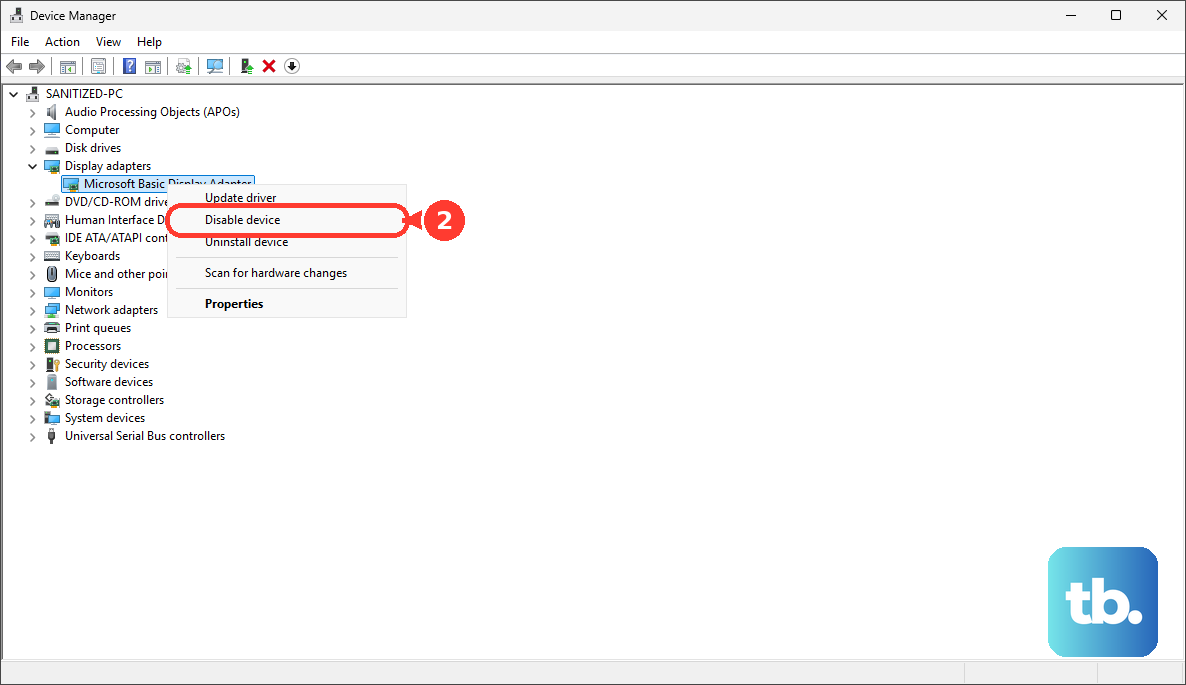
Your screen might flicker or go blank for a second. Wait about 10 seconds, then right-click the same device and choose Enable device. This fresh start can clear up detection glitches.
Check for BIOS Updates and Settings
A BIOS update can improve hardware compatibility, including for external displays. Check the Dell Support site for your model for any available BIOS updates and follow their instructions carefully to install it.
You can also enter the BIOS to check settings. Restart and tap F2 repeatedly at startup. Look for display or video-related settings, though most are correctly configured by default. I've seen rare cases where a BIOS update reset a crucial setting.