
When your Dell Inspiron 16's camera shows a black screen, isn't detected by Zoom or Teams, or gives you a generic error, it can stop your video calls and meetings cold. The good news is, it's usually a quick software or permission issue you can fix yourself.
I'd start with the simplest check first. Look at the top bezel of your screen, right above the display. The Inspiron 16 has a built-in privacy shutter, a small plastic slider you can move left or right with your finger. Make sure it's slid completely open to uncover the camera lens. It's an easy thing to miss if you've been cleaning the screen or closing the lid.
Check Windows Camera Privacy Settings
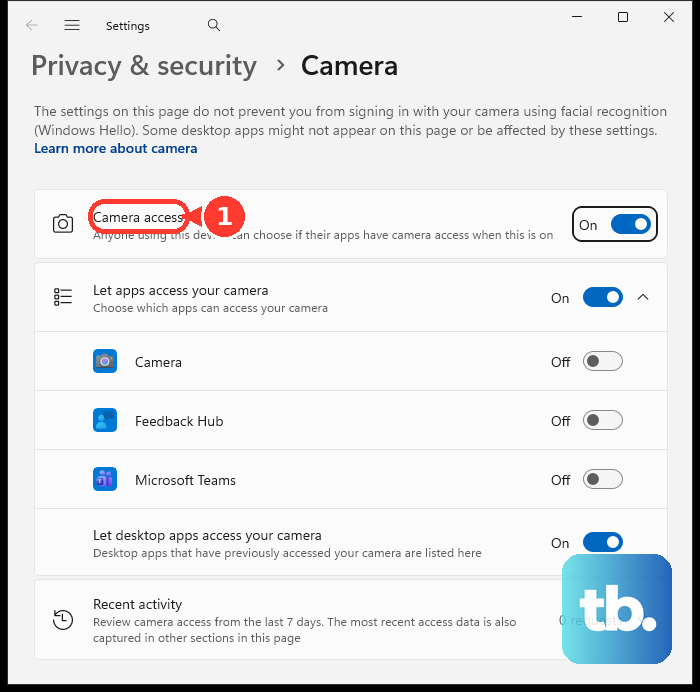
Windows is pretty strict about which apps can use your camera. Open Settings > Privacy & security > Camera. First, ensure the main Camera access toggle at the top is switched on. Then, scroll down to the list of apps and make sure the specific apps you use, like Microsoft Teams and Zoom, have their individual toggles enabled as well.
Sometimes, a browser like Chrome or Edge will be the culprit for web-based calls. You'll need to check the site permissions within the browser itself. Click the lock icon in the address bar while on the Zoom or Teams website and ensure camera access is allowed.
Run a Quick Hardware Diagnostic
Dell builds a great diagnostic tool right into the BIOS. Restart your Inspiron 16 and immediately start tapping the F12 key repeatedly as it boots up. This brings up the one-time boot menu. Use the arrow keys to select Diagnostics and press Enter.
The system will run a series of tests. Pay attention when it gets to the camera check; it will usually try to activate it and show you a preview. If the diagnostic fails and reports an error code, you have a strong indication of a hardware problem. Note that code down.
Update or Reinstall the Camera Driver
Outdated or corrupted drivers are a common cause. Press the Windows key and type Device Manager to open it. Look for and expand the Cameras category. You should see your integrated webcam listed, often as "Integrated Webcam" or something similar.
Right-click on it and choose Update driver. Select Search automatically for drivers. If Windows doesn't find a new one, I'd visit the official Dell support site, enter your Inspiron 16's Service Tag, and download the latest camera driver directly from there for a more reliable update.
If updating doesn't work, go back to Device Manager. Right-click the camera again, but this time select Uninstall device. Check the box that says "Delete the driver software for this device" if it appears. Then, restart your laptop. Windows will detect the hardware on reboot and attempt to install a fresh, default driver.
Use Dell SupportAssist
Your Inspiron 16 likely came with Dell SupportAssist pre-installed. Open it from the Start Menu. This tool can automate a lot of the troubleshooting for you. Run a full system scan; it will check for outdated drivers, including camera drivers, and often offer a one-click download and install option for all of them.
It's a much easier way to ensure all your system drivers are current, not just the camera. This can also resolve conflicts where another updated driver is interfering with the camera's operation.
Close Other Apps Using the Camera
Windows typically only allows one app to access the camera at a time. If you have another program running in the background, like the Camera app, another video conferencing tool, or even some security software, it can lock the camera.
Press Ctrl + Shift + Esc to open Task Manager. Look through the list of running apps and processes. Close anything that might be using the camera, especially other communication apps. Then, try opening Zoom or Teams again.
Check for Windows Updates
Go to Settings > Windows Update and click Check for updates. Install any available feature or quality updates. Microsoft and Dell often bundle driver and compatibility fixes within these updates.
After the main updates are installed, click on Advanced options and then Optional updates. There's often a driver update section here that might contain a newer camera driver specifically for your system that isn't installed by the standard update process.
Test with the Windows Camera App
Open the built-in Camera app from your Start Menu. This app talks directly to the hardware. If the camera works perfectly here, showing you a clear video feed, then the problem is isolated to your conferencing software.
This tells you the hardware and core Windows drivers are fine. The issue is within Zoom or Teams settings. Go into the video settings of those specific apps and make sure they are set to use the "Integrated Webcam" and not an external device or a non-existent option.
Check BIOS Settings
It's rare, but sometimes a BIOS setting can disable onboard hardware. Restart and tap F2 repeatedly to enter the BIOS setup. Navigate using the arrow keys. Look for a section like System Configuration or Integrated Devices.
Find an entry for the camera, webcam, or onboard audio/video. Make sure it is set to Enabled and not Disabled. Save changes and exit. The laptop will reboot. This is also where you can check if other known issues, like WiFi or sleep settings, have been adjusted.