
A touchpad that won't respond turns your portable laptop into a desktop, forcing you to hunt for a USB mouse. Whether the cursor is frozen, taps don't register, or two-finger scrolling is dead, the issue is almost always solvable without a trip to the repair shop.
Start with a free online mouse tester to see exactly which buttons and gestures register. That tells you whether the fixes below target hardware or software.
For the Dell Inspiron 15, the most common culprit is a simple software or settings glitch. I'd start by checking the physical toggle, as it's the quickest thing to rule out.
Toggle the Touchpad with the Function Key
Look at the top row of your keyboard. One of the function keys, likely F6 or F3, will have a small icon that looks like a touchpad with a line through it. Press the Fn key and that function key simultaneously to toggle the touchpad on and off. You should see a notification pop up on screen confirming the change.
Also, use your keyboard to navigate to Settings > Bluetooth & devices > Touchpad. Make sure the touchpad is switched on at the top of that menu. This is the Windows-level control, separate from the hardware toggle.
Perform a Full Restart
If the touchpad stopped working after the laptop woke from sleep, a full restart will reload the driver and clear any temporary bugs. Use the Tab key to highlight the Windows Start button, press Enter, then use the arrow keys to navigate to the power icon and select Restart.
This simple step fixes a surprising number of intermittent touchpad issues on the Inspiron 15. Give it a moment to fully shut down and boot back up.
Unplug Any External Mouse
Windows has a feature that can automatically disable the internal touchpad when it detects an external mouse. Unplug any USB mouse and disconnect any paired Bluetooth mice.
To stop this from happening in the future, go to Settings > Bluetooth & devices > Touchpad. Scroll down and look for a setting labeled something like "Leave touchpad on when a mouse is connected" and make sure it's turned on.
Update Your Precision Touchpad Drivers
Dell Inspiron 15 models use Precision Touchpad drivers. Outdated or corrupted drivers are a frequent cause of problems. Press Windows Key + X and select Device Manager.
Expand the Mice and other pointing devices category. Right-click on the device listed (it may be called "HID-compliant mouse" or "Precision Touchpad") and select Update driver. Choose "Search automatically for drivers."
For the absolute best results, get the driver directly from Dell. Go to support.dell.com, enter your Inspiron 15's Service Tag, and download the latest Synaptics or Alps touchpad driver under the "Drivers & Downloads" section.
Clean the Touchpad Surface
Over time, oils from your fingers, lotion, or crumbs can build up and interfere with the touchpad's sensitivity. Power off the laptop. Dampen a microfiber cloth with a little water or isopropyl alcohol, wring it out well, and gently wipe the touchpad surface.
Make sure it's completely dry before turning the laptop back on. Also, try using the touchpad with a different, clean finger to rule out any residue on your skin.
Check the Touchpad Setting in BIOS
It's rare, but the touchpad can be disabled in the laptop's BIOS. Restart your Inspiron 15 and immediately start tapping the F2 key repeatedly to enter the BIOS setup.
Use the arrow keys to navigate. Look for a section like "System Configuration," "Advanced," or "Mouse/Touchpad." Find the setting for the "Internal Pointing Device" and ensure it is set to Enabled. Save and exit (usually F10).
Reinstall the Touchpad Driver Completely
If updating didn't help, a clean reinstall might. Go back to Device Manager under "Mice and other pointing devices." Right-click the touchpad driver and select Uninstall device.
If you see a checkbox for "Delete the driver software for this device," check it. Restart your laptop. Windows will install a basic, generic driver upon reboot. After that, immediately install the specific driver you downloaded from Dell's support site for full functionality.
Run Dell SupportAssist and Windows Troubleshooters
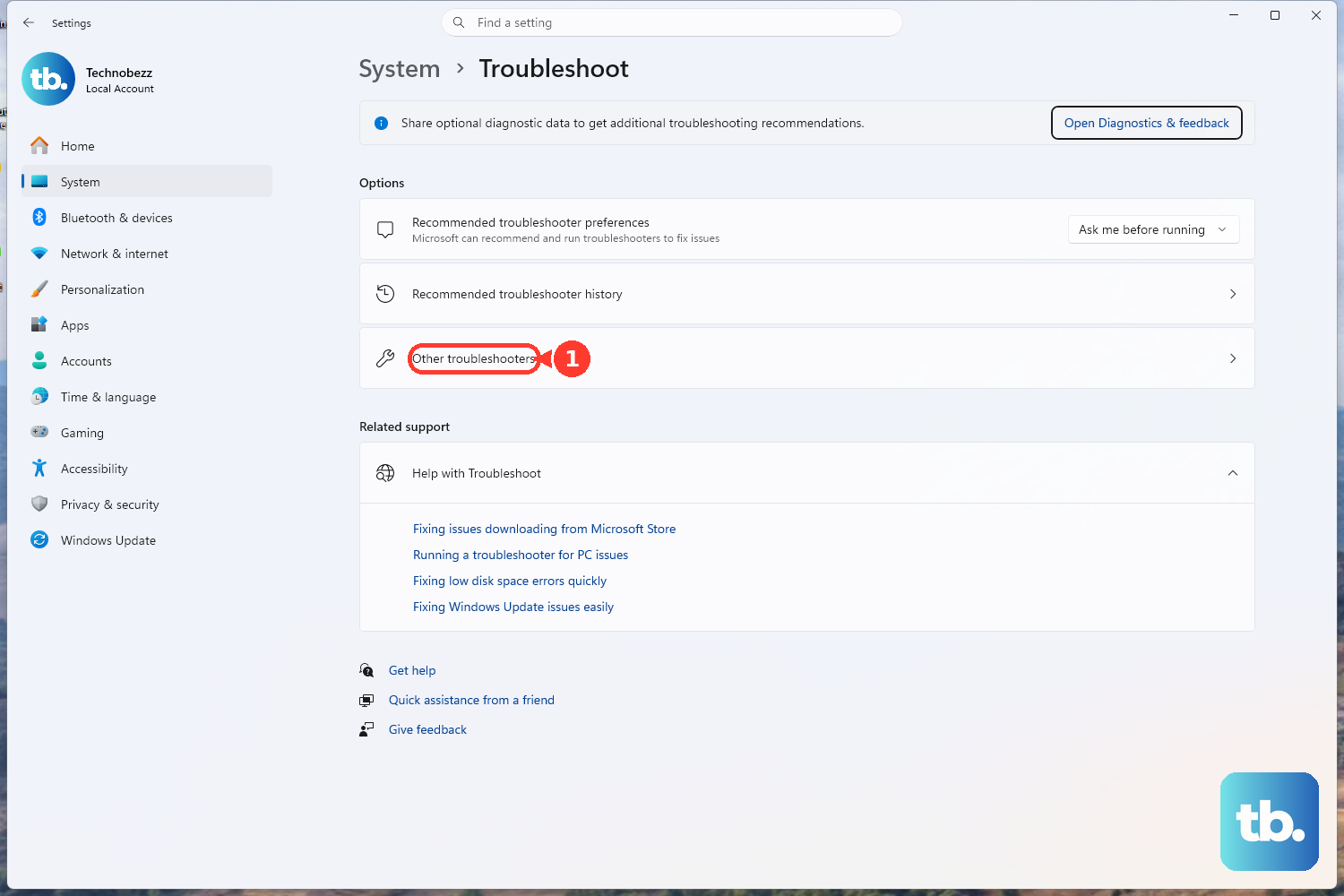
Your Inspiron 15 likely came with Dell SupportAssist. Open it and run a hardware scan, it can detect issues with input devices and sometimes apply fixes automatically. You can also run the built-in Windows hardware troubleshooter by going to Settings > System > Troubleshoot > Other troubleshooters and running the one for "Keyboard" or "Hardware and Devices."
Consider a System Restore or Hardware Check
If the touchpad recently stopped working after a Windows update or new software installation, try using System Restore to roll back to a point when it was working. Type "Create a restore point" in the Windows search bar to access this tool.
If none of these software fixes work, and the touchpad is also dead in the BIOS screen, the issue could be physical. The ribbon cable connecting the touchpad to the motherboard can come loose, especially if the laptop was recently dropped or serviced. At this point, consulting a professional technician for an internal inspection would be the next logical step.