
When your Dell Inspiron 15's Bluetooth stops working, your wireless mouse, headphones, or speakers become useless. The connection might fail to pair, drop constantly, or the Bluetooth icon might vanish entirely from your system. It's a common Windows headache, but it's almost always fixable.
Toggle Bluetooth On and Off
First, check the quick action center. Click the notification icon in the bottom-right taskbar and make sure the Bluetooth tile is highlighted. If it's off, click it to turn it on. You can also go directly to Settings > Bluetooth & devices and flip the main Bluetooth switch off, wait a few seconds, and flip it back on. This simple reset often clears up a stuck radio.
Restart Your Dell Inspiron
A full system restart is the most reliable way to clear temporary software glitches. It reloads the Bluetooth driver and all related Windows services. This is especially effective if the problem started after your laptop woke from sleep or hibernation. Just save your work and give it a reboot.
Forget and Re-Pair Your Device
Corrupted pairing data is a frequent culprit. Go to Settings > Bluetooth & devices and find the problematic device in the list. Click the three dots next to it and select Remove device. Then, put your Bluetooth headset or mouse into its pairing mode. On your Inspiron, click Add device and select Bluetooth to discover and pair it fresh.
Run the Built-In Bluetooth Troubleshooter
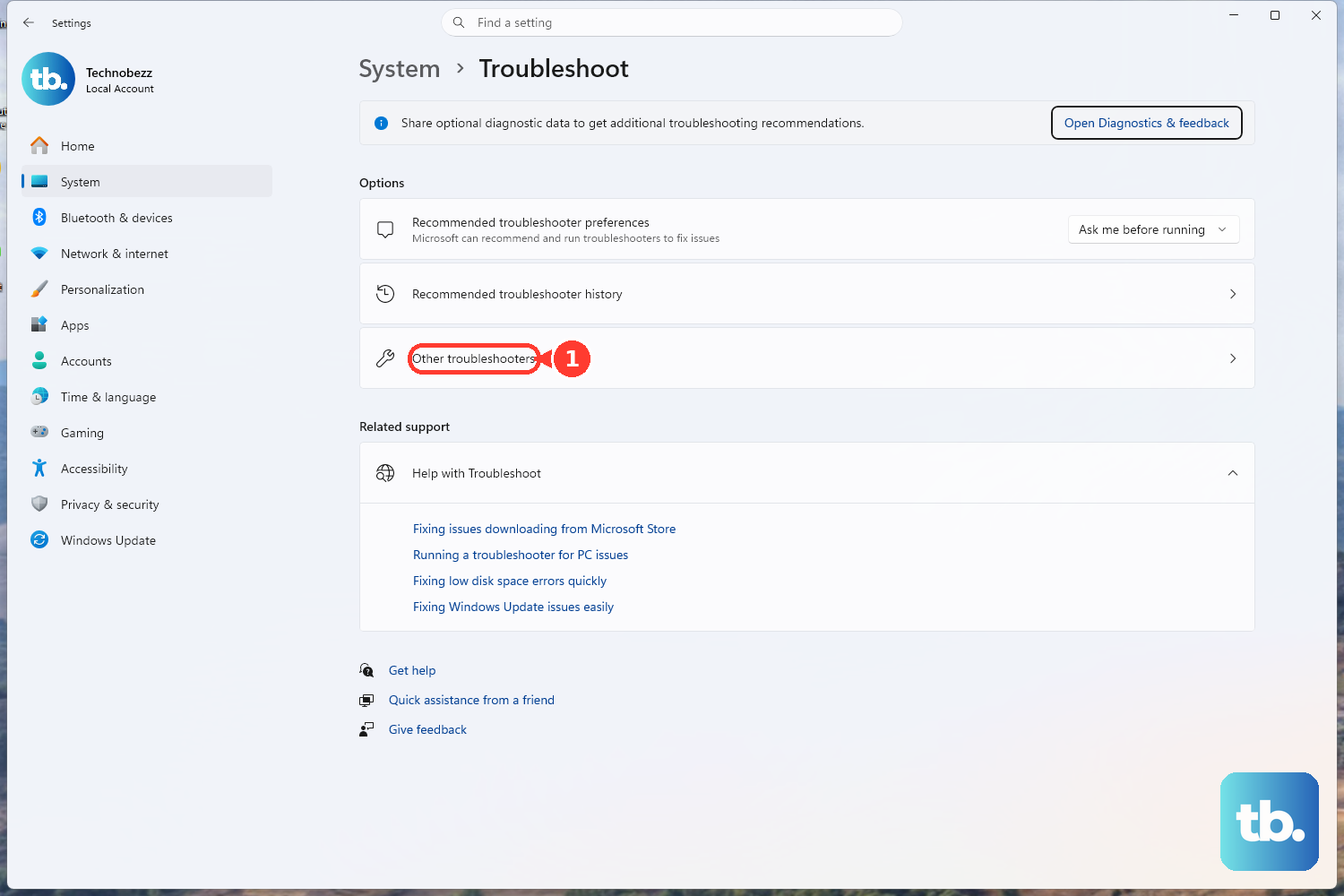
Windows has a dedicated tool for this. Open Settings > System > Troubleshoot > Other troubleshooters. Find the Bluetooth troubleshooter and click Run. It will automatically scan for common configuration issues, like disabled services or driver problems, and attempt to fix them. It's a great first automated step.
Update Your Bluetooth Driver
Outdated or corrupted drivers are a primary cause. Press the Windows key + X and select Device Manager. Expand the Bluetooth section, right-click on your Dell Wireless adapter (it might be named something like Intel Wireless Bluetooth or Realtek Bluetooth), and choose Update driver. Select Search automatically for drivers. For the best results, I'd also check Dell's support site directly with your Service Tag for a model-specific driver.
Use Dell SupportAssist for Driver Updates
Your Inspiron likely came with Dell SupportAssist. Open it and run a driver scan. This tool is tailored for your specific Dell hardware and will find the official, tested drivers from Dell, which can be more reliable than the generic ones Windows Update provides. It can update not just Bluetooth, but all your system drivers at once.
Restart the Bluetooth Support Service
Sometimes the background service that manages Bluetooth stops. Press Windows key + R, type services.msc, and hit Enter. Scroll down to find Bluetooth Support Service. Right-click it and select Restart. Also, double-click it to open its properties and ensure the Startup type is set to Automatic so it runs on its own.
Check for Physical Interference
Bluetooth uses the 2.4GHz band, which is crowded. Your WiFi, nearby routers, USB 3.0 cables, and even microwave ovens can cause interference. Try moving your Bluetooth device closer to your laptop. If you have any USB 3.0 devices plugged in, especially external hard drives, try unplugging them temporarily to see if the connection stabilizes.
Install All Windows Updates
Microsoft regularly releases patches that fix connectivity bugs. Go to Settings > Windows Update and click Check for updates. Install any available feature or quality updates. After the update installs and your laptop restarts, check if Bluetooth is working again. Cumulative updates often contain fixes for hardware compatibility issues.
Reinstall the Bluetooth Adapter
This is a more thorough driver fix. In Device Manager, under Bluetooth, right-click your adapter and select Uninstall device. If you see a checkbox that says Attempt to remove the driver for this device, check it. Then, restart your Dell Inspiron 15. Windows will detect the "new" hardware on boot and reinstall the Bluetooth driver from its stock files or via Windows Update.