
That flickering display on your Dell Inspiron 14 is incredibly distracting, making everything from browsing the web to writing a document a real chore. The screen might flash, show horizontal lines, or have intermittent blackouts. Let's get it fixed.
Update Your Display Drivers
This is the most common fix for a flickering screen. Outdated or corrupted graphics drivers are often the culprit. I'd start by using Dell's own tool, SupportAssist, which can automatically find and install the correct drivers for your specific model. You can also head directly to the Dell support website, enter your Service Tag, and download the latest Intel or AMD graphics driver from there, which is often more reliable than Windows Update for this.
If you want to do it manually, right-click the Start button and select Device Manager. Expand Display adapters, right-click your graphics driver, and choose Update driver. Select "Search automatically for drivers" and let Windows try. After any driver update, a restart is essential.
Check Task Manager to Narrow Down the Cause
Press Ctrl + Shift + Esc to open Task Manager. Watch it closely. If Task Manager itself flickers along with everything else on the screen, the problem is almost certainly a system-wide driver or Windows issue. If Task Manager remains perfectly stable while your desktop and other windows flicker, the issue is likely being caused by a specific, third-party application running in the background.
Roll Back a Problematic Driver Update
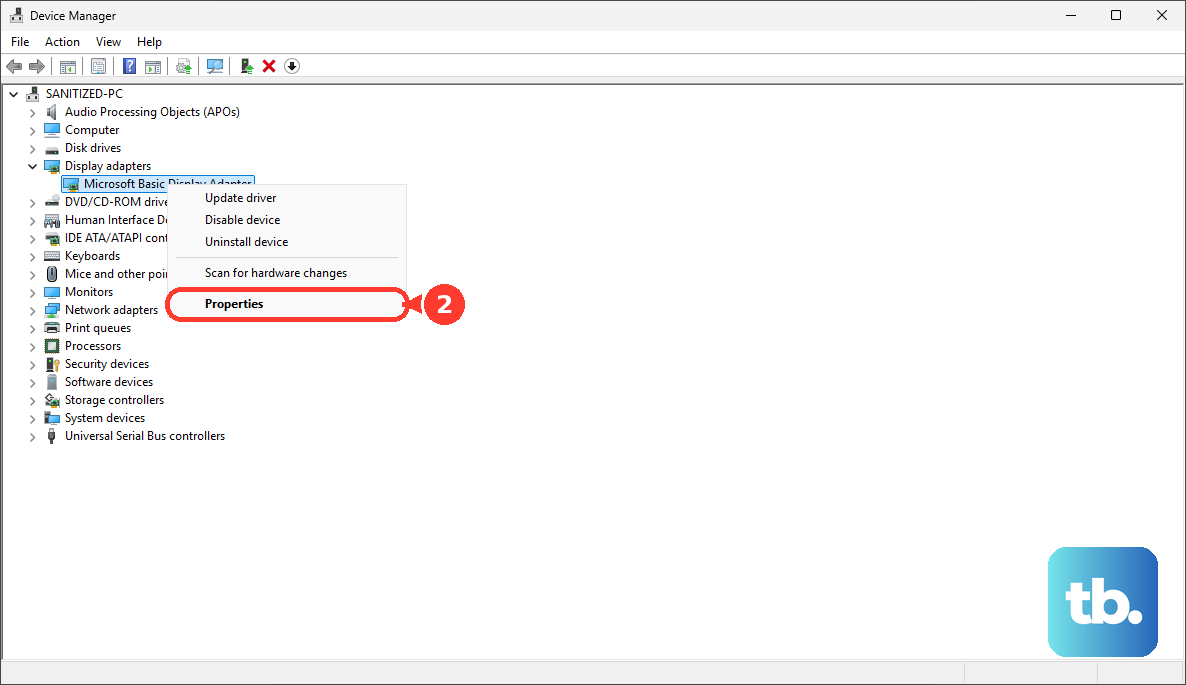
If the flickering started right after a Windows or driver update, rolling back can provide an instant fix. Go back into Device Manager under Display adapters, right-click your graphics driver, and select Properties. Go to the Driver tab and click Roll Back Driver if the option is available. This will revert you to the previous driver version that was working correctly.
Adjust Your Screen's Refresh Rate
An incorrect refresh rate setting can cause flickering. Right-click on your desktop and select Display settings. Scroll down and click Advanced display. Look at the Choose a refresh rate dropdown menu. If it's set to 60Hz, try switching it to 59.94Hz, or vice versa. Sometimes this small adjustment is all it takes to resolve a compatibility hiccup between the panel and the driver.
Run the Built-in Dell Diagnostics
Dell includes a handy hardware diagnostic tool that can check your display. Restart your Inspiron 14 and press the F12 key repeatedly as it boots up to enter the one-time boot menu. From there, use the arrow keys to select Diagnostics and press Enter. The tool will run a series of tests, including on your display and video memory, and report any failures it finds.
Boot Into Safe Mode
If the flickering is constant and severe, booting into Safe Mode is a great diagnostic step. Safe Mode loads Windows with only the most basic drivers and no startup programs. If the screen is perfectly stable in Safe Mode, you've confirmed the issue is caused by a driver or software. You can then use Safe Mode to uninstall recent software or problematic drivers you identified.
Check for a Loose Internal Cable
This is a hardware possibility, especially if the flickering gets worse when you open or close the laptop lid or move the screen angle. The thin display cable that connects the screen to the motherboard can become loose or damaged over time. Given the plastic build of the Inspiron 14, flex in the chassis can sometimes contribute to this. Fixing a loose internal cable isn't a simple DIY fix for most people and usually requires opening the laptop.
Disable Hardware Acceleration in Apps
Some applications, particularly web browsers like Chrome or Edge, use a feature called hardware acceleration to offload graphics work to your GPU. This can sometimes conflict with drivers and cause flickering. In Chrome, go to Settings > System and turn off Use hardware acceleration when available. Restart the browser and see if the flickering in that app stops.
Uninstall Problematic Third-Party Software
If Task Manager was stable, a specific app is likely the cause. Common offenders include certain antivirus suites, cloud storage apps, or older utility software. Go to Settings > Apps > Installed apps and uninstall any software you installed around the time the flickering began. Pay attention to audio-related software too, as audio driver issues have been reported on some Inspiron models after updates.
Install All Windows Updates
Finally, make sure Windows itself is completely up to date. Go to Settings > Windows Update and click Check for updates. Install all available updates, including optional driver updates if offered. Microsoft frequently releases patches that can resolve display and graphics subsystem bugs that might be causing your problem.