
When your Dell G16 gaming laptop won't connect to WiFi, it's more than an inconvenience, it's a full stop on your game or work. Whether you see no networks, get stuck on "Connecting," or have a signal with no internet, these steps will get you back online.
Toggle WiFi and Airplane Mode
Click the network icon in your system tray and turn WiFi off. Wait about ten seconds, then turn it back on. If that doesn't work, try toggling Airplane mode on and off instead. This quick refresh of the wireless radio often clears up temporary glitches that can block a connection.
Run the Windows Network Troubleshooter
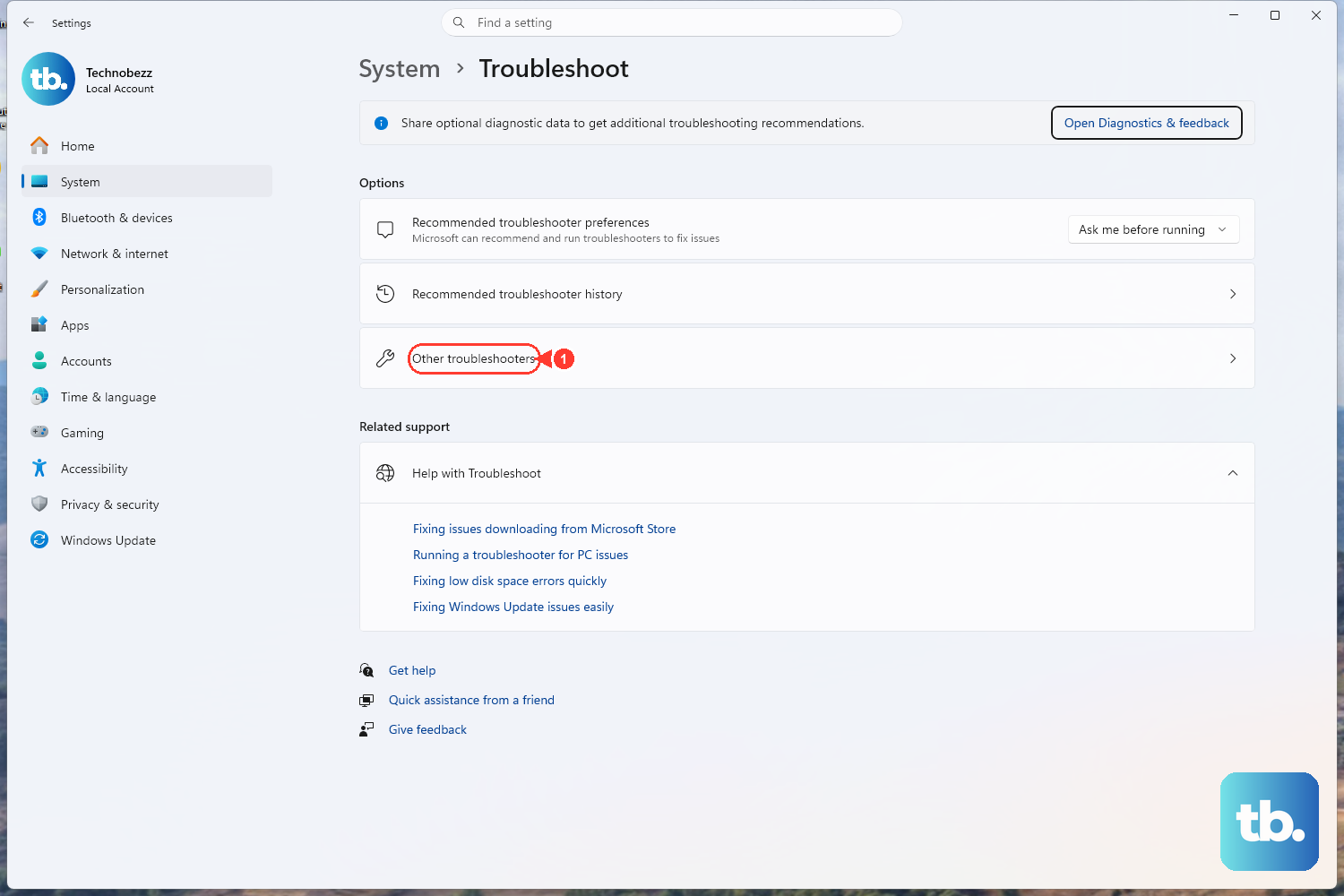
Right-click the WiFi icon and select Troubleshoot problems. Windows will automatically scan for and try to fix common issues. You can also find it by going to Settings > System > Troubleshoot > Other troubleshooters and running the Network and Internet troubleshooter from there.
Forget and Re-add Your Network
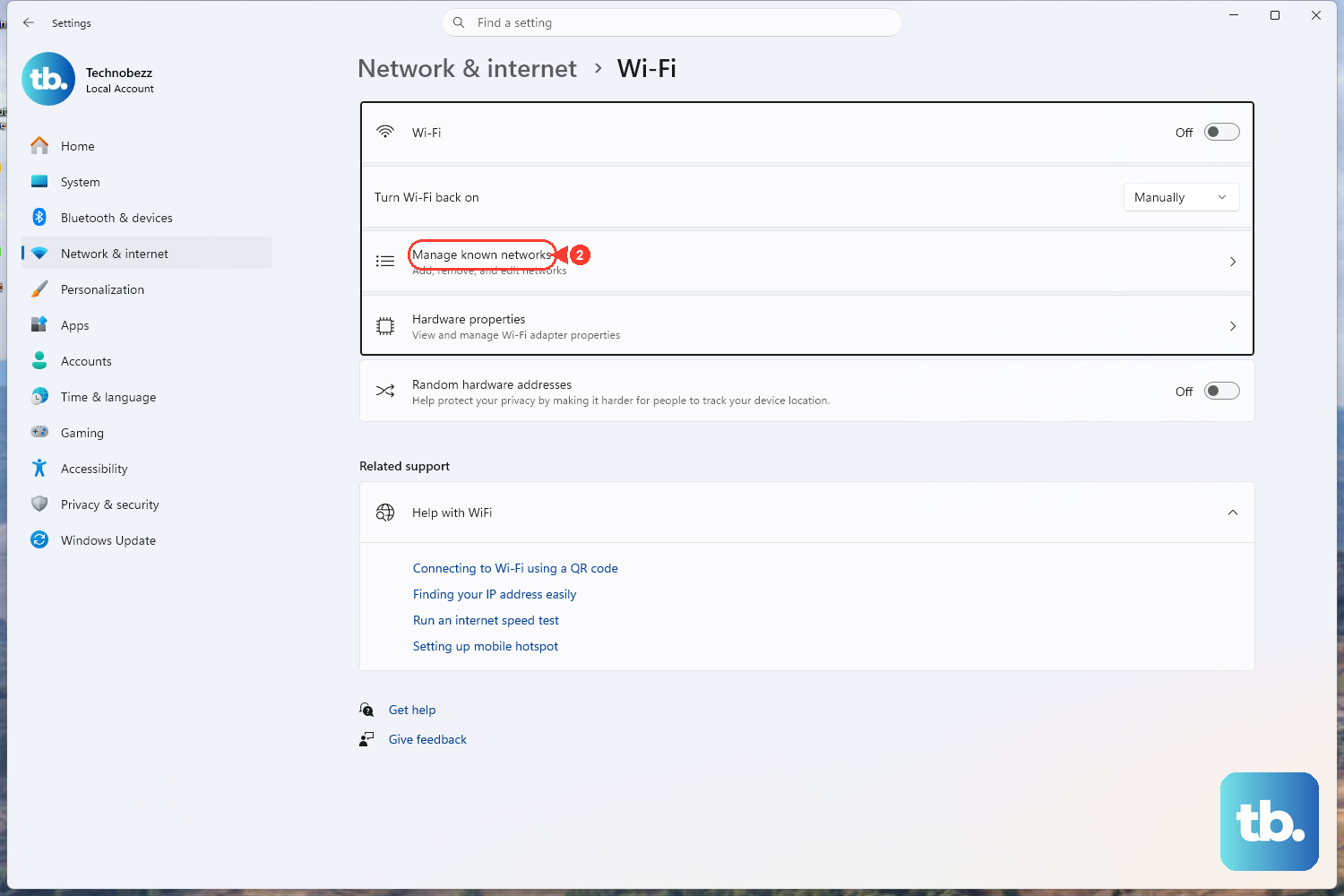
Go to Settings > Network & internet > Wi-Fi > Manage known networks. Find your home or gaming network in the list and click the Forget button next to it. Then, scan for networks again and reconnect by entering your password fresh. This fixes problems caused by a corrupted saved network profile.
Restart Your G16
This is the classic fix for a reason. Click Start > Power > Restart to perform a full shutdown and reboot. It clears out the network stack and reloads all drivers from scratch, which can resolve stubborn connection states that simpler toggles won't fix.
Update Your WiFi Driver Manually
For a gaming laptop like the G16, I'd always get drivers directly from Dell. Don't rely on Windows Update. Go to Dell's support site, enter your G16's Service Tag, and download the latest Wireless LAN (WiFi) driver under the "Network" category. Run the installer and restart your laptop when prompted.
Disable and Re-enable the Network Adapter
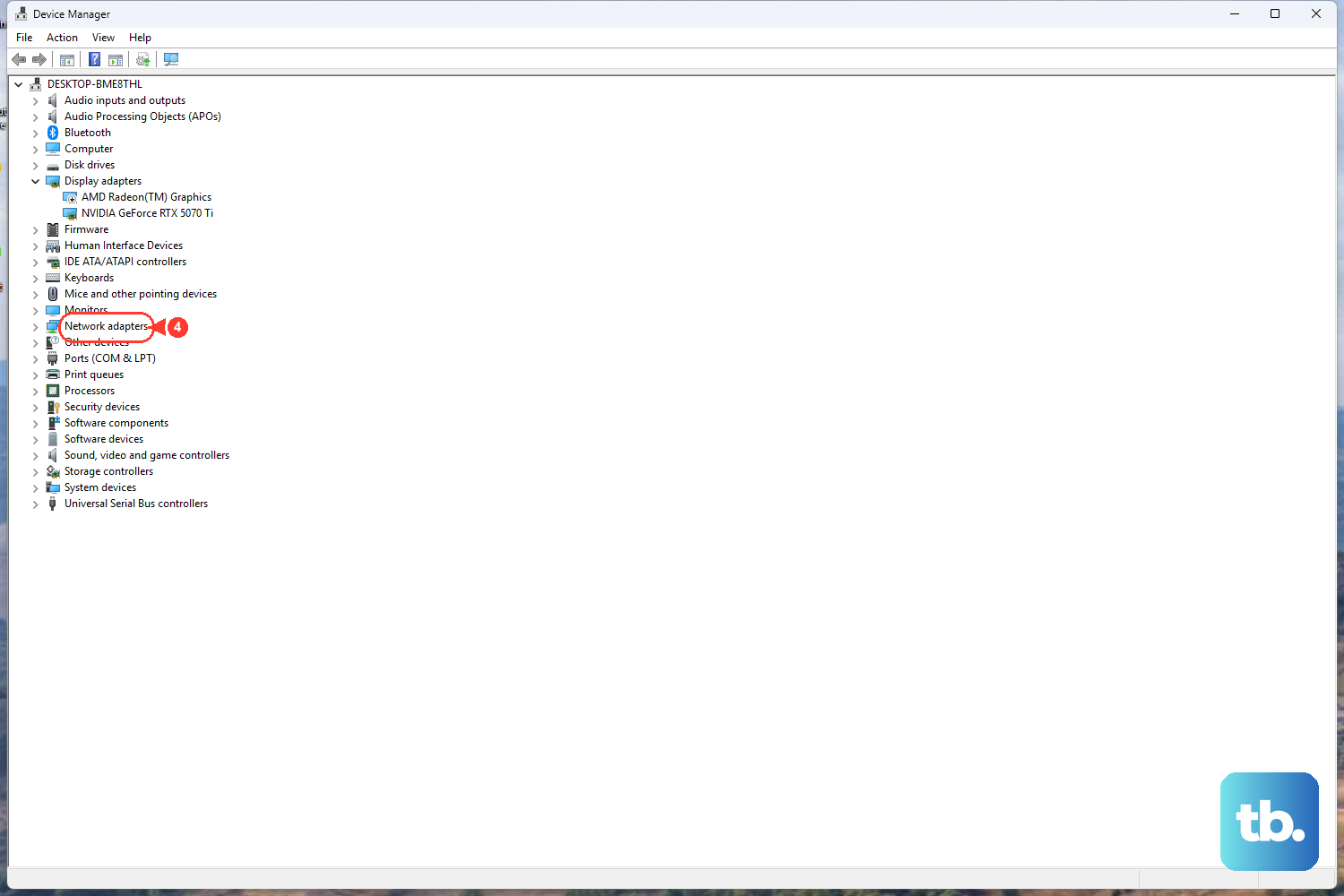
Press Windows key + X and choose Device Manager. Expand the Network adapters section, right-click your Intel or Killer WiFi adapter, and select Disable device. Wait a moment, then right-click it again and choose Enable device. This forces the hardware to reinitialize without a full system restart.
Reset Your Network Stack
Open Command Prompt as an administrator. Type the following commands one by one, pressing Enter after each: netsh winsock reset, netsh int ip reset, ipconfig /flushdns, ipconfig /release, and ipconfig /renew. After running them all, restart your laptop. This clears out any corrupted network data.
Perform a Network Reset
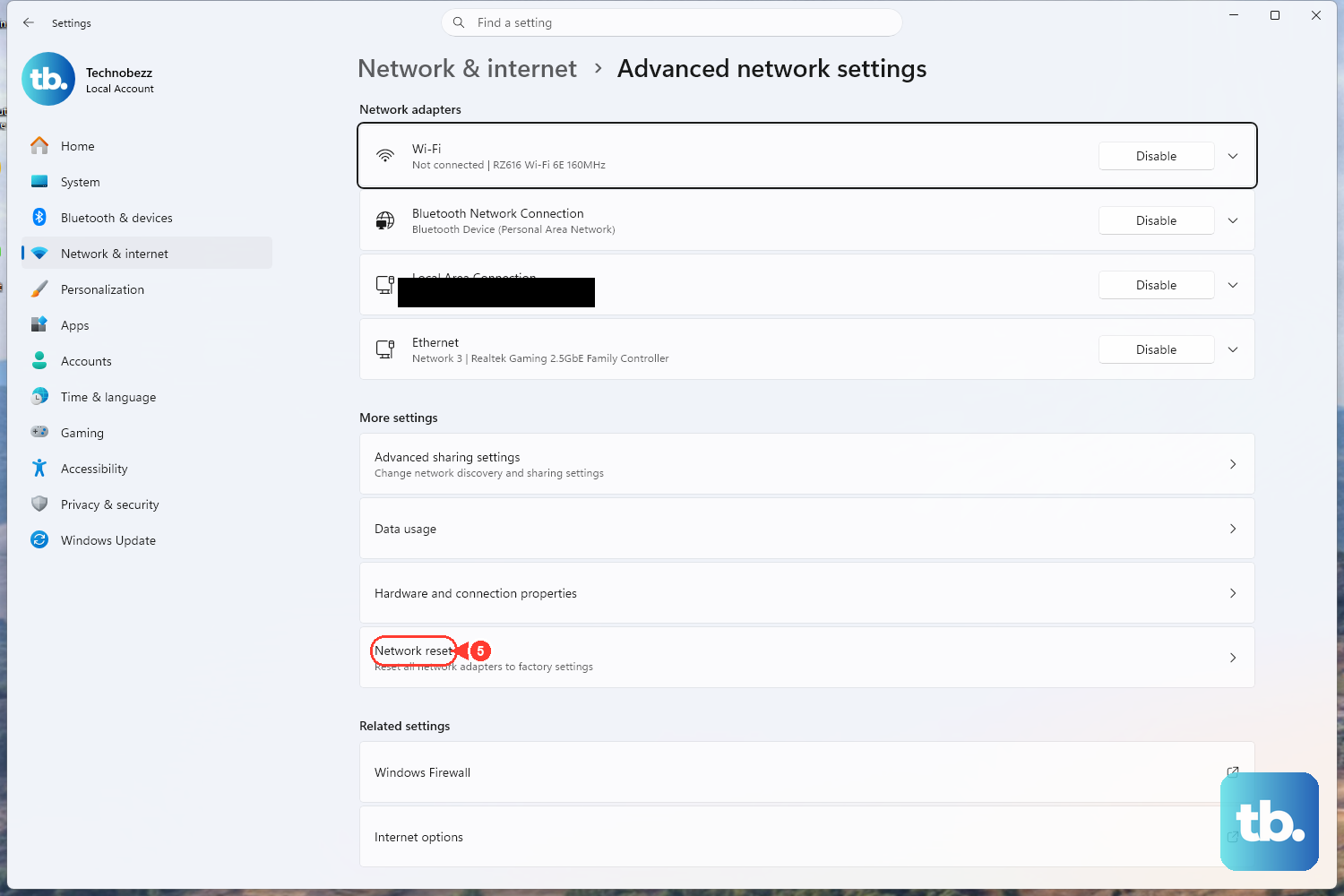
If you're still stuck, a full reset is the next step. Navigate to Settings > Network & internet > Advanced network settings > Network reset. Click Reset now. This will remove and reinstall all network adapters and set everything back to defaults. You'll need to reconnect to your WiFi networks afterward.
Check for Windows and BIOS Updates
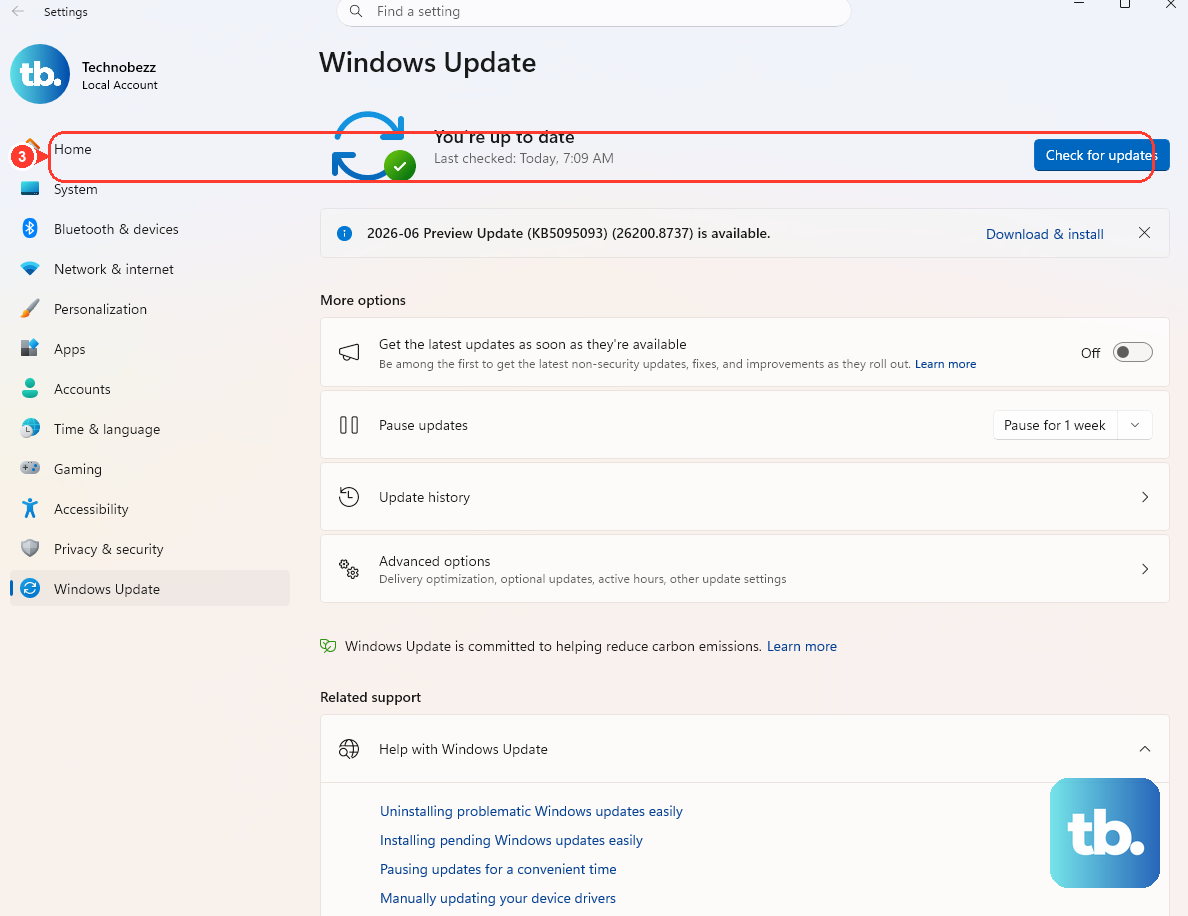
Head to Settings > Windows Update and install any available updates. Microsoft frequently patches network-related issues. Also, check for a BIOS update on Dell's support page. An outdated BIOS can sometimes cause instability with components like the WiFi card, especially on a performance-focused machine.
Check Your Router and Gaming Setup
If other devices can't connect either, the problem is likely your router. Unplug it from power for 30 seconds and plug it back in. For gamers, also try moving closer to the router or using a 5GHz band if available, as it's often less congested. You can test your laptop's hardware by trying to connect to a different network, like your phone's mobile hotspot.