
When your Dell G16 shows "USB Device Not Recognized" or just doesn't see your connected mouse, keyboard, or external drive, it's a real buzzkill for a gaming session. The problem could be a simple port issue, a driver conflict, or a power setting interfering. Let's get your peripherals working again.
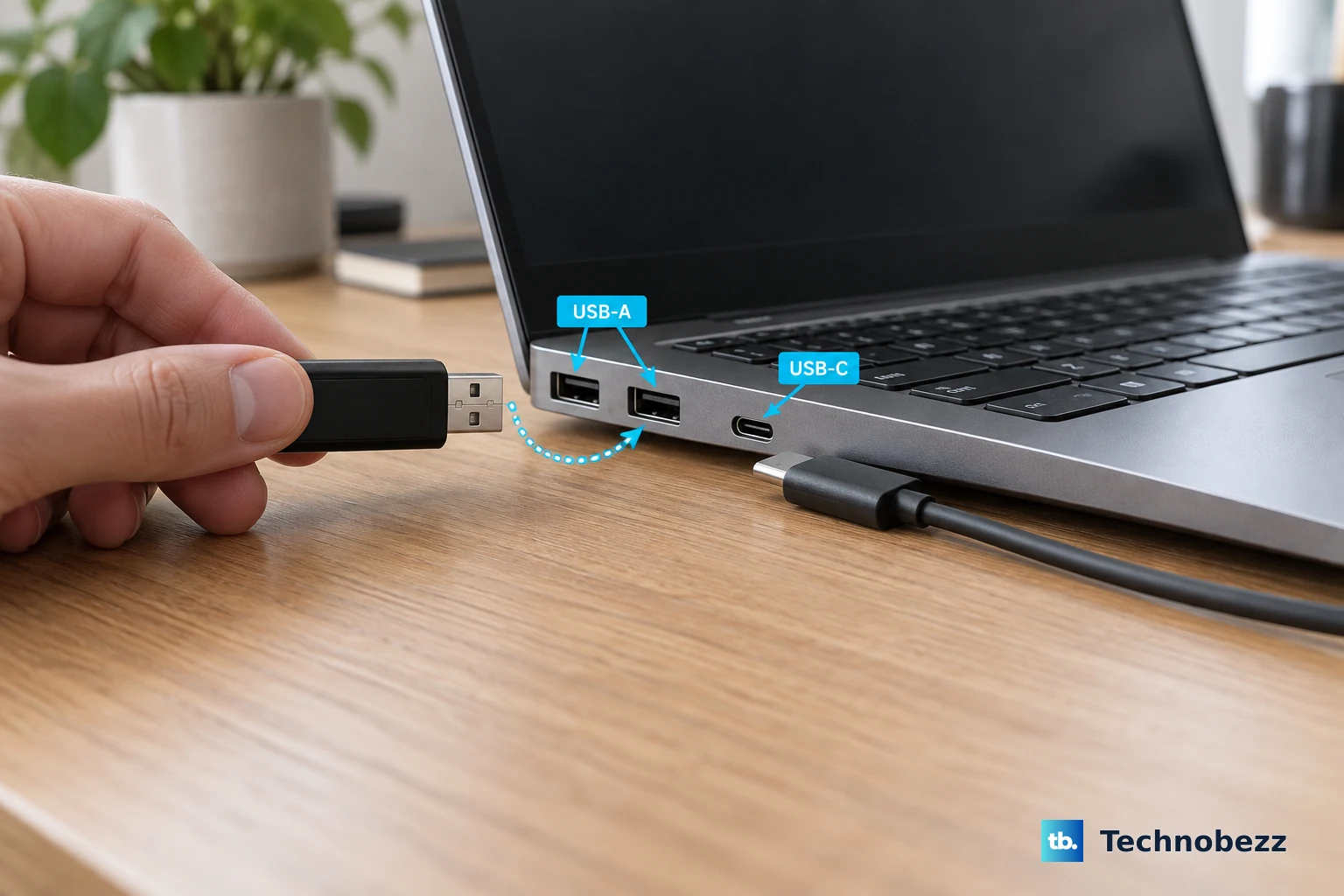
Try a Different USB Port on Your G16
Unplug the device and connect it to another USB port on your laptop. The G16 has a mix of USB-A and USB-C ports, so try both types if you can. If the device works in a different port, the original one might be disabled in software or have a physical connection problem.
I'd start with this, as it's the quickest way to rule out a hardware fault with the port itself. It's especially worth checking if you've been plugging and unplugging a lot from the same side of the laptop.
Restart Your Laptop Completely
This classic fix reloads all the USB drivers and resets the controller. A full restart, not just putting the laptop to sleep, can clear temporary glitches that cause the "not recognized" error. Make sure to save any game progress first.
Given the G16's hybrid graphics setup with NVIDIA Optimus, a restart can also help if the discrete GPU's USB controller is having a handoff issue with the integrated graphics.
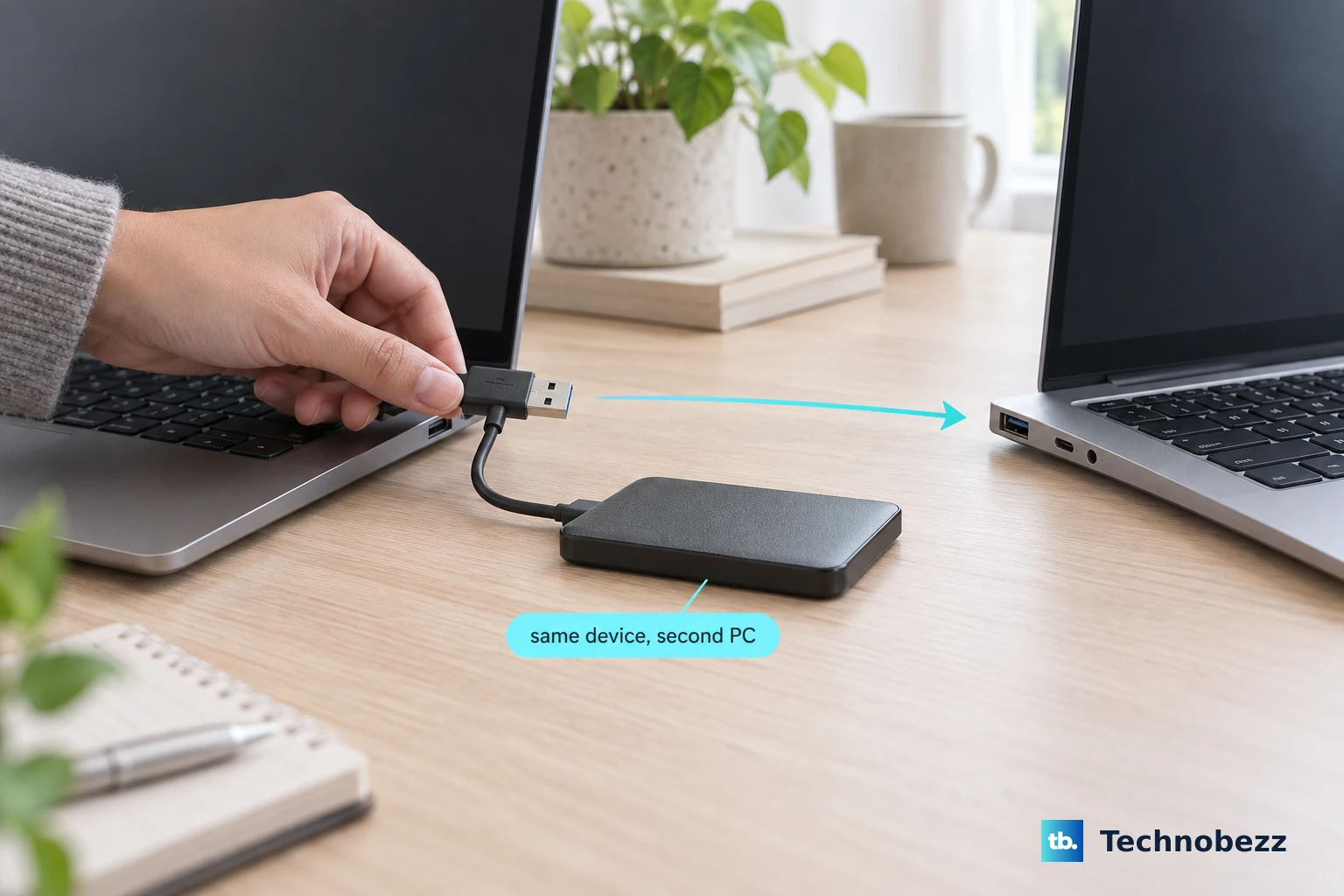
Test the Device on Another Computer
Connect your USB device to a different PC or laptop. If it isn't detected there either, the device or its cable is likely the culprit. If it works perfectly on another machine, then the issue is isolated to your G16's configuration.
This step tells you exactly where to focus your troubleshooting efforts, saving you time messing with laptop settings for a faulty peripheral.
Swap Out the USB Cable
For any device that uses a detachable cable, like an external SSD, phone, or controller charger, try a different cable. Cables fail over time, often near the connectors from bending.
A common trap is a cable that still delivers power (so a light might come on) but has broken data lines. Always use a high-quality cable you know works for data transfer.
Update or Reinstall USB Drivers
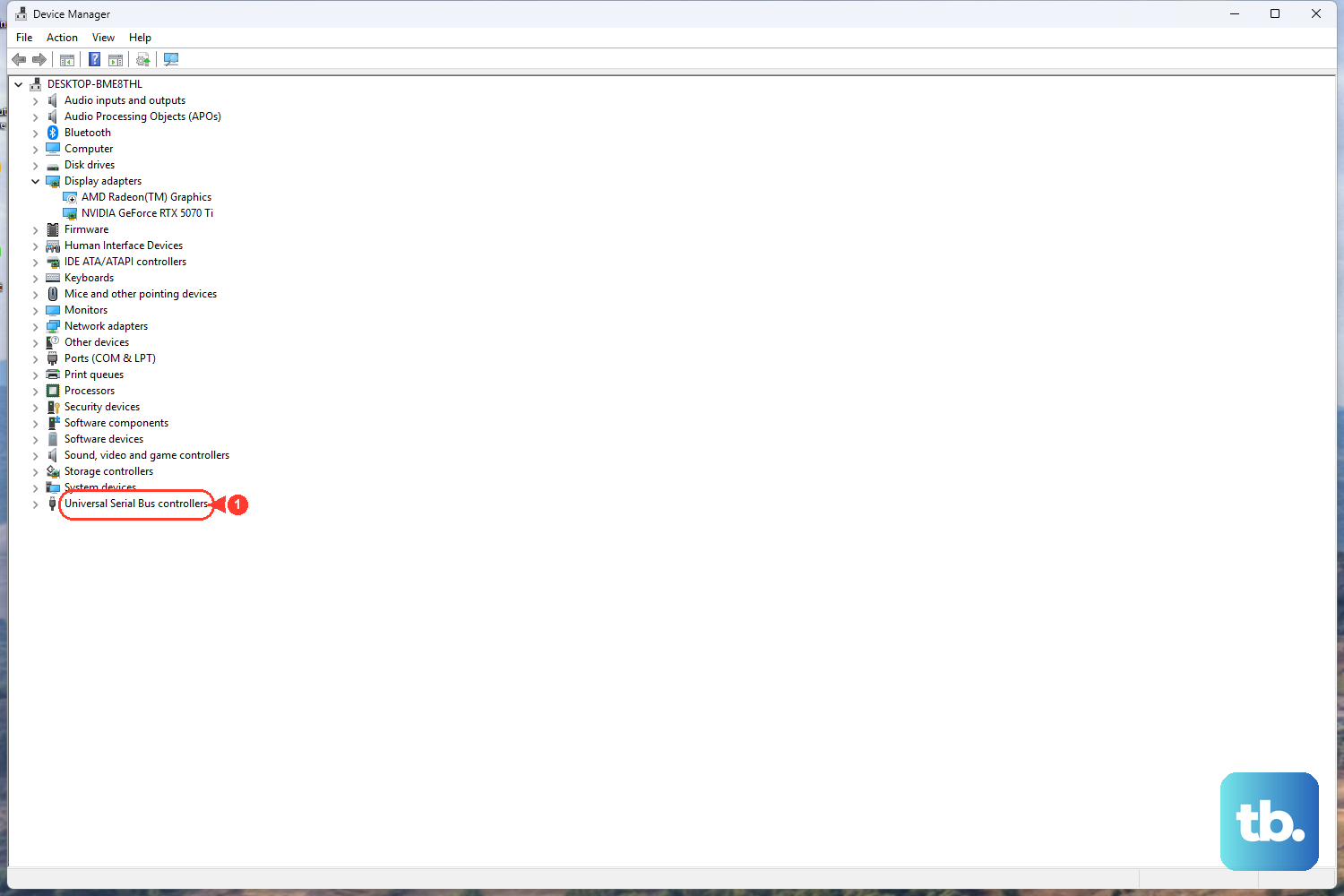
Press the Windows key, type "Device Manager," and open it. Expand the section labeled Universal Serial Bus controllers. Look for any entries with a yellow exclamation mark.
Right-click on the problematic device or on generic USB hubs and select Update driver. Choose "Search automatically for drivers." If that doesn't work, right-click and select Uninstall device, then restart your laptop. Windows will reinstall the driver fresh upon reboot.
Disable USB Selective Suspend
This power-saving feature can sometimes turn off ports prematurely. To disable it, go to Control Panel > Hardware and Sound > Power Options. Click Change plan settings next to your selected plan, then Change advanced power settings.
In the new window, scroll down and expand USB settings, then expand USB selective suspend setting. Set both "On battery" and "Plugged in" to Disabled. Click Apply and OK.
Run the Hardware Troubleshooter
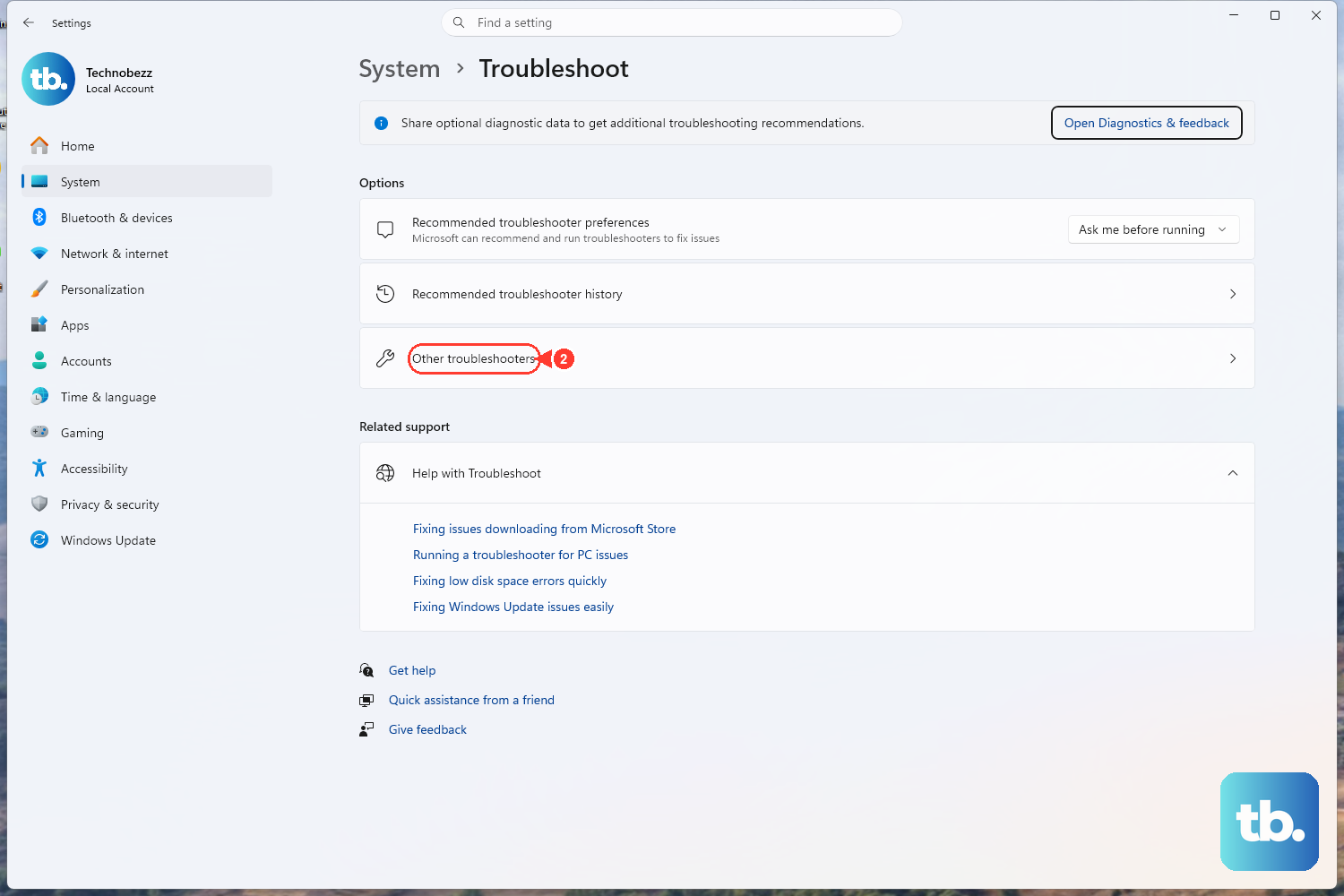
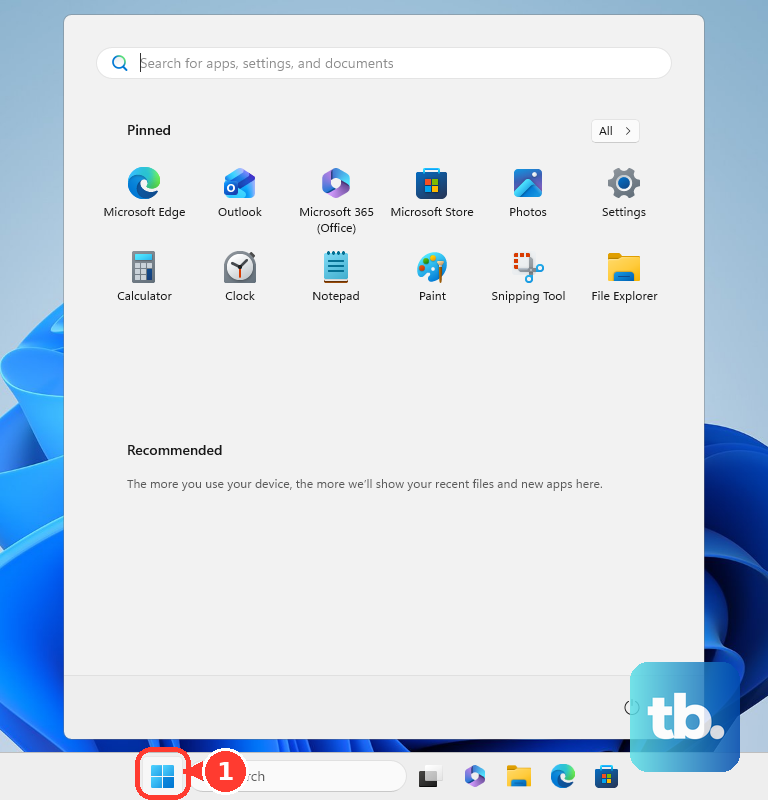
Open the Start menu, type "Command Prompt," right-click it, and choose Run as administrator. In the black window, type the command msdt.exe -id DeviceDiagnostic and press Enter.
This launches Windows' built-in Hardware and Devices troubleshooter. Follow the prompts to let it scan for and attempt to fix common USB-related problems automatically.
Install All Windows and Driver Updates
Go to Settings > Windows Update and click Check for updates. Install all available updates. For critical driver updates, click Advanced options and then Optional updates.
Check here for any driver updates listed. While it's often better to get NVIDIA or AMD graphics drivers directly from their sites, other chipset and USB controller updates from Windows Update can resolve compatibility issues.
Manually Scan for Hardware Changes
With the Device Manager open (search for it in the Start menu), click on the Action menu at the top. Select Scan for hardware changes from the dropdown.
This forces Windows to immediately re-check all hardware buses, including the USB controllers. It's a simple nudge that can wake up a port that has stopped responding.
If you've been tweaking performance settings in the Alienware Command Center, try setting a default profile and restarting. Sometimes aggressive thermal or power profiles can affect peripheral power delivery. For persistent issues, entering the BIOS (by pressing F2 at startup) and checking that the USB ports are not disabled is a good last resort.











