


A trackpad that suddenly stops working on your Dell G16 can bring your gaming or work to a complete halt, forcing you to rely on an external mouse. Whether the cursor is frozen, taps aren't registering, or multi-finger gestures have failed, these steps will help you get it back in action.
I'd start by checking the simplest setting first. On the G16, you can quickly toggle the trackpad on and off using the function keys. Look for the key with a touchpad icon, which is often F6 or F7, and press Fn + that key. A notification should pop up confirming the change.
Also, head into Windows settings to double-check. Press the Windows key, type "touchpad," and open the settings. Make sure the main toggle at the top is set to "On."
Perform a Full Restart
If the trackpad stopped responding after the laptop woke from sleep or a game crashed, a simple restart is your best bet. This reloads all the drivers, including the one for your pointing device.
You can do this without the trackpad. Press the Windows key on your keyboard, then use the Tab key to navigate to the power icon in the Start menu. Hit Enter, arrow down to "Restart," and press Enter again.
Disconnect All External Pointing Devices
Your G16 might be set to automatically disable the internal trackpad when an external USB or Bluetooth mouse is connected. Unplug any wired mouse and turn off any wireless mice via their switch or Bluetooth settings.
After disconnecting, give the trackpad a try. If it works, you can change this behavior in Settings > Bluetooth & devices > Touchpad. Look for an option like "Leave touchpad on when a mouse is connected" and make sure it's enabled.
Update or Reinstall the Trackpad Driver
Outdated or corrupted drivers are a common culprit. Press Windows key + X and select "Device Manager." Expand the "Mice and other pointing devices" category.
Right-click on the device listed (it might be called "Dell Touchpad," "Synaptics," or "ELAN") and choose "Update driver." Select "Search automatically for drivers." For the best results, especially with a gaming laptop, I'd recommend getting the driver directly from Dell's support site using your Service Tag.
If updating doesn't work, try a clean reinstall. In Device Manager, right-click the touchpad device again and select "Uninstall device." Restart your laptop. Windows will install a basic driver upon reboot, after which you can install the latest one from Dell.
Check for Windows and Alienware Updates
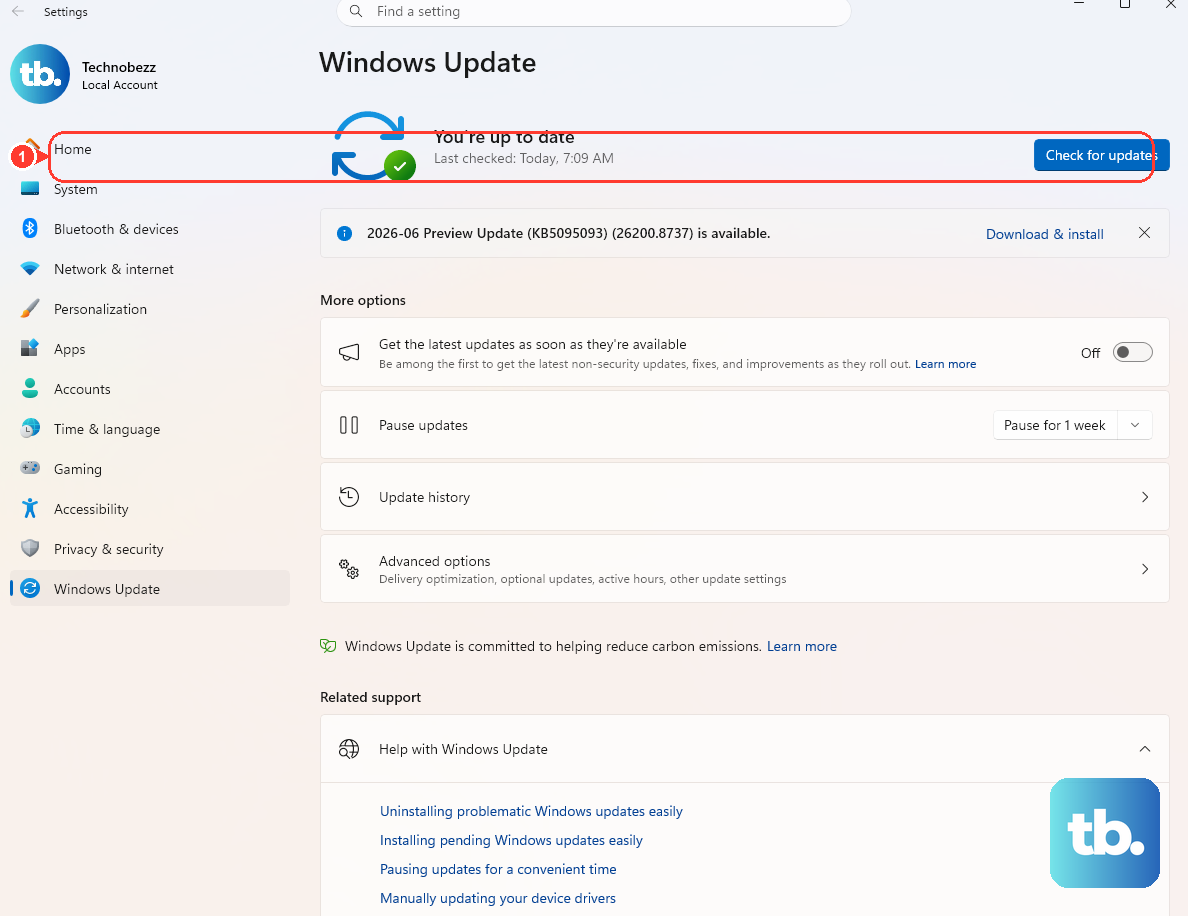
Make sure your entire system is up to date. Go to Settings > Windows Update and install any pending updates. These often include system-level fixes for hardware issues.
Also, open the Alienware Command Center. Check for any updates within the app itself, as Dell sometimes pushes firmware or driver updates through this utility that are crucial for the G16's integrated hardware controls.
Clean the Trackpad Surface
Gaming sessions can lead to sweaty palms or snack residue on the trackpad. Any moisture, oil, or grime can interfere with its capacitive sensors.
Power off the laptop. Gently wipe the trackpad surface with a microfiber cloth slightly dampened with water. Dry it thoroughly before turning the laptop back on. Make sure your fingers are clean and dry when testing it.
Investigate BIOS Settings
The trackpad can be disabled in the system BIOS. Restart your G16 and immediately start tapping the F2 key repeatedly until you enter the BIOS setup.
Navigate using your keyboard arrow keys. Look for a section like "System Configuration," "Advanced," or "Integrated Devices." Find an option for "Internal Pointing Device" or "Touchpad" and ensure it is set to "Enabled." Save and exit.
Run System File and Hardware Troubleshooters
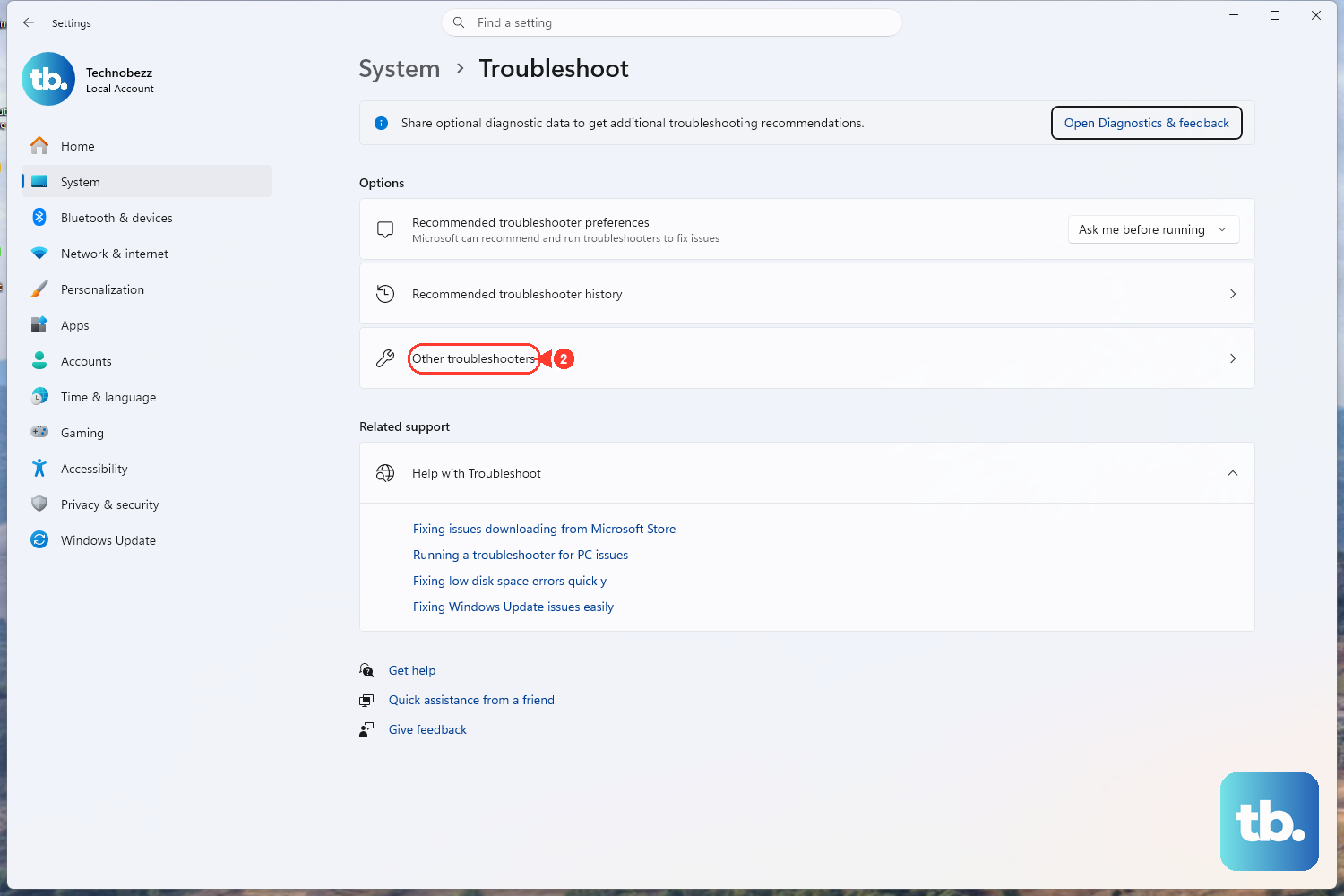
Corrupted system files can cause strange hardware behavior. Open Command Prompt as an Administrator and type the command sfc /scannow and press Enter. Let it complete and restart if it repairs anything.
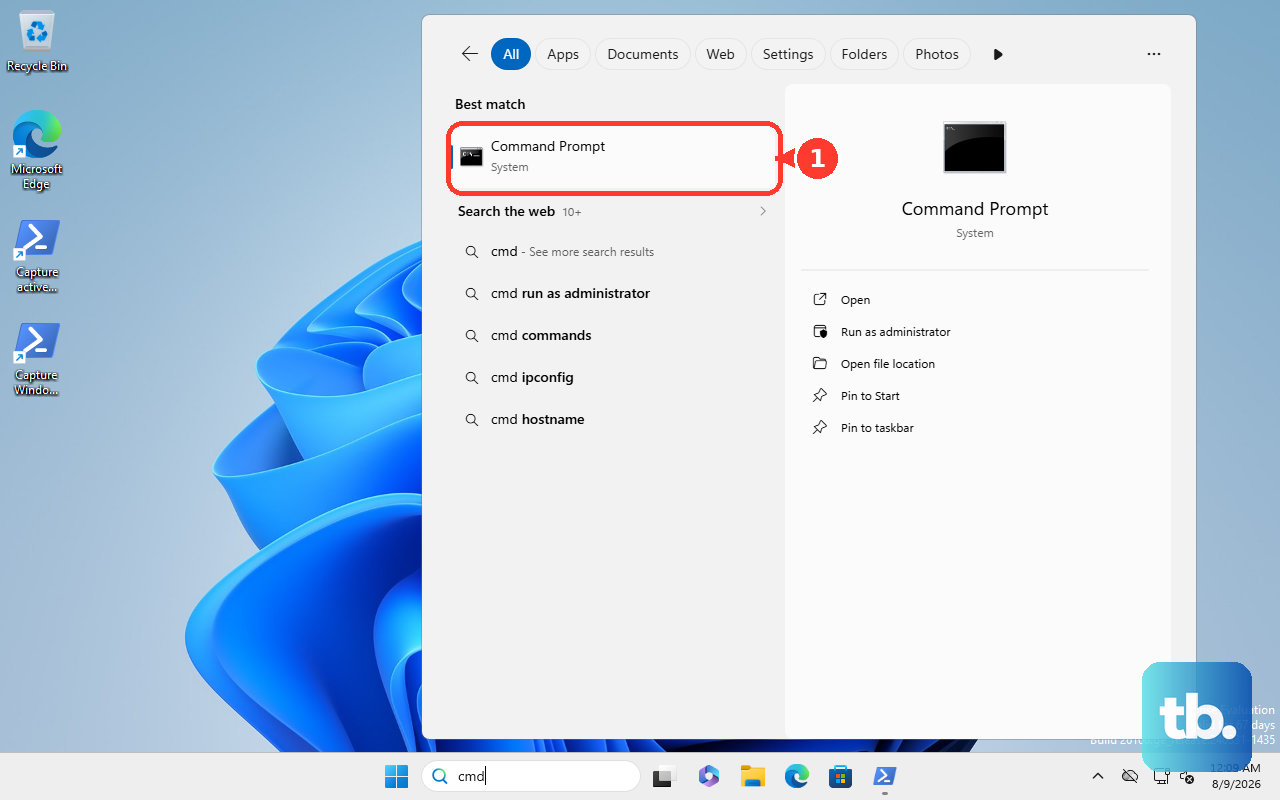
Windows also has a built-in hardware troubleshooter. Go to Settings > System > Troubleshoot > Other troubleshooters. Run the "Hardware and Devices" troubleshooter and follow its prompts.
Consider Hardware and Power Drain
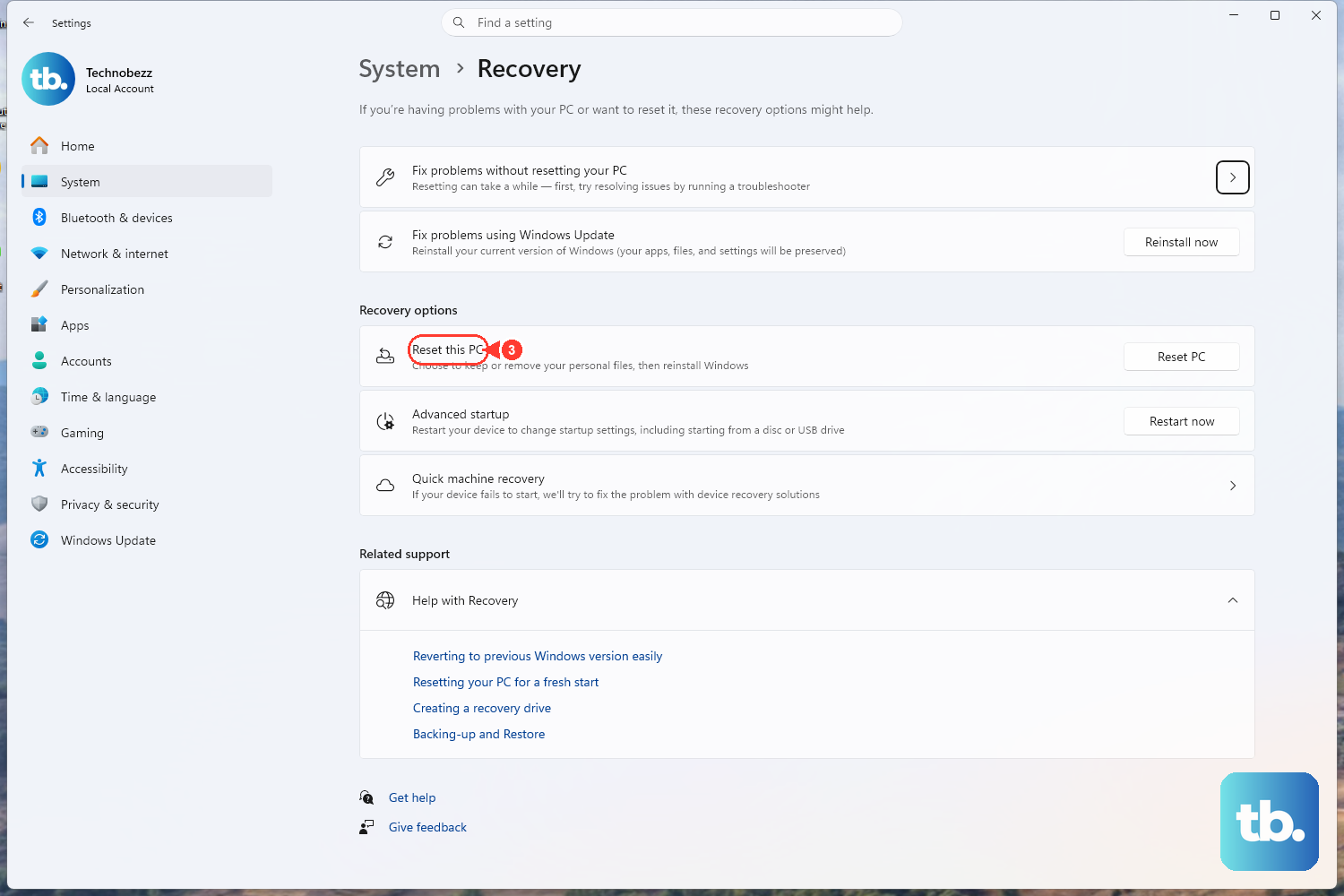
If none of the software fixes work, test the trackpad in a minimal environment. Restart and boot into Windows Safe Mode. If the trackpad works there, a software conflict is likely. If it's completely dead even in the BIOS or Safe Mode, there may be a hardware issue.
Before assuming the worst, try a full power drain. This can reset the laptop's internal hardware state. Shut down the G16, unplug it, and hold down the power button for a full 60 seconds. Then, plug it back in and power it on normally.
A loose internal ribbon cable connection, which can happen if the laptop was recently opened or experienced a bump, is a known possibility. Persistent failure after all these steps would point toward needing a professional diagnostic to check that connection or the trackpad assembly itself.