
A gaming laptop that's lost its edge is incredibly frustrating. When your Dell G16 starts stuttering in games or feels sluggish on the desktop, it's usually a software or settings issue you can fix yourself.
Restart Your G16
If you just close the lid and put it to sleep for days, background processes and memory can get gummed up. Click Start > Power > Restart to give it a fresh start. I'd do this first, as it clears out temporary glitches that can slow things down.
Check What's Hogging Resources
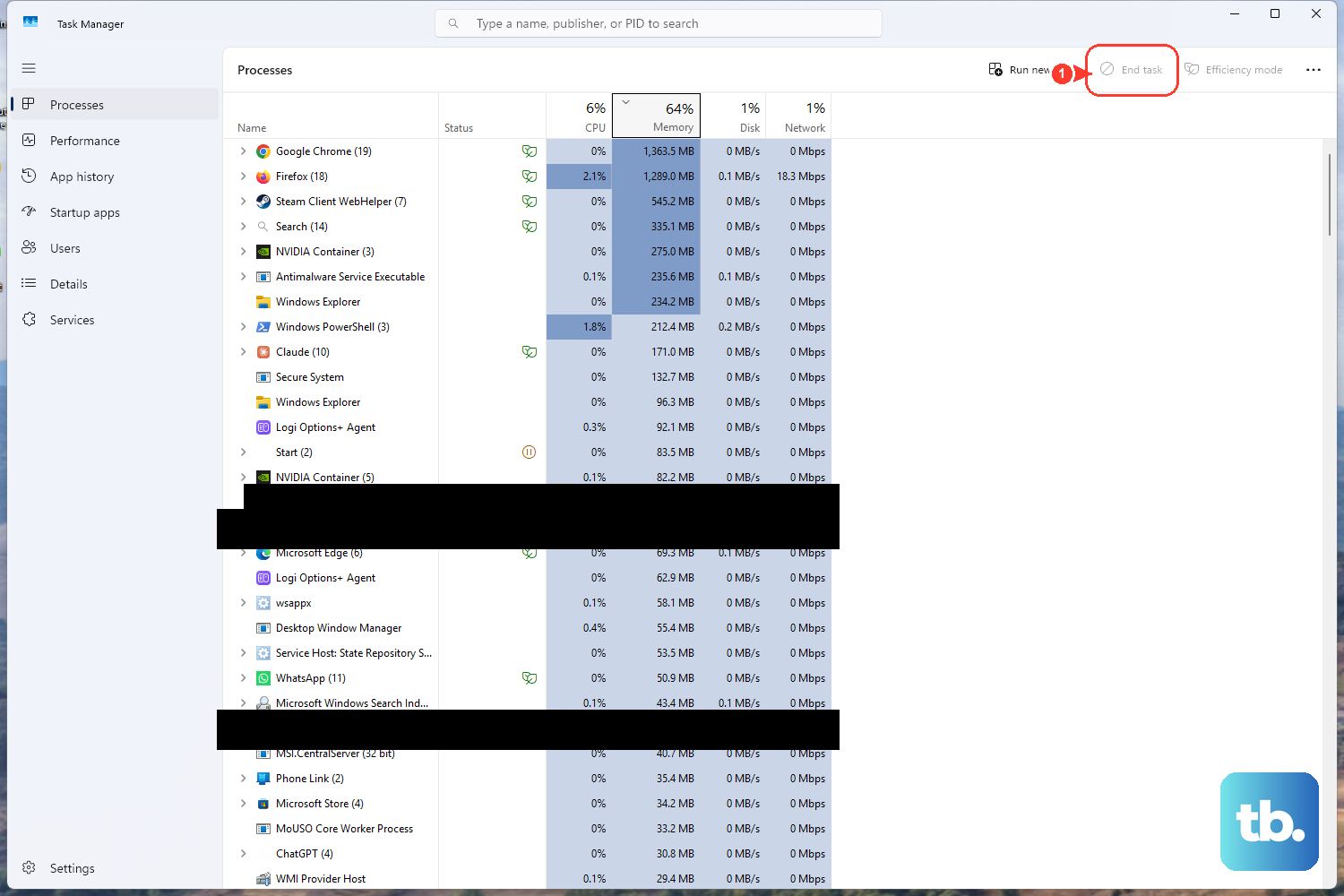
Press Ctrl + Shift + Esc to open Task Manager. Click the Performance tab to see an overview of your CPU, GPU, and memory. Then, go to the Processes tab and sort by CPU or Memory to find the culprit. Right-click and End task on any non-essential program using a huge chunk of resources.
Manage Startup Programs
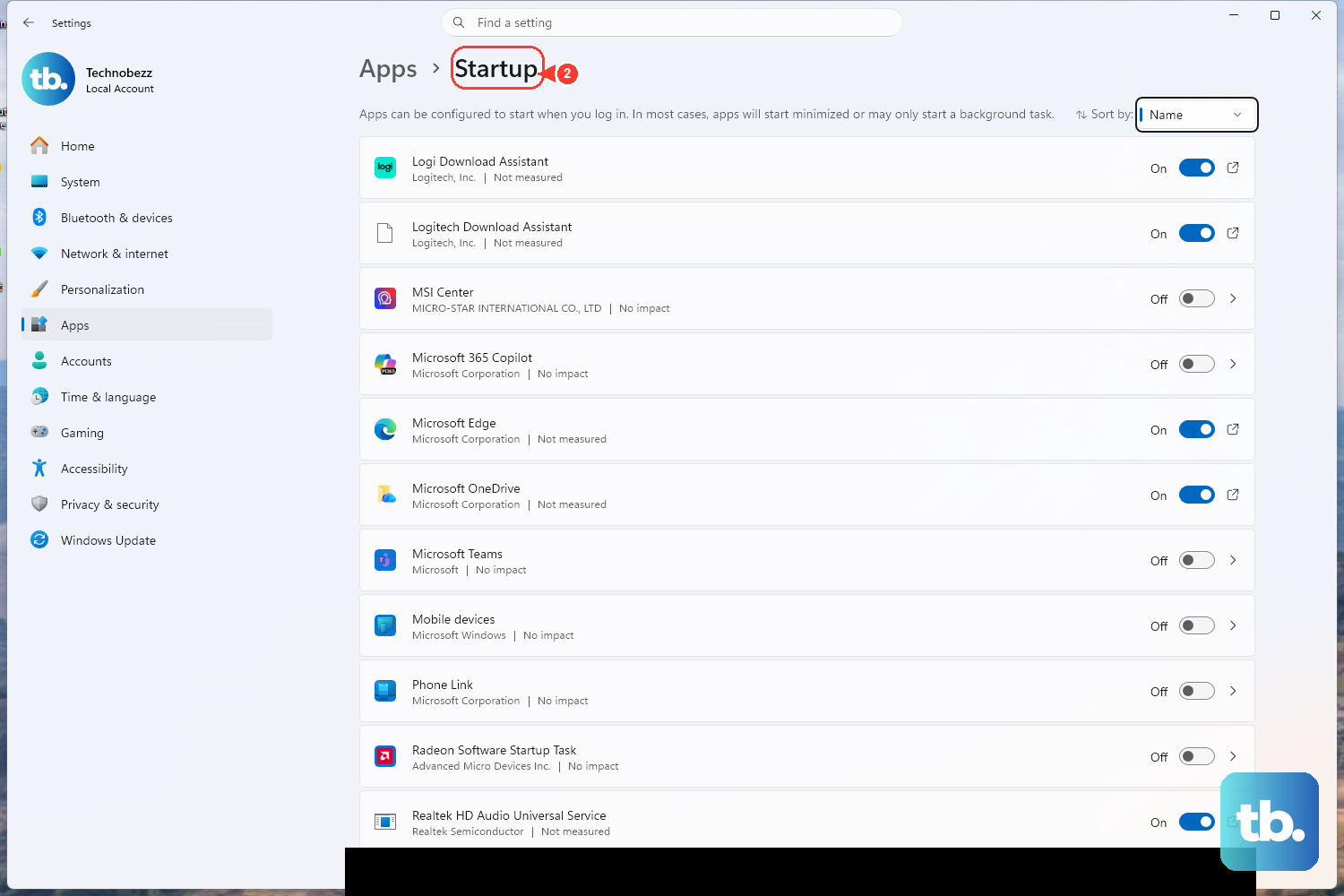
Too many apps launching at boot will slow your startup and run in the background. In Task Manager, click the Startup apps tab. Disable everything you don't need immediately, like game launchers (Steam, Epic), communication apps (Discord), or media software. Keep your antivirus enabled.
Use Alienware Command Center for Performance
Your G16 comes with the Alienware Command Center (AWCC). Open it and check your thermal and performance profiles. Make sure you're set to a Performance or Full Speed mode, not a quiet or balanced mode, when plugged in and gaming. This ensures your fans and CPU are set for maximum output.
Update Your Graphics Drivers Directly
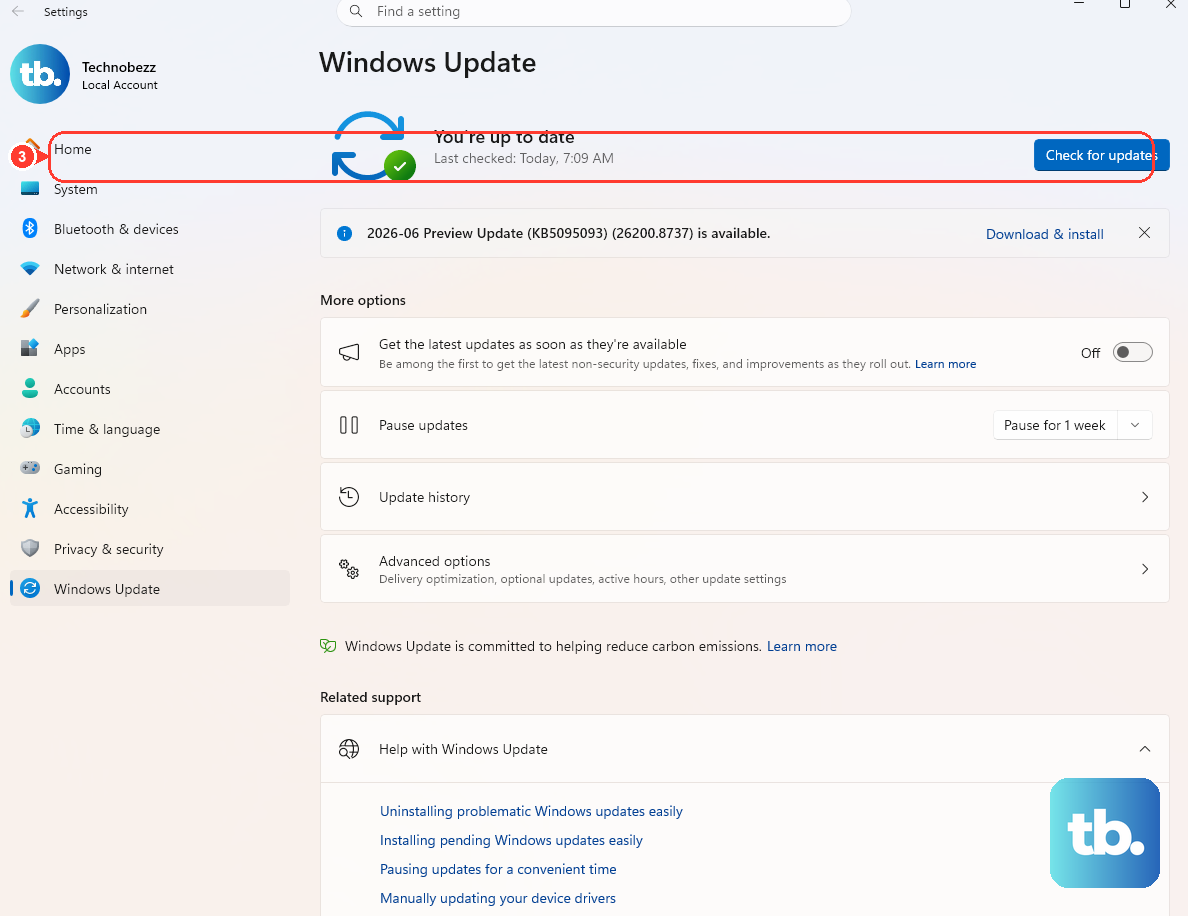
For gaming laptops, getting GPU drivers from the manufacturer is key. Don't rely on Windows Update. Go to the Dell Support website, enter your G16's service tag, and download the latest NVIDIA or AMD graphics driver. Alternatively, you can use the NVIDIA app or AMD Adrenalin app to check for game-ready driver updates.
Check for Thermal Throttling
The G16 can experience GPU thermal throttling during long gaming sessions, which drastically cuts performance to cool down. Use a monitoring tool like HWiNFO64 to check your GPU temperatures while gaming. If they're consistently hitting the mid-90s (°C), your system is likely throttling. Ensure the laptop vents are clear and it's on a hard, flat surface.
Adjust Windows Power Plan
Windows might be limiting your CPU to save power. Search for "Choose a power plan" in the Start menu and open it. Select the High performance plan. If you don't see it, click "Show additional plans." For the most control, you can also create a custom plan that prevents the CPU from ever dropping to low power states.
Free Up Space on Your Drive
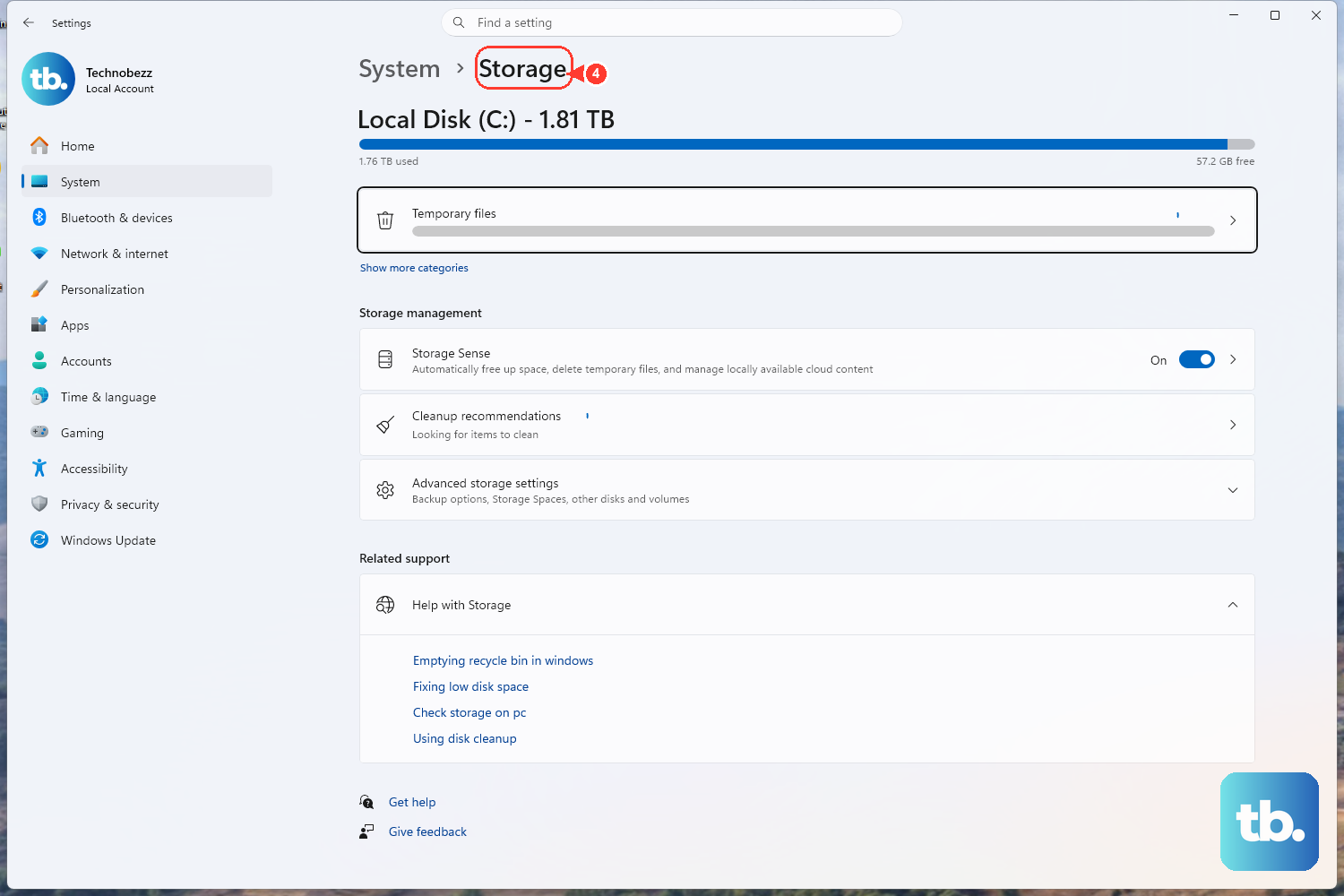
If your primary drive (usually the C: drive) is over 85% full, performance will suffer. Open Settings > System > Storage. Turn on Storage Sense to auto-clean temporary files. You can also click Temporary files to manually remove update cleanup files and empty the recycle bin.
Configure Graphics Settings in BIOS
Some G16 models with hybrid graphics (Optimus) can have switching issues. Restart your laptop and press F2 repeatedly at the Dell logo to enter BIOS. Look for a display or graphics setting. You may find an option to set the graphics mode to Discrete Graphics only, which forces the use of the powerful NVIDIA GPU and can resolve some performance hiccups, though it will use more battery.
Reset or Reinstall Windows
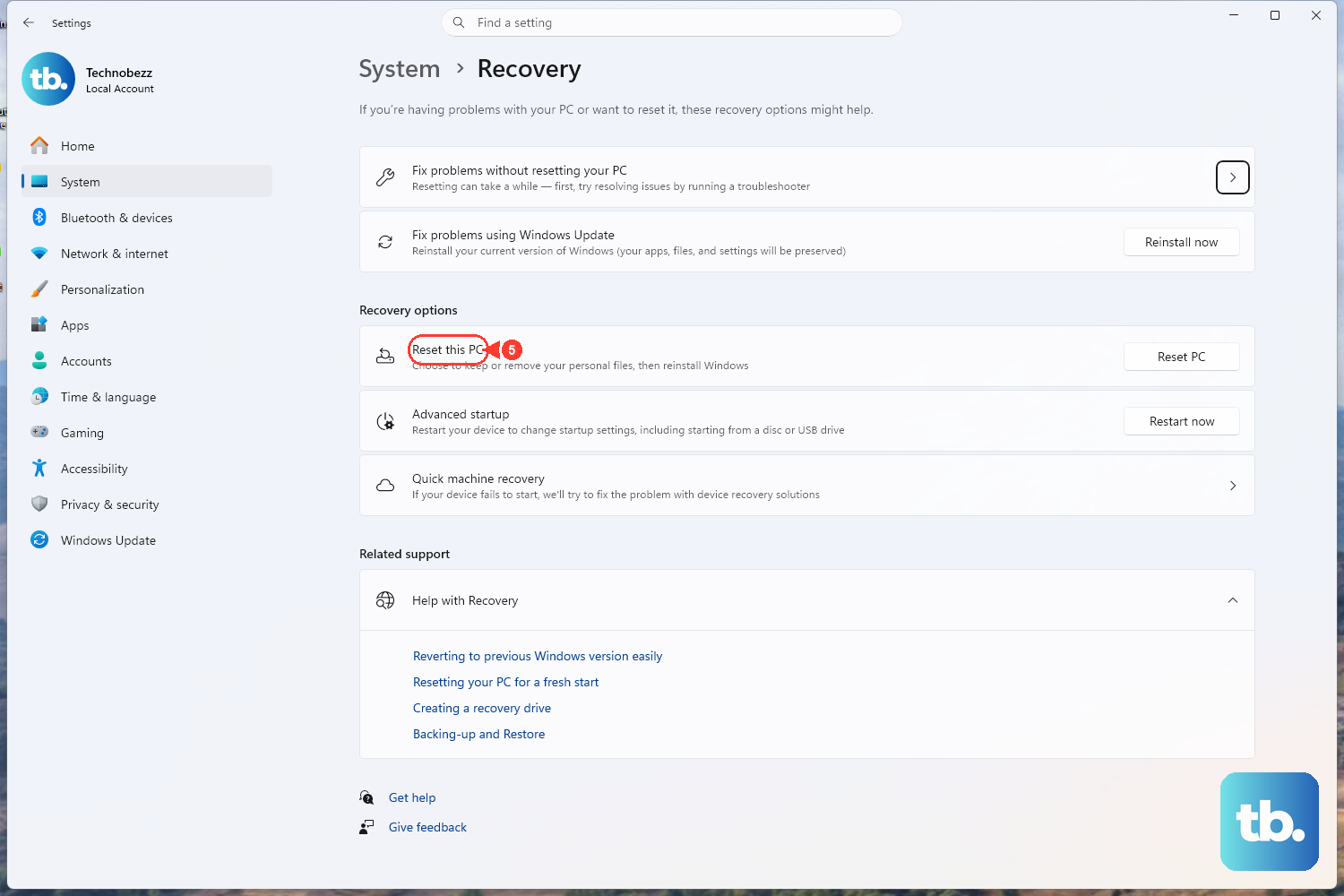
If all else fails, a clean Windows install can remove deep-seated software conflicts. Go to Settings > System > Recovery. You can choose Reset this PC and select "Keep my files" to reinstall Windows while keeping your personal data. Your installed games and apps will be removed, so you'll need to reinstall them afterwards.