
An overheating gaming laptop is more than just uncomfortable, it's a performance killer. When your Dell G16 gets too hot, the CPU and GPU will throttle down to protect themselves, causing stutters and frame drops right in the middle of a game. If the fans are screaming nonstop or the keyboard deck feels hot enough to fry an egg, these steps will help you cool things down.
Clean the Air Vents Thoroughly
Gaming laptops suck in a ton of air, and over time, dust clogs the heatsinks and vents. For the G16, you'll want to focus on the large rear exhaust and the intake grilles along the bottom and sides. Grab a can of compressed air and give those areas a few good blasts from the outside.
For a deeper clean, you can open the bottom panel. Once inside, hold the fans still with a toothpick or your finger while you use the compressed air to blow dust out of the heatsink fins. I've seen this simple cleaning drop gaming temperatures by 10 degrees or more on laptops that haven't been serviced in a while.
Always Use a Hard, Flat Surface
This is critical for any gaming laptop. Using your G16 on a bed, blanket, or even your lap blocks the crucial intake vents on the bottom. Always place it on a hard desk or table. For even better airflow, consider a simple stand or even just propping up the rear with a couple of erasers to give the fans more room to breathe.
Dial in Your Alienware Command Center Profiles
Your G16 comes with the Alienware Command Center software, which is your control hub for thermals. Don't just leave it on the default. Open it up and explore the thermal profiles. The Performance mode will ramp up the fans more aggressively to keep things cooler.
For a balance, the Balanced profile is a good daily driver. If you're just browsing or watching videos, switching to Quiet mode will slow the fans and reduce noise, though it may let the laptop run a bit warmer. Creating a custom fan curve here gives you the most control.
Manage Your Power and Graphics Settings
Windows power plans play a big role. Press the Windows key, type "Choose a power plan," and select it. Make sure you're on the Dell or High performance plan when gaming for full power delivery. For non-gaming tasks, the Balanced plan can help reduce heat.
Also, right-click on your desktop and open NVIDIA Control Panel. Go to Manage 3D settings and look for "Power management mode." Set this to Prefer maximum performance only for the games you play. Leaving it on globally can keep the GPU awake and generating heat unnecessarily.
Update Drivers Directly from NVIDIA or Dell
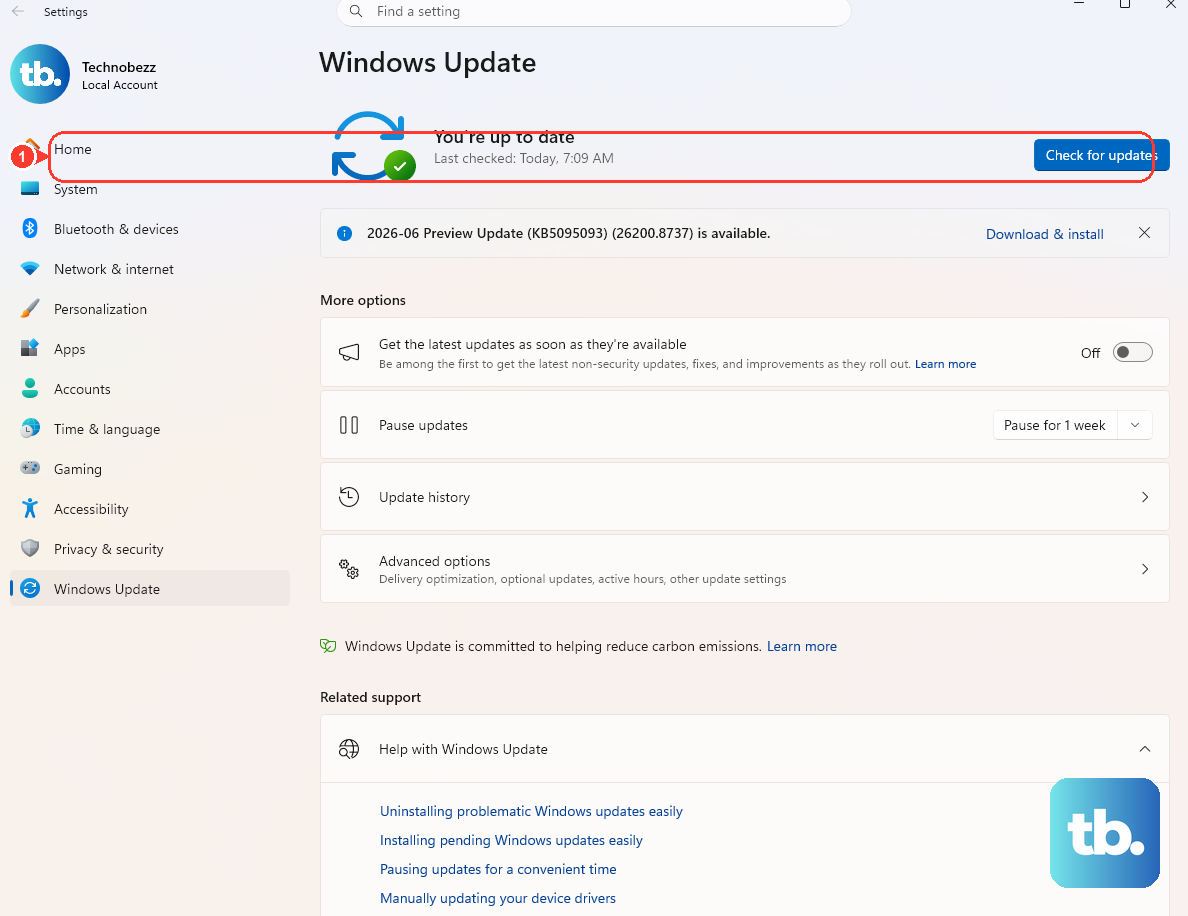
While Windows Update provides drivers, they are often older. For the best thermal and performance optimizations, get your graphics drivers straight from the source. Visit NVIDIA's website directly and use their NVIDIA app or manual download for the latest Game Ready drivers.
Don't forget your chipset and system drivers from Dell's support page. Enter your G16's service tag, and look for BIOS updates, chipset drivers, and thermal framework updates. A BIOS update can include improved fan control algorithms that make a noticeable difference.
Invest in a Quality Laptop Cooling Pad
A good cooling pad is one of the most effective accessories for a gaming laptop. Look for one with large, high-static pressure fans that align with the G16's main intake vents on the bottom. It provides active assistance to your internal fans and can lower your overall system temperature by a solid 5 to 8 degrees Celsius during long sessions.
Check for Background Software and Processes
Press Ctrl + Shift + Esc to open Task Manager and click on the CPU column to sort by usage. Look for anything using significant CPU when you're idle. Common culprits are antivirus scans, Windows Update, or game clients like Steam or Epic doing updates.
Also, some pre-installed Dell software might run background processes. It's worth reviewing what starts up with your PC by going to the Startup tab in Task Manager and disabling non-essential programs.
Consider an Undervolt for Your CPU
This is an advanced but highly effective technique. Using Intel XTU or ThrottleStop, you can slightly reduce the voltage supplied to your CPU. This lowers power consumption and heat output without hurting performance. For many G16 models, a stable undervolt of around -80mV to -100mV can shave several degrees off your peak temperatures.
It does require some testing for stability. Make small changes and test with a game or a benchmark like Cinebench to ensure your system doesn't crash. The performance payoff in sustained clock speeds is often worth it.
Repaste the CPU and GPU
If your G16 is a couple of years old and still running hot after all the above, the factory thermal paste may have dried out. Replacing it with a high-quality paste like Thermal Grizzly Kryonaut or Arctic MX-6 can dramatically improve heat transfer to the heatsink.
This requires carefully removing the back panel, disconnecting the battery, and removing the cooling assembly. If you're not comfortable with detailed disassembly, a local computer repair shop can handle this service relatively quickly. The temperature drop can be substantial, sometimes 15 degrees or more under load.
Disable CPU Turbo Boost for Specific Games
Some games are more CPU-intensive than GPU-intensive. In these titles, the CPU can generate a lot of heat by constantly boosting to its maximum frequency. You can create a custom power plan to disable turbo boost. In the advanced power settings for your plan, find Processor power management and set Maximum processor state to 99%.
This prevents the CPU from using its turbo frequencies, which cuts heat significantly. Your base clock speed is still plenty fast for most games, and the GPU will often become the limiting factor instead, leading to a cooler, and sometimes even smoother, gaming experience.











