
When you're in the middle of a gaming session and your Dell G16 suddenly stops charging, it's a major roadblock. The issue could be anything from a simple cable problem to a deeper software or hardware glitch. Let's run through the fixes, starting with the most common culprits.
Inspect the Power Adapter and Cable
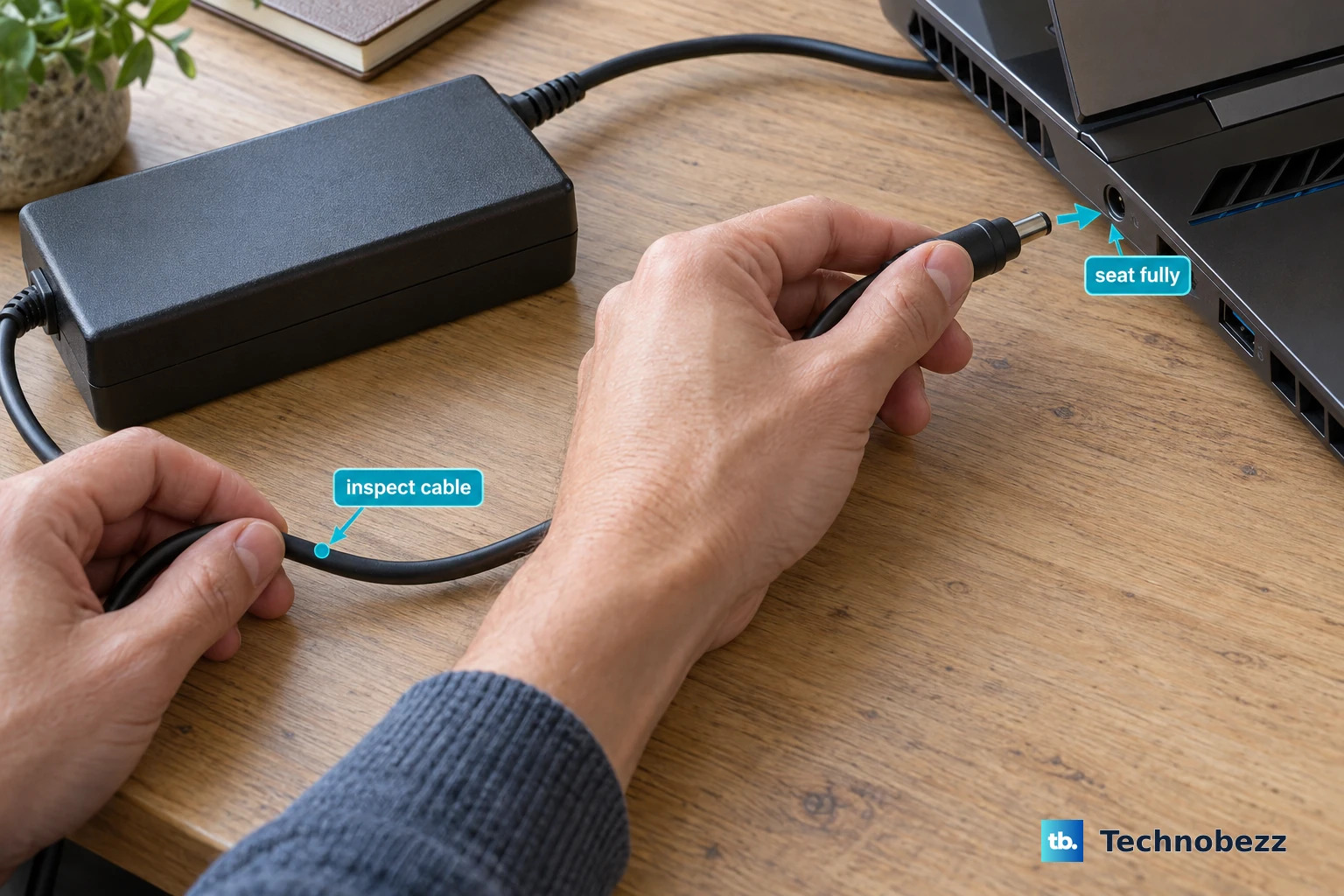
First, take a close look at the large power brick and the cable running from it to your laptop. Check for any visible damage, kinks, or fraying, especially near the connectors. The Dell G16 uses a proprietary barrel-type charging port, so make sure that connector is fully and firmly seated.
Try plugging the adapter into a different wall outlet to rule out a problem with the power source. The LED light on the adapter brick itself should be lit when it's plugged into a working outlet. If that light is off, the adapter itself has likely failed.
Perform a Full Power Cycle
Shut down your G16 completely, don't just put it to sleep. Once it's off, unplug the power adapter from the laptop. Then, press and hold the power button down for a full 15-20 seconds to drain any residual power from the system.
After that, plug the power adapter back in and try turning the laptop on. This process resets the laptop's internal power management controller and can often resolve a temporary hiccup where the system isn't recognizing the charger.
Check Your Battery's Health in Windows
Windows has a built-in tool that gives you a detailed report on your battery. Press the Windows key, type Command Prompt, and run it as an administrator. In the window that opens, type the command powercfg /batteryreport and hit Enter.
This generates an HTML file on your drive. The file path will be shown in the Command Prompt. Open that file in your web browser and look for the "Design Capacity" versus "Full Charge Capacity" sections. If your full charge capacity is significantly lower than the design capacity, the battery may be worn out and struggling to accept a charge.
Update or Reinstall Battery Drivers
Sometimes, the software that manages the battery gets corrupted. Press Windows + X and select Device Manager. In the window that opens, expand the section labeled Batteries.
You'll see at least two items, usually "Microsoft ACPI-Compliant Control Method Battery" and "Microsoft AC Adapter." Right-click on each one and select Uninstall device. Don't restart when prompted. Uninstall both, then fully shut down your laptop.
After shutting down, plug in your power adapter and turn the laptop back on. Windows will automatically detect the hardware and reinstall fresh, default drivers. This often clears up communication errors between the battery and the system.
Review Power Settings and Alienware Command Center
Open the Alienware Command Center app that came with your G16. I'd check the thermal and power profiles here first. Some performance modes or custom fan curves can affect power management behavior.
Also, go to Windows Settings > System > Power & battery. Look for any battery saver or conservation settings. While Dell doesn't typically enable a strict charge limiter by default, it's worth ensuring no third-party app has imposed a charging cap.
Clean the Charging Port Carefully
Over time, the barrel charging port on your G16 can collect pocket lint and dust, preventing the plug from making a solid connection. With the laptop powered off and unplugged, use a can of compressed air to blow out the port.
For stubborn debris, you can very gently use a wooden toothpick to dislodge it. Avoid using metal objects, as they can damage or short the sensitive pins inside the port. The goal is to ensure the charger plug can click in fully without obstruction.
Test With a Known-Good Charger
The G16 requires a specific high-wattage adapter to run and charge under heavy load. If you have access to another compatible Dell charger, preferably of the same wattage (often 240W or 330W for these models), try using it.
An adapter can degrade and fail to deliver its full rated power, which might be enough to run the laptop but not enough to also charge the battery, especially during gaming. A different charger is the best way to isolate the problem to your power supply.
Update Your System BIOS
BIOS updates frequently include fixes for power delivery and battery management. Go to the official Dell support website, enter your G16's Service Tag, and look for BIOS updates in the "Drivers & Downloads" section.
Download and install the update following Dell's instructions precisely. The process usually involves running an executable file. Ensure your laptop is plugged in during the entire update and don't interrupt it. A newer BIOS can resolve compatibility issues that prevent proper charging.
Check Graphics and Power Management Settings
The G16's hybrid graphics can sometimes cause power state confusion. Restart your laptop and press F2 repeatedly as it boots to enter the BIOS setup. Look for a display or graphics setting related to the discrete GPU.
Also, make sure you're getting your NVIDIA graphics drivers directly from the NVIDIA website or the Dell support page, not just through Windows Update. Outdated GPU drivers can interfere with the system's overall power management, affecting charging behavior during use.











