
When your Dell G16's HDMI connection to your TV goes dark, it's usually a quick settings or driver fix. The laptop's hybrid graphics system can sometimes be the culprit, but you can almost always get the picture back with a few checks.
Press Windows + P First
This is the fastest thing to try. Press the Windows + P keys together to bring up the projection menu. Make sure it's not set to "PC screen only." Choose Duplicate or Extend to send the signal to your TV. I'd cycle through the options once to force a refresh.
Check the Cable and TV Input
Unplug the HDMI cable from both the laptop and the TV, then plug it back in firmly. Try a different HDMI cable if you have one, as cables can fail. Don't forget to double-check that your TV is set to the correct HDMI input source using its remote.
Restart With Everything Connected
Leave the HDMI cable plugged into both the G16 and the TV. Shut down the laptop completely, wait a moment, and then power it back on. A full restart forces the NVIDIA or AMD graphics card to reinitialize and detect the external display from boot.
Update Your Graphics Drivers Properly
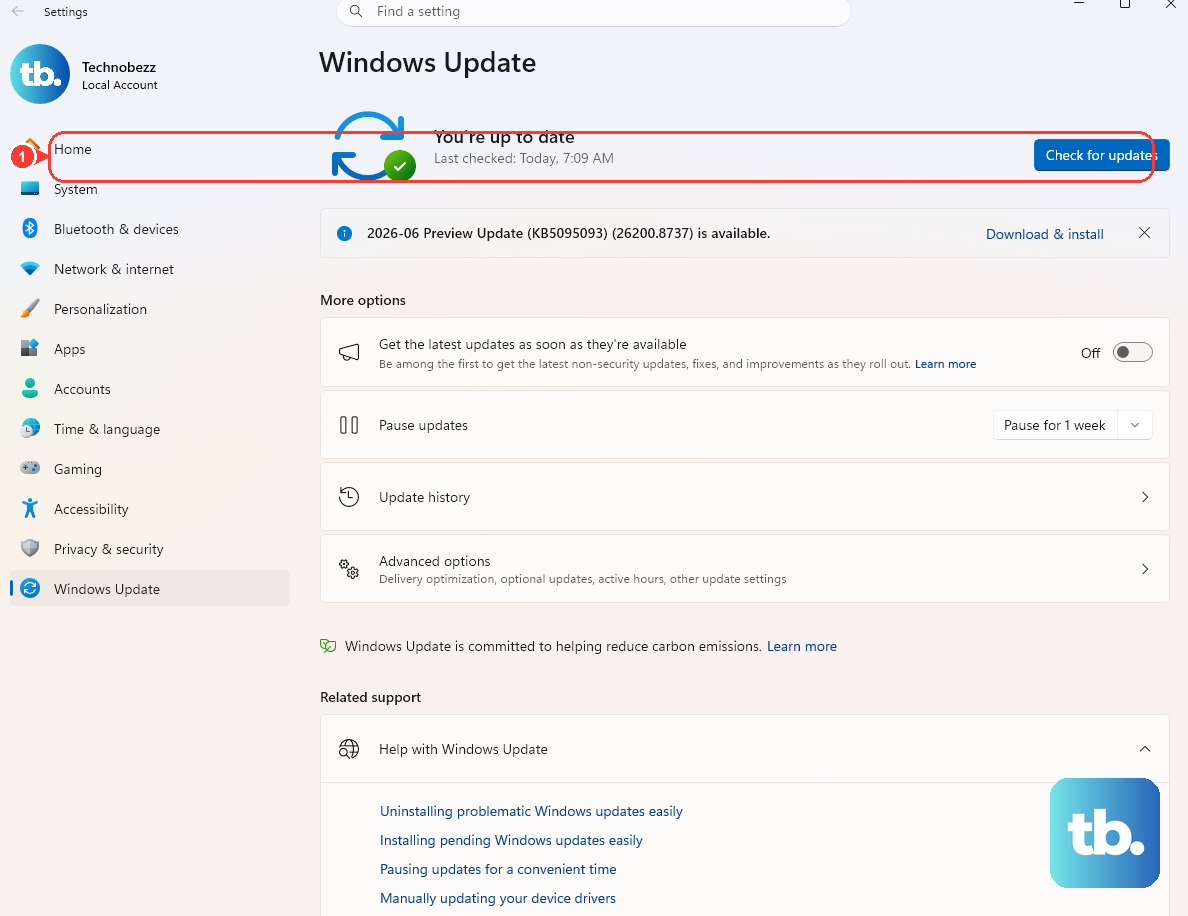
For the G16, you should get drivers directly from NVIDIA or AMD's website, not through Windows Update. Windows Update drivers can be generic and sometimes cause issues with the laptop's specific GPU configuration. Download and install the latest Game Ready or Adrenalin driver from the manufacturer's site.
Use the Display Settings Menu
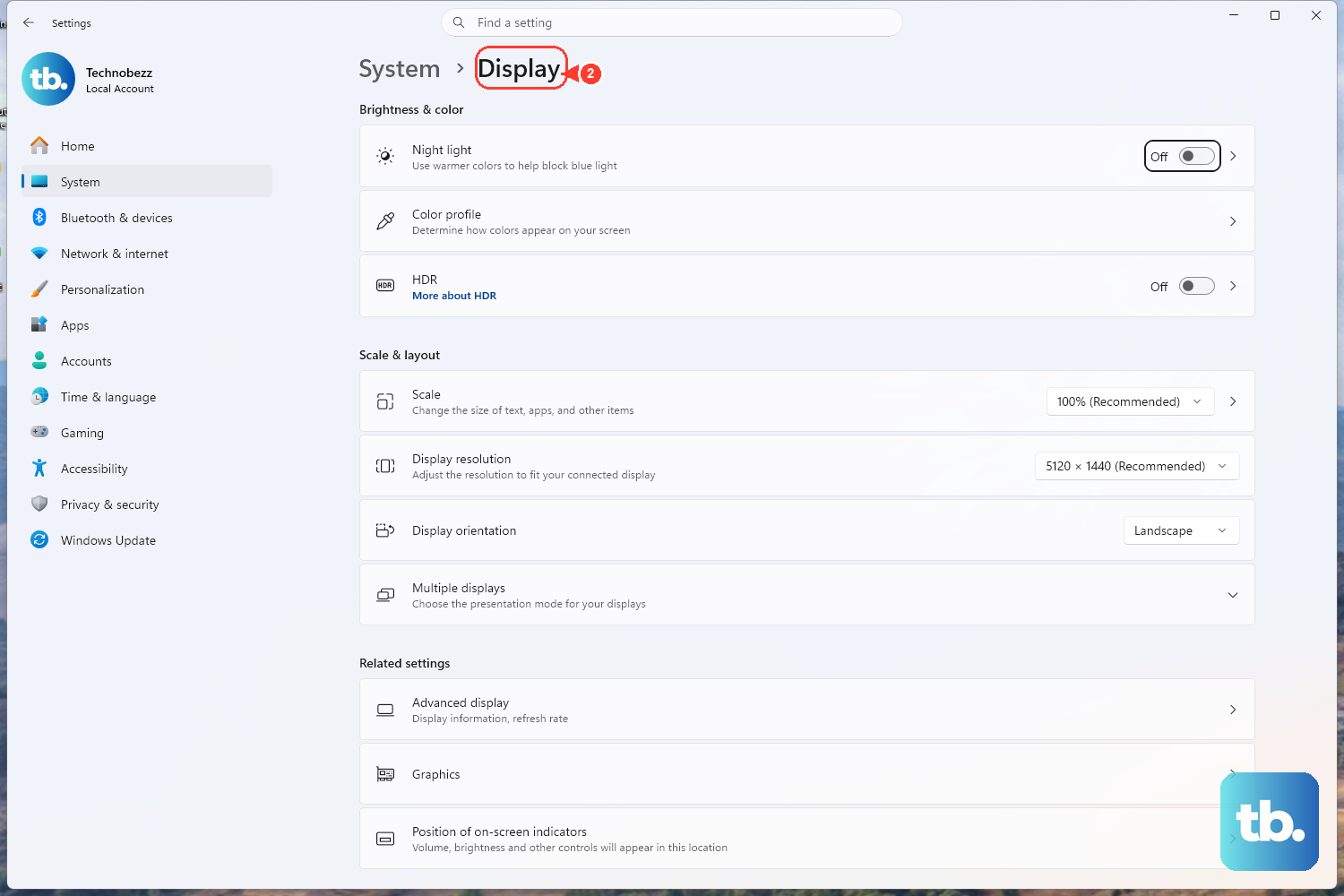
Go to Settings > System > Display. Click the Detect button. If your TV shows up, click on its rectangle and scroll down to ensure the display resolution and refresh rate are set to something it supports, like 1920x1080 at 60Hz.
Manage Hybrid Graphics in BIOS
The G16 uses NVIDIA Optimus, which switches between integrated and discrete graphics. Sometimes this can interfere. Restart and tap F2 to enter the BIOS. Look for a display or graphics setting. You might see an option to force the discrete GPU to always be active, which can help with HDMI output stability.
Disable and Re-Enable the GPU
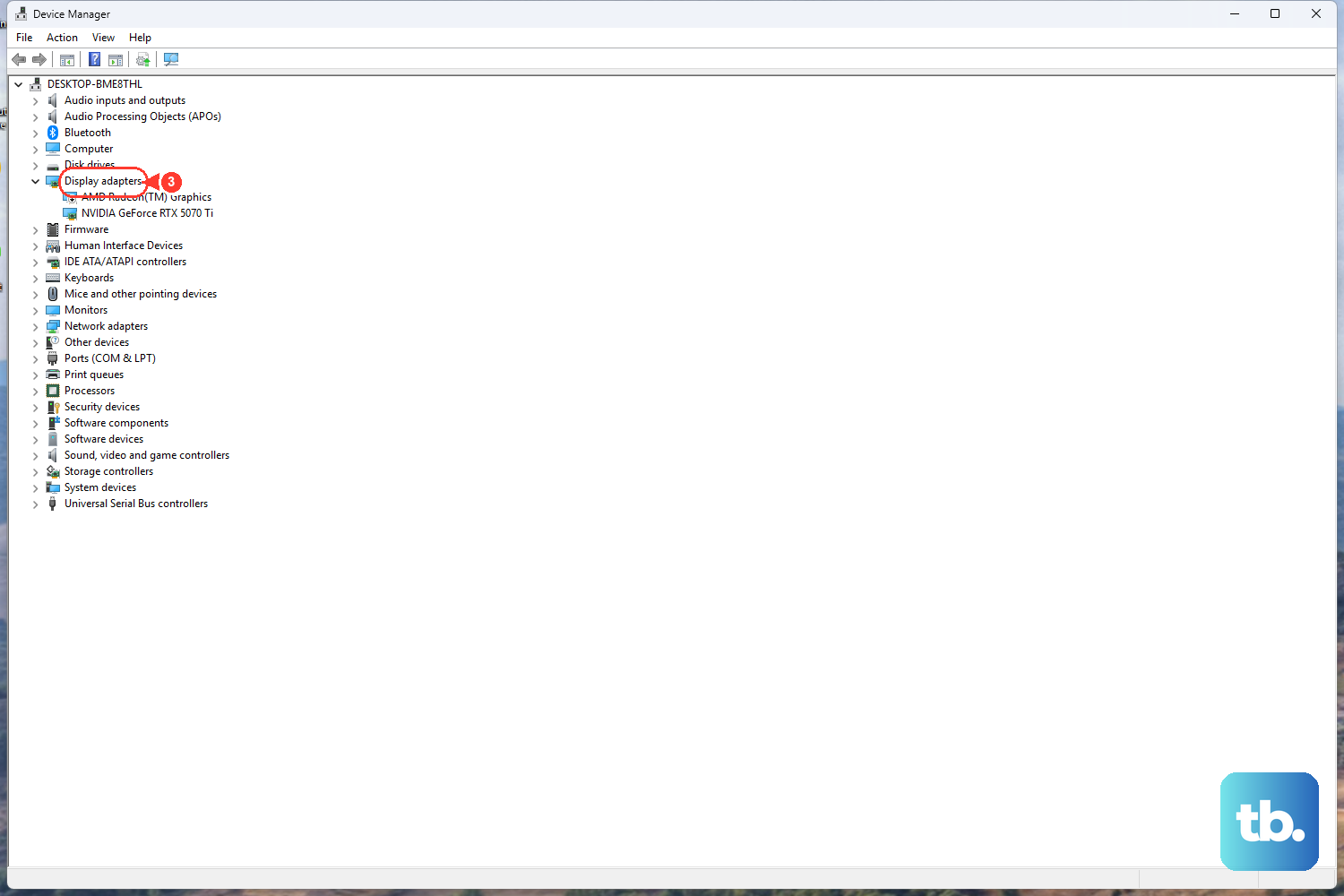
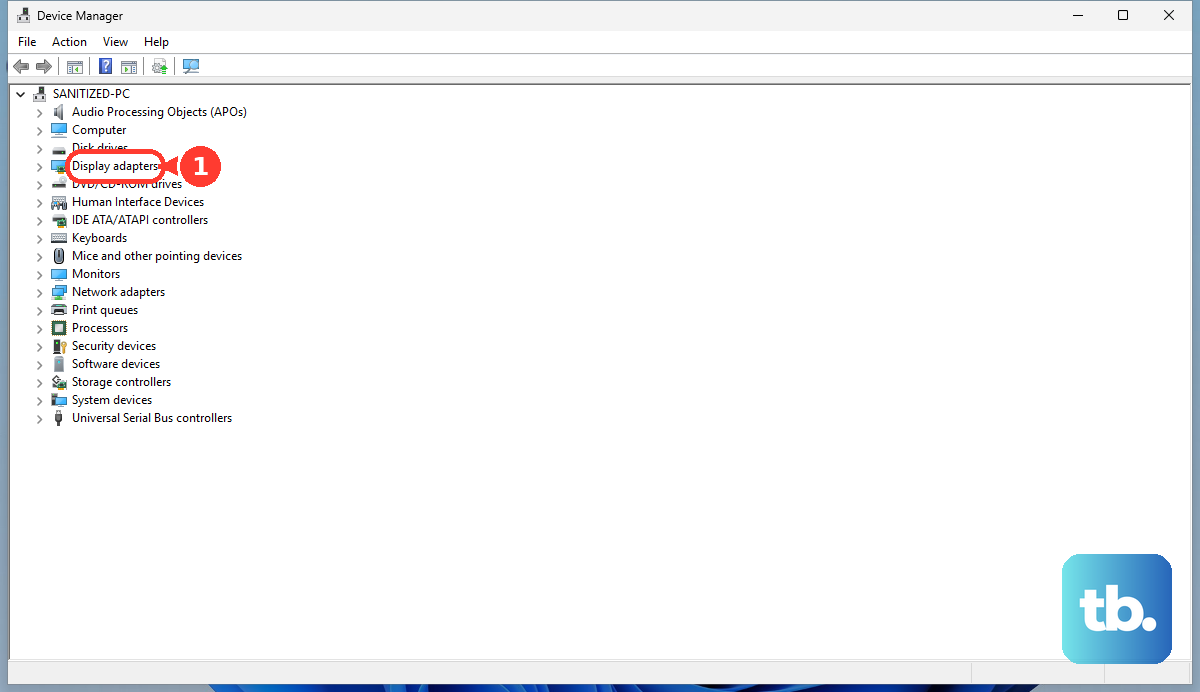
Open Device Manager, expand Display adapters, and right-click on your NVIDIA or AMD graphics card. Select Disable device. Wait about ten seconds, then right-click it again and choose Enable device. This resets the graphics driver and can kick-start the HDMI port.
Try a Different Video Port
The Dell G16 might have other video outputs, like a USB-C port that supports DisplayPort Alt Mode. If your HDMI port isn't working, try connecting to your TV using a USB-C to HDMI adapter. If that works, the issue is likely with the laptop's dedicated HDMI hardware or its connection to the GPU.
Test on Another Monitor or TV
Connect your laptop to a different TV or computer monitor using the same HDMI cable. If the picture appears on the second screen, you know the problem is with the original TV's HDMI port or its internal settings. If it still doesn't work, the issue is with the laptop.