Your Comcast email was working in Outlook, and now it isn't. Maybe send and receive both stopped, or a dialog keeps asking you to verify your password even though you typed it correctly. Maybe new mail still arrives but everything you send sticks in the Outbox.
The frustrating part is that the most common cause has nothing to do with your password at all. Comcast added a security switch that blocks email clients like Outlook by default, and the error it produces looks exactly like a wrong-password message. Re-typing your password will never fix that one.
The fixes below are ordered quickest and most common first. Start at the top and stop as soon as Outlook reconnects.
Turn On Third-Party Access in Xfinity Email
This is the single most common cause. Comcast has a "Third Party Access Security" setting, and if it is unchecked, no email client can authenticate. Both incoming and outgoing mail fail. The box can be off by default on accounts that haven't recently used a client, and a forced password reset or security event can flip it off.
The misleading part: the error "The entered credential or authentication information does not work or are no longer accepted by provider. Please change them." usually means this box is off, not that your password is wrong.
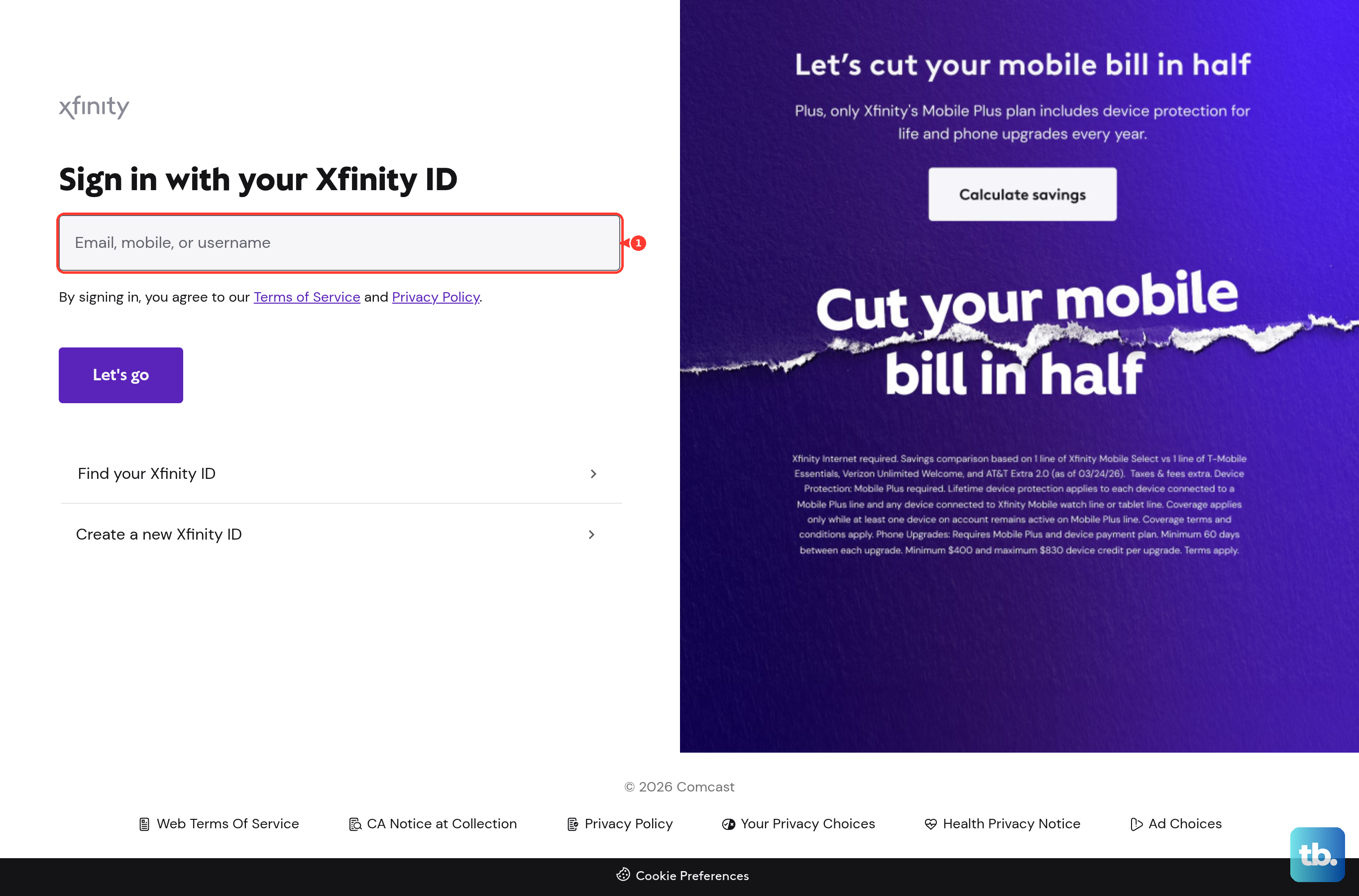
- 1.Sign in to Xfinity Email at xfinity.com (or connect.xfinity.com) with your Xfinity ID and password.
- 2.Click the Gear icon in the top-right corner and choose Settings (some versions label this "Email Settings").
- 3.In the left-side menu, click Security.
- 4.Under "Third Party Access Security," check the box to allow programs like Outlook to access your email.
- 5.Save if prompted, then retry in Outlook.
If you have multiple or secondary Comcast addresses, sign into each mailbox separately and enable the box for each one. It is set per mailbox, not per account.
Enter the Correct Server Settings in Outlook
Outlook's auto-detected settings are often wrong for comcast.net. Set them manually so the server names, ports, and encryption match what Comcast requires. Confirm third-party access (above) is on first, or this step will still fail.
In Outlook, go to File > Add Account (or open Account Settings to edit the existing one).
Enter your full Comcast address, for example [email protected].
After that, click "Advanced options," check "Let me set up my account manually," then Connect, and choose IMAP.
For Incoming (IMAP): Server = imap.comcast.net, Port = 993, Encryption = SSL/TLS.
For Outgoing (SMTP): Server = smtp.comcast.net, Port = 587 with STARTTLS/SSL, or Port = 465 with SSL/TLS.
Then set Username = your full @comcast.net address. Password = your Xfinity/Comcast password.
Click Connect and finish.
A couple of things to watch. Type the server carefully; imap.comcast.net is correct, and "impa.comcast.net" is a real, easy-to-miss typo that causes failures. Avoid SMTP port 25, which Comcast blocks to limit spam, and POP port 110, which is no longer supported. If 993 with SSL won't connect, IMAP port 143 with SSL on is listed as a fallback.
Fix Outgoing Mail Stuck in the Outbox
If new mail arrives fine but everything you send sits in the Outbox, and a dialog keeps asking you to verify your SMTP username and password, the problem is on the outgoing side. That is the classic signature of an SMTP port or encryption mismatch, or third-party access being off.
First, confirm "Third Party Access Security" is checked in Xfinity Email > Settings > Security.
Open the account's outgoing server settings (Account Settings > the account > Change > More settings).
Set Outgoing server (SMTP) = smtp.comcast.net.
For the port and encryption, set them to 587 (STARTTLS/SSL) or 465 (SSL/TLS). Switching to 465 with SSL/TLS has resolved stuck-Outbox cases when 587 would not send.
Enable "My outgoing server (SMTP) requires authentication" and have it use the same login as the incoming server.
Click OK, then resend the message from the Outbox.
Update the Stored Password After a Change or Reset
If you recently changed your Comcast password, or Comcast force-reset it for a security event, Outlook does not update the stored credential on its own. The old password keeps failing, which produces repeated authentication prompts.
Open Outlook Account Settings for the comcast.net account.
Edit the account and enter the new password for both the incoming and the outgoing (SMTP) servers.
Before saving, re-verify that the Third Party Access Security box is still checked; a forced reset can switch it off.
Save and test send and receive.
Reset Your Xfinity Password If Login Is Rejected
If your login is being rejected outright, or you suspect the account was compromised, reset the password at the source and then update Outlook.
Go to the official Xfinity sign-in page and use the "Forgot password" option to start a reset.
Enter your Xfinity ID and complete the security check.
Follow the on-screen steps to set a new password.
If the account may have been hacked, also change your security questions and your recovery email.
Update the new password in Outlook for both the incoming and outgoing servers.
Check for a Comcast Outage and Your Own Connection
Before you keep changing Outlook settings, rule out a server-side outage. If Comcast's email service is down, every client fails regardless of how it is configured.
Visit the Xfinity Status Center and sign in to check for outages in your area.
Cross-check a third-party tracker such as Downdetector for Comcast or Xfinity email.
If an outage is reported, wait it out rather than editing settings.
Also confirm your own internet works: reload a website, and if pages won't load, power-cycle your router (off, wait a few minutes, on).
Work Around the New Outlook IMAP Failure
The "new" Outlook for Windows sometimes refuses to add comcast.net over IMAP, showing "we encountered an error while adding account," even when the same settings work elsewhere. This is a handshake limitation in new Outlook, not a wrong setting.
Verify Third Party Access Security is on, and that the server reads imap.comcast.net (not impa.comcast.net).
Enter every setting manually rather than relying on auto-discovery.
Try a different network; disconnecting home Wi-Fi and using a cellular connection rules out a local firewall or security tool blocking the handshake.
As a workaround, add the account in classic (legacy) Outlook, which still supports comcast.net over IMAP.
If IMAP still refuses, POP3 (pop3.comcast.net, port 995, SSL) is reported to work in new Outlook.
That cellular tip applies more broadly: if switching off home Wi-Fi suddenly lets the account connect, your local firewall or antivirus is the culprit, not your Comcast settings.
Reactivate a Mailbox Deleted for Inactivity
Xfinity designates mailboxes inactive after 12 months without a sign-in and deletes them, along with all emails, drafts, and address book entries. A deleted mailbox then breaks client login entirely.
Sign in to your Xfinity Email at least once every 12 months to keep it active.
If you received an inactivity warning notice, sign into the at-risk mailbox within about 90 days of that notice.
When you are an active customer who hasn't signed in for 12 or more months, signing in reactivates the email, though older messages may already be gone.
After reactivating, re-enable Third Party Access Security and re-add or verify the account in Outlook.
Frequently Asked Questions
Why does Outlook say my password is wrong when it is correct? That error ("does not work or are no longer accepted by provider") usually means the Third Party Access Security box in Xfinity Email is unchecked, not that your password is wrong. Re-typing the password will not help; enable the box under Settings > Security.
What are the correct Comcast server settings for Outlook? Incoming IMAP is imap.comcast.net on port 993 with SSL/TLS. Outgoing SMTP is smtp.comcast.net on port 587 (STARTTLS/SSL) or port 465 (SSL/TLS), with SMTP authentication required. Use your full @comcast.net address as the username.
Why does my mail get stuck in the Outbox? A stuck Outbox points to an outgoing (SMTP) problem: a wrong port or encryption, or third-party access being off. Set SMTP to 587 or 465, enable SMTP authentication, and confirm the security box is checked. Switching to 465 with SSL/TLS has fixed this when 587 would not send.
I changed my Comcast password. Why does Outlook keep prompting? Outlook does not update the stored password automatically. Open Account Settings and enter the new password for both the incoming and outgoing servers, then verify the third-party access box is still on.
Why can't I add my Comcast account in the new Outlook for Windows? The new Outlook has a documented IMAP handshake limitation with comcast.net. Enter all settings manually, try a cellular connection, or add the account in classic Outlook instead. POP3 (pop3.comcast.net, port 995, SSL) is also reported to work.
Can my Comcast mailbox be deleted? Yes. A mailbox with no sign-in for 12 months is deleted, including all emails, drafts, and contacts. Sign in at least once a year, and within about 90 days if you get an inactivity warning.