

You want to update the recovery phone number or email tied to your Yahoo account, maybe because you switched carriers, lost access to an old inbox, or just want a working backup in case you ever forget your password. The good news: it is straightforward once you know where to look. The catch: Yahoo does not give you a single "edit" button.
To change a recovery method, you add the new one and verify it, then remove the old one. That is the entire workflow on web, iOS, and Android. Below you will find the exact menu paths for each surface, ordered quickest-first, plus the constraints that trip people up.
One rule worth internalizing before you start: always add and verify the new phone or email before deleting the old one. That way your account is never left without a working recovery method.
Before You Start: How "Changing" Actually Works
You must be signed in to your Yahoo account to add, change, or remove any recovery method. There is no inline "replace" control in the standard flow.
A newly added phone or email is not active until you verify it. Yahoo sends a code (by text or email) or a verification link, and the method stays inactive until you enter the code or click the link. An unverified entry will show a "Verify" prompt and will not work for account recovery until you complete that step.
Keep this constraint in mind: you can add or replace up to 10 email addresses total, and that count includes recently removed addresses. Repeatedly adding and deleting emails can quietly exhaust the limit.
Change Your Recovery Info in a Desktop Browser
This is the fastest and most complete surface. Start at the Yahoo Account Security page and sign in.
First, add the new recovery method. Go to login.yahoo.com/account/security and sign in. Under Ways of signing in, click Add email or Add phone number.
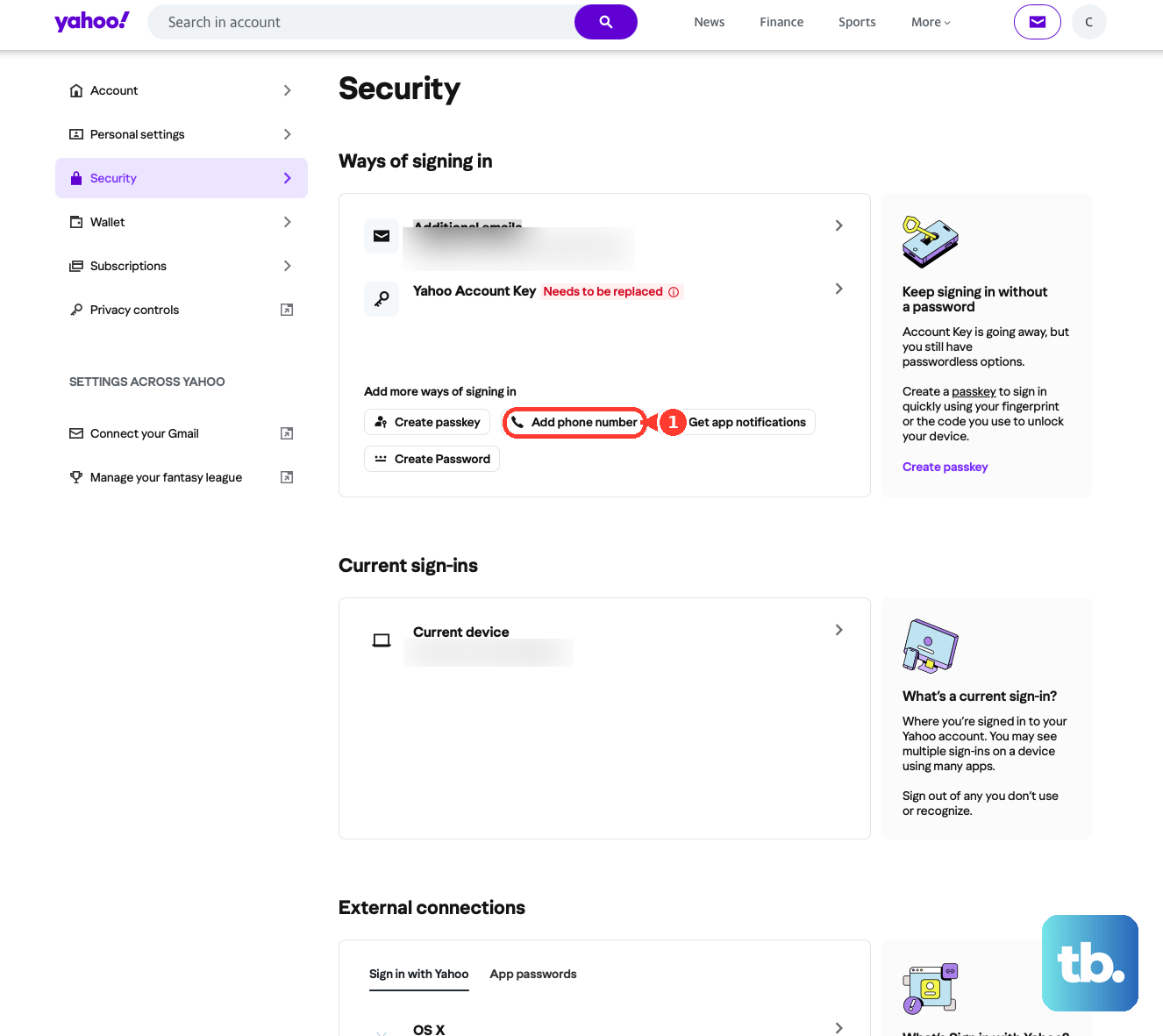
If you already have a recovery email or phone and want to add another, click Phone numbers or Additional emails first, then click Add phone number or Add email. Enter your new recovery info, then click Next. Follow the prompts to verify it: enter the code that was texted or emailed, or click the verification link.
Once the new method shows as verified, remove the old one. On the same Account Security page, click Phone numbers or Additional emails to find the entry you want gone. Click the Trash icon next to it. Click Remove email or Remove phone.
Follow the prompts to confirm the deletion. That two-part sequence (add and verify, then remove) is what "changing" your recovery info means on Yahoo.
Verify an Unverified Recovery Method (Web)
If a phone or email is already listed but shows a Verify link, it is not protecting your account yet. Finish it like this.
Sign in at login.yahoo.com/account/security. Click Phone numbers or Additional emails. Click Verify under the unverified option. Enter the code sent to that phone or email to complete verification.
Change Your Recovery Info in the Yahoo Mail App for iOS
On iPhone or iPad, the controls live a few taps deep. To add a new method: Profile icon (upper left) > Manage account privacy > Your privacy controls > Security.
Tap your Profile icon in the upper left. Tap Manage account privacy. Tap Your privacy controls. Tap Security.
Under Ways of signing in, tap Add email or Add phone number. To add a second method, tap Phone numbers or Additional emails first, then tap the add option. Follow the prompts to enter and verify your new info.
To remove the old method, follow the same path to Security. Under Ways of signing in, tap Phone numbers or Additional emails. Tap the Trash icon next to the method you want to delete. Tap Remove phone or Remove email.
Change Your Recovery Info in the Yahoo Mail App for Android
The Android path matches iOS exactly: Profile icon (upper left) > Manage account privacy > Your privacy controls > Security.
Tap your Profile icon in the upper left. Tap Manage account privacy. Tap Your privacy controls. Tap Security.
Under Ways of signing in, tap Add email or Add phone number (or tap Phone numbers / Additional emails first to add a second method). Follow the prompts to enter and verify. To remove the old entry, return to Security, tap Phone numbers or Additional emails, tap the Trash icon, then tap Remove phone or Remove email.
Verify a Recovery Method in the Mobile App
The verify path in the apps inserts one extra Settings tap that the add and remove flows do not. Both versions appear in Yahoo's official help, so if one route does not show the option, try the other.
Tap your Profile icon in the upper left. Tap Settings. Tap Manage account privacy.
Tap Your privacy controls. Tap Security. Tap Verify under any unverified recovery option, then follow the prompts.
Add or Change Recovery Info on an AOL Account
AOL accounts run on the same account system as Yahoo, but the page layout differs, so do not copy Yahoo's exact button locations. On the AOL Account Security page you scroll to the bottom to find the controls.
Add: Sign in to the AOL Account Security page, scroll to the bottom, click Add email or Add phone number, then enter and verify.
Replace: First add the new email or phone and verify it, then click remove next to the old option and click Remove email or Remove phone to confirm.
Remove: Scroll to the bottom, click Remove next to the option you want gone, then confirm.
If You Are Locked Out and Need to Recover Access
Changing recovery info assumes you can sign in. If you cannot, use the Sign-in Helper, which is exactly what your recovery phone and email exist for.
- 1.Go to login.yahoo.com/forgot.
- 2.Enter your recovery mobile number or alternate email to locate your Yahoo ID.
- 3.Follow the prompts to receive and enter a verification code, then reset access.
Be warned: if your recovery info is wrong or inaccessible, you may not be able to regain access at all. Yahoo's only suggested fallback in that case is to create a new account and keep its recovery info current. That is the strongest argument for updating these details while you still can.
The One Action That Is Permanent
There is an advanced Sign-in Helper flow for unlinking a recovery option from an account you no longer use, so you can attach that same phone or email to a different account. It requires you to be signed out of the original account, then enter the phone or email, your first and last name, click Continue, request and enter a code, click Verify, open the More icon next to the account, choose Unlink this account, and confirm with Unlink account.
Treat this with caution. If you unlink a recovery option this way, you will not be able to add that same option back to that account again. This is different from a normal removal via the Trash icon inside Account Security, which does let you re-add the method later.
Frequently Asked Questions
Why is there no single "edit" or "change" button for my recovery phone or email?
Yahoo's design has no in-place edit control. To change a recovery method, you add the new phone or email and verify it, then remove the old one. The same add-then-remove logic applies on web, iOS, and Android.
My new recovery phone or email is not working for recovery. Why?
It is almost certainly unverified. A new method stays inactive until you complete verification, and it will display a "Verify" prompt. Click or tap Verify next to it and enter the code Yahoo sends to that phone or email.
Should I delete my old recovery method before or after adding the new one?
After. Add and fully verify the new phone or email first, then remove the old one. This keeps a working recovery method on your account at all times, so you are never locked out mid-change.
Why can't I add more recovery emails?
You can add or replace up to 10 email addresses total, and that limit includes recently removed addresses. If you have cycled through several over time, the count may already be used up even though fewer are currently listed.
Where do I manage Yahoo recovery info?
Use the Yahoo Account Security web page or the Yahoo Mail app (and the AOL Account Security page or AOL Mail app for AOL accounts). These are the surfaces covered in this guide; manage your recovery phone and email there rather than in a generic mail program.
I have an AOL address. Do the Yahoo steps apply to me?
The account system is shared, but the AOL Account Security page uses a different layout. Use the AOL-specific instructions above (scroll to the bottom to find Add email, Add phone number, and Remove), rather than Yahoo's exact button locations.