You type your sbcglobal.net address and password, hit sign in, and nothing happens, or worse, you get bounced back with an error. Your account almost certainly still works. What changed is where and how you sign in. Legacy SBCGlobal email now lives on AT&T's platform, and most lockouts come from using the wrong sign-in page, a stale browser, or an app that needs a special password. Here is how to get back into your inbox, step by step.
Why Your SBCGlobal Login Stopped Working
SBCGlobal is no longer its own email service. AT&T still maintains sbcglobal.net addresses, and they now run on AT&T Mail. Your existing address keeps working for free, but new users can only register @att.net or @currently.com addresses, and the old SBCGlobal-branded sign-in pages are gone.
That single change explains most "can't sign in" problems. People are still trying to log in the old way, or their email app has outdated server details. Also keep in mind that your email password and your AT&T ID (myAT&T) password are the same. Change one and you change the other.
Work through the fixes below in order. The first one solves many cases on its own, and the later steps cover password problems and mail apps like Outlook, Apple Mail, and Thunderbird.
Fix 1: Sign In at the Correct AT&T Mail Page
Because your mail now runs on AT&T Mail, the place you sign in matters. The webmail page is currently.com. Go there, select Mail, then enter your full sbcglobal.net email address and password.
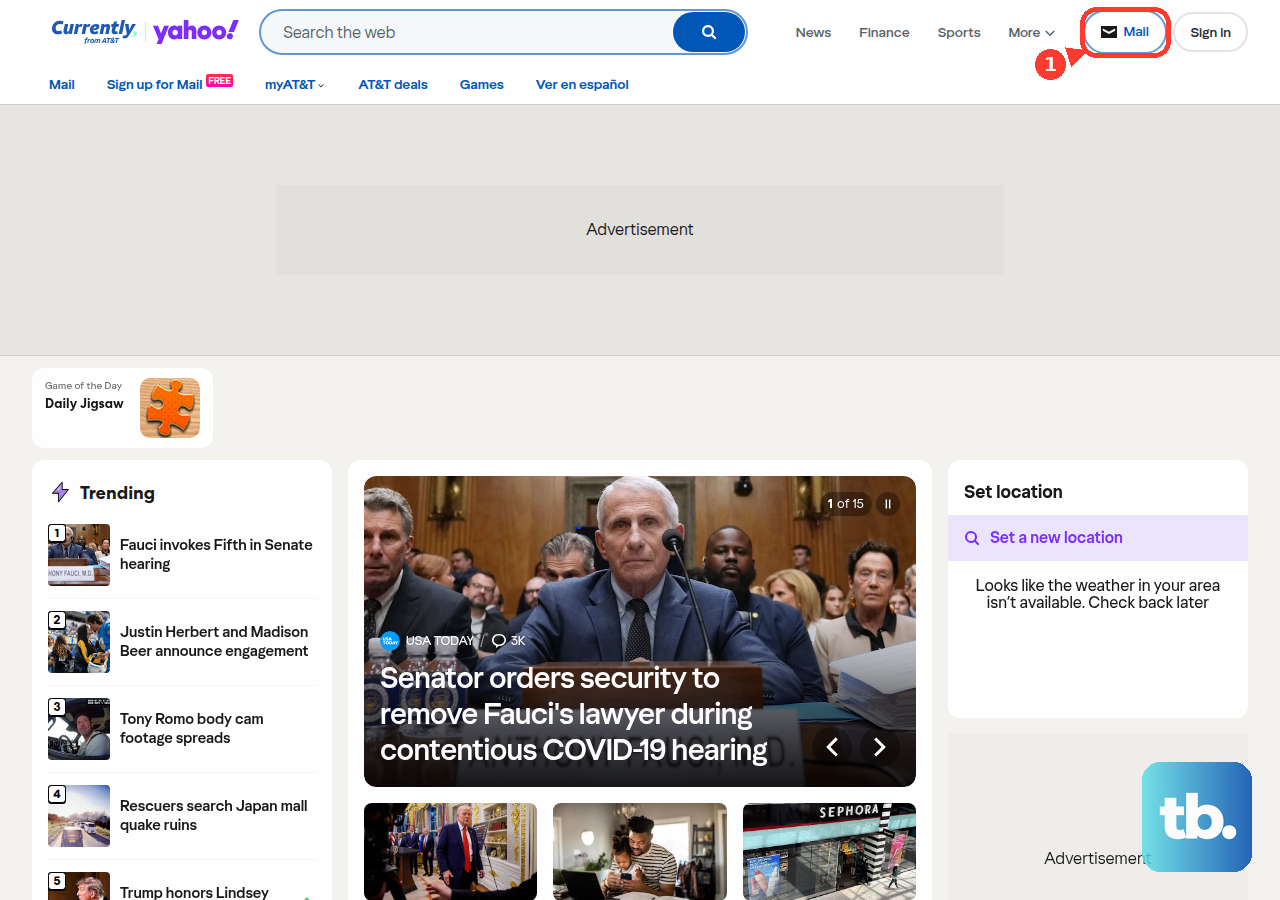
- 1.Open currently.com in your browser.
- 2.Select Mail.
- 3.Enter your complete sbcglobal.net email address (the whole thing, including @sbcglobal.net).
- 4.Enter your password and sign in.
You can also start from the SBCGlobal email sign-in page, which sends former SBCGlobal customers to AT&T Mail. If you have an old bookmark pointing somewhere else, replace it. The password you type here is also your AT&T ID password, so if you recently changed one, use the new one.
Fix 2: Clear Your Browser Cache and Cookies
Corrupt cookies and cached files are a common cause of sign-in and loading problems. Old stored files can quietly block the sign-in, even when your password is correct.
First, confirm your browser is set to accept cookies, since the sign-in process depends on them.
Then clear your cookies and cache. On a Windows PC in Chrome, Firefox, or Edge, press Ctrl+Shift+Delete. On a Mac in Chrome or Firefox, press Command+Shift+Delete. On an iPhone or iPad, go to Settings > Safari > Clear History and Website Data.
Close the browser fully, reopen it, and try signing in again at currently.com.
Fix 3: Try a Different Browser, Device, or Disable Add-Ons
If clearing the cache did not help, the problem may be the browser environment rather than your account. A few quick checks can isolate it.
Make sure JavaScript is enabled and up to date in your browser, since the webmail interface relies on it.
Next, disable browser tools and add-ons that may interfere with email, then retry.
After that, try signing in from a different browser (for example, Firefox if you normally use Chrome) or a different device to see whether the issue follows you.
Finally, check that a firewall, antivirus, or anti-spyware program is not blocking access by disabling them one at a time. Turn each one back on after you test it.
Testing one at a time is the key part. If sign-in suddenly works after disabling a single extension or security tool, you have found the culprit and can adjust its settings instead of leaving it off.
Fix 4: Reset Your Password When It Keeps Getting Rejected
If you are sure you are on the right page and your password is still refused, reset it. Because your email and AT&T ID passwords are shared, the reset covers both at once.
If you see "We can't find that ID and password combination" after several tries, your account may be temporarily locked. Wait an hour or reset your password. Error code 203.2 means the account was locked for your protection, and a password reset is the fix.
Open the AT&T password reset page and enter your AT&T ID and the last name on the account.
Choose a verification method and follow the prompts, such as getting a temporary password by text or email.
Enter and confirm a new password (8 to 24 characters).
After resetting, sign in again at currently.com with the new password to confirm it worked. Then update the password in any email apps that sign in with your regular password.
Fix 5: Create a Secure Mail Key for Email Apps
A common scenario: webmail works perfectly, but an app like Outlook or Thunderbird keeps asking for your password or refuses to connect. This usually means the app does not support OAuth and needs a secure mail key instead of your normal password.
A secure mail key is a 16-character app password. You create it in your AT&T profile and paste it into the app in place of your usual password.
- 1.Go to your AT&T account profile and sign in if asked.
- 2.Choose Settings and confirm the sbcglobal.net account you are updating.
- 3.Select Add secure mail key, enter a nickname, and select Create.
- 4.Copy the key to your clipboard.
- 5.In your email app, replace your password with the key. For IMAP accounts, update both the incoming (IMAP) and outgoing (SMTP) passwords.
AT&T says secure mail keys never expire, and changing your email password later does not require a new key. Creating a key does not change your regular password either. Use a separate key for each device. If AT&T ever locks or blocks your account, it deletes your keys, so you will need to create new ones.
Fix 6: Use OAuth Where Your App Supports It
Not every app needs a secure mail key. Apps that support OAuth sign in with your regular AT&T Mail password through a secure sign-in window.
OAuth apps include Apple Mail, Outlook Mobile, and the Yahoo Mail app on iPhone and iPad; Gmail, Outlook Mobile, and Yahoo Mail on Android; Apple Mail on Mac; and Windows Mail on Windows 10.
If your app is not on that list, start adding a new account in it. If it offers a list of providers that includes Yahoo, the app is OAuth compatible, and you should select Yahoo as your provider. If the app has no such option, use the secure mail key method instead.
Fix 7: Verify Your IMAP, POP, and SMTP Server Settings
If an account still will not connect or send in a mail app, check the server settings next. Outdated or mistyped server details are one of the most common reasons mail apps fail to sync.
For incoming mail using IMAP, set the server to imap.mail.att.net on port 993 with SSL. For outgoing mail, set the SMTP server to smtp.mail.att.net on port 465 or 587 with SSL.
If your app uses POP3 instead, the incoming server is inbound.att.net on port 995 with SSL, and the outgoing server is outbound.att.net on port 465.
Two settings trip people up most often. Your username must be your full sbcglobal.net email address, not just the part before the @ sign. And the outgoing (SMTP) server must require authentication with the same credentials as your incoming server, so do not leave authentication turned off.
Getting Back to a Working Inbox
Most SBCGlobal sign-in failures come down to three things: signing in at an old page instead of currently.com, a stale browser holding onto bad cookies, or an email app that needs a secure mail key instead of your normal password. Work through the fixes in order and you will usually be back in your inbox within a few minutes.
Once you are in, confirm your password works at currently.com and that your mail apps use the correct server settings and, where needed, a secure mail key. Getting those squared away now makes you far less likely to get locked out again.
Frequently Asked Questions
Is SBCGlobal email being shut down?
No. AT&T still maintains sbcglobal.net addresses, and they keep working for free through AT&T Mail. SBCGlobal is no longer a separate provider, new users can only get @att.net or @currently.com addresses, and you sign in through AT&T Mail at currently.com.
Where do I sign in to my sbcglobal.net email now?
Go to currently.com, select Mail, and enter your full sbcglobal.net address and password. The SBCGlobal page at more.att.com/login/sbcglobal-email also sends former customers to AT&T Mail.
Why does my password work on the website but not in my email app?
Apps that do not support OAuth need a secure mail key, a 16-character app password you create under Settings in your AT&T profile. Enter that key in the app in place of your normal password. Secure mail keys never expire and do not change your regular email password, but they are deleted if your account is ever locked or blocked.
Does resetting my email password also change my myAT&T password?
Yes. Your email password and your AT&T ID (myAT&T) password are the same, so changing one changes the other. After a reset, update the password in browsers and apps that use it. Apps set up with a secure mail key keep working without a new key.
What server settings should I use for SBCGlobal in a mail app?
The recommended setup is IMAP: incoming imap.mail.att.net on port 993 with SSL, and outgoing smtp.mail.att.net on port 465 or 587 with SSL. For POP3, use inbound.att.net on port 995 (SSL) and outbound.att.net on port 465. Your username is your full sbcglobal.net address, and the outgoing server must require authentication with the same credentials.











