You hit print, the page never comes, and Windows quietly labels your Canon printer as "Offline" even though it is powered on and sitting right next to you. This is one of the most common Canon printer headaches on Windows 10 and Windows 11, and the good news is that it almost always comes down to a stalled connection, a stuck print job, or a setting that flipped itself the wrong way. None of the fixes below require special skills, and they are ordered so you start with the safest, fastest moves first.
Work through the steps in order. Most people get their Canon back online within the first three or four, so there is no need to jump straight to reinstalling drivers.
Start With a Full Power Cycle
Before changing any settings, give the printer a clean restart. A power cycle clears most temporary offline states without touching your configuration, which is exactly why both Microsoft and Canon list it as the very first thing to try.
- 1.Turn off your printer using its power button.
- 2.Disconnect the power cord from the back of the printer (or unplug it from the wall).
- 3.Wait about 30 seconds.
- 4.Reconnect the power cord.
- 5.Turn the printer back on and let it finish booting fully.
Once the printer is back up, try printing a test page. If Windows still shows it offline, move on to the connection check.
Recheck the Cable or Wi-Fi Connection
An offline label is frequently just Windows reporting that it cannot reach the printer. Make sure the printer is on and actually connected before assuming anything is broken.
If your Canon connects over USB, disconnect the cable from both the printer and the computer, then reconnect it firmly at both ends. A loose or partially seated cable is enough to drop the link and trigger the offline state.
If your Canon connects wirelessly, reboot the computer and re-establish the wireless connection. You also want to confirm the printer is on the same Wi-Fi network as your PC; use the printer's built-in menu or its manual to check which network it is joined to. If the printer and the PC are on different networks, Windows will never see it as online.
Let the Windows Printer Troubleshooter Take a Look
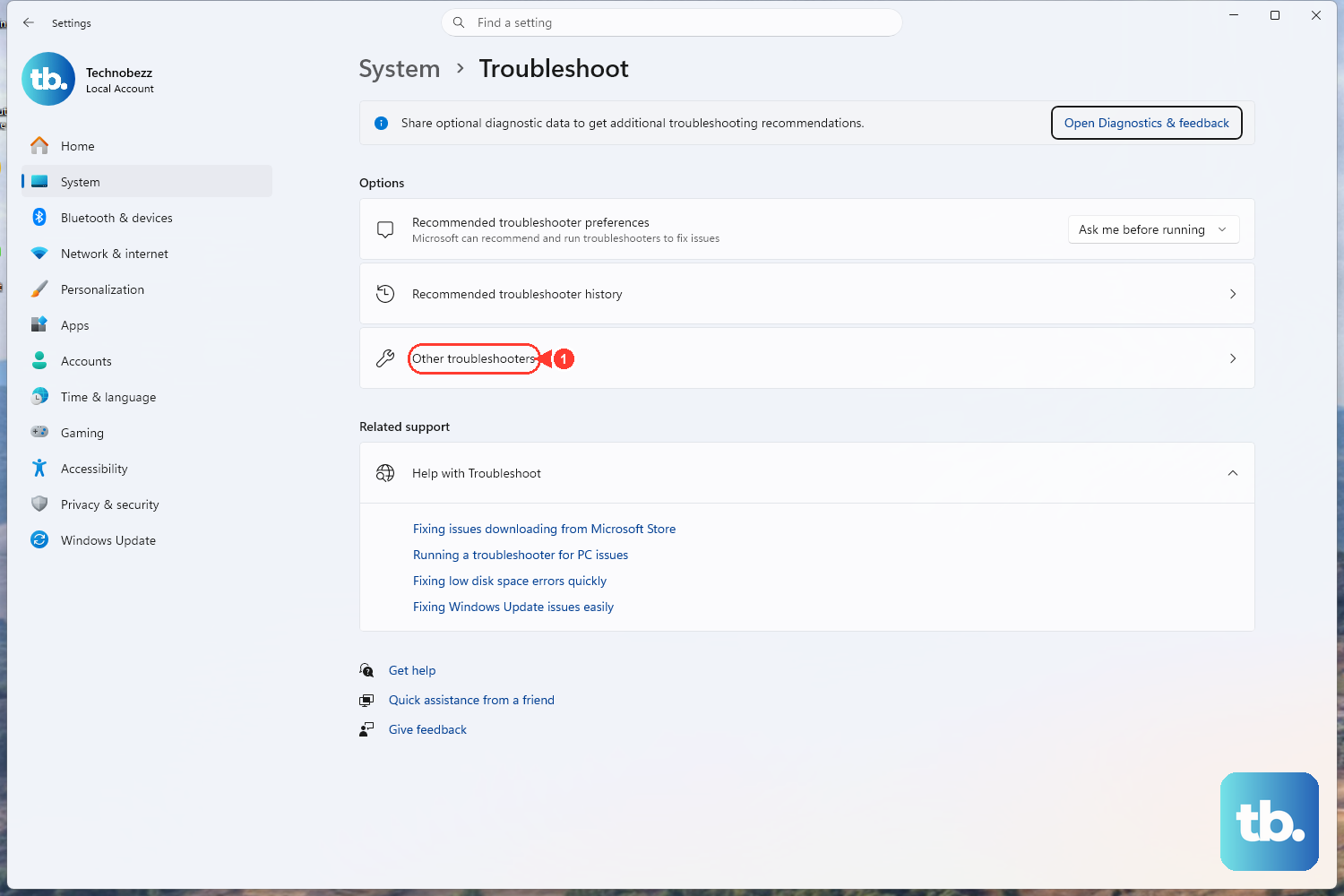
Microsoft's official offline-printer guidance includes an automated printer troubleshooter that runs inside the Get Help app. On both Windows 10 and Windows 11, this tool runs diagnostics and attempts to fix common printer problems automatically.
Let it complete its checks and apply any repairs it suggests. Automated diagnostics often catch a service or status problem you would otherwise have to hunt for by hand, so it is worth running before you start digging through menus.
Clear the "Use Printer Offline" Setting on Windows 10
Windows can set a printer to offline mode on purpose, and once that box is checked it stays checked until you clear it. On Windows 10, this control lives in the print queue.
Go to Settings > Devices > Printers & scanners.
Select your Canon printer, then select Open queue.
Select the Printer menu.
If Use Printer Offline is selected, click it to clear the check mark.
Clearing Use Printer Offline tells Windows to start communicating with the printer again. If it was checked, this single change often brings the Canon straight back online.
Turn Off Offline Mode Through Canon's Own Tool
Canon provides its own way to reach the same setting through the IJ Printer Assistant Tool, the official Windows maintenance and settings utility for Canon printers. You can open it from the printer driver's Maintenance tab or via Start > All apps > Canon Utilities > IJ Printer Assistant Tool.
Start the Canon IJ Printer Assistant Tool.
Click View Printer Status.
On the printer-status screen, click Display Print Queue.
In the window that appears, click the Printer menu.
Make sure Use Printer Offline is not selected; if it is selected, click Use Printer Offline to deselect it.
Menu labels can vary slightly depending on your exact Canon model and driver version, but the path through View Printer Status and Display Print Queue is the documented route to this control.
Flush Out a Stuck Print Queue
A single jammed document can hold up everything behind it and leave the printer looking unresponsive. Clearing the queue removes whatever is wedged in there so new jobs can flow.
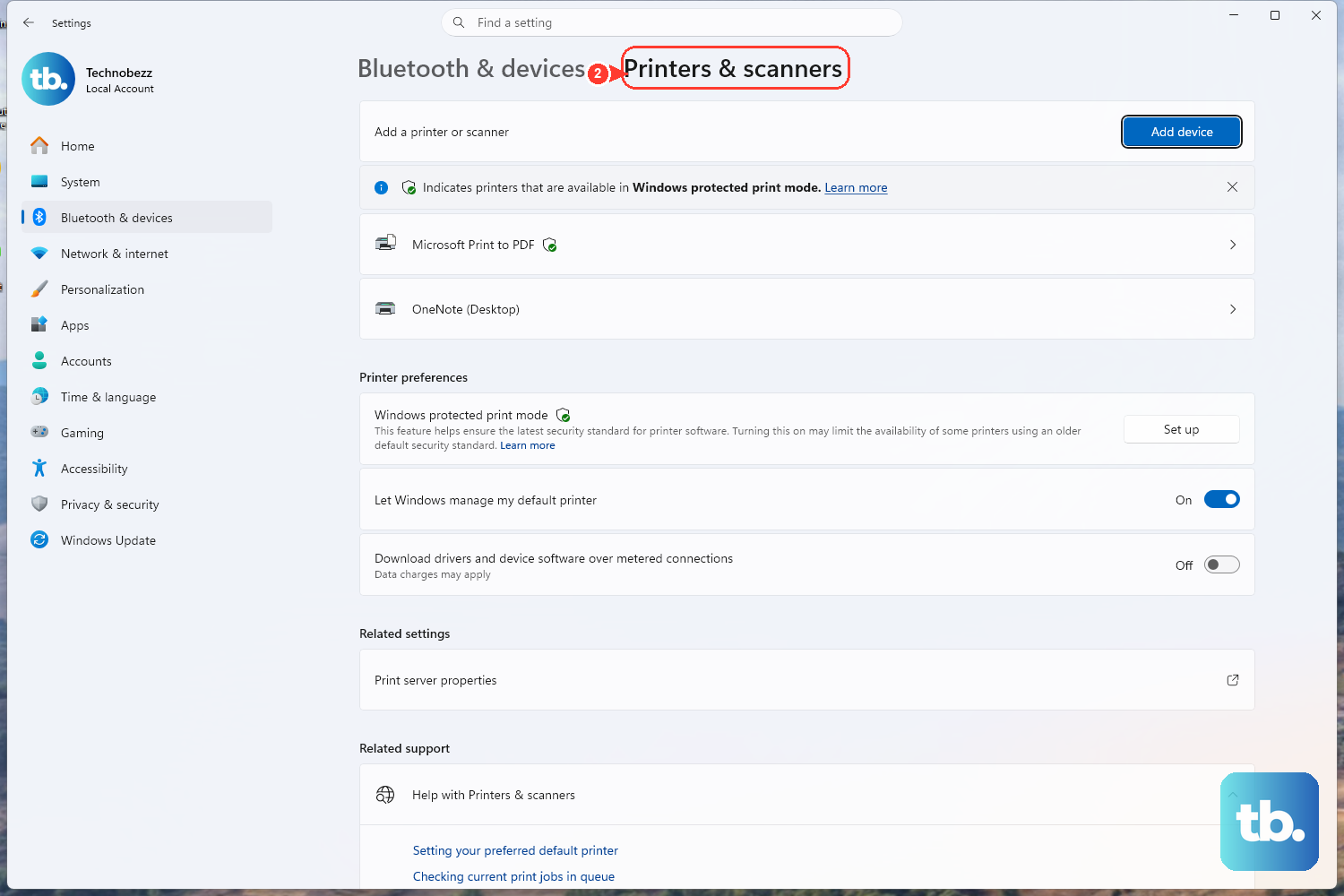
On Windows 11, go to Settings > Bluetooth & devices > Printers & scanners, select your printer, and choose Open print queue.
If there are pending jobs, click the ... (ellipsis) and select Cancel all.
On Windows 10, go to Settings > Devices > Printers & scanners, select your printer, and choose Open queue.
Select any listed documents, then select the Document menu and select Cancel.
With the queue empty, send a fresh print job and see whether the offline status clears.
Restart the Print Spooler Service
The Print Spooler is the Windows service that manages your print queue, and when it hangs, printers can drop offline regardless of how healthy the hardware is. Restarting it gives that service a clean slate.
Press Windows key + R, type services.msc, and press Enter to open the Services console.
Scroll down to the Print Spooler service.
Right-click Print Spooler and select Restart.
Give it a few seconds to come back up, then try printing again. This step quietly fixes a surprising share of offline complaints.
Make the Canon Your Default Printer
If Windows keeps switching your default printer around, print jobs can land on the wrong device and leave the Canon looking inactive. Setting it as the default manually keeps everything pointed at the right machine.
On Windows 11, go to Settings > Bluetooth & devices > Printers & scanners, turn off Let Windows manage my default printer, select your printer, and select Set as default.
On Windows 10, go to Settings > Devices > Printers & scanners and make sure Let Windows manage my default printer is not selected. Select the printer, then set it as your default.
Remove and Re-Add the Printer
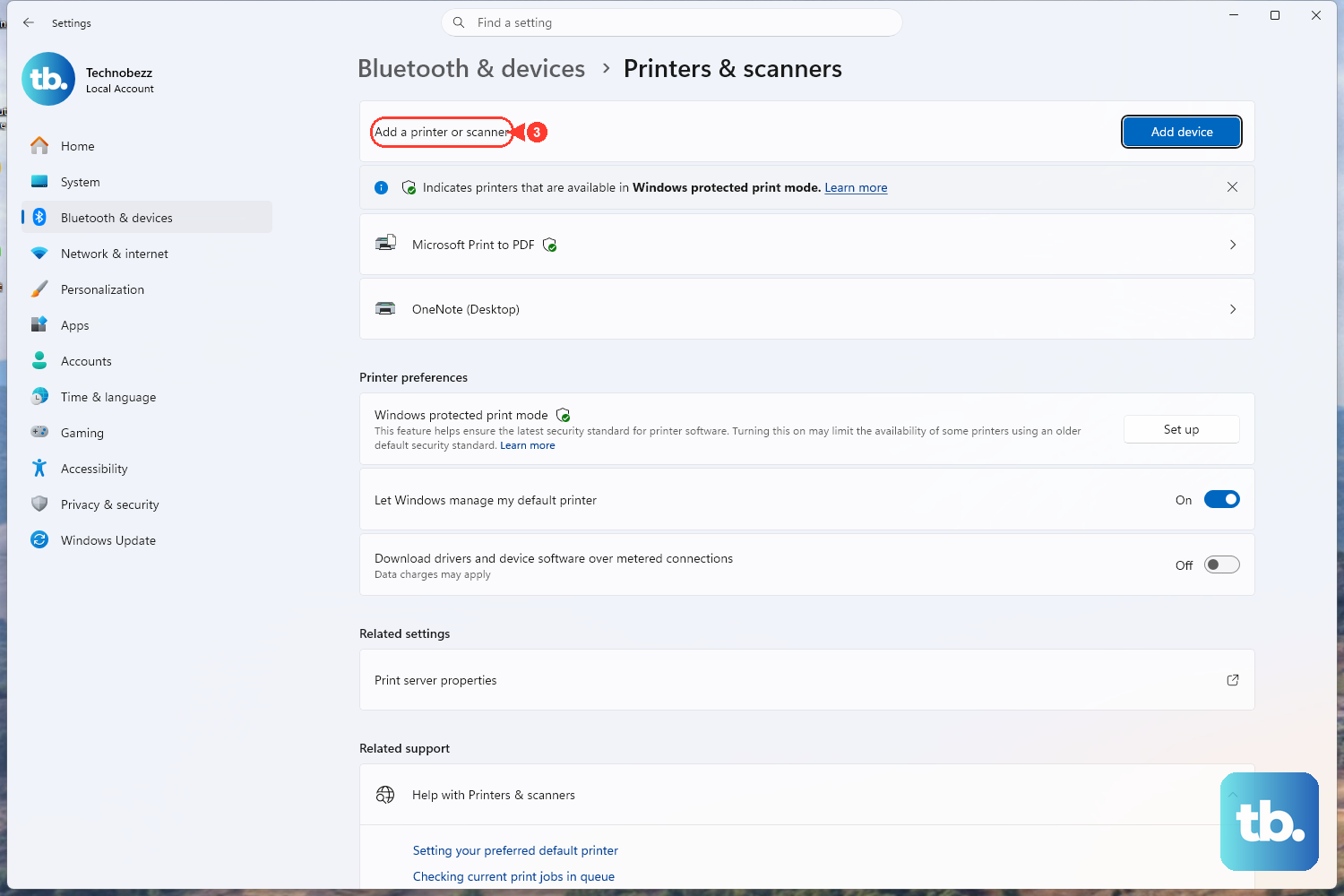
If the offline label still will not budge, removing the printer and adding it back forces Windows to rebuild the connection from scratch. This clears out a stale or corrupted device entry.
On Windows 11, go to Settings > Bluetooth & devices > Printers & scanners and remove the printer. Then, next to Add a printer or scanner, select Add device and follow the on-screen instructions.
On Windows 10, go to Settings > Devices > Printers & scanners and remove the printer. Then select Add a printer or scanner and follow the instructions to reinstall it.
Reinstall the Latest Canon Driver
An outdated or damaged driver can keep a Canon stuck offline no matter how many settings you toggle. Installing the current official driver gives Windows a fresh, model-matched way to talk to the printer.
Go to usa.canon.com/support/software-and-drivers.
Choose Printers.
Select your specific Canon model.
Download and install the driver and software for your operating system.
Always pull the driver from Canon's official Software & Drivers page rather than a third-party site, and pick the version that matches your exact model and your version of Windows.
Finish With a PC Restart
When everything else is done, restart your computer. A reboot refreshes the services and components Windows needs to communicate with the printer, and Microsoft lists this as the final step for both Windows 10 and Windows 11.
After the PC comes back up, send a test print. By this point the combination of a refreshed connection, a cleared queue, a restarted spooler, and a current driver resolves the vast majority of Canon offline problems.
Frequently Asked Questions
Why does my Canon printer keep going offline on Windows?
It usually traces back to a connection drop, a stuck job in the print queue, a stalled Print Spooler service, or the "Use Printer Offline" setting being switched on. Working through a power cycle, a connection check, a queue clear, and a Print Spooler restart addresses the most frequent causes.
Where is the "Use Printer Offline" setting?
On Windows 10, open your printer's queue from Settings > Devices > Printers & scanners, then use the Printer menu to clear Use Printer Offline. You can reach the same control through Canon's IJ Printer Assistant Tool by clicking View Printer Status, then Display Print Queue, then the Printer menu.
How do I restart the Print Spooler service?
Press Windows key + R, type services.msc, and press Enter. Find the Print Spooler service in the list, right-click it, and select Restart.
Does Windows have a built-in tool to fix an offline printer?
Yes. Microsoft's official offline-printer guidance includes an automated printer troubleshooter that runs in the Get Help app. On both Windows 10 and Windows 11 it runs diagnostics and attempts to fix common printer problems automatically.
Where should I download the correct Canon driver?
Use Canon's official Software & Drivers page at usa.canon.com/support/software-and-drivers. Choose Printers, select your specific model, then download the driver and software built for your version of Windows.











