
You hit print, the job disappears into the queue, and nothing happens. Or the TR8620a grabs paper, rolls it through, and spits out a blank page. This printer runs on 2.4 GHz WiFi only and uses five individual cartridges, so the fix is rarely what you expect at first.
Start with the fastest fix: clear the print queue and power-cycle the printer. On Windows, go to Settings > Bluetooth and devices > Printers and scanners, click the TR8620a, and select Open print queue. Cancel every job in the list. Then press the printer's ON button, confirm the ON lamp is off, unplug it for 30 seconds, and plug it back in. Send a new test page. Most stuck-queue issues clear right here.
Check All Five Cartridge Levels First
The TR8620a uses a five-tank system: PGI-280 PGBK pigment black plus CLI-281 BK, C, M, and Y dye inks, each available in standard, XL, and XXL sizes. Canon lists Black/Color Ink Only Printing, but it also says to replace any ink tank that has run out, so check all five levels in Canon PRINT, on the touch screen, or in the printer status monitor before deeper troubleshooting.
I've seen people spend an hour troubleshooting network settings when the real issue was an empty yellow cartridge they forgot about.
Restart the Print Spooler on Windows
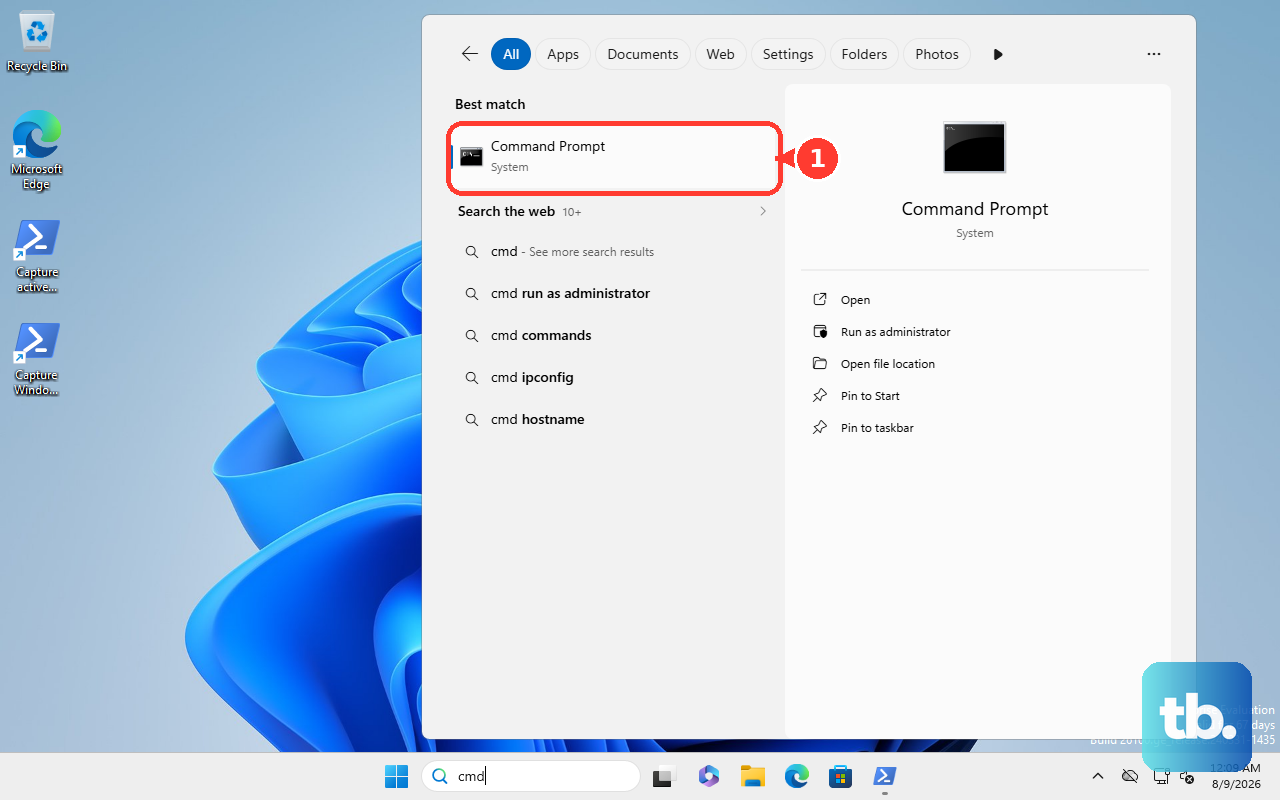
If the queue won't clear normally, the Windows print spooler probably crashed mid-job. Open Command Prompt as Administrator. Type net stop spooler and hit Enter, then net start spooler and hit Enter. That restarts the spooler cleanly. Check the queue again; the stuck job should be gone.
If the spooler refuses to start, a corrupted job is blocking it. With the spooler stopped, open %windir%\System32\spool\PRINTERS in File Explorer, delete everything inside that folder, then start the spooler again.
Reset the Print System on macOS
On a Mac, open System Settings > Printers and scanners. Right-click anywhere in the printer list and choose Reset printing system. This wipes all configured printers. Confirm the action, then re-add the TR8620a using the + button. A fresh add usually clears any stuck-job issues that carried over from a previous driver install.
Run the Print Head Cleaning Cycle
If the printer goes through the motion but pages come out blank, streaky, or with missing colors, run Canon's print-head maintenance steps. On the TR8620a touchscreen, select Setup on the HOME screen > Maintenance > Cleaning. Canon says cleaning consumes ink and takes about 1 minute. Print a nozzle check pattern after it finishes.
If the test still looks bad, run Deep Cleaning from the same menu. Canon says deep cleaning uses more ink than standard cleaning and takes about 1 to 2 minutes. If it still does not improve the nozzle check, turn the printer off without unplugging it, wait 24 hours, then run deep cleaning again.
Check 2.4 GHz WiFi and Router Security
The TR8620a's WiFi is 2.4 GHz 802.11b/g/n. Canon lists WEP, WPA-PSK, and WPA2-PSK security, not WPA3. If setup fails on a mesh router, make sure the printer is joining the 2.4 GHz network and use WPA2 or WPA/WPA2 compatibility instead of WPA3-only security.
After changing router security or replacing a router, power the printer back on and redo the wireless setup through the Canon PRINT app or the printer's wireless setup flow.
Set the TR8620a as Your Default Printer
Windows 11 has a habit of switching your default printer to whatever you used last. Open Settings > Bluetooth and devices > Printers and scanners. Toggle off Let Windows manage my default printer. Click the TR8620a and choose Set as default. Now print jobs always go to the right place instead of landing in Microsoft Print to PDF.
Update the Driver from Canon's Site
Go to Canon's TR8620a support page and use Software & Drivers to select your operating system and version. Download the current driver or utility Canon lists for your OS, then remove and re-add the printer if the queue still fails. Avoid assuming an update fixes a specific stuck-queue bug unless Canon lists that fix for your driver.
Inspect the Paper Path for Hidden Scraps
The TR8620a has paper sensors along the entire path that trigger phantom jam errors when even a tiny scrap gets stuck. Open the rear access door and the front cartridge access panel. Shine a flashlight along the paper path and look carefully for torn paper, wrinkled corners, or small strips lodged against rollers. The auto-document feeder also hides stuck paper out of view, so flip open the ADF cover and check the rollers there too.
Pull out anything you find, close everything up, and try printing again. This clears phantom jam errors that look exactly like a hardware failure.
Factory Reset the Printer Via the Touchscreen
If nothing else has worked and the printer is behaving erratically, reset the printer settings. On the TR8620a touchscreen, select Setup on the HOME screen > Device settings > Reset settings > Reset all. Canon says this restores settings to defaults, so redo printer setup afterward.
Check for Support Code 1700
If the TR8620a shows Support Code 1700, Canon says the ink absorber is almost full. Select OK on the touch screen to continue printing for now, then contact a Canon service center for repair. A factory reset or cleaning cycle is not the fix.