
Your Brother MFC-J1010DW shows offline in Windows or macOS even though it's connected to the network. Print jobs stack up in the queue. The Brother Mobile Connect app can't see it. This is a common issue with this model, and it usually comes down to one of a few specific things.
The quickest fix for the MFC-J1010DW specifically is the dual restart. Power-cycle the printer by unplugging it for 30 seconds, then plugging it back in. At the same time, restart your computer. The 2.4 GHz Wi-Fi radio in this model can hang in a half-connected state where the printer thinks it's online but your computer disagrees. A clean restart on both ends clears that up fast.
Why the MFC-J1010DW Goes Offline
The MFC-J1010DW is a 2021 all-in-one that runs on 2.4 GHz Wi-Fi only. A few common scenarios trip it up:
- Print spooler crash (Windows): the Windows spooler service stops responding and marks the printer offline.
- Printer IP changed: your router assigned a new IP to the printer after a reboot, but your computer still points to the old one.
- Mesh Wi-Fi and WPA3 conflicts: the printer's 2.4 GHz radio struggles with WPA3-only or PMF-required mesh networks like Eero, Orbi, or TP-Link Deco.
- App connection conflict: switching between Brother Mobile Connect and the legacy iPrint&Scan app can sometimes confuse the connection state.
- Windows auto default printer: Windows 11 sometimes switches the default to "Microsoft Print to PDF," making the Brother look offline.
Disable SNMP Status in Port Properties (Windows)
This is the most overlooked fix for the MFC-J1010DW on Windows. Windows polls the printer over SNMP to confirm it's reachable. If those responses time out, Windows marks the printer offline even though it's working. Open Settings > Bluetooth and devices > Printers and scanners. Click your MFC-J1010DW, then Printer properties > Ports. Highlight the active TCP/IP port and click Configure Port. Uncheck SNMP Status Enabled and click OK.
Send a print job. If the printer comes back online, SNMP polling was the culprit.
Restart the Windows Print Spooler
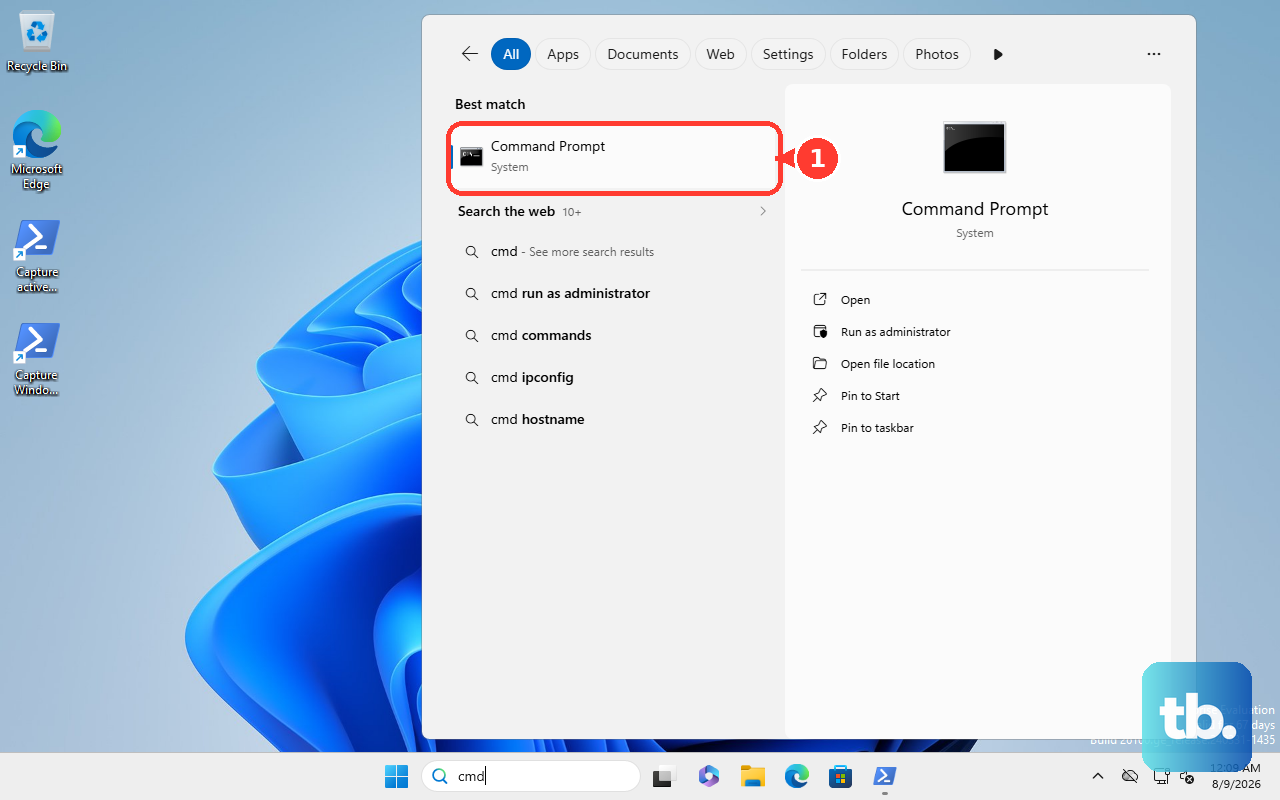
Open Command Prompt as Administrator. Run net stop spooler then net start spooler. This restarts the spooler service cleanly. Check Windows Settings > Printers and Scanners; the MFC-J1010DW should show up as online.
If the spooler won't start, a stuck job is blocking it. Stop the spooler, open %windir%\System32\spool\PRINTERS in File Explorer, delete everything inside, then start the spooler again.
Check the Use Printer Offline Toggle
Windows has a manual offline toggle that's easy to flip by mistake. Open the legacy Control Panel > Devices and Printers. Right-click the MFC-J1010DW. If Use Printer Offline has a checkmark next to it, click it once to uncheck it. The printer comes back online instantly.
Reset the Printing System on macOS
Open System Settings > Printers and Scanners. Right-click (or Control-click) anywhere in the printer list and choose Reset printing system. This wipes all configured printers. Confirm the action, then re-add the MFC-J1010DW using the + button. A fresh add usually fixes the offline state.
Print a Network Configuration Page
Get the printer's current IP directly from the machine. On the MFC-J1010DW, press Menu > Print Reports > Network Configuration. The printer prints a sheet showing its IP address, subnet, and signal strength.
Compare this IP to the one your computer has saved. In Windows, check Printer Properties > Ports. In macOS, check Printers and Scanners > Options. If they don't match, the printer's IP changed via DHCP. Set a DHCP reservation in your router to keep the IP fixed, or update the computer's printer config to the new IP.
Disable WPA3 on Your Mesh Network Temporarily
The MFC-J1010DW is a 2.4 GHz-only device and has known issues with WPA3-only or PMF-required mesh networks like Eero, Orbi, or TP-Link Deco. Log into your mesh app and switch the security mode from WPA3 to WPA2 or WPA2/WPA3 transitional. Re-pair the printer using the Brother Mobile Connect app. Once paired, you can re-enable WPA3, the printer will hold the connection.
Re-Add the Printer Using Brother Mobile Connect
If the connection feels shaky, remove the printer from the Brother Mobile Connect app and re-add it. Open the app, delete the existing MFC-J1010DW entry, then tap the + button to add it fresh. The app rediscovers the printer on your network and reinstalls drivers. This is often faster than debugging a broken config.
If the Brother Mobile Connect app is giving you trouble during setup, try the legacy Brother iPrint&Scan app as a fallback. It handles the initial network pairing differently and can sometimes bypass connection hangs.
Set the MFC-J1010DW as Default Manually
Windows 11 sometimes auto-switches the default printer to whatever you used last. Open Settings > Bluetooth and devices > Printers and scanners. Toggle off Let Windows manage my default printer. Then click the MFC-J1010DW and choose Set as default.
Update the Firmware
Outdated firmware can cause protocol mismatches with newer operating systems. On the printer, press Menu > Initial Setup > Firmware Update. If an update is available, install it. It takes about 5 minutes and the printer restarts. The offline issue usually clears after the update.
Switch to a Wired Ethernet Connection
If Wi-Fi has been consistently unreliable, the MFC-J1010DW has an Ethernet port. Run a Cat 5e or better cable from the printer to your router. The printer picks up an IP via Ethernet within 30 seconds. On your computer, add the printer using the new Ethernet IP. Wired connections eliminate Wi-Fi issues entirely.
Factory Reset the Printer (Last Resort)
If nothing else worked, restore the MFC-J1010DW to factory settings. Press Menu > Initial Setup > Reset > All Settings. Confirm the reset. The printer wipes all Wi-Fi config and custom settings. You will need to set up Wi-Fi from scratch using the Brother Mobile Connect app, but deep config corruption clears completely.