You hit play, and the sound from your Bluetooth headphones lands a beat behind the action on screen. Lips move before the words arrive, game audio drags behind your clicks, and music feels slightly out of step with everything you do.
On a Windows 11 PC, the good news is that every fix below uses tools already built into Windows. Start at the top and work down; the earliest steps are the fastest and safest.
Send the audio to the right device first
Before you touch anything deeper, confirm your Bluetooth headset is actually the device receiving the audio.
The fastest method is right on the taskbar. Select the Speakers icon, then select the arrow to the right of the volume slider on Windows 11 to open the list of connected audio devices. Choose your Bluetooth headset from it.
For the full path on Windows 11, go to Settings > System > Sound (Start > Settings > System > Sound). In the Output section, select your Bluetooth device. On Windows 10, go to Settings > System > Sound (Start > Settings > System > Sound) and choose your headset under your output device.
If you see two entries that look like the same headset, picking the wrong one can make audio feel delayed or out of sync. Choose the correct one and test playback again.
Make Windows fix the audio for you
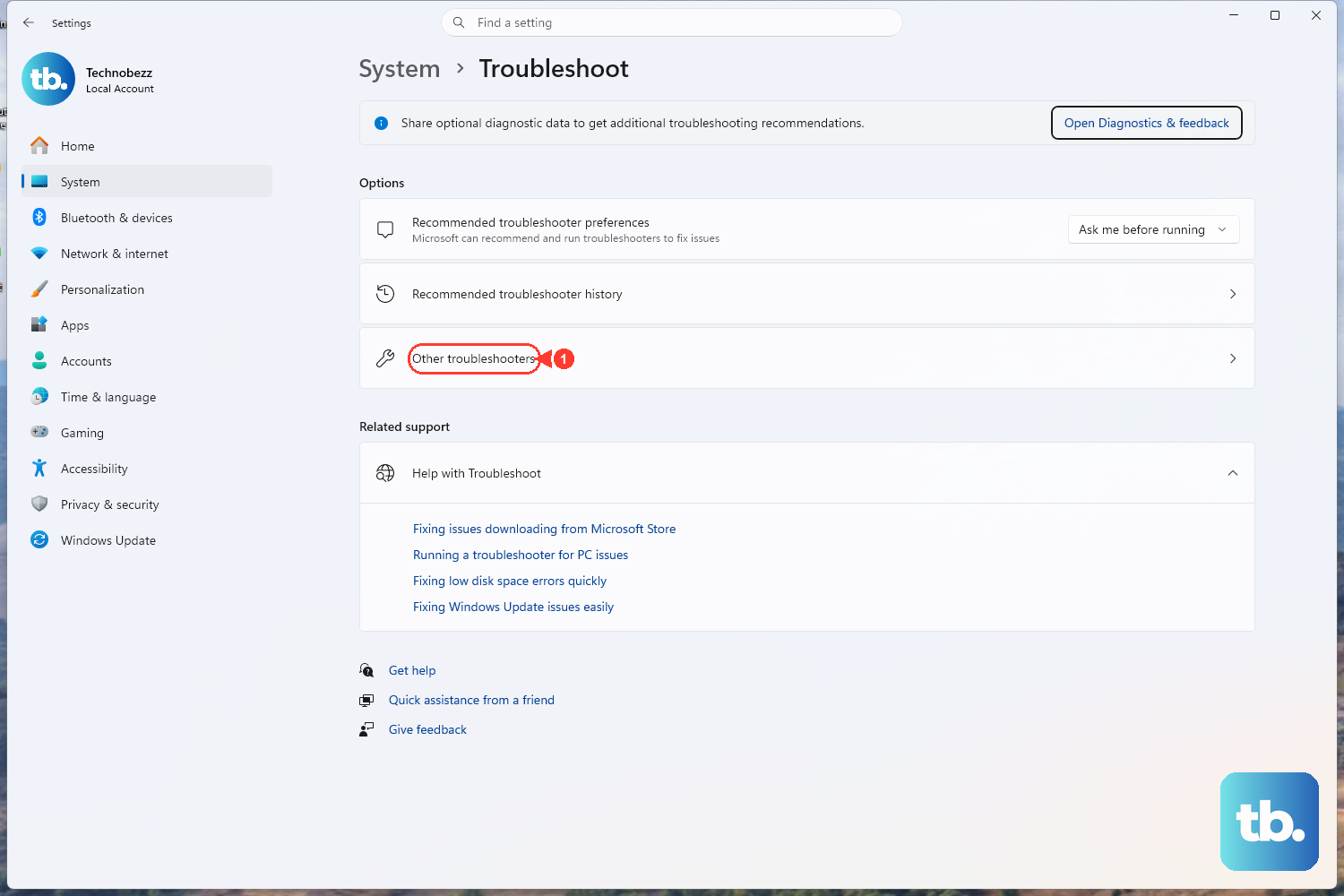
Windows ships with an automated audio troubleshooter that can diagnose and repair sound problems without you guessing at settings. It is the smartest second move because it costs you nothing and often resolves the issue on its own.
On Windows 11, run the audio troubleshooter through the Get Help app. Follow its guided steps.
On Windows 10, go to Settings > Update & Security > Troubleshoot. Under Find and fix problems, select Playing audio, then choose Run the troubleshooter. Let it finish, and apply any fix it suggests before testing again.
Let the Bluetooth troubleshooter check the connection
Audio delay over Bluetooth is sometimes a Bluetooth connection problem rather than a pure sound problem, so it is worth letting Windows inspect the connection itself.
On both Windows 11 and Windows 10, start by running the automated Bluetooth troubleshooter through the Get Help app. On Windows 10 you have a second route as well: go to Settings > Update & Security > Troubleshoot. Select Bluetooth, run the troubleshooter, and follow whatever prompts appear.
Reconnect your headset afterward to see whether the lag has cleared.
Restart the Windows Audio services
If the audio engine has gotten stuck, restarting its services clears the jam without a full reboot. This is a clean, reversible step that often fixes delay caused by a hung audio process.
Type services into the taskbar search box. Or open Start, then type services.msc and press Enter, to open the Services console.
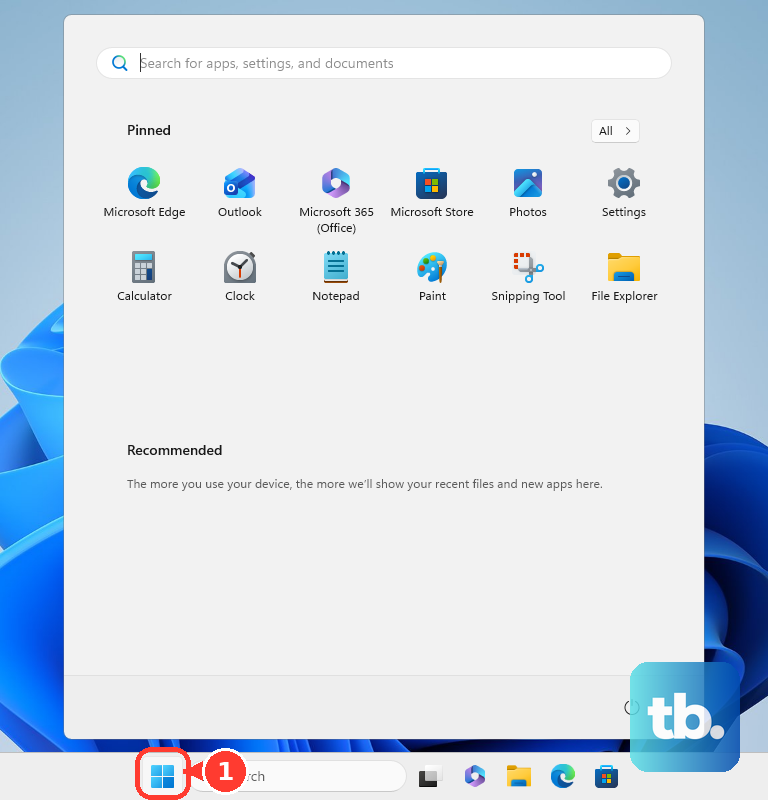
Right-click Windows Audio and select Restart. On Windows 11, select and hold or right-click, choose Restart, and choose Yes.
Do the same for Windows Audio Endpoint Builder. Right-click it, select Restart, and test your audio afterward.
Open Services, then right-click Windows Audio, Windows Audio Endpoint Builder, and Remote Procedure Call (RPC), select Restart, and select Yes when prompted. Restarting these audio services can recover sound if they did not start correctly.
Refresh the Bluetooth driver
An outdated or incompatible Bluetooth driver is one of the most common causes of Bluetooth problems, including audio that arrives late. Updating it through Device Manager is straightforward and built in.
Select Start, type Device Manager, and open it. Expand Bluetooth, then right-click your Bluetooth adapter. Select Update driver, select Search automatically for updated driver software, and follow the on-screen instructions.
Restart your PC after it completes. If Windows reports that it cannot find a newer driver, download the latest Bluetooth driver from your PC manufacturer's support website and install that instead.
Update the audio driver in Device Manager
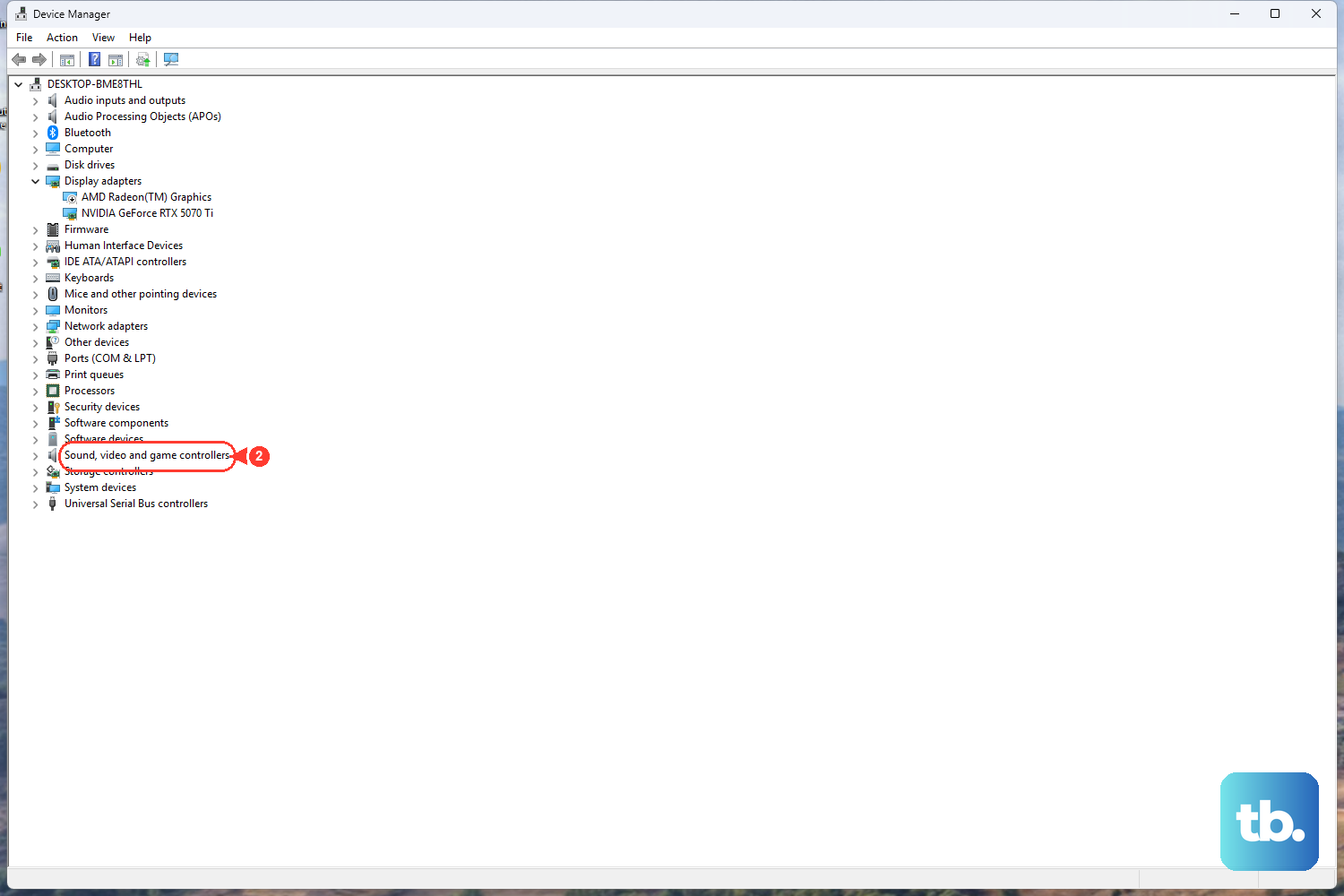
The sound driver itself can cause glitches and delay when it falls out of date. Refreshing it is the audio-side companion to the Bluetooth driver step above.
Select Start, type Device Manager, and open it. Expand Sound, video and game controllers, then right-click your audio device. Select Update driver, select Search automatically for drivers, and restart your PC after it completes.
If no newer driver is found, download the latest audio driver for your Windows version from your PC manufacturer's support website and install it manually.
Roll back or reinstall the audio driver when updating does not help
If updating the audio driver does not clear the lag, your next moves are to roll back to the previous driver or to reinstall the current one cleanly. Try the roll back first, since it is the gentler of the two.
Timing is the clue for a roll back. If your Bluetooth audio was fine until a Windows or driver update, the newest driver is the likely culprit, and reverting to the previous one can undo the regression.
Open Device Manager and expand Sound, video and game controllers. Right-click your audio device, select Properties, and open the Driver tab. Select Roll Back Driver, then restart your PC.
One caveat: Roll Back Driver is only available if a previous driver version exists on your system. If the option is greyed out, there is nothing to roll back to, so move on to a clean reinstall.
A reinstall gives Windows a fresh copy of the driver to load when neither updating nor rolling back helps. Windows reinstalls the audio driver automatically when you restart, so you are not left without sound, but read each prompt carefully before you confirm the removal.
In Device Manager, expand Sound, video and game controllers. Right-click your audio device, then select Uninstall device. On Windows 11, check Attempt to remove the driver for this device. On Windows 10, check Delete the driver software for this device.
Select Uninstall. Restart your PC so Windows reinstalls the driver automatically. Because Windows reloads the driver on reboot, the restart is what completes the repair.
When a fresh pairing is the real fix
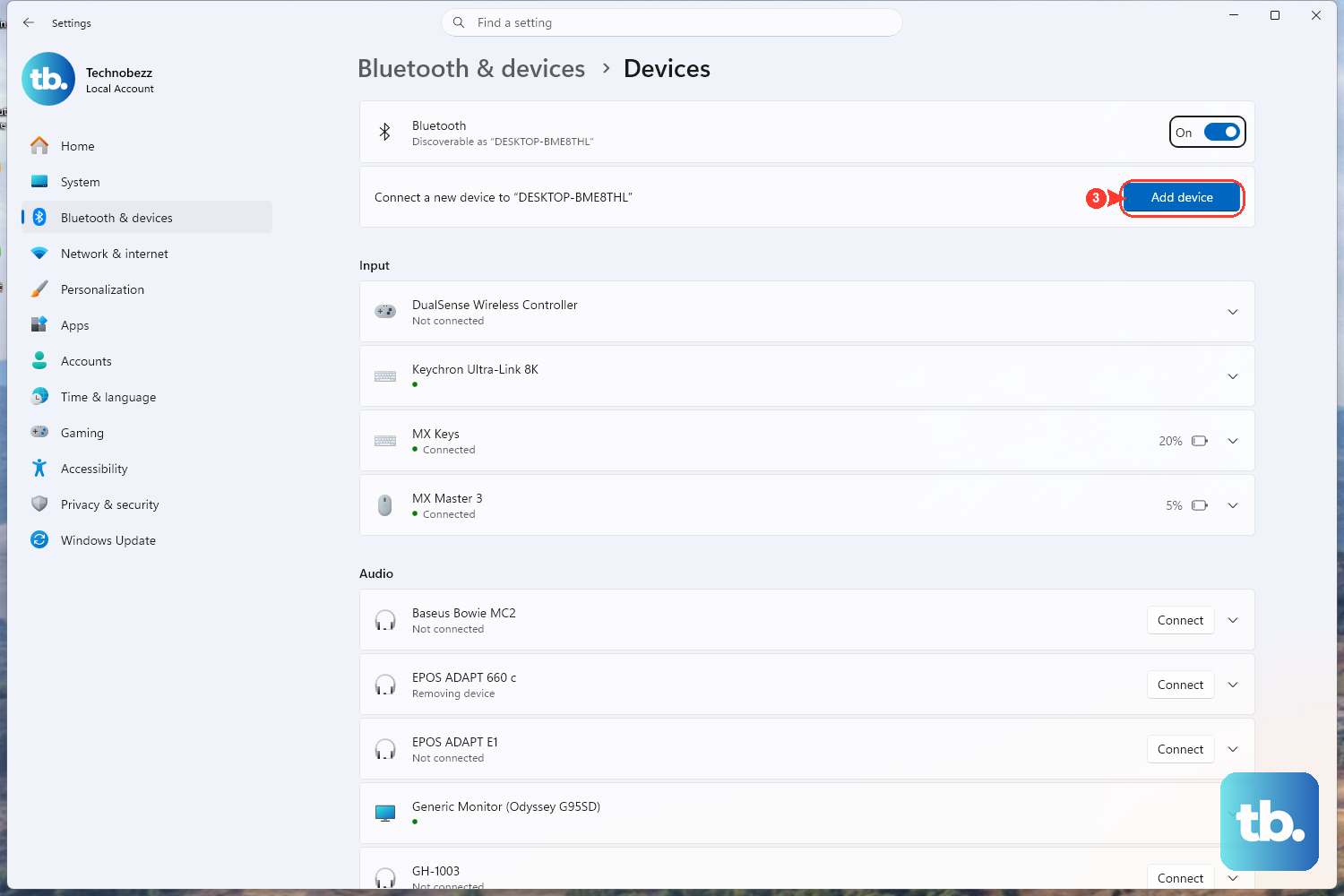
If the lag persists across every step above, the pairing itself may be stale, and forcing a clean reconnection often resolves it.
Turn on your Bluetooth device and make it discoverable before you begin. On Windows 11, go to Settings > Bluetooth & devices. Find the device, select More options (the three dots), and select Remove device.
Select Add device, then re-select your headset to pair it again. On Windows 10, go to Settings > Devices > Bluetooth & other devices. Select the device, choose Remove device, and select Add Bluetooth or other device.
Choose Bluetooth, then select your headset to finish pairing. A fresh pairing rebuilds the connection from scratch, which clears the kind of accumulated state that no driver update can reach.
Frequently Asked Questions
Why does my Bluetooth audio lag on Windows 11 but not on my phone?
Confirm your Bluetooth device is selected in Settings > System > Sound. Then try restarting the Windows Audio services and updating the Bluetooth and audio drivers. Open the Services console to restart the services, and use Device Manager to update both drivers.
Which Windows services should I restart for audio problems?
Open Services by typing services into the taskbar search box, or by running services.msc. Then right-click Windows Audio, Windows Audio Endpoint Builder, and Remote Procedure Call (RPC), select Restart, and select Yes when prompted. Restarting these services can recover sound if they did not start correctly.
The Roll Back Driver button is greyed out. What now?
Roll Back Driver is only available when a previous driver version still exists on your PC. If it is greyed out, there is no earlier driver to return to. Try updating the audio driver instead, or reinstall it cleanly by uninstalling the device in Device Manager and restarting so Windows reinstalls it automatically.
Do I need to download any third-party software to fix this?
No. Every fix here uses tools built into Windows, including the Get Help app troubleshooters, the Services console, Sound settings, and Device Manager. The only outside download you might need is a newer Bluetooth or audio driver from your PC manufacturer's support website, and only if Windows cannot find one itself.
How do I re-pair my Bluetooth headset if it stays connected but sounds laggy?
Remove the device and add it again. On Windows 11, go to Settings > Bluetooth & devices, select More options then Remove device, then Add device. On Windows 10, go to Settings > Devices > Bluetooth & other devices, choose Remove device, then Add Bluetooth or other device and pick Bluetooth. Make the headset discoverable first so Windows can find it.