
A slow ZenBook 14 can feel like you're trying to run through mud. That sleek, powerful machine suddenly takes ages to boot, apps stutter, and even basic tasks become a chore. I've found that with ASUS laptops, the fix is often a specific setting or update, not a hardware failure.
Restart Your ZenBook
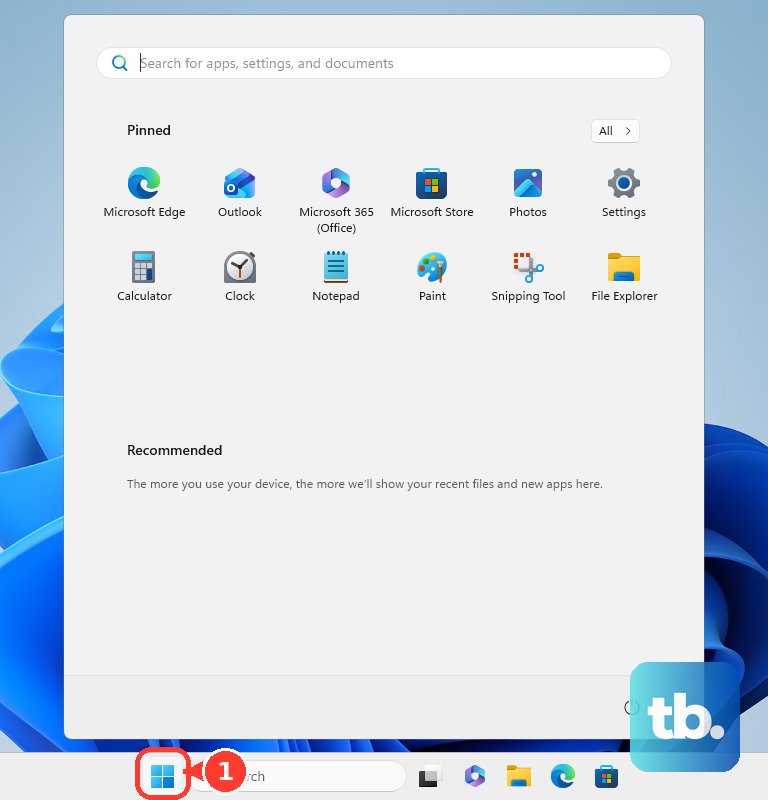
If you usually just close the lid to put it to sleep, background processes can pile up over days or weeks. Click Start > Power > Restart. This fully clears your RAM and stops any misbehaving services. It's the simplest fix and often the most effective.
Use the MyASUS App for Diagnostics
This is your secret weapon. Open the MyASUS app and head to Customer Support > System Diagnosis. Run the diagnostic tests, especially for memory and storage. It can identify hardware issues and, more importantly, check for crucial driver updates specific to your model that Windows Update might miss.
Check Task Manager for Resource Hogs
Press Ctrl + Shift + Esc to open Task Manager. Click the CPU, Memory, or Disk columns to sort by usage. Look for any single process using an unusually high percentage. On some ZenBooks, I've seen the ScreenPad driver act up. Right-click anything suspicious and select End task.
Disable Startup Programs
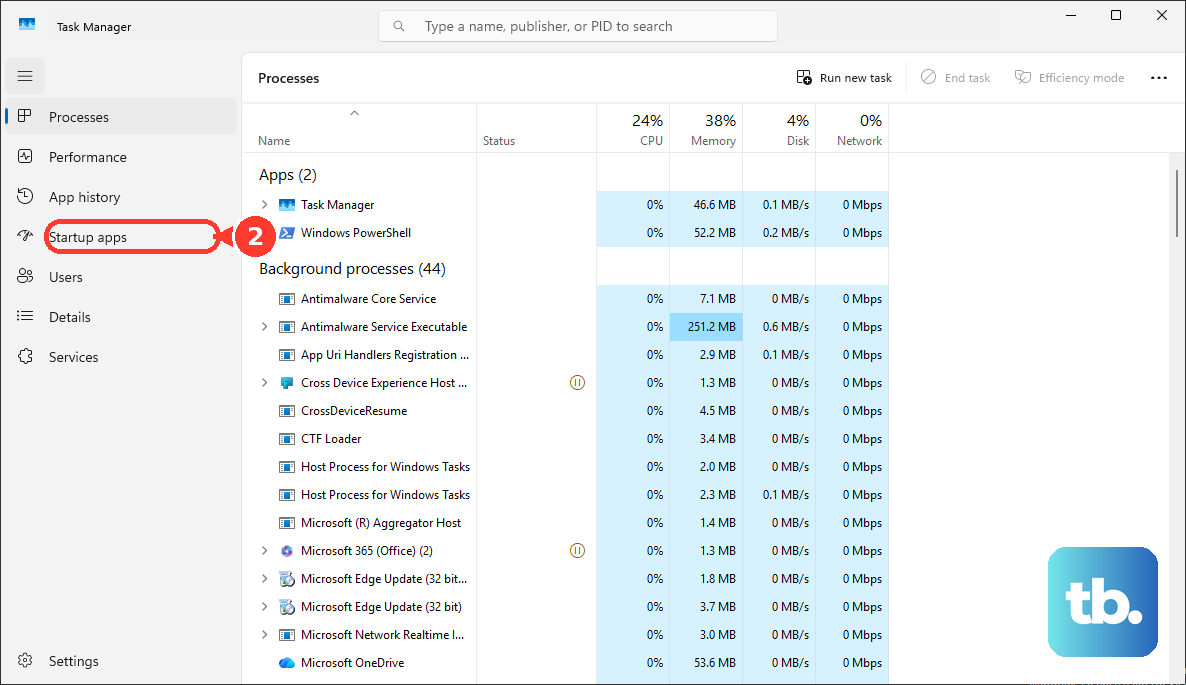
Too many apps launching at boot will slow your startup to a crawl and eat RAM. In Task Manager, go to the Startup apps tab. Disable everything you don't need immediately, like game launchers, chat apps, or cloud storage services. You can always open them manually later.
Free Up Disk Space on Your SSD
Modern SSDs slow down when they get too full. Open Settings > System > Storage and turn on Storage Sense to automate cleanup. Click Temporary files and remove items like delivery optimization files and the recycle bin contents. Try to keep at least 20% of your SSD free.
Update Everything Through MyASUS and Windows
First, check the MyASUS app's Live Update section. This is where ASUS posts critical firmware and driver updates, including important Thunderbolt controller updates for some ZenBook 14 models that can affect performance. Then, go to Settings > Windows Update and install all available patches.
Adjust Your Power Plan for Performance
Windows might be throttling your CPU to save battery. Click the battery icon in your system tray and drag the slider to Best performance. For more control, search for "Edit power plan" in the Start menu, click Change advanced power settings, and ensure the processor power management is set to 100% for both minimum and maximum states when plugged in.
Manage the ScreenPad (If Your Model Has One)
The secondary ScreenPad display is a cool feature, but its software can sometimes impact system resources. If you're not using it, try disabling it. You can usually find a toggle in the MyASUS app or by pressing Fn + F10 (the key may vary). See if performance improves with it off.
Check for Thermal Throttling and Fan Noise
Is the fan constantly running loud, especially when charging? This can be a sign of thermal throttling, where the CPU slows itself down to prevent overheating. Ensure the laptop's vents on the bottom and sides are not blocked. Consider using a laptop stand to improve airflow, especially during intensive tasks.
Consider a Hardware Refresh
If your ZenBook has 8GB of RAM soldered to the board and it's constantly maxed out, your only upgrade path might be a clean Windows install to remove bloat. If you have a model with upgradeable RAM, adding more is a great speed boost. For any ZenBook still using a hard drive, swapping it for an SSD is the single biggest performance upgrade possible.
Reset or Refresh Windows
If all else fails, a clean slate can work wonders. Go to Settings > System > Recovery. You have two good options. Reset this PC lets you choose to keep your files while removing all apps and settings. For a less nuclear option, try a Cloud download of Windows during the reset, which can sometimes fix deeper system file corruption.