
When your ASUS ZenBook 14 suddenly goes silent, it can be a real roadblock. The fix is often a quick setting change or driver update, but sometimes it requires a bit more digging. Let's get your sound back.
Check the Volume and Output
First, click the speaker icon in your taskbar. Make sure the master volume slider isn't at zero and that the mute icon isn't highlighted. Right next to that slider, click the small arrow to see the output device list. If you recently unplugged headphones, Windows might still be trying to send sound to them. Select your laptop's speakers from that menu.
Run the MyASUS Diagnostic Tool
Open the MyASUS app and look for System Diagnosis, if your model supports it. Select Driver error to check for driver problems, then click Checkup. When the check finishes, click Result and follow any troubleshooting suggestions. The available checks vary by model; there isn't a dedicated speaker test in the listed checks.
Restart Your ZenBook
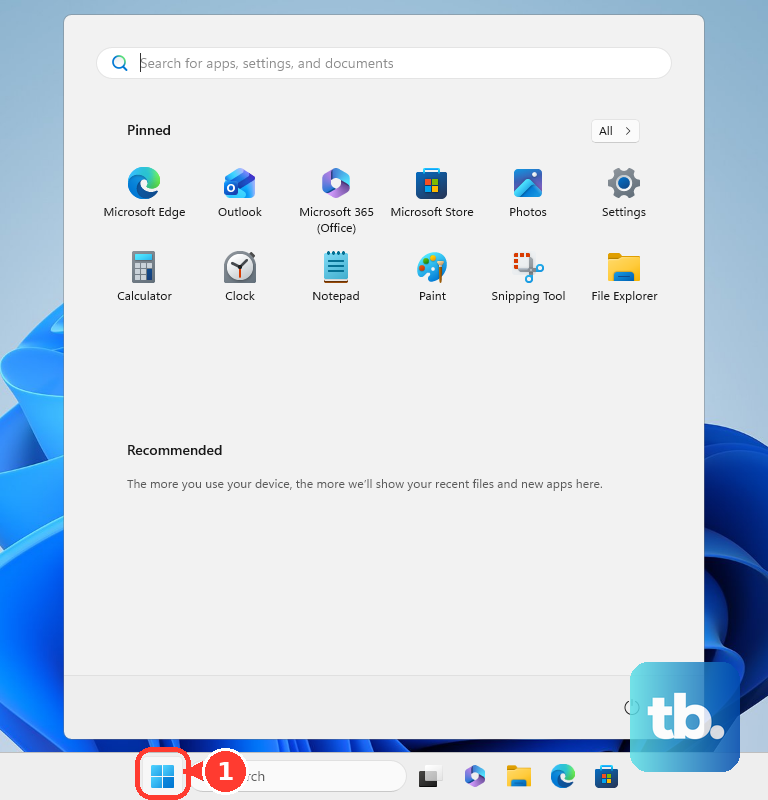
It sounds simple, but a full restart can help with temporary audio problems. Click the Start menu, select the power icon, and choose Restart. I've seen this resolve audio issues that popped up after the laptop woke from sleep or hibernation.
Update Your Audio Drivers
Outdated or corrupted drivers are a common culprit. You can update them through System Update in the MyASUS app: select the available updates and click Update Selected Items. If that tab is missing, use the ASUS support website and select your exact model and Windows version to download the appropriate audio driver. For a more direct approach, press Windows + X and select Device Manager. Expand Sound, video and game controllers, right-click on your audio device, and select Update driver.
If updating doesn't work, you can try a clean reinstall. In Device Manager, right-click the audio device and choose Uninstall device. Check the box that says "Delete the driver software for this device" if it appears, then restart your laptop. Windows can try to reinstall the driver after the restart. If it doesn't, download the audio driver for your exact model and Windows version from the ASUS support website.
Verify Your Sound Settings in Windows
Go to Settings > System > Sound. Under Output, ensure your ZenBook's speakers are selected. Click on the device and verify the volume is up. While you're there, scroll down and set Audio enhancements to Off. These enhancements can sometimes conflict and cause audio to drop out completely.
Check the App Volume Mixer
Sometimes the system volume is fine, but a specific app is muted. Right-click the speaker icon in the taskbar and select Open Volume mixer. You'll see individual volume sliders for each open application. Make sure the app you're trying to use, like your web browser or media player, isn't set to zero.
Restart the Windows Audio Services
Press Windows + R, type services.msc, and hit Enter. In the list, find Windows Audio. Right-click it and select Restart. Do the same for the Windows Audio Endpoint Builder service. Restarting these services may help if either has stopped responding.
Consider the ScreenPad Driver
If your ZenBook has a ScreenPad secondary display, choose any software updates for that feature by your exact model and Windows version. For the sound problem, check for an audio driver update through System Update in MyASUS. If that tab is unavailable, download the matching audio driver from your model's ASUS support page.
Test with External Audio
Plug in a pair of headphones or external speakers via the 3.5mm jack or Bluetooth. If you get sound through those, check the selected output device and volume for your laptop's internal speakers. If there's no sound through any output, continue checking sound settings and drivers, and try another external audio device to help narrow down the problem.
Roll Back a Recent Driver Update
If the sound stopped working right after a Windows Update or a driver install, you can revert. Go back to Device Manager, double-click your audio device, go to the Driver tab, and click Roll Back Driver. If the option is available, this will revert to the previously installed driver version.