
When your ZenBook 14's second screen isn't showing up, it can feel like half your workspace just vanished. For an external monitor, check the connections, display settings, and graphics drivers. If you mean the built-in ScreenPad instead, check your exact model before following the ScreenPad steps below.
Let's get that display back. I'd start with the quickest fix first, which is the Windows projection shortcut. Press Windows + P on your keyboard. A menu will pop up on the right side of your screen. Make sure it's set to Extend or Duplicate, not "PC screen only."
Check Your Physical Connections
Unplug the video cable from both your ZenBook and the external monitor, then firmly reconnect it. If you're using an adapter, like USB-C to HDMI, try reseating that connection too. A loose connection is an easy thing to miss.
It's also worth trying a different cable if you have one handy. Cables can fail internally without any visible damage. While you're at it, double-check that the external monitor is powered on and set to the correct input source, like HDMI 1 or DisplayPort.
Run a Hardware Diagnosis
Open the MyASUS app on your laptop and navigate to System Diagnosis, if available. Under Customized diagnosis, select Display or USB if your model offers those checks, then click Checkup. After the test finishes, click Result to review any errors and troubleshooting suggestions.
You can also use it to check your battery health and run fan diagnostics, which is handy if you've noticed other odd behavior. It's the first place I go for any hardware-related glitch on an ASUS machine.
Update Your Display and ScreenPad Drivers
Outdated graphics drivers are a prime culprit. For the main display, open Device Manager, expand Display adapters, right-click your Intel or NVIDIA GPU, and select Update driver. Choose to search automatically.
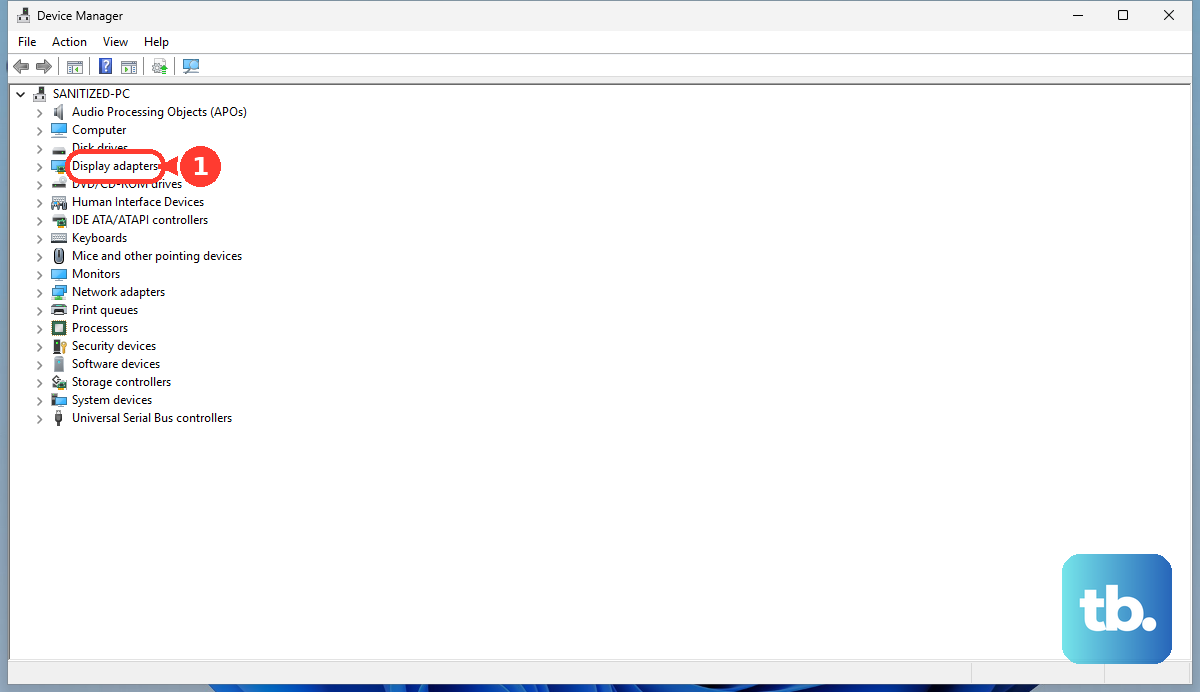
If the built-in ScreenPad is the display that isn't working, check your exact model's Tech Specs on the ASUS website. The ScreenPad 2.0 troubleshooting steps apply only to models equipped with ScreenPad 2.0. Check the Intel graphics driver version in Device Manager first; it must be 25.20.100.6619 or above. Install the necessary drivers and utilities in the order given in the ScreenPad 2.0 instructions.
Use Windows Display Settings
Go to Settings > System > Display. Expand Multiple displays, then click Detect. Windows will actively search for any connected displays. If your monitor appears, press Windows + P and select Extend to use it as additional desktop space.
Sometimes, Windows sets an unsupported resolution. Try lowering the resolution for the external monitor to a common standard like 1920x1080 to see if that brings the picture back.
Try a Different Video Port
Check the specifications for your exact ZenBook 14 model before trying another video port. Not every USB-C port supports display output. If your model has a USB-C port with video support, try connecting the monitor through a compatible USB-C to HDMI or USB-C to DisplayPort adapter.
This helps you figure out if the problem is with the specific HDMI connection or a more general issue. If it works via USB-C, check the HDMI cable and monitor input again; there could also be a hardware concern with that port.
Check for System Updates
Update your BIOS, Windows, and drivers to help improve system stability. Check Windows Update for Windows updates, and use System Update in MyASUS for driver updates if your model offers it. Use the ASUS support page for your exact model to find the appropriate BIOS update and installation instructions.
Follow the BIOS update instructions carefully. After the updates are installed, check the external monitor again. If the problem continues, work through the remaining connection and graphics-driver checks.
Reset Your Graphics Display Driver
You can do this quickly with a keyboard shortcut. Press Windows + Ctrl + Shift + B. Your screen will flicker briefly as the graphics driver restarts. This is a safe way to refresh the display stack without a full reboot and can jolt a second screen into being recognized.
If the shortcut doesn't help, reinstall the graphics drivers. For Intel or NVIDIA graphics, open Device Manager, expand Display adapters, right-click your graphics device, and select Uninstall device. Select Attempt to remove the driver for this device, then Uninstall. Download and install the graphics driver for your exact model from ASUS support. If your laptop has both Intel and NVIDIA graphics, reinstall both drivers.
Review BIOS Settings
If you're troubleshooting a USB-C display connection, try restoring the BIOS settings to their defaults. With the laptop shut down, press and hold F2, then press the power button. Keep holding F2 until the BIOS setup screen appears, then restore the default settings.
Be cautious in the BIOS; only change settings you understand. Follow your model's instructions to save the restored settings and exit, then check the external display again.